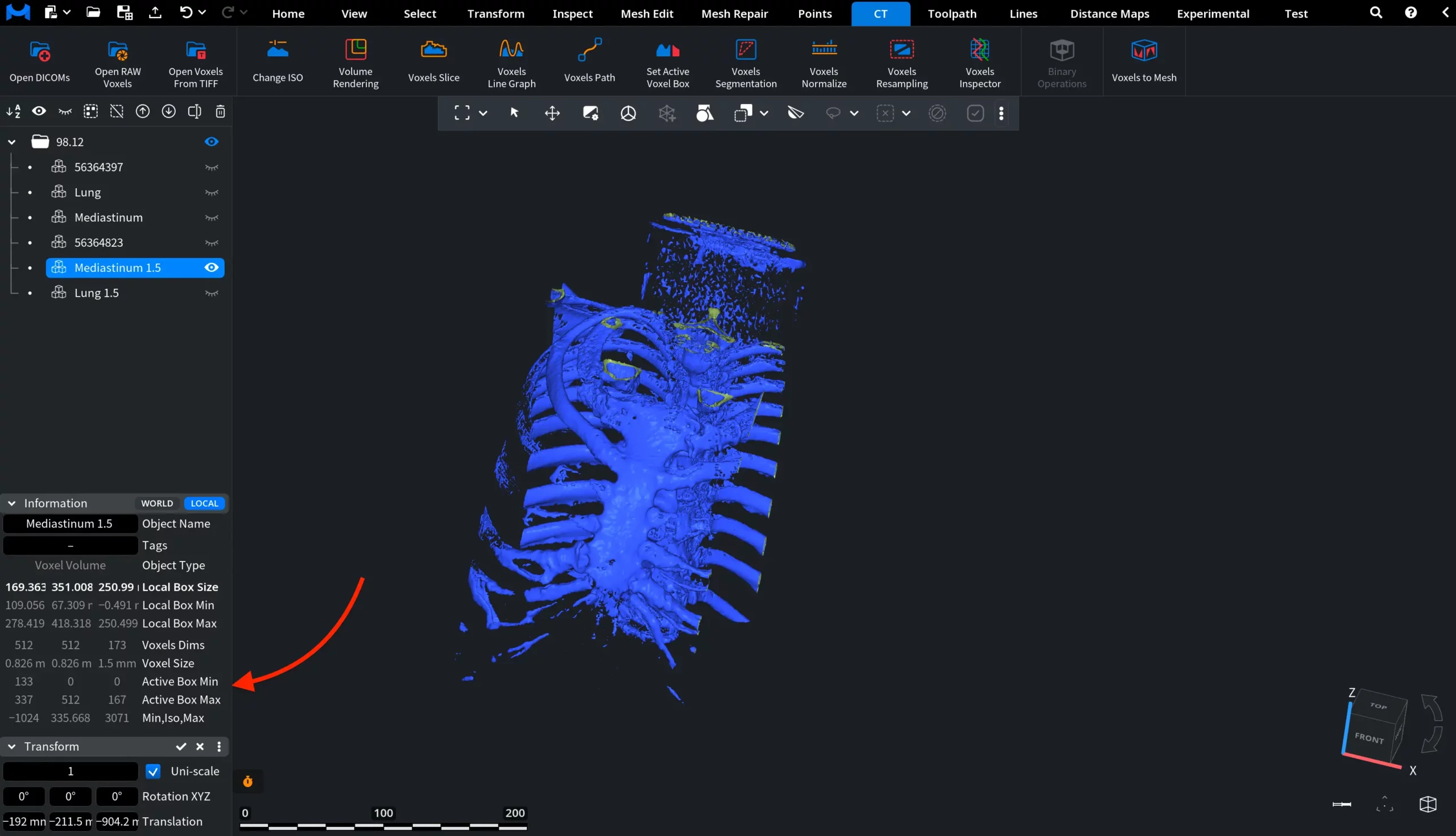
When working with voxel datasets, it is frequently helpful to concentrate on a specific region of the volume instead of processing the entire dataset. MeshInspector provides the Set Active Voxel Box tool to define an active region inside a voxel volume. Operations that support voxel boxes can then be applied only within this selected area. To access this tool, open the CT tab on the top toolbar and click Set Active Voxel Box.

Once the Set Active Voxel Box tool is activated, a box appears around the voxel volume in the scene. This box represents the active voxel region. Its corners can be adjusted interactively to define the part of the dataset that should remain active. At the same time, a dedicated Set Active Voxel Box settings panel opens on the right side of the interface. This panel allows you to precisely control the position and size of the voxel box.
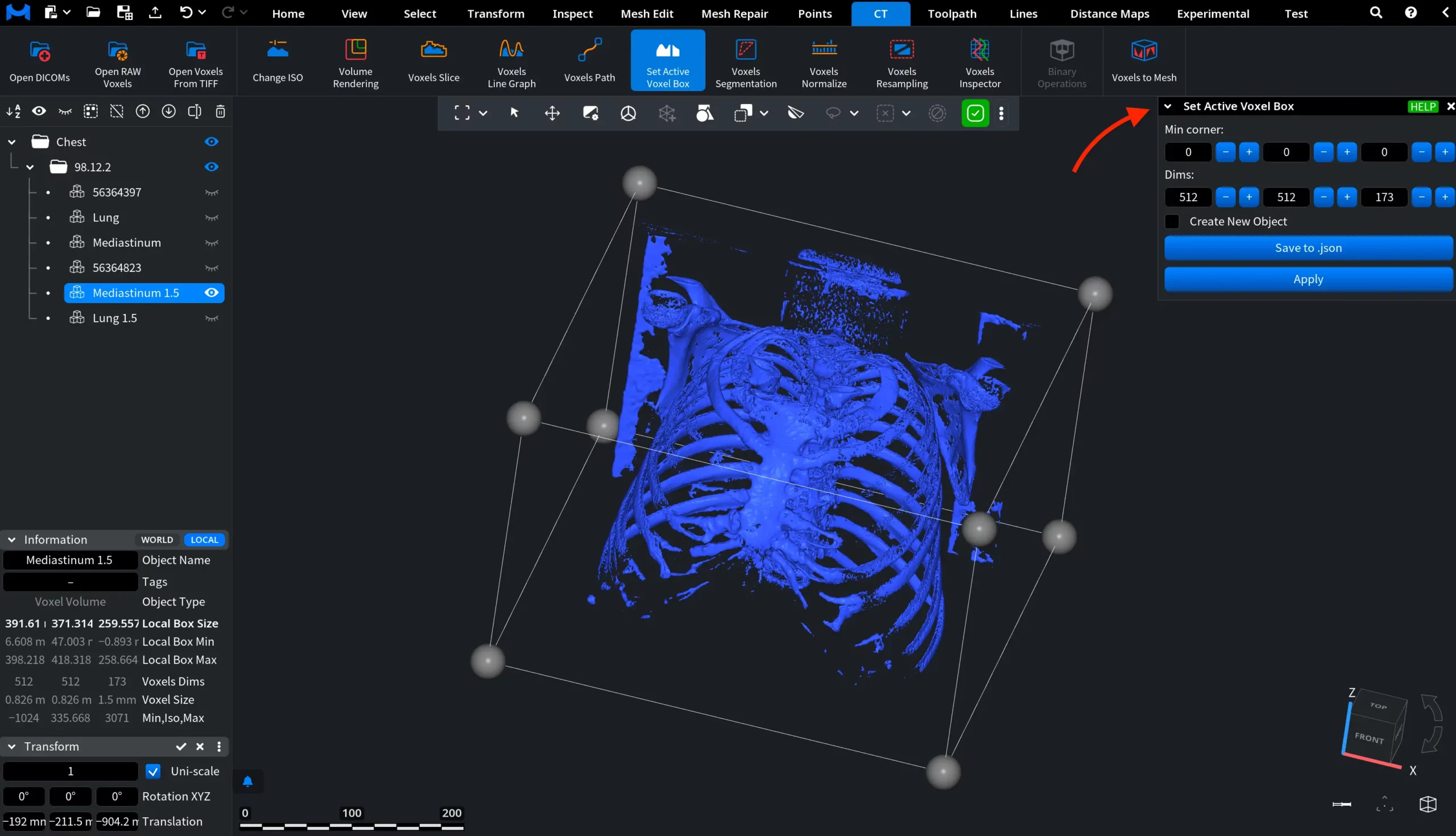
Min corner
The Min corner parameter defines the coordinates of the minimum corner of the active voxel box within the voxel grid. In other words, it specifies the starting point of the box along the X, Y, and Z axes. Changing these values moves the voxel box inside the volume while keeping its dimensions unchanged. This allows you to reposition the active region without modifying its size.
The values can be adjusted in two ways:
- Use the + and − buttons to increment or decrement the coordinates.
- Enter the desired values manually in the input fields or drag the values in the input fields.
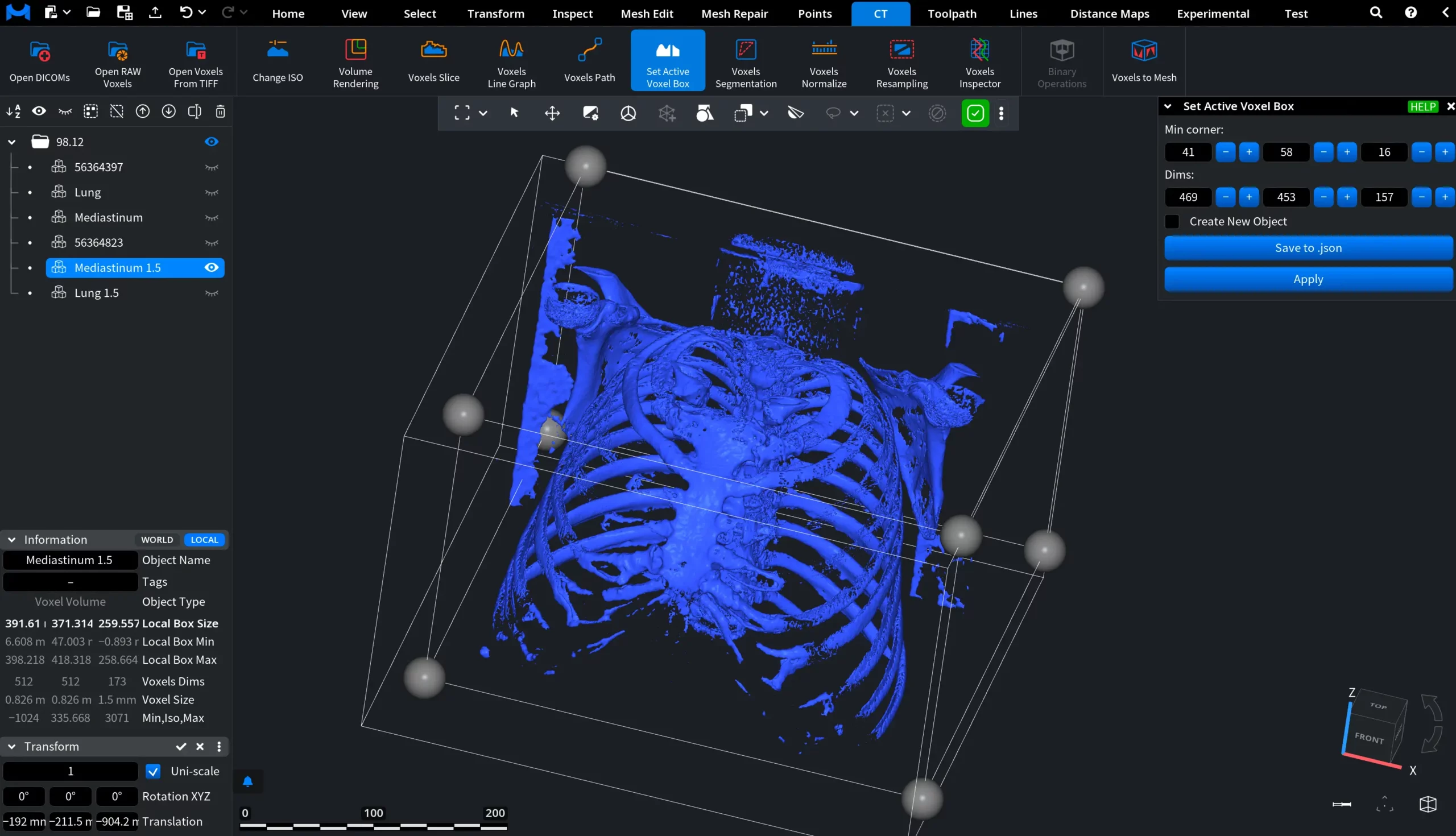
As the values change, the position of the voxel box in the scene updates accordingly.
Dims
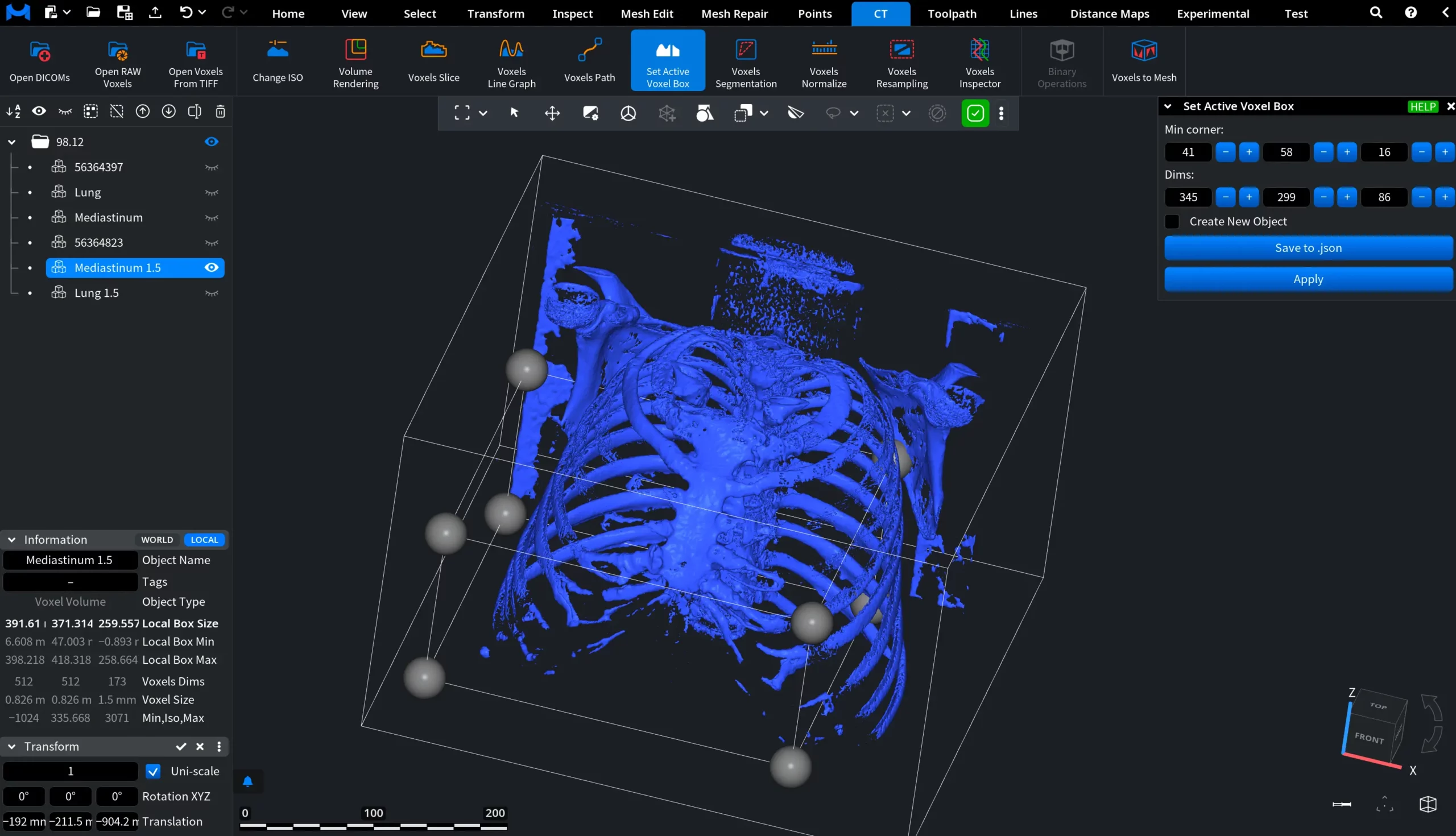
The Dims parameter defines the size of the active voxel box along the X, Y, and Z axes, measured in voxels. These values determine how many voxels the box spans in each direction starting from the Min corner. As a result, the active region grows or shrinks within the voxel volume.
Create New Object
The Create New Object option determines how the voxel box is applied to the dataset.
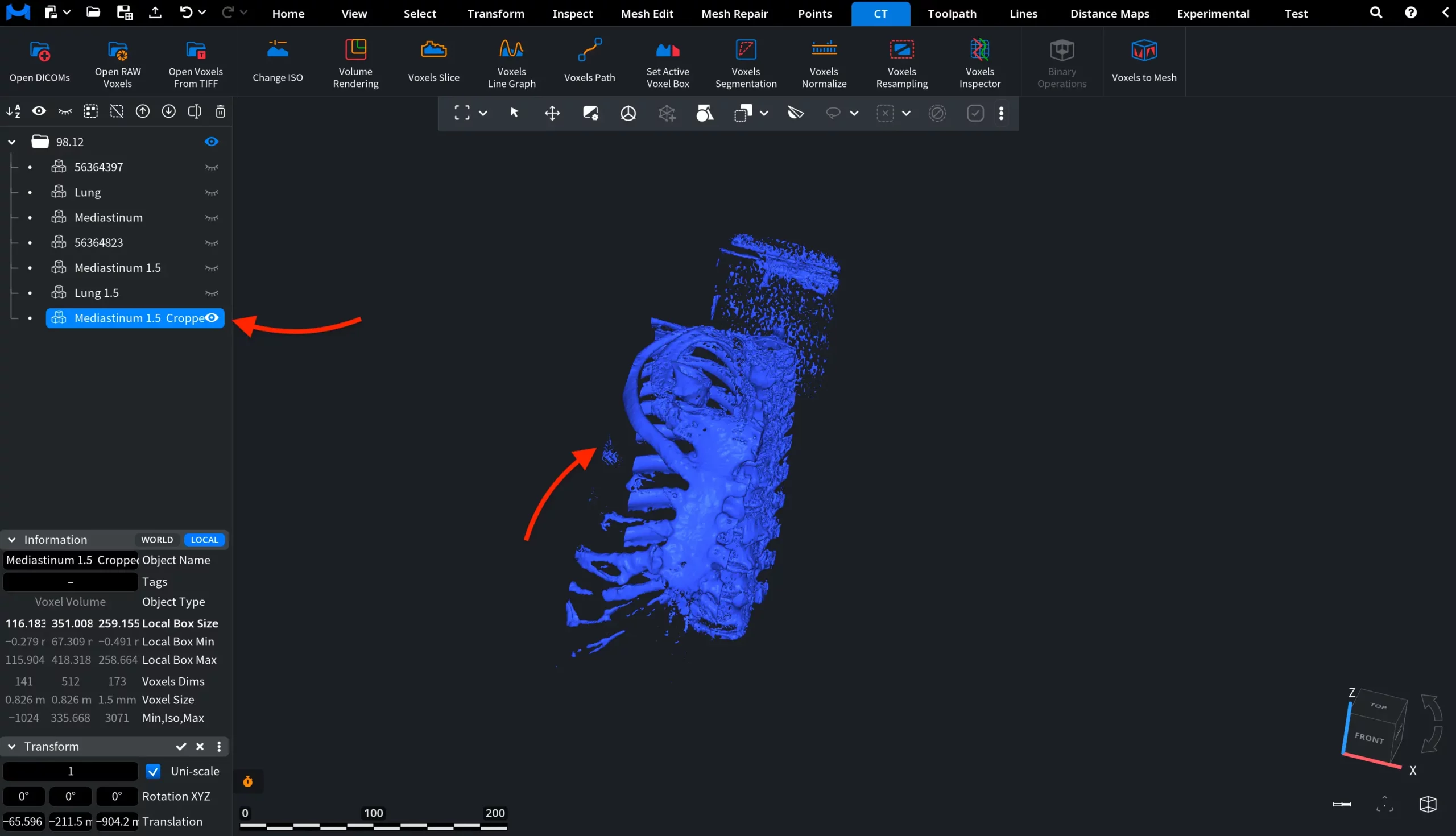
When this option is enabled, applying the voxel box creates a new voxel object that contains only the data inside the defined region. The cropped result appears as a separate object in the scene tree, while the original voxel volume remains unchanged.
Save to .json
The Save to .json button exports the current voxel box configuration to a JSON file.
Apply
If Create New Object is disabled and you click Apply, the voxel box becomes the active processing region for the currently selected voxel volume. In this case, the dataset itself is not cropped and no new object is created. Instead, the voxel box defines the active region inside the existing voxel volume. Only the voxels located inside this region will be considered by operations that support voxel boxes.
After applying the box, the active region can be confirmed in the Information panel, where the parameters Active Box Min and Active Box Max appear. These values represent the boundaries of the currently active voxel box within the voxel grid.