Whenever dealing with CT voxel datasets, it might become necessary to combine, compare, or modify multiple voxel volumes. Among other things, users may need to isolate specific structures, merge segmented regions, remove unwanted areas, or compute differences between volumes. Operations of this kind are commonly performed using binary voxel operations. To support these tasks, MeshInspector provides the Binary Operations tool. It allows MeshInspector's users to apply a variety of arithmetic and logical operations to pairs of voxel volumes. With these operations at their disposal, users can combine voxel datasets, compute intersections or differences between volumes, and perform value-based calculations across voxel fields.
To access this tool, open the CT tab in the top toolbar and select Binary Operations.

As the name suggests, Binary Operations work with two voxel volumes. The tool applies an operation to a pair of datasets, producing a new voxel volume based on the selected calculation. Therefore, two voxel objects must be selected before applying a binary operation. These objects serve as the input volumes for the operation.
In the screenshot below, only one object is currently selected, but both are visible. This is done intentionally for illustration purposes so that the voxel datasets involved in the operation can be clearly seen and distinguished in the Scene Tree. In the following steps, these objects will be used as the input volumes for the Binary Operations tool.
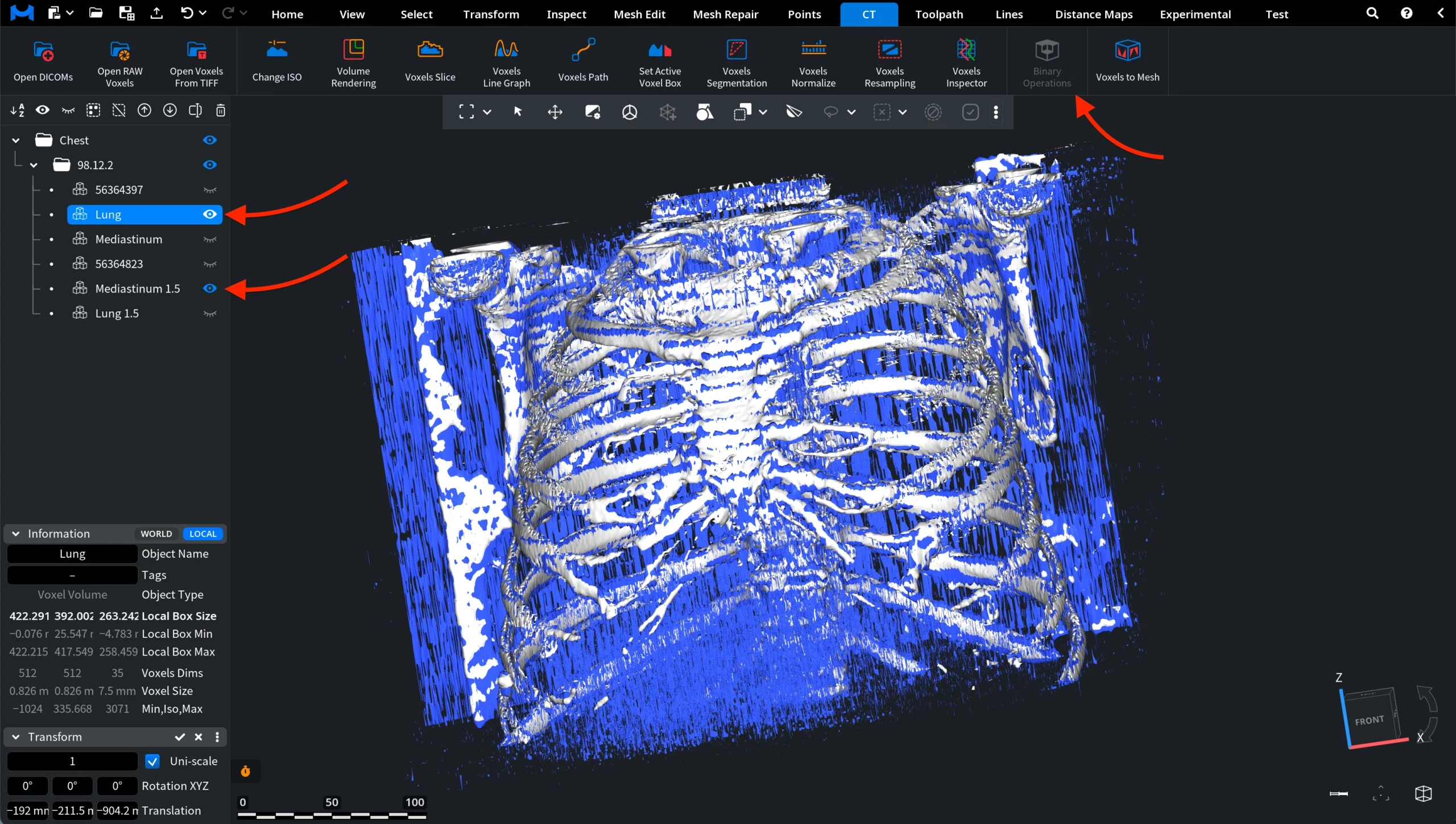
After activating Binary Operations, a dedicated Binary Operations panel appears on the right side of the interface. This panel is used to define the input voxel volumes and configure how the operation will be applied.
At the top of the panel, two input fields are displayed:
- Object A
- Object B
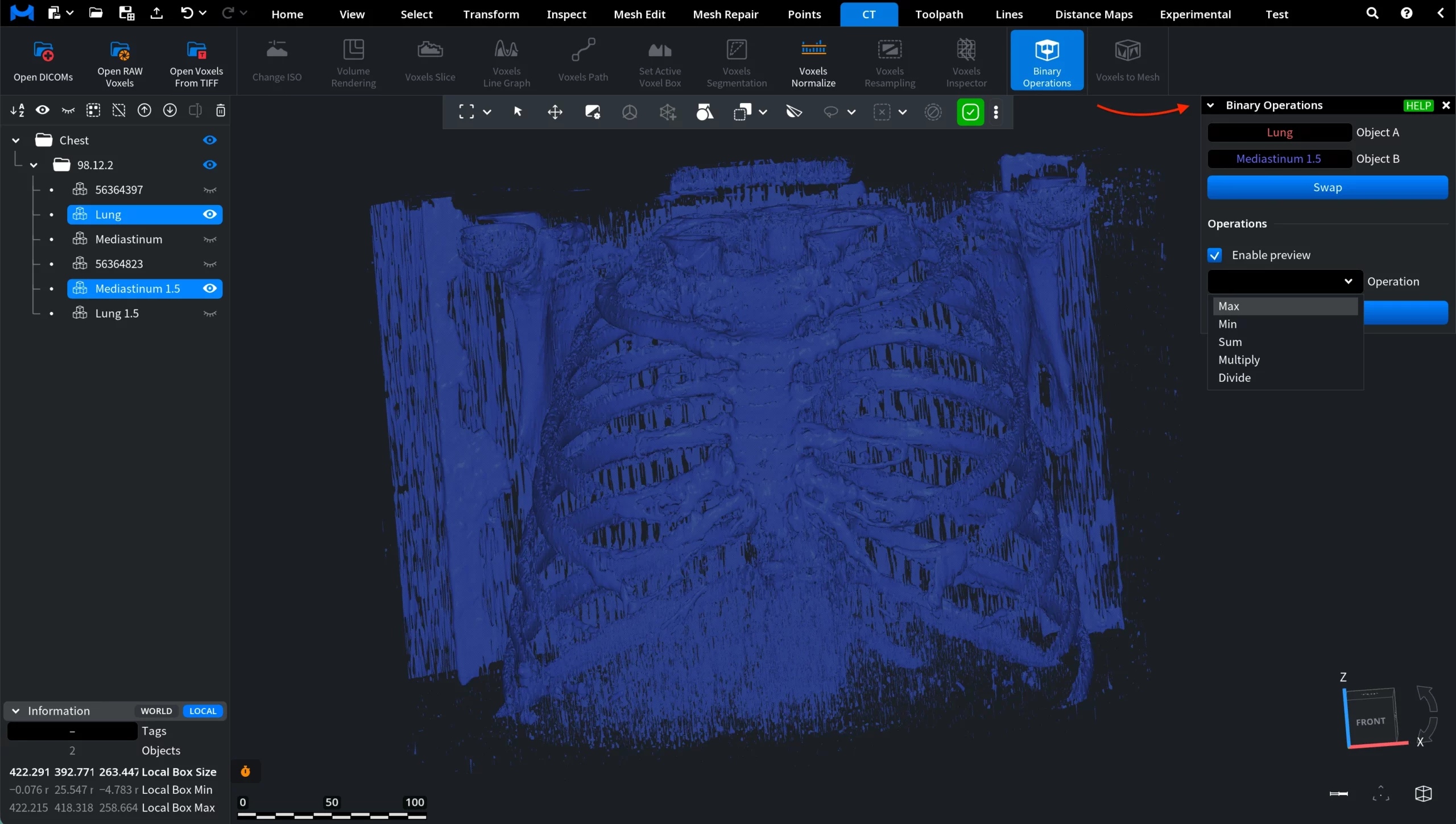
These fields correspond to the two voxel volumes selected in the Scene Tree. In the example shown, Lung is assigned to Object A, while Mediastinum 1.5 is assigned to Object B. These two datasets serve as the input volumes for the binary operation.
If necessary, the order of the input volumes can be changed using the Swap button. This exchanges the assignments of Object A and Object B. The order may affect the result of certain operations, so this option allows users to quickly reverse the input configuration.
Below the object fields, the Enable preview option controls whether the result of the operation is displayed interactively in the viewport. When preview is enabled, MeshInspector calculates a temporary result using the selected parameters and shows it directly in the scene.
The Operation drop-down menu contains the available binary calculations that can be applied to the selected voxel volumes. Once you find the one you need, click Apply.
Binary Operations: Options and Illustrative Examples
Max
The Max operation computes the maximum voxel value between the two input volumes at each voxel position. Formally, the operation calculates: max(a, b) for every voxel, where a is the voxel value from the first dataset and b is the value from the second dataset.
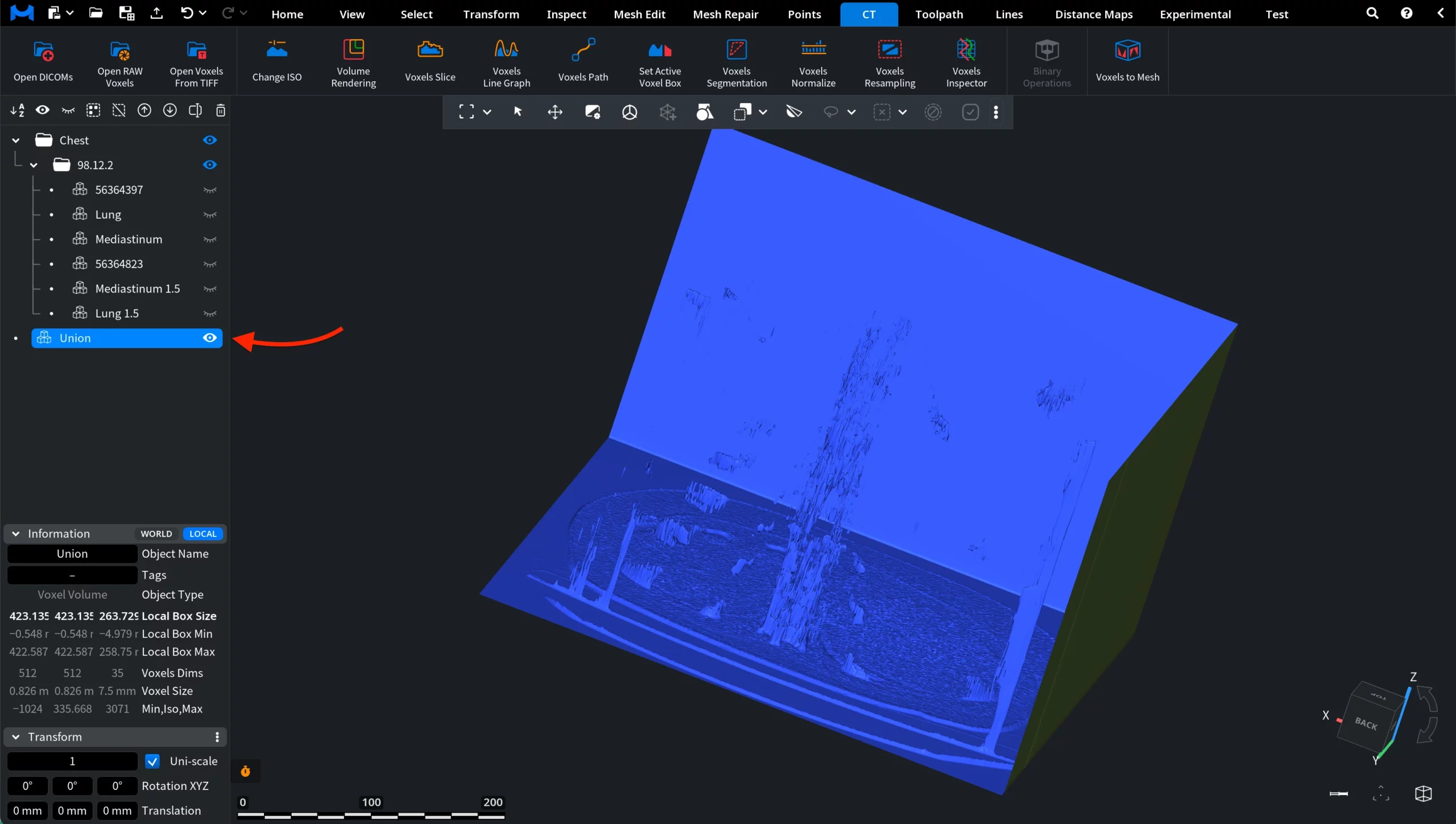
After applying the operation, MeshInspector creates a new voxel object containing the computed result. In the example shown, this new dataset appears in the Scene Tree as a separate object named Union. This object represents the combined voxel volume produced by the Max operation.
Min
The Min operation computes the minimum voxel value from the two input volumes at each voxel position. Thus, it calculates min(a, b) for every voxel, where a is the voxel value from the first dataset and b is the value from the second dataset.
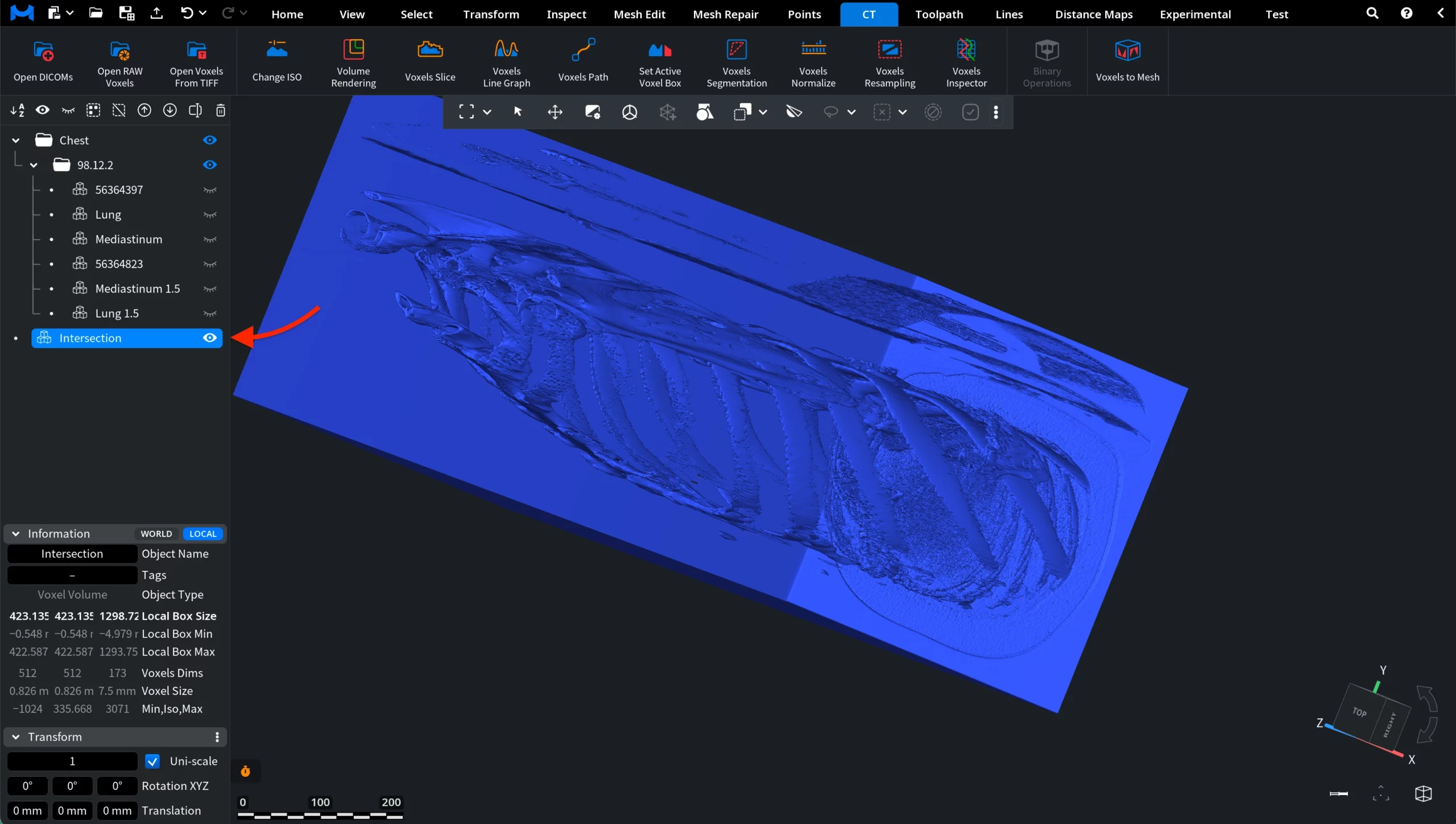
After applying the operation, MeshInspector creates a new voxel object containing the computed result. In the example shown, this new dataset appears in the Scene Tree as a separate object named Intersection. This object represents the voxel volume produced by keeping the lower voxel value at each position across the two input datasets.
Sum
The Sum operation adds the voxel values from the two input volumes at each voxel position. As such, it calculates a + b for every voxel, where a is the voxel value from the first dataset and b is the value from the second dataset.
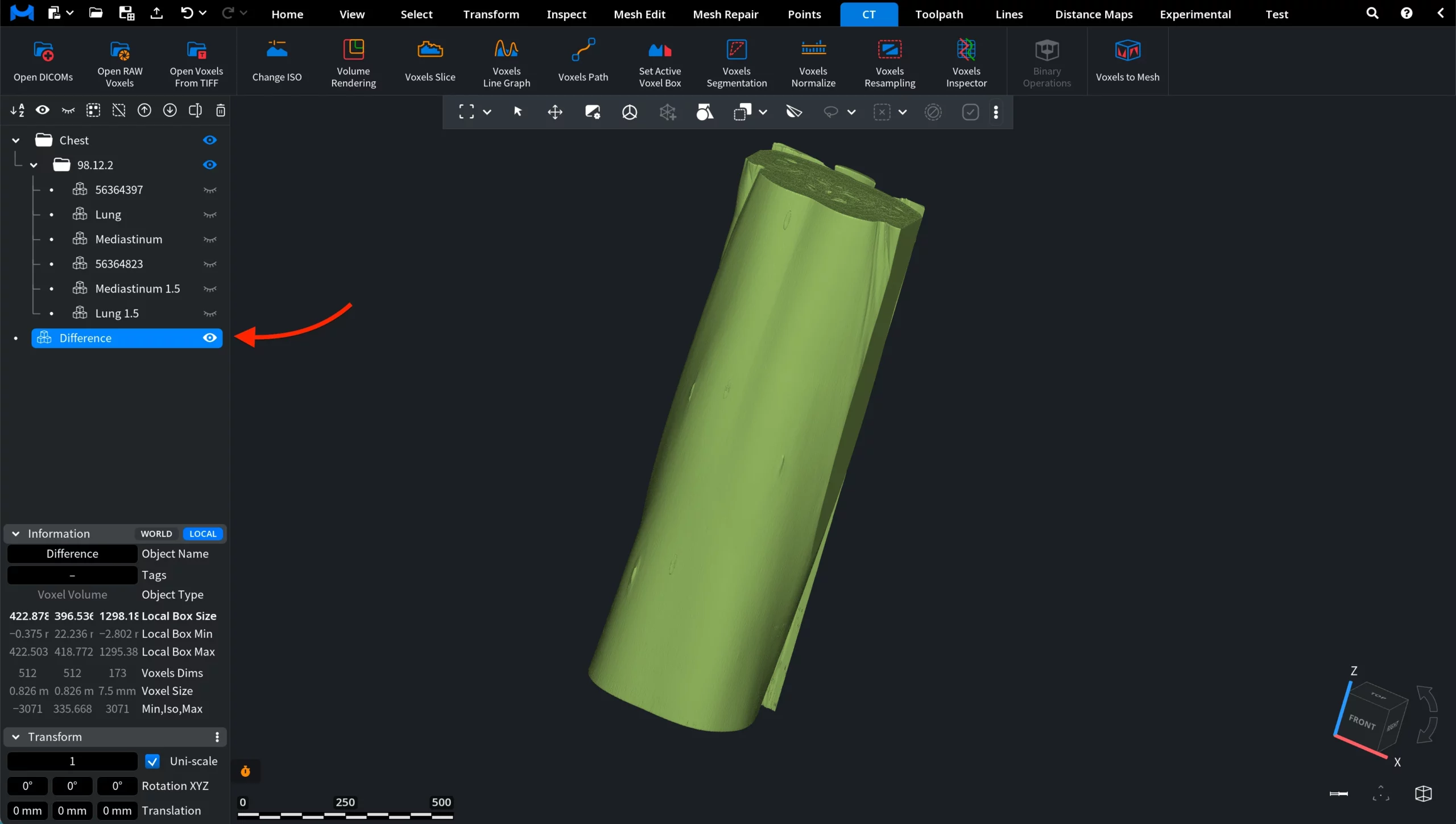
After applying the operation, MeshInspector creates a new voxel object containing the computed result. In the example shown, this new dataset appears in the Scene Tree as a separate object named Difference. This object represents the voxel volume produced by summing the voxel values of the two input datasets at each position.
Multiply
The Multiply operation multiplies the voxel values from the two input volumes at each voxel position. Therefore, it calculates a × b for every voxel, where a is the voxel value from the first dataset and b is the value from the second dataset.
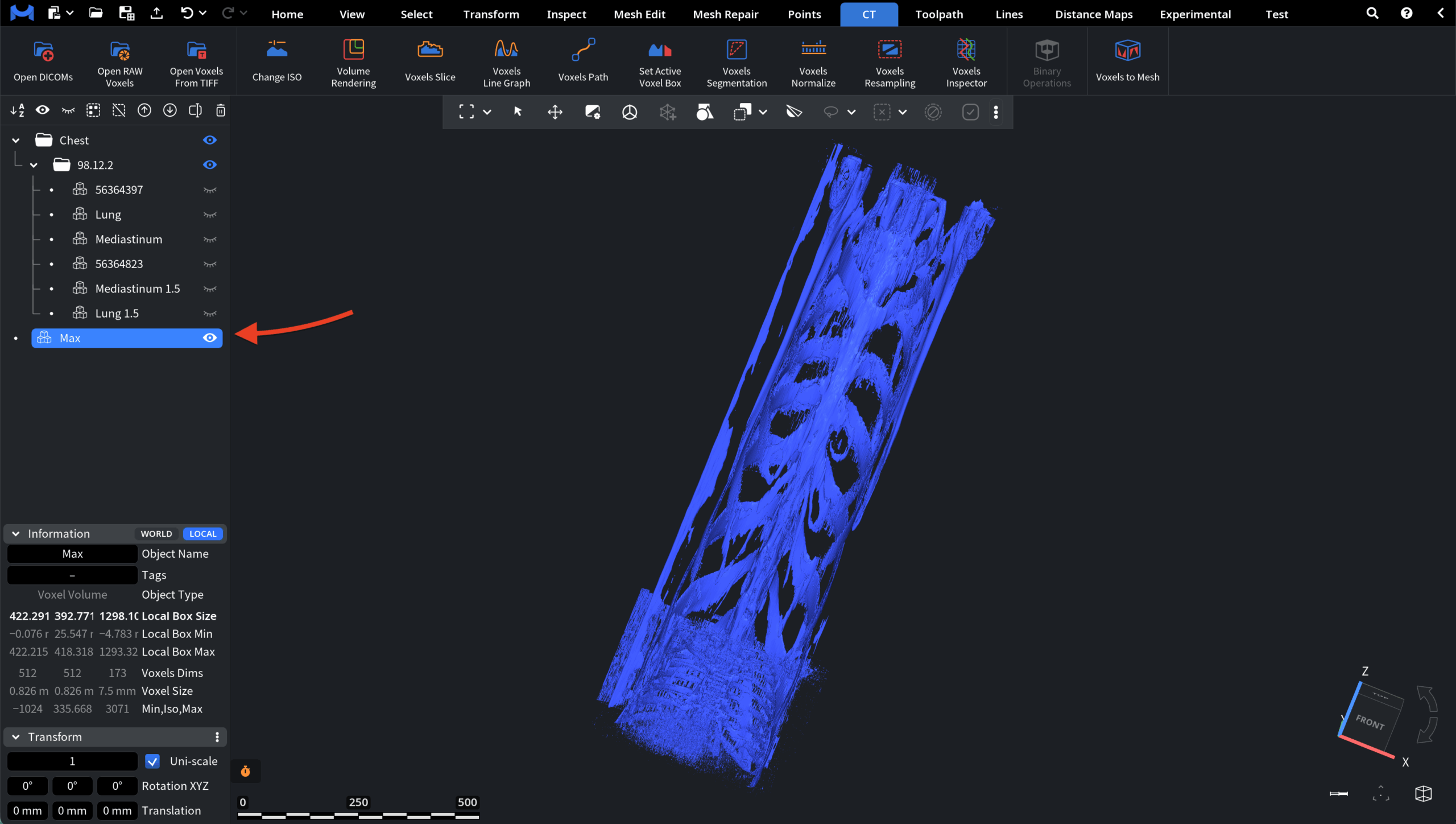
After applying the operation, MeshInspector creates a new voxel object containing the computed result. In the example shown, this new dataset appears in the Scene Tree as a separate object named Max. This object represents the voxel volume produced by multiplying the voxel values of the two input datasets at each position.
Divide
The Divide operation divides the voxel values from the two input volumes at each voxel position. In this capacity, it calculates a / b for every voxel, where a is the voxel value from the first dataset and b is the value from the second dataset.
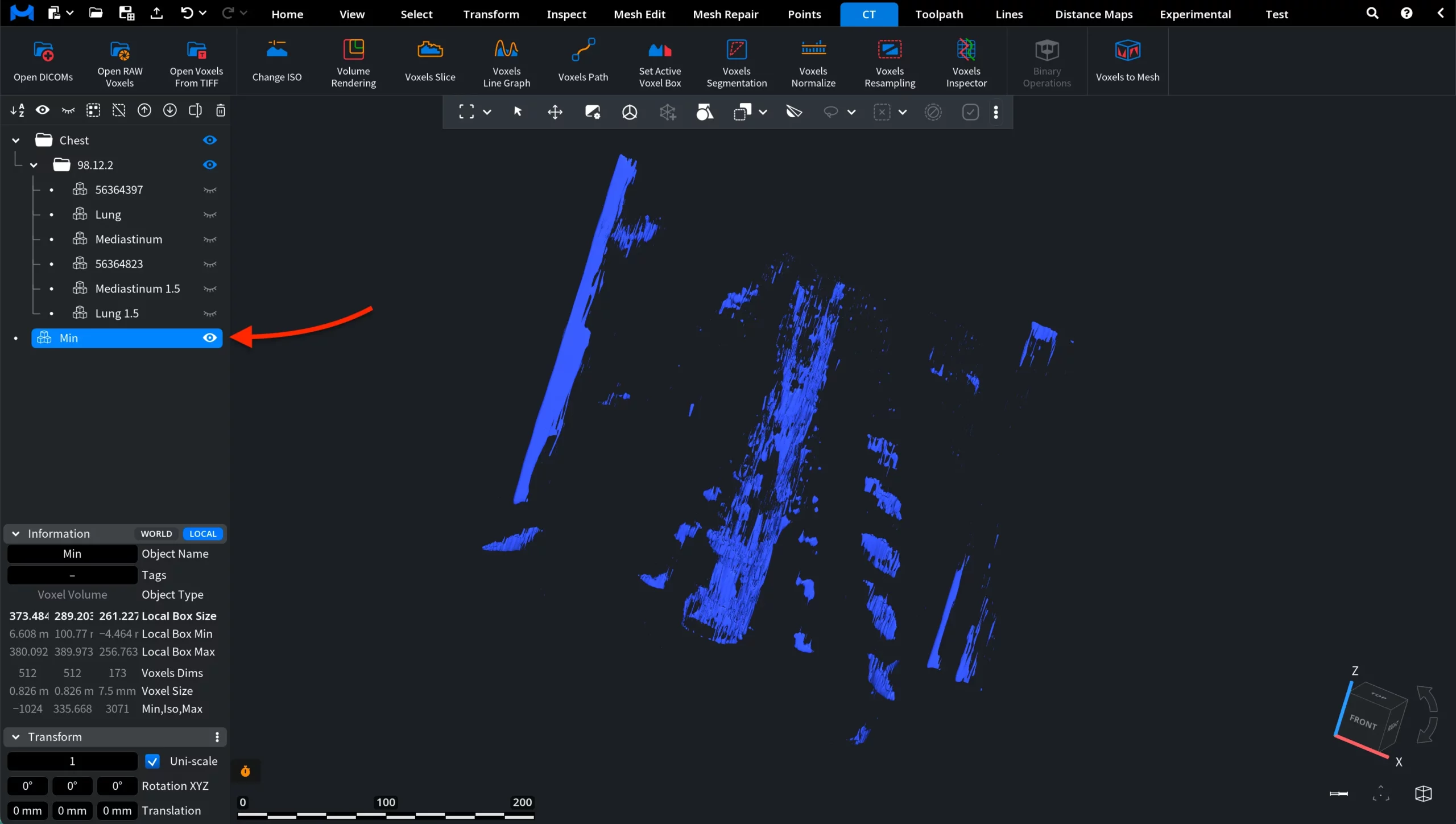
After applying the operation, MeshInspector creates a new voxel object containing the computed result. In the example shown, this new dataset appears in the Scene Tree as a separate object named Min. This object represents the voxel volume produced by dividing the voxel values of the first input dataset by the values of the second dataset at each voxel position.