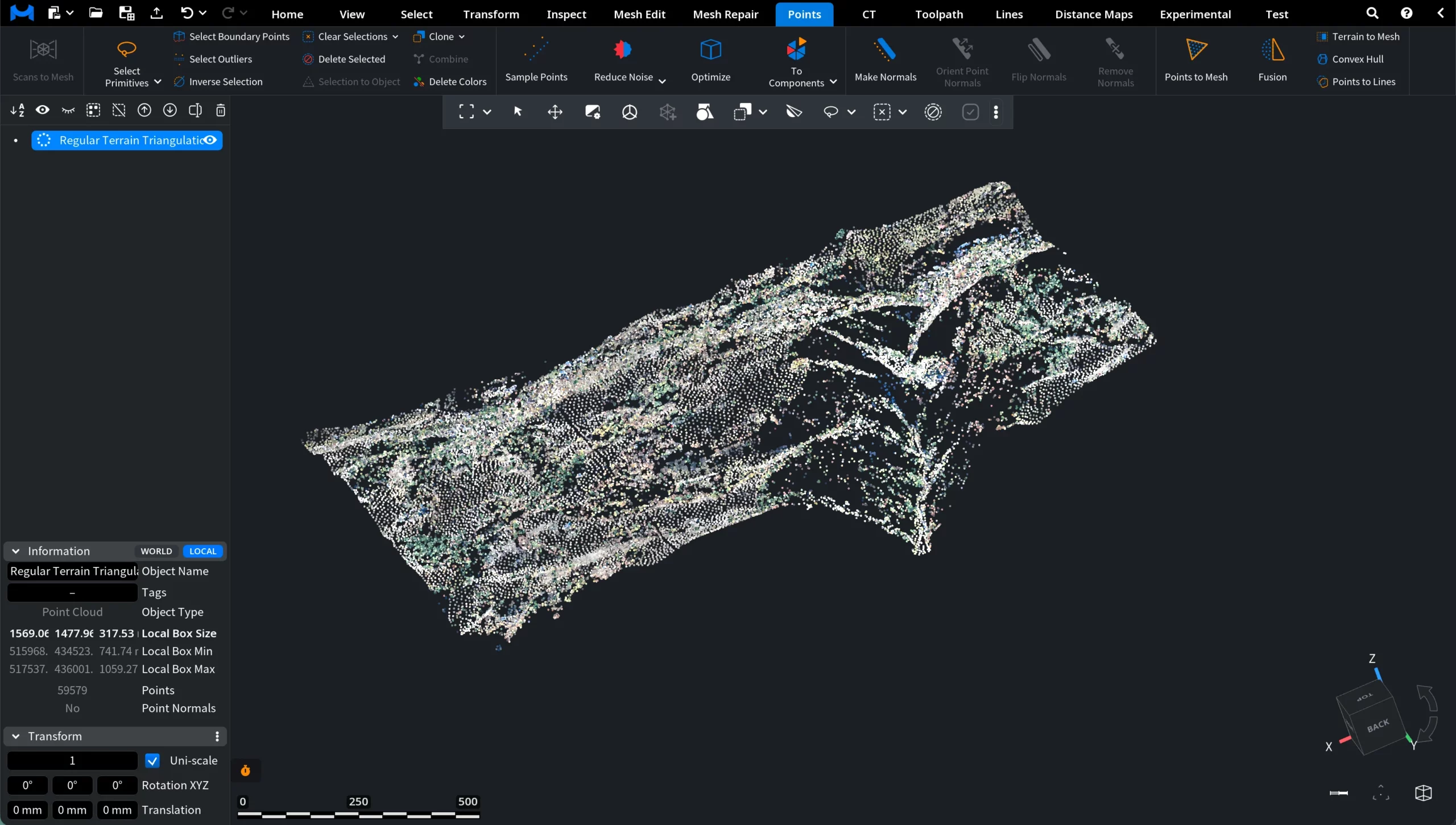
When working with large point clouds, it may be useful to reduce the number of points while preserving the overall shape and spatial distribution of the dataset. To address this need, MeshInspector provides the Sample Points tool under the Points tab. It generates a sparser set of representative points from the selected object, allowing users to simplify dense point clouds for visualization, processing, or further analysis.

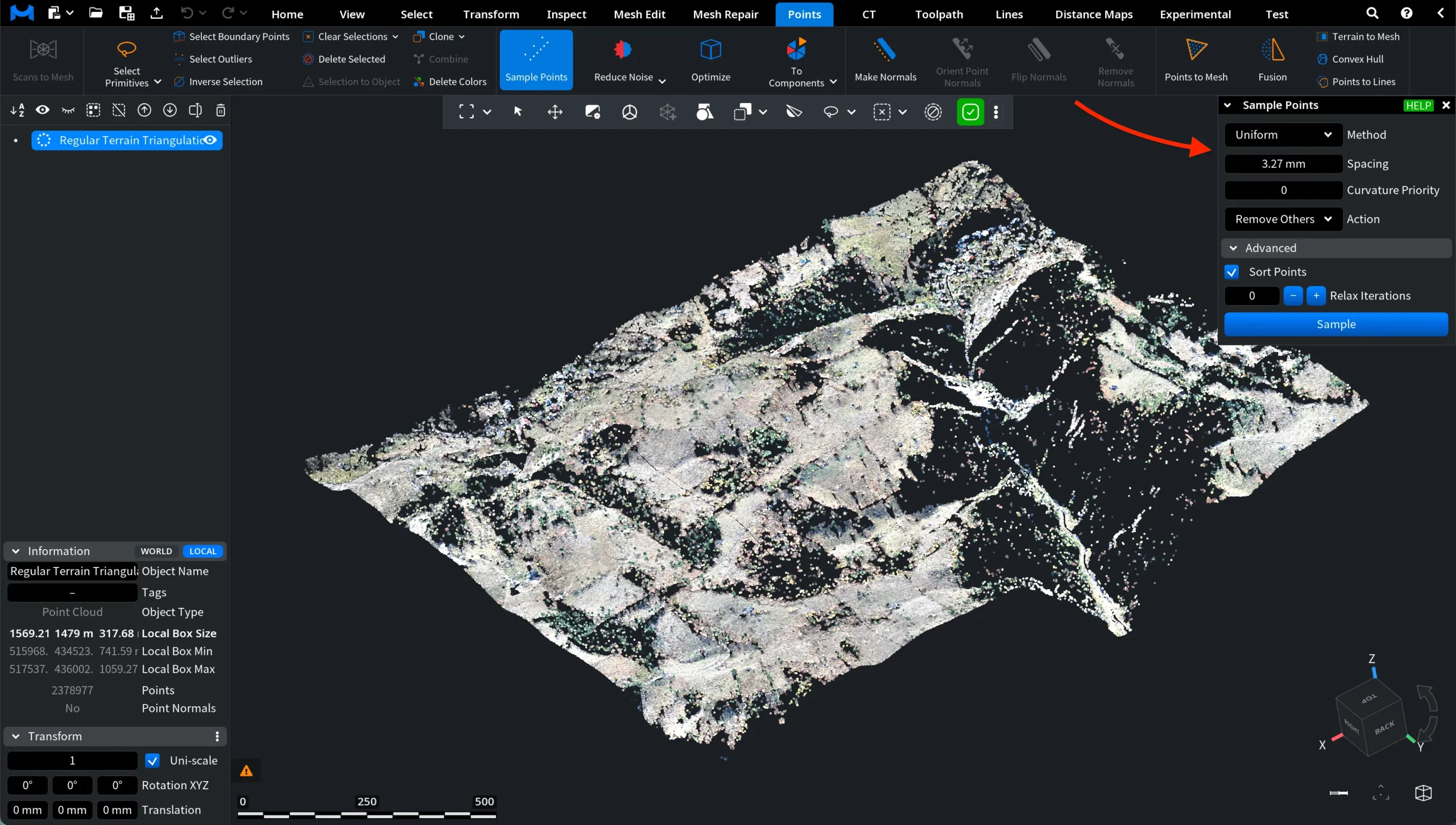
When Sample Points is activated, a dedicated Sample Points panel appears on the right side of the interface. This panel contains the parameters used to control how points are sampled from the selected object.
Sample Points: Settings and Controls
Method defines the algorithm used to generate the sampled points from the selected point cloud. The drop-down menu provides several sampling strategies, each using a different approach to selecting representative points:
- Uniform finds sample points so that a ball of a given radius around each sample does not contain other samples. At the same time, the union of all such balls covers all points in the original cloud. This method therefore produces a uniformly distributed set of sample points across the dataset while maintaining a minimum spacing between them.
- Grid subdivides the space into a three-dimensional grid and returns one sample point per grid cell. This approach provides a structured spatial sampling and is often useful when a regular spatial distribution of points is required.
- Iterative progressively removes points using a metric based on distances to nearby and previously removed points. At each step, the point with the minimal metric is removed. This process allows sampling to stop at any desired number of points, making the method suitable when a specific sample count is required.
Spacing defines the minimal distance between sampled points in planar regions before relaxation is applied. This value controls how far apart the generated sample points should be during the initial sampling stage. Larger spacing values produce fewer sample points distributed farther from each other, while smaller values generate a denser set of samples.
Curvature Priority controls how strongly curved regions of the dataset influence the distribution of sampled points:
- When the value is 0, the spacing between samples remains the same across the entire surface.
- When the value is 1, sampling becomes much denser in curved regions. This allows the algorithm to preserve more detail in areas where the surface geometry changes more rapidly.
Action defines what MeshInspector should do with the sampled points after the sampling operation is completed. Two options are available:
- Select chooses the sampled points in the dataset. This allows users to immediately work with the generated samples using selection-based tools or further processing operations.
- Remove Others removes all points that were not selected during the sampling process. As a result, only the sampled points remain in the dataset.
In addition, MeshInspector features a range of Advanced settings.
Advanced
Sort Points determines the order in which points are processed during sampling:
- When this option is enabled, MeshInspector processes the points in lexicographical order, which typically produces tighter and more uniform sampling.
- When the option is disabled, the points are processed according to their IDs, which makes the sampling process faster but may result in slightly less uniform samples.
Relax Iterations specifies the number of post-processing iterations used to improve the distribution of the sampled points. During each iteration, every sample point is moved toward the center of its Voronoi cell. This process helps reduce the influence of outliers and may improve the overall uniformity of the sampling result. Increasing the number of relaxation iterations can lead to a more evenly distributed set of sample points.
When Relax Iterations is set to a value greater than 0, two additional parameters become available:
- Min Points in Sample defines the minimum number of input points that must contribute to a sample point. If a generated sample represents fewer input points than this threshold, the sample is discarded. This option can therefore be used to filter out isolated samples or outliers that are supported by only a small number of original points.
- The Average Values option changes how sample points are computed. When enabled, MeshInspector does not simply select existing points from the dataset. Instead, it computes averaged points, normals, and colors from the contributing input points. This produces a smoother result. When Average Values is enabled, the Action parameter is automatically set to Remove Others, since the resulting points no longer correspond directly to the original input points.
After configuring the sampling parameters, the next step is to apply the operation by clicking Sample. In the example below, the Action parameter is set to Select. This means that MeshInspector will identify and select the sampled points, while keeping the rest of the dataset unchanged.
Sample Points: After Select
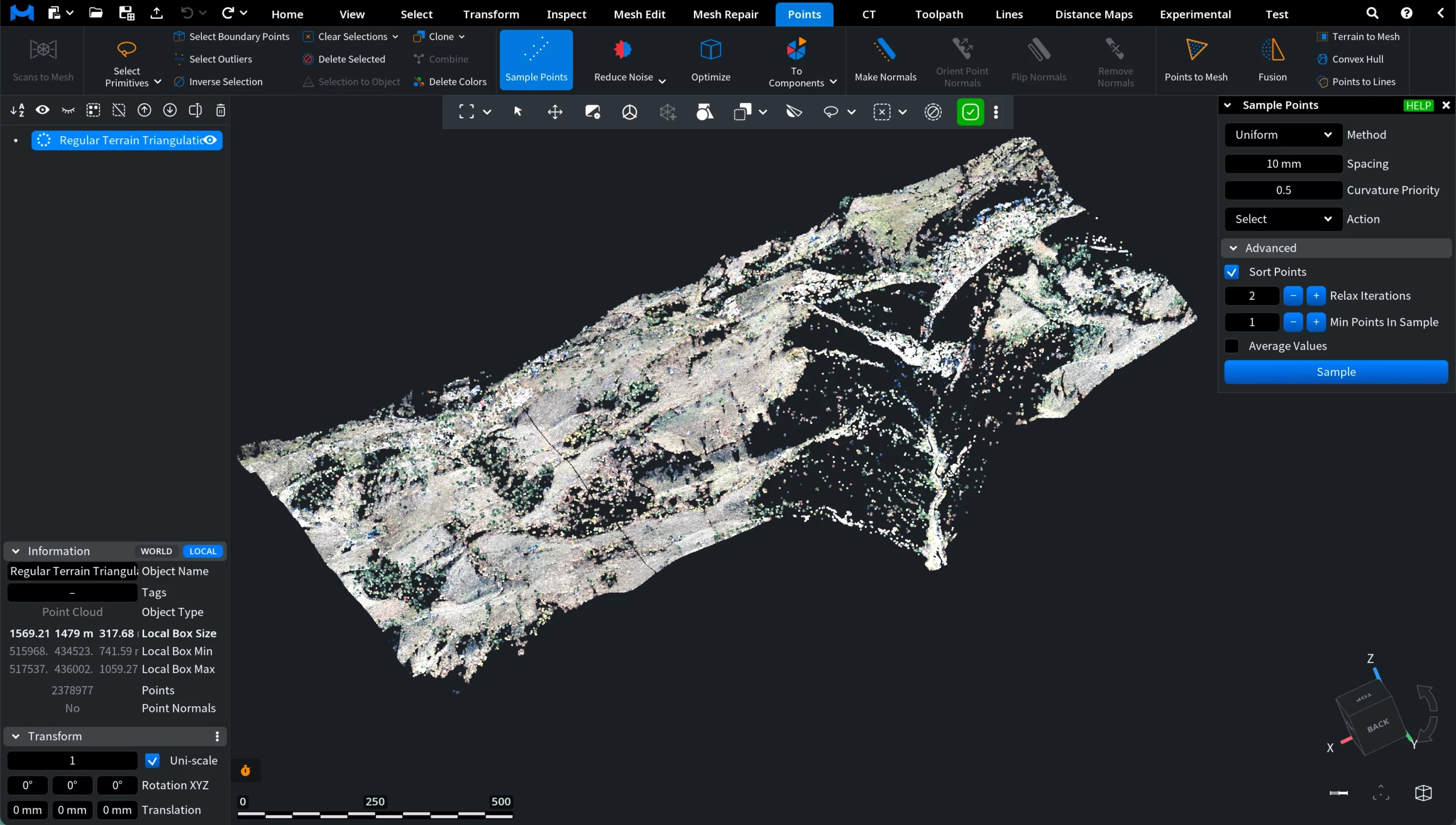
After applying the operation with Action set to Select, MeshInspector marks the sampled points as an active selection. In the viewport, these points appear highlighted in red, allowing users to easily inspect their spatial distribution across the dataset.
The Information panel in the lower-left corner highlights in red how many points are currently selected. In this example, 59,579 points are selected out of 2,378,977, representing the sparse set of samples generated by the tool. The original point cloud remains unchanged, and the selected samples can now be used for further operations.
Sample Points: After Remove Others
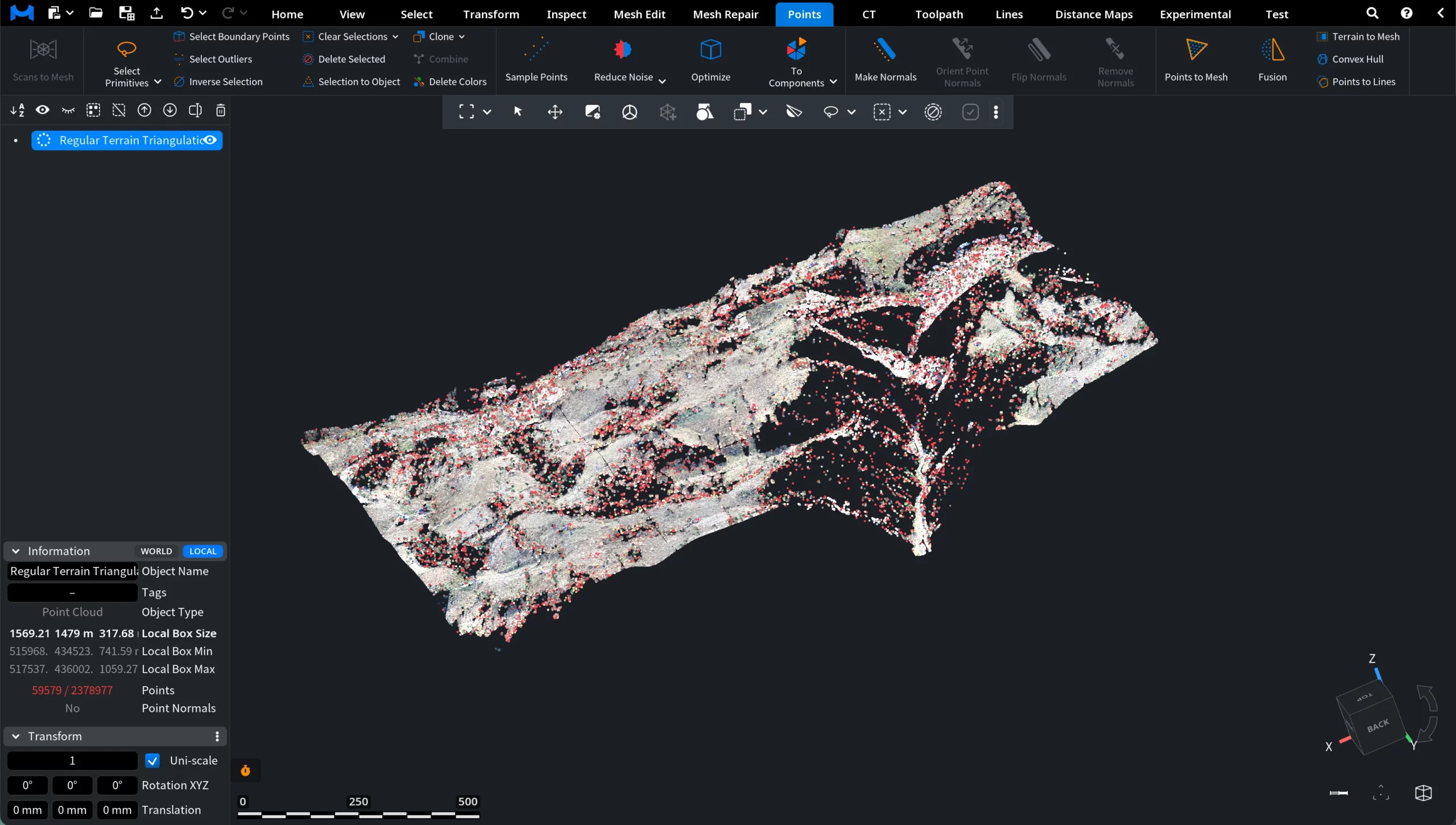
If the same parameters are applied with Action set to Remove Others, MeshInspector removes all points that were not selected during sampling. As a result, only the sampled points remain in the dataset.