Signed Distance measures the minimum distance between two objects while also indicating which side of the reference surface the measured points lie on. As a result, Signed Distance always operates on two objects: a reference object and a measured object. To start working with it, go to the Inspect tab and click Signed Distance.

Once you click it, a dedicated panel will open. Unlike standard distance measurements, Signed Distance assigns a sign to each distance value:
-
Positive values indicate points located outside the reference object
-
Negative values indicate points located inside the reference object
-
Zero indicates direct contact or intersection.
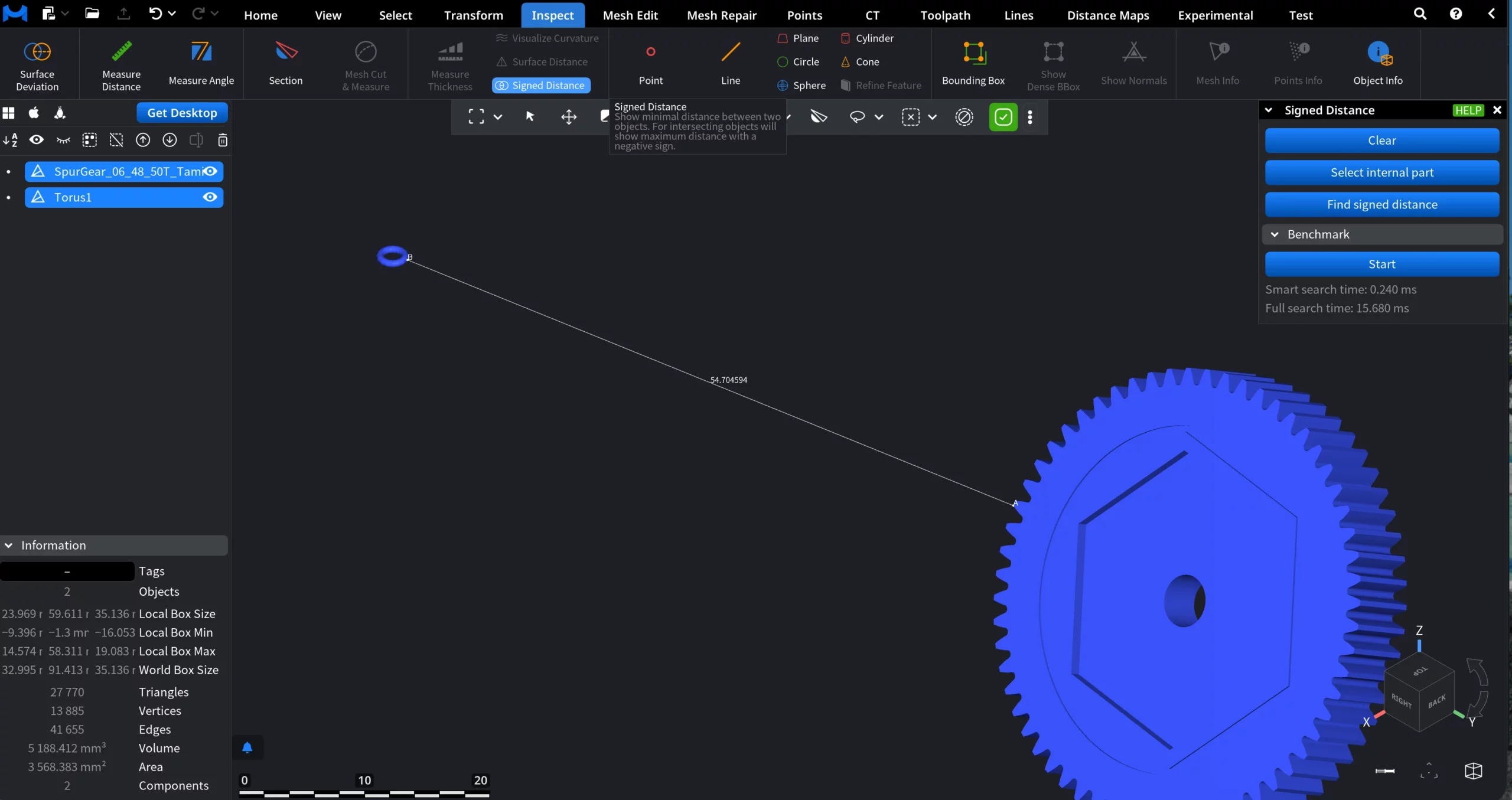
Benchmark
The Benchmark section reports performance metrics for the signed distance computation:
-
Smart search time is the time spent on the optimized distance search
-
Full search time is the time required for the exhaustive distance computation
These values help assess performance when working with complex meshes or large assemblies.