Loads from YouTube (Google) when you press Play
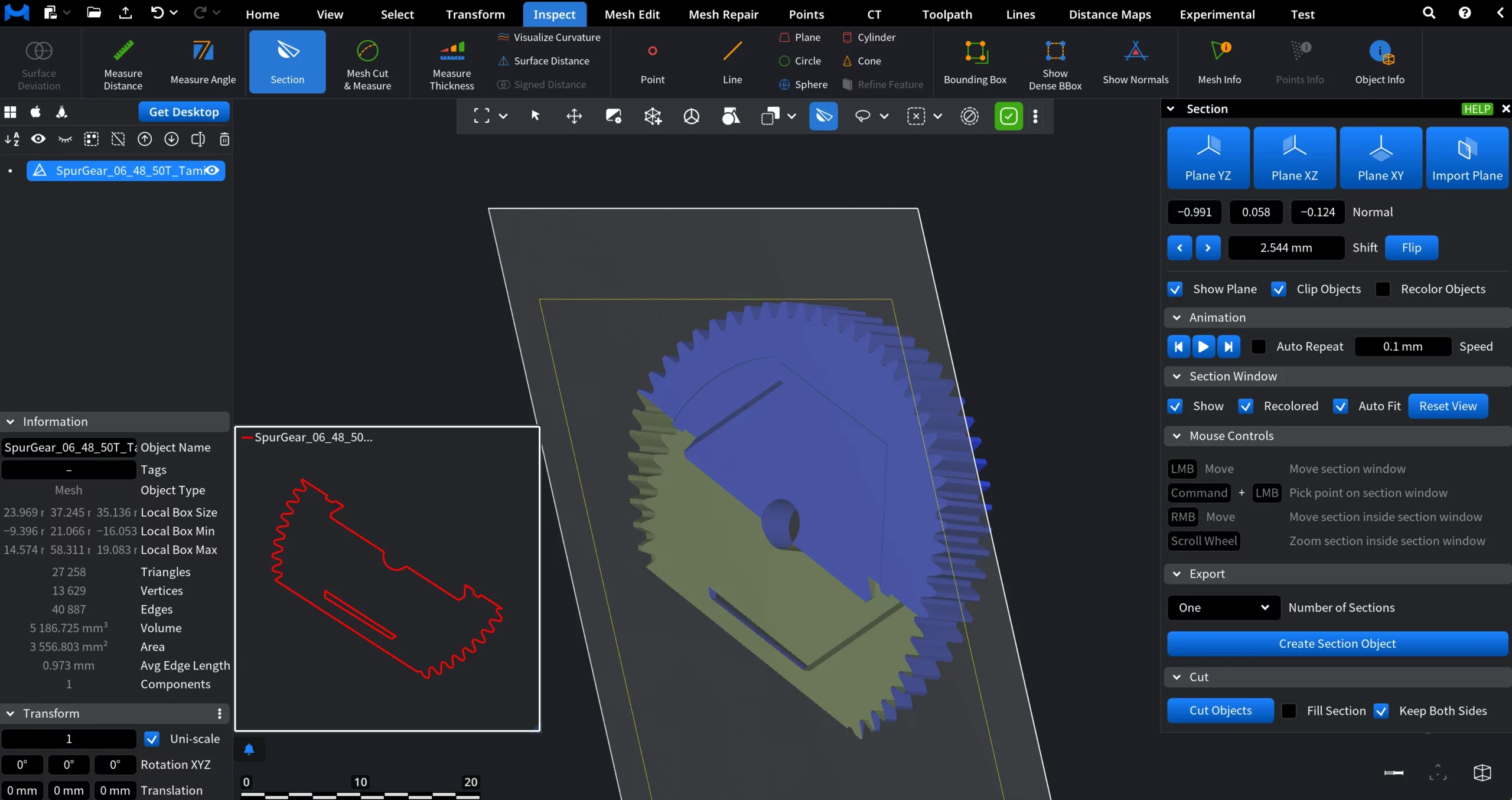
Section is an inspection tool that creates a live cross-section of selected objects using a cutting plane. It lets you look inside geometry, analyze internal profiles, and generate precise section outlines for inspection or export.
To start working with it, go to the Inspect tab and click Section.

When Section is activated, MeshInspector introduces two coordinated work elements:
-
A dedicated Section panel.
-
A Section Window that shows the resulting cross-section.
Plane: Presets and Import
At the top of the panel, you can define the orientation of the section plane:
-
Plane YZ / Plane XZ / Plane XY. Instantly aligns the section plane to one of the principal coordinate planes.
-
Import Plane. Allows you to import parameters from an existing plane object in the scene. To do this, click Import Plane, then click the already existing plane object in the viewport. The section plane adopts its orientation and position.
Plane Orientation (Normal)
Below the plane presets, the Normal fields display the plane’s normal vector as X, Y, and Z components.
-
These values define the plane’s orientation in 3D space.
-
The normal values update automatically when you manipulate the plane: either by dragging it in the viewport, entering new values manually into any of the Normal fields, or by clicking and holding the mouse button (or touchpad), dragging to define a direction, and releasing.
Plane Offset and Direction
-
Shift moves the section plane along its normal direction by the specified offset value.
-
Arrow buttons incrementally move the plane forward or backward along the normal.
-
Flip reverses the direction of the plane’s normal. This affects clipping direction and which side of the geometry is considered “front” or “back.”
Display and Clipping
Show Plane controls only the visibility of the section plane surface. The section line remains visible even when the plane is hidden.
Clip Objects hides geometry on one side of the section plane in the main viewport, creating a cutaway view.
Recolor Objects assigns colors to individual objects, active in the scene (i.e., including those selected in the Scene Tree, but not affected by the Section tool) improving visual separation.
Playback Controls
The animation controls consist of three buttons:
- Move to minimum instantly shifts the section plane to its lowest reachable position along the normal direction.
- Play / Pause starts or pauses continuous movement of the section plane along the normal.
- Move to maximum instantly shifts the section plane to its highest reachable position along the normal direction.
Auto Repeat, when enabled, does the following: once the section plane reaches its maximum extreme, the movement restarts from the minimum extreme and continues again in the same direction. When disabled, the movement stops after reaching the current extreme.
Speed controls how quickly the section line advances through the object during animation. You can adjust this value both by dragging the Speed field or by entering a value manually.
Section Window: Settings
The Section Window displays the resulting 2D cross-section generated by the active section plane. The three main settings include:
Show, when enabled, makes the Section Window visible. When it is disabled, the Section Window is hidden, while the section operation itself remains active.
Recolored, when enabled, makes the section outlines in the Section Window inherit the same object-based colors assigned to them (via Recolor Objects). When disabled, section outlines are displayed using a uniform default color.
Auto Fit, when enabled, makes the Section Window automatically pan and zoom to fit the currently visible section outlines.
Reset View resets the Section Window zoom and position to fit the current section outline.
Mouse Controls
The Mouse Controls section lists all mouse interactions available inside the Section Window. These controls apply only when the cursor is positioned over the Section Window and do not affect the main viewport, geometry, or the section plane.
-
LMB — Move: moves the Section Window.
-
Command + LMB: picks a point in the Section Window.
-
RMB — Move: pans the section view inside the Section Window.
-
Scroll Wheel: zooms the section view inside the Section Window.
Export
The Export section controls how section results are converted into standalone section objects.
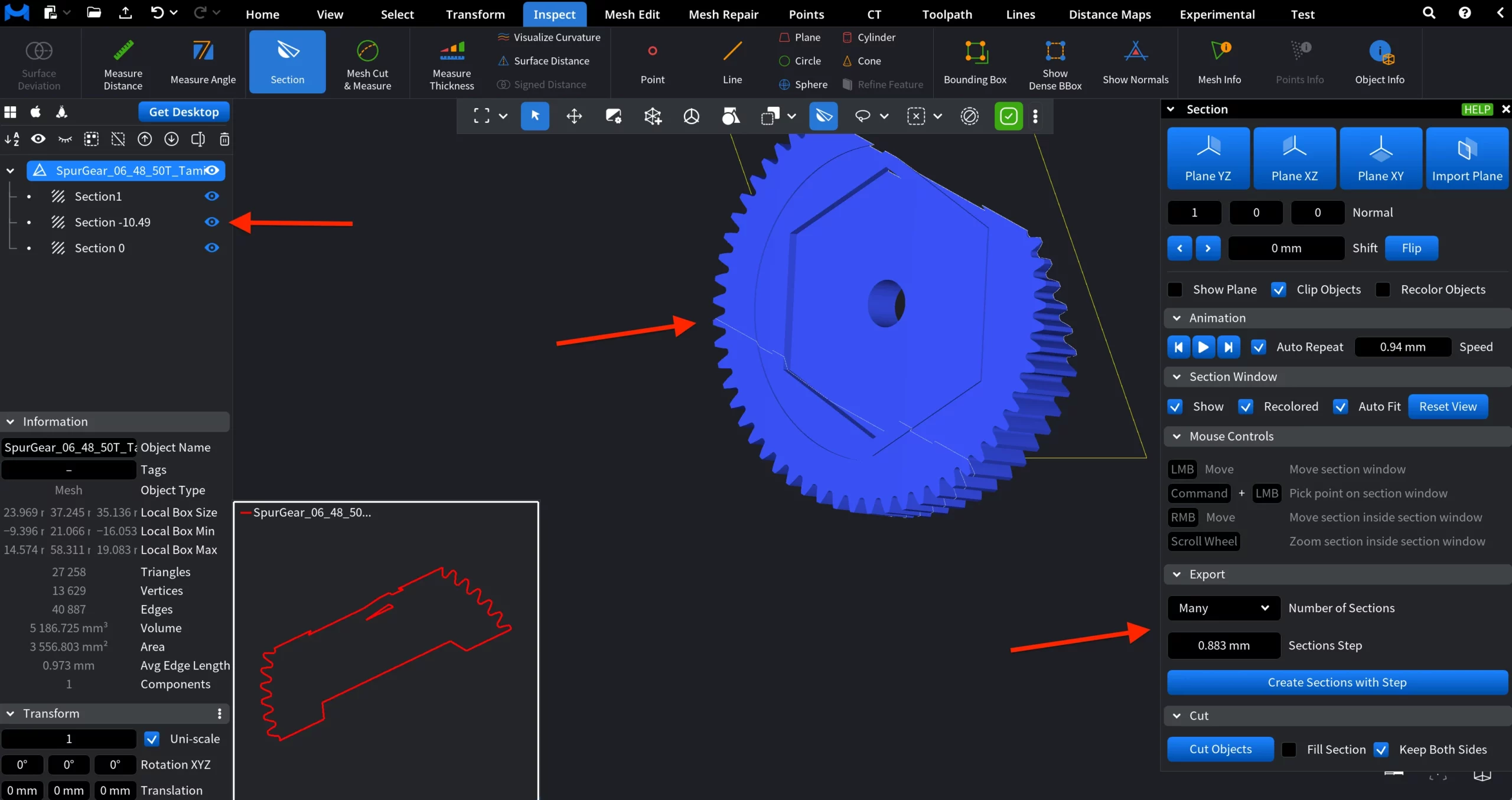
Number of Sections defines how many section objects will be generated from the current section plane setup.
-
One creates a single section object at the current position of the section plane.
-
Many creates multiple section objects distributed along the section plane’s normal direction.
Sections Step (available when Many is selected) specifies the distance between consecutive section planes when generating multiple sections.
-
The value is measured along the section plane’s normal.
-
Each generated section is offset from the previous one by this step distance.
Create Section Object or Create Sections with Step
-
Create Section Object generates a single section object using the current section plane position.
-
Create Sections with Step generates multiple section objects based on the selected Sections Step value.
After creation, each section appears as a separate object in the Scene Tree.
Cut
The Cut section applies the active section plane to the selected objects and generates new geometry.
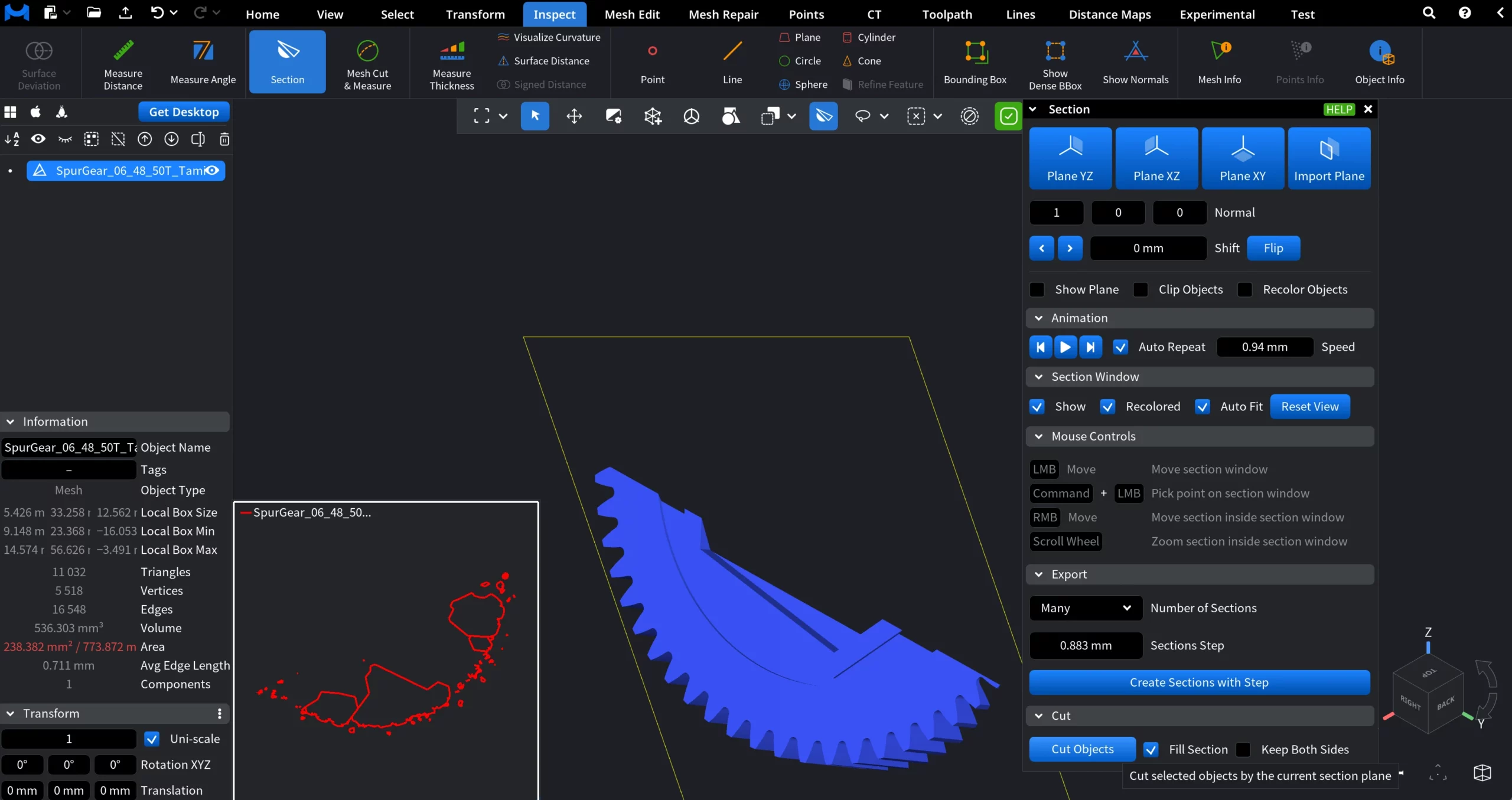
Cut Objects splits the selected objects using the current section plane, creating new objects from each original one.
Fill Section caps the open cut surfaces with newly generated triangles when enabled.
Keep Both Sides determines whether both sides of the cut are preserved or only one side is kept.
The Section Tool Explained