Under the Inspect tab, MeshInspector provides several dedicated tools for viewing detailed diagnostic information about scene objects and their individual elements.

Mesh Info
The Mesh Info tool provides detailed, low-level information about the selected mesh and its individual elements. It is primarily intended for inspection, debugging, and in-depth analysis of mesh topology.
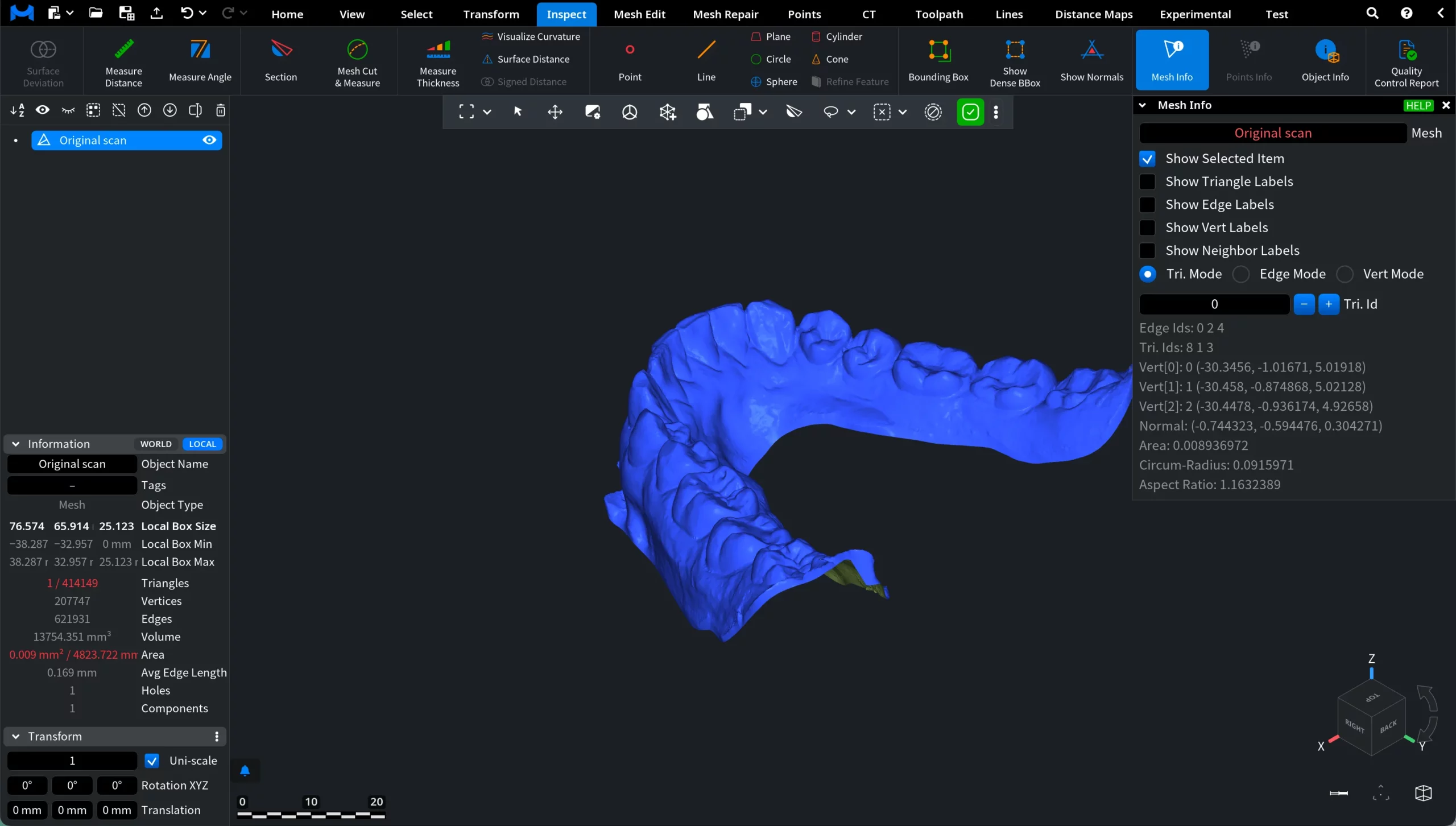
Display Options
- Show Selected Item
- Show Triangle Labels
- Show Edge Labels
- Show Vert Labels
- Show Neighbor Labels
Inspection Modes
Mesh Info supports three mutually exclusive inspection modes:
1. Tri. Mode displays detailed information for the selected triangle, including:
- Triangle ID
- Adjacent edge IDs
- Vertex IDs with exact coordinates
- Triangle normal
- Area
- Circum-radius
- Aspect ratio
2. Edge Mode displays detailed information for the selected edge, including:
- Edge ID
- Origin and destination vertices
- Left and right adjacent triangles
- Edge vector
- Length
- Dihedral angle
- Cotan weight
Navigation buttons (Next Origin Edge, Prev. Origin Edge, Sym. Edge) allow you to traverse connected edges directly from the panel.
3. Vert Mode displays information for the selected vertex, including:
- Vertex ID with exact coordinates
- Connected edge IDs
- Connected triangle IDs
For each mode, the currently inspected element can be manually changed using the ID field with + and – buttons.
Points Info
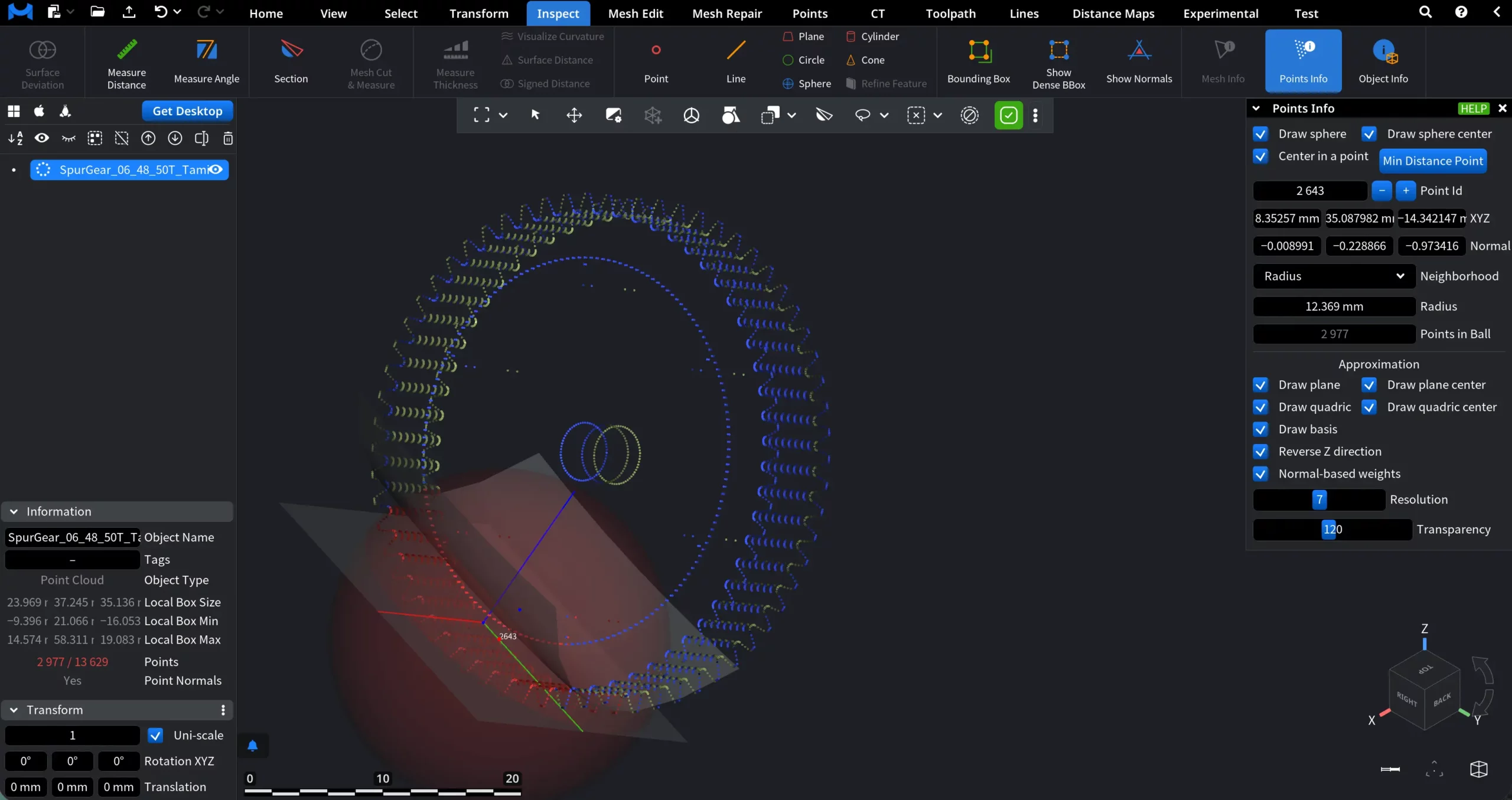
Points Info provides detailed inspection and analysis tools for point cloud data. It allows you to examine individual points, their local neighborhoods, and fitted geometric approximations directly in the viewport.
- Draw sphere visualizes the neighborhood radius as a sphere
- Draw sphere center marks the center of the neighborhood
- Center in a point centers the analysis on the selected point
- Min Distance Point automatically selects the point with the minimum distance to its neighborhood
Point Selection and Position
- Point Id lets you inspect a specific point by its index.
- The XYZ fields display the exact coordinates of the selected point.
- Normal shows the normal vector at the selected point.
Neighborhood
The Neighborhood section defines which nearby points are used for local analysis:
1. Radius selects all points within a given radius around the center point. Here, Points in Ball shows how many points are currently included in the neighborhood.
2. Number of points selects a certain number of neighboring points for analysis.
Approximation
Points Info can approximate local geometry based on the selected neighborhood:
- Draw plane
- Draw plane center
- Draw quadric
- Draw quadric center
- Draw basis
- Reverse Z direction
- Normal-based weights
Resolution controls the smoothness of the displayed approximation.
Transparency controls the visual opacity of auxiliary geometry.
Object Info
Object Info opens a dedicated information panel containing general diagnostic data about the currently selected object, regardless of its type (in the screenshot below, you can see an example focused on a mesh).
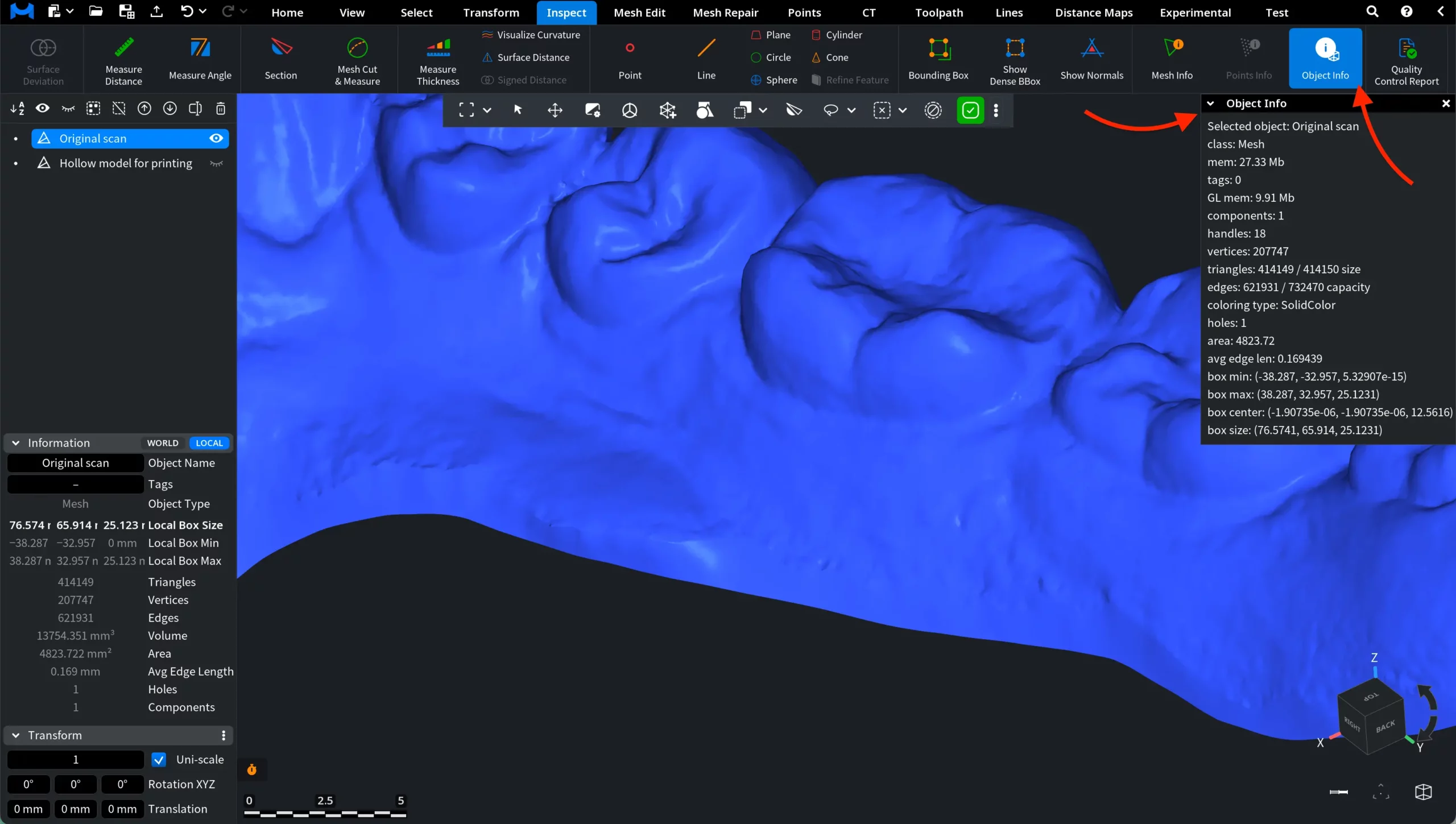
This panel provides global object-level properties rather than element-level details and is useful for inspecting the object’s spatial parameters, memory footprint, and overall structure.
Depending on the selected object, Object Info can display:
- Object name and class
- Memory and GPU memory usage
- Tag count
- Topology statistics (vertices, triangles, edges, or points)
- Additional technical properties such as area, average edge length, or component count
- Bounding box coordinates (Min / Max / Center / Size)
Unlike Mesh Info and Points Info, which focus on individual mesh elements or points, Object Info summarizes the selected object as a whole.