
Visualize Curvature colors a mesh by how strongly its surface bends at each point. Use it to find dents, bumps and sharp edges, or to check that a surface is smooth after smoothing or remeshing. Select one mesh and click Inspect › Visualize Curvature: the colors appear on the model, the color scale appears next to the panel, and the mesh itself is not changed. The colors disappear when you close the tool.
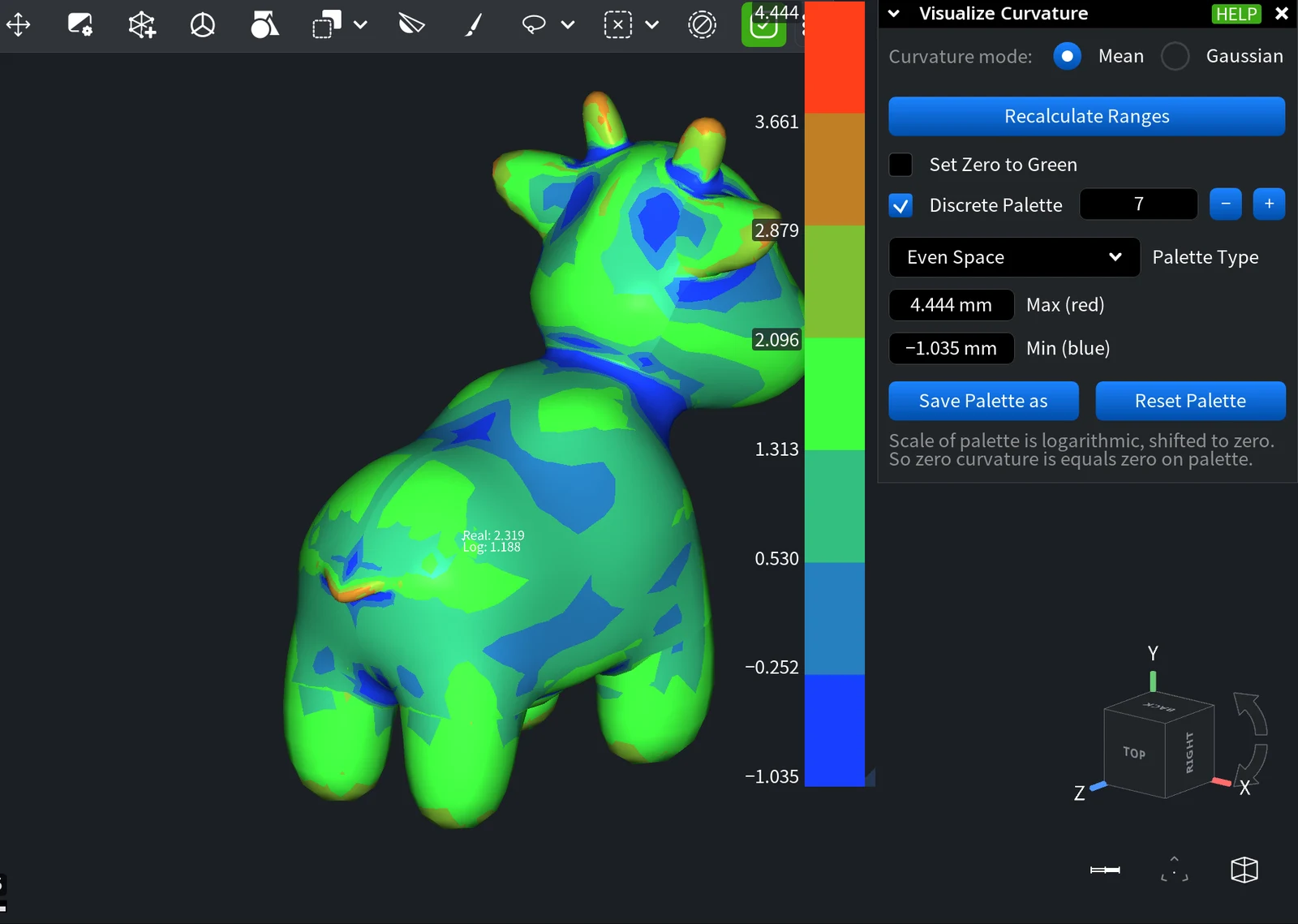
Read the Colors
The color scale goes from blue for the lowest values to red for the highest, with green in the middle. In Mean mode, convex areas such as bumps, ridges and outer edges have positive values and lean to red; concave areas such as dents, grooves and inner corners have negative values and lean to blue. By default the scale covers the range found on the model, so green marks the middle of that range, not zero. Turn on Set Zero to Green to make flat areas green.
The scale is logarithmic and shifted to zero, as the note at the bottom of the panel says: zero curvature is zero on the scale, small values are spread out and large values are compressed. So compare colors only roughly. To read a value, click a point on the model: a marker appears with two values, Real (the curvature at that point) and Log (the same value on the logarithmic scale). In Gaussian mode, the label shows Gaussian Real and Gaussian Log.
Mean or Gaussian
Curvature mode sets what is shown:
| Mode | What it shows | Use it to find |
|---|---|---|
| Mean (default) | The average bending of the surface. Positive on convex areas, negative on concave ones, zero on flat areas. | Dents, bumps, ridges and fillets |
| Gaussian | The product of the bending in the two main directions. Positive at dome-like points (peaks and pits), negative at saddle points, zero on flat areas and on surfaces bent in one direction only, such as a cylinder. | Peaks, pits and saddles |
Panel Settings
The color scale controls are the same as in Surface Deviation.
| Setting | What it does |
|---|---|
| Recalculate Ranges | Sets the scale limits again from the current model and mode. |
| Set Zero to Green | Keeps zero curvature green, so the scale stays symmetric around zero. |
| Discrete Palette | Shows a few color bands instead of a smooth gradient. Set the number of bands in the field that appears. |
| Palette Type | Even Space spreads the colors evenly between Max (red) and Min (blue). Central Zone lets you set the limits above and below the central (green) zone separately. |
| Save Palette as / Reset Palette | Saves the current scale settings as a preset to load later, or returns them to the defaults. |
Noisy Scans
Curvature is computed from the triangles around each vertex, so noise on a raw scan shows up as small red and blue spots all over the surface and hides real dents. Smooth the scan first with Reduce Noise or rebuild it with Remesh, then check the curvature again.


