

The Sphere and Cone features measure round shapes that a ruler cannot: the diameter of a ball, a spherical cup or a rounded end, and the angle of a chamfer, a countersink or a taper. Both are in the Create group of the Inspect tab and work like the other features (see How to Create and Measure Features).
What They Show
| Feature | Fits | Shows in the viewport |
|---|---|---|
| Sphere | The best sphere through the input points: its center and diameter | The diameter |
| Cone | The best cone: its axis, apex angle and size | The diameter and the angle |
A good fit needs many points spread over the whole round surface, not just a few.
Create a Sphere or a Cone
- In the Scene tree, select the mesh or point cloud.
- Go to Inspect › Create › Sphere (or Cone).
- Give the input. The most reliable way is Fit to Selection: select the spherical or conical surface with Lasso, Rect, Polygon, Brush or Pick. If those triangles are already selected, the feature is fitted at once. You can also use Pick Points and click points all over the surface (Shift+click removes a point).
- If the feature is slightly off, open Refine object and click Refine (see Refine the Fit).
- Click New Feature to keep it and make the next one, or close the panel. The feature appears in the Scene tree under the object, for example Sphere 1 or Cone 1.
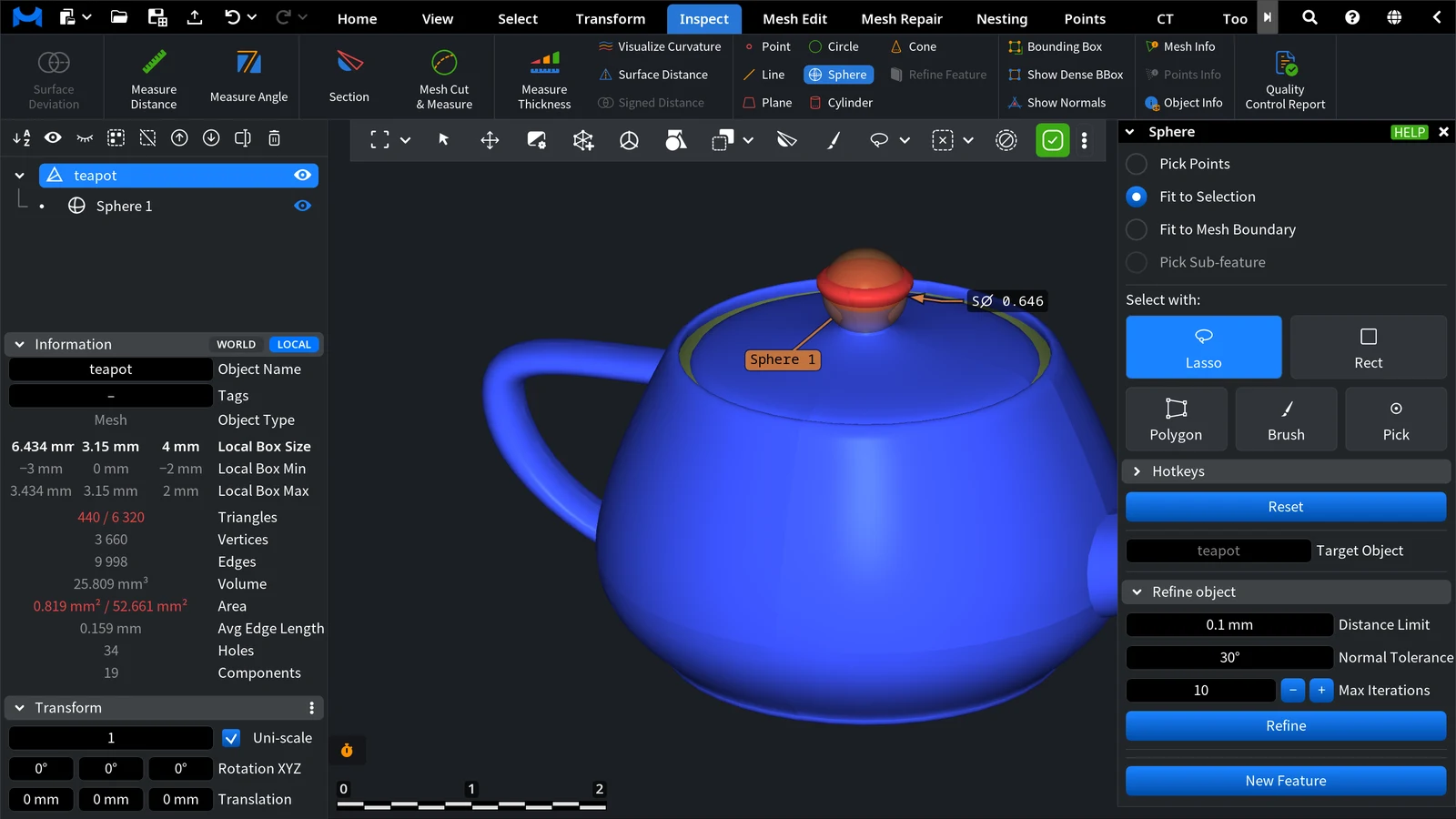
In the picture, the top of the knob of a teapot lid was selected, and Fit to Selection fitted Sphere 1 to it at once. The label SØ 0.646 is the diameter of the sphere in scene units.
Tips
- Select only the round surface. For a countersink, select the conical face and leave out the hole below it and the flat face around it. For a ball on a stem, leave out the stem.
- Use the whole surface you have. A small patch of a sphere or a cone fits many different shapes; the more of the surface the points cover, the more exact the diameter and the angle.
- Noisy scans. Prefer Fit to Selection over a few picked points, then Refine.
Measure with a Sphere or a Cone
- To measure the angle of a cone, go to Inspect › Measure Angle and click the same cone twice. See Measure Angle.
- To measure the distance between the center of a sphere and another feature, for example the axis of a hole, use Measure Distance in the Simple mode, which measures between centers and axes.
- To improve a sphere or a cone that is already in the scene, use Refine Feature.


