As the name of MeshInspector implies, our tool is built around advanced capabilities for working with meshes. A mesh is a 3D object made up of triangles that are connected to form a surface. These triangles define the shape, structure, and level of detail of the model.
When it comes to meshes, three core elements matter:
Vertices as points in 3D space.
Edges as lines connecting vertices.
Faces or triangles as surfaces formed by three connected vertices.
Together, these create everything from simple geometric shapes to highly detailed models.
Mesh in MeshInspector
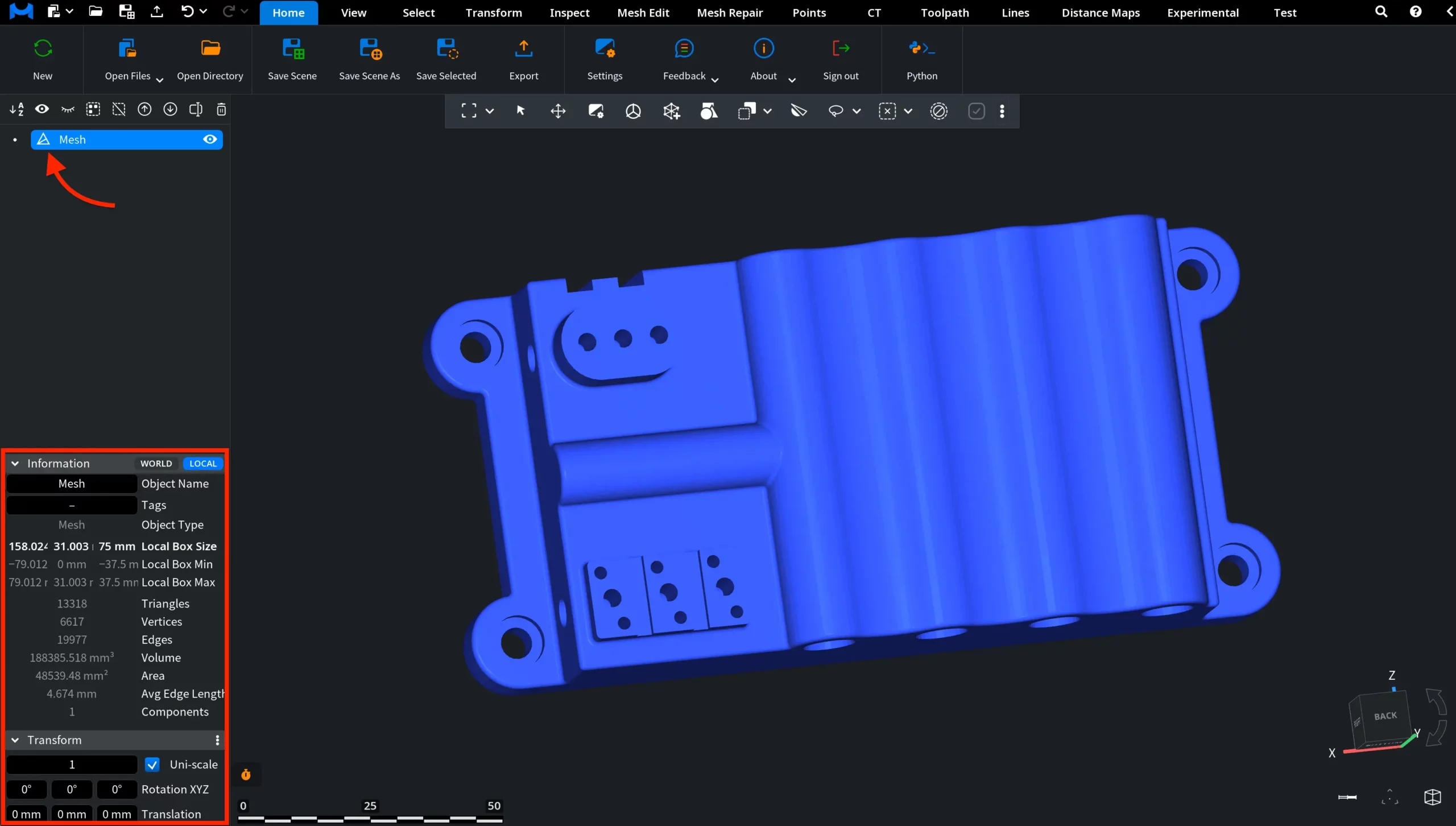
When you upload a mesh, it appears both in the Scene tree and in the viewport, where you can interact with it directly. In the Scene tree, a triangle-shaped icon next to the object name indicates that the object is a mesh.
MeshInspector provides two key panels:
Information displays mesh data in both World and Local coordinates, including size, number of triangles, vertices, edges, and other geometric properties.
Transform allows you to scale, rotate, and translate the mesh in 3D space.
These tools give you full control over both the geometry and spatial position of the mesh.
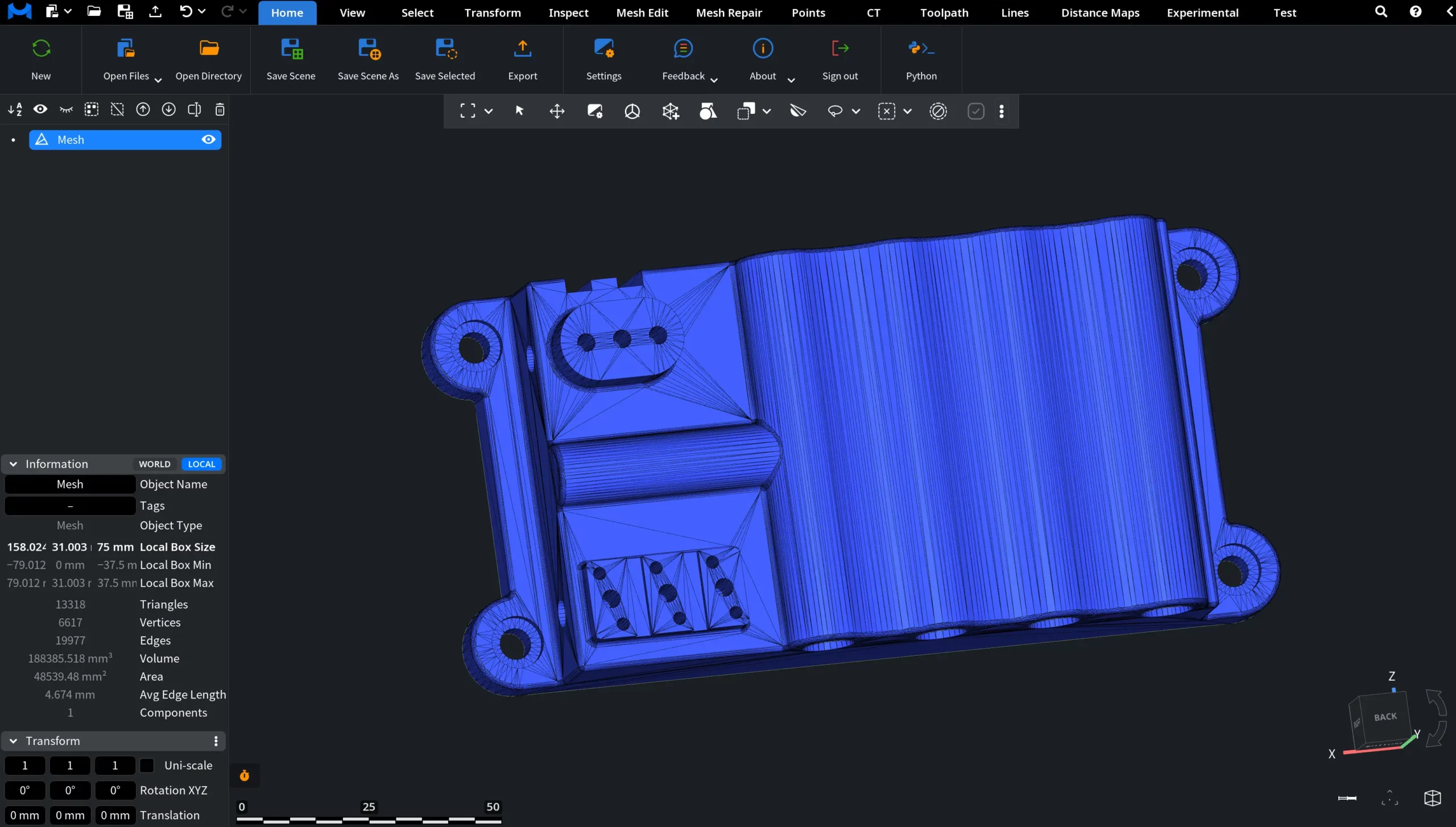
When working with meshes, press L to toggle the triangle view. Press L again to return to the default view.
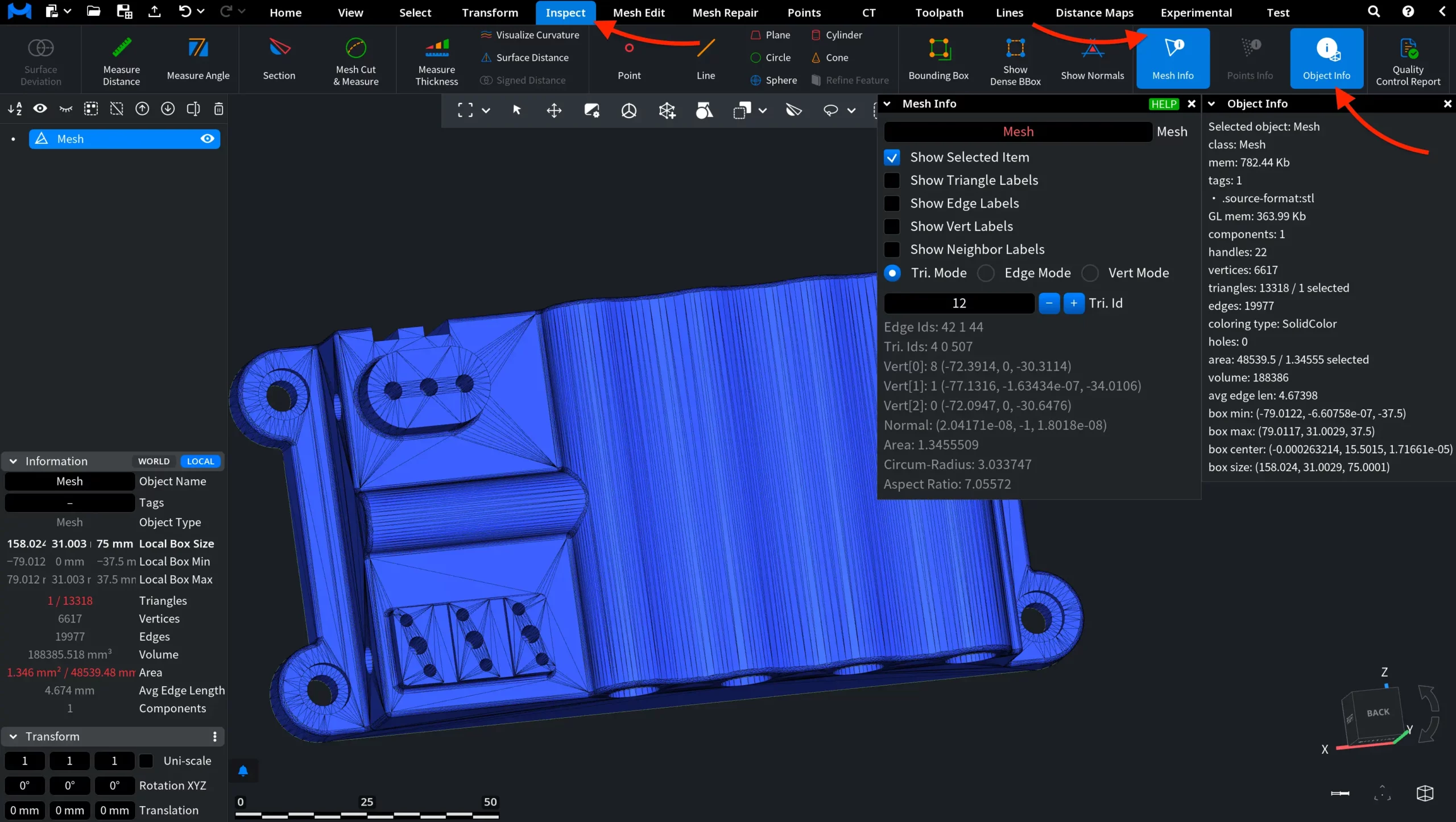
Under the Inspect tab, you can enable Object Info and Mesh Info. Both panels can be active at the same time.
Object Info shows general information about the selected object, including source format, memory usage, components, vertices, triangles, edges, and geometric properties, e.g., area, volume, and bounding box.
Mesh Info provides detailed, element-level data for the selected mesh. Depending on the mode, it displays information about triangles, edges, or vertices.
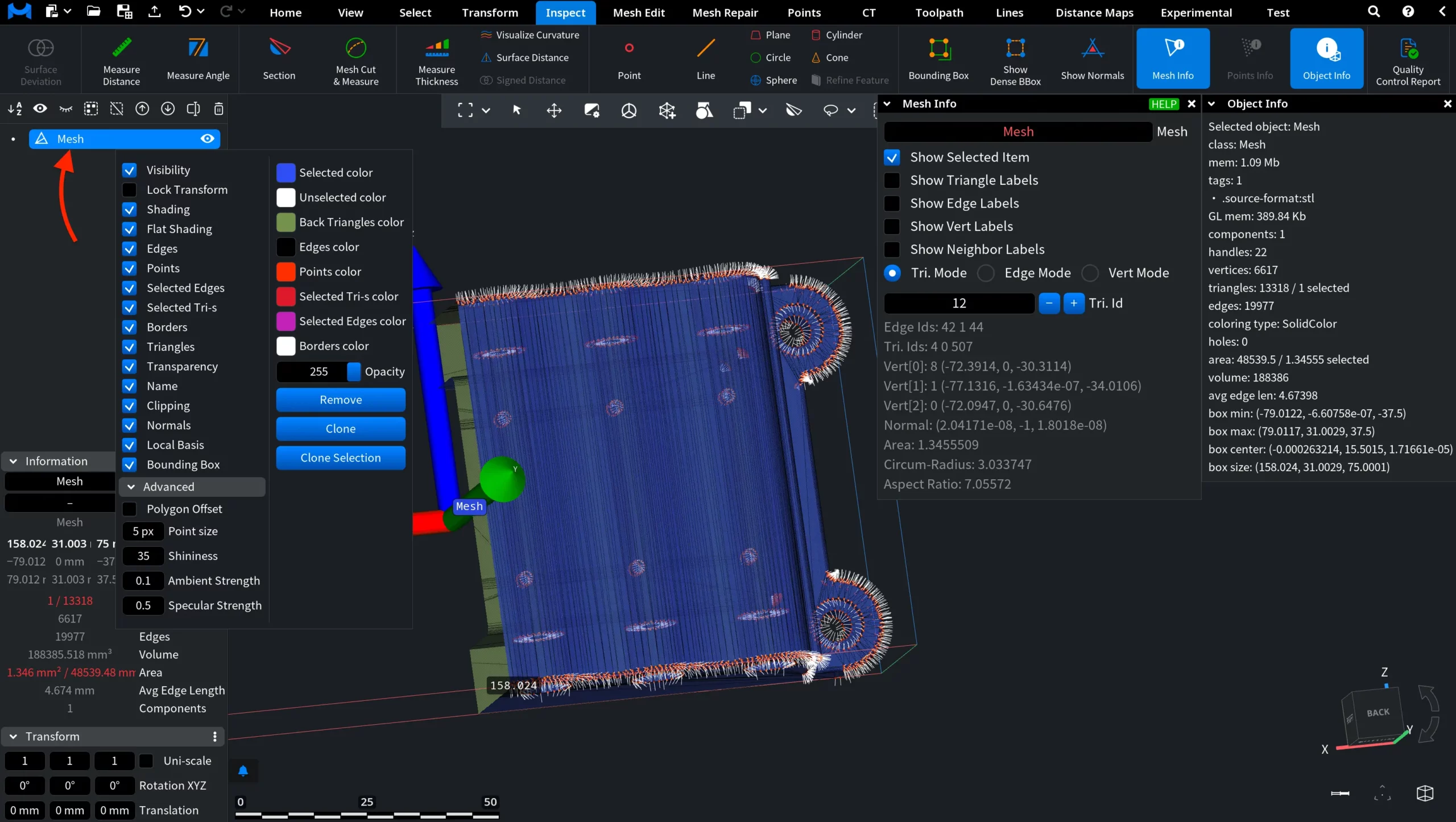
Finally, right-click on the mesh in the Scene tree to open the context menu.
From here, you can control how the mesh is displayed and managed: