Select by Area allows you to select triangles based on their surface area relative to the total area of the object or by an absolute area value. This tool is useful for isolating very small or very large triangles, for example when cleaning up noise, degeneracies, uneven tessellation, or problematic mesh areas.
To start working with it, go to the Select tab and click Select by Area.

Once you click Select by Area, a dedicated panel opens with several options.
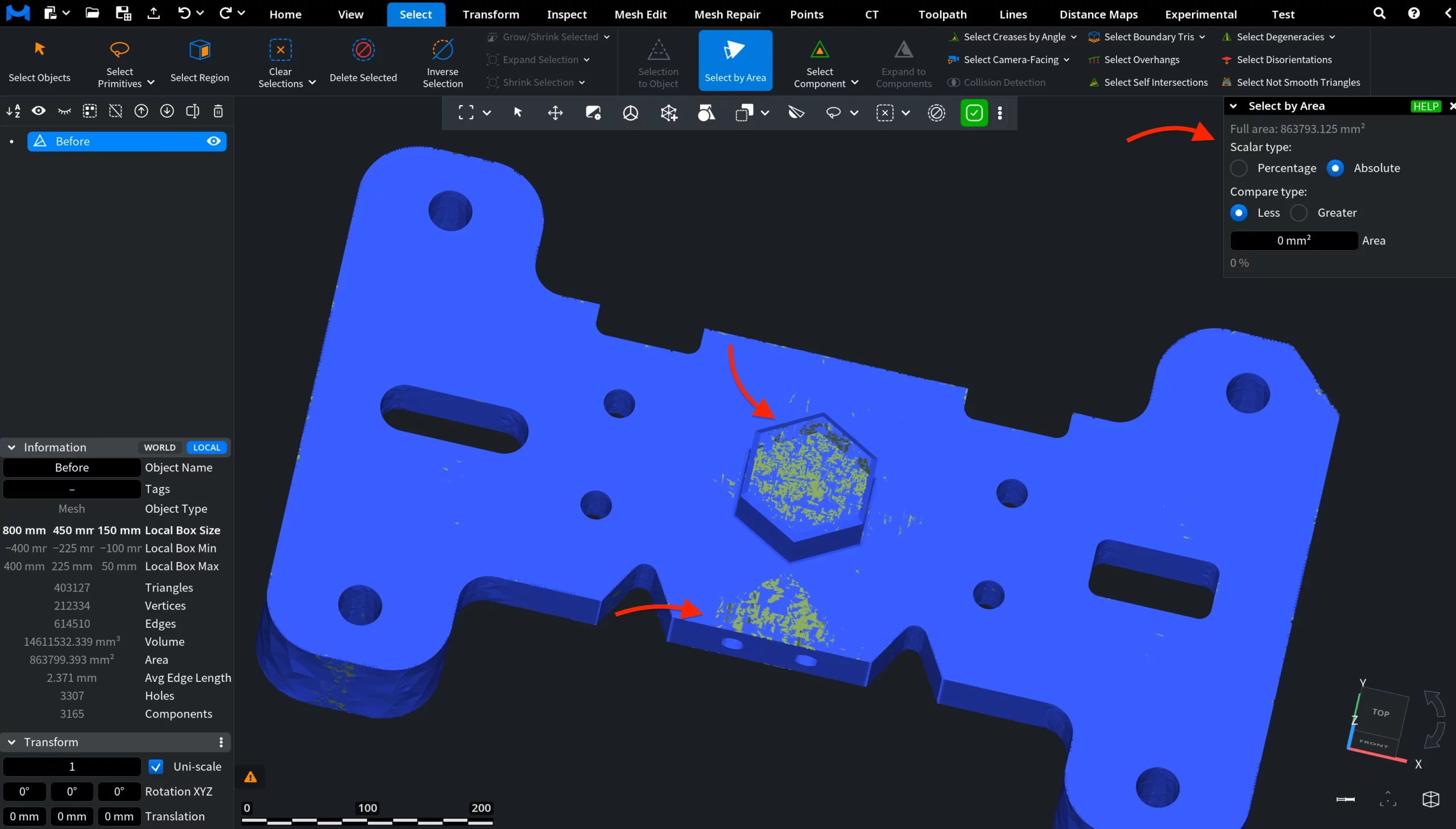
Scalar Type
Scalar type defines how the area threshold is interpreted:
- Percentage compares triangle areas as a percentage of the total surface area of the object.
- Absolute compares triangle areas using an absolute value in square millimeters.
Compare Type
Compare type defines how triangle areas are compared against the specified threshold:
- Less selects triangles with an area smaller than the specified value.
- Greater selects triangles with an area larger than the specified value.
Area
Area specifies the threshold used for comparison. The value is interpreted either as a percentage or as an absolute area, depending on the selected Scalar Type.
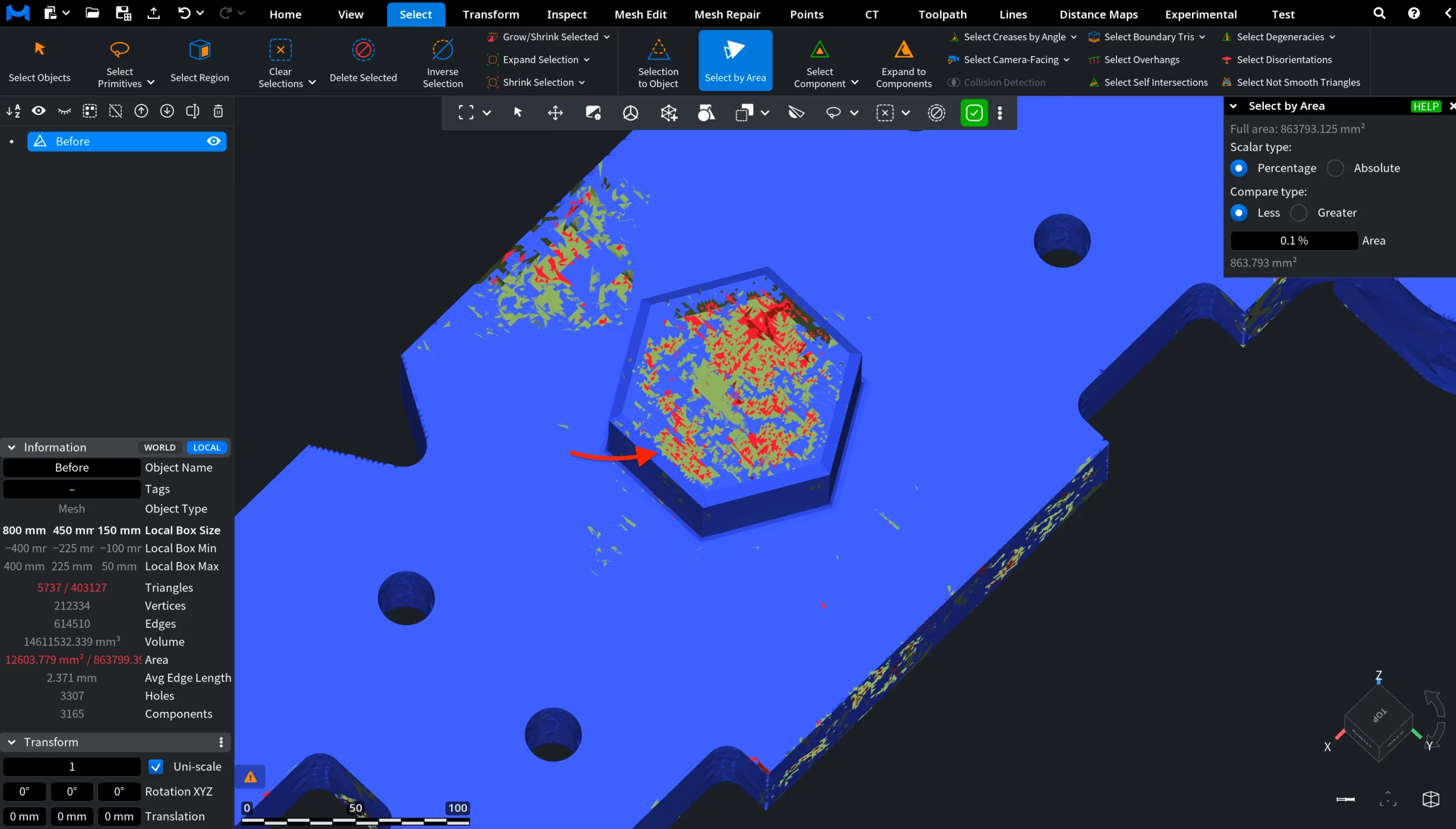
After setting the desired parameters, MeshInspector highlights all triangles that match the selected criteria, allowing you to further refine, modify, or process the selection using other selection and editing tools.
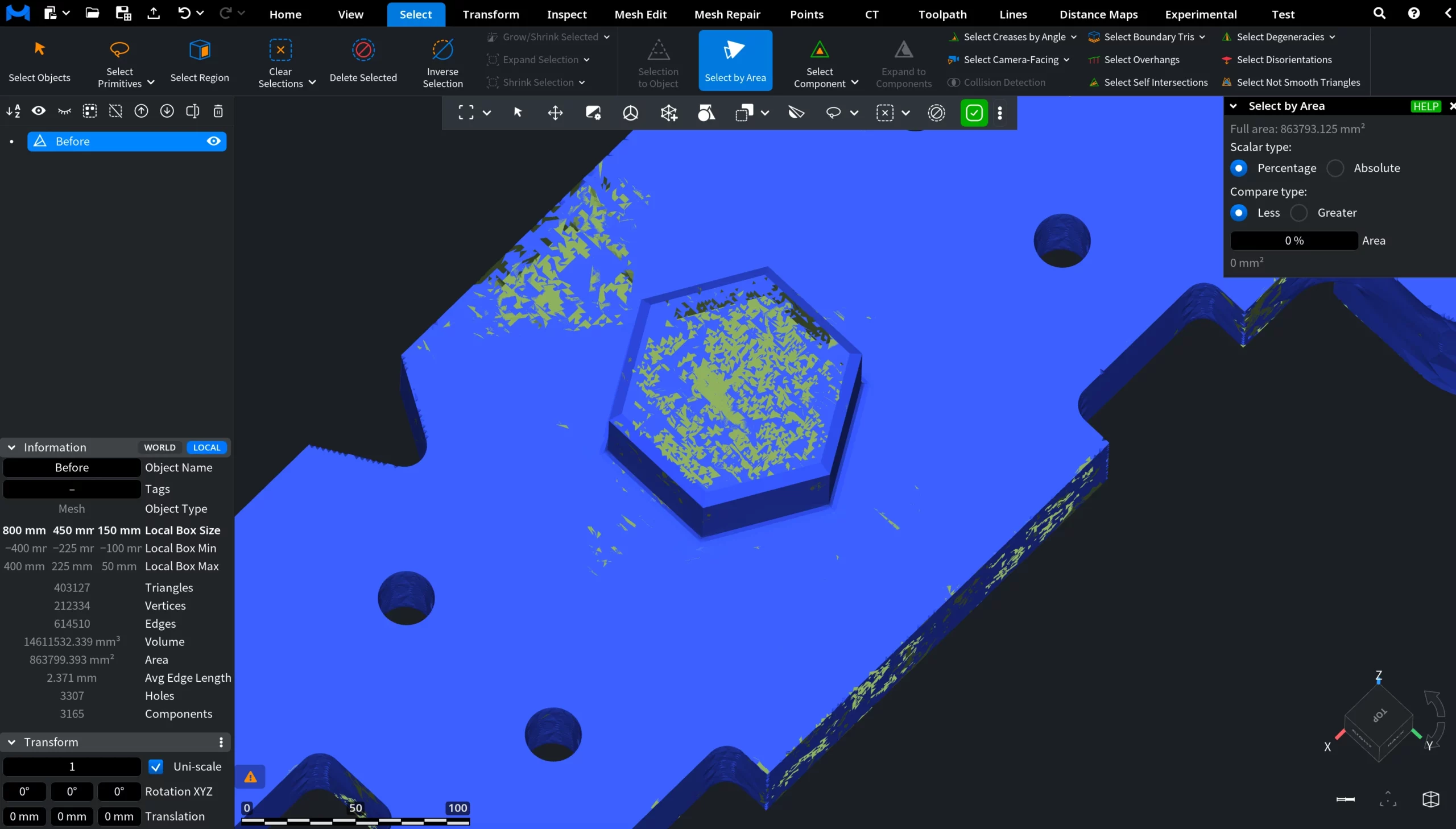
In the screenshot above, you can see a flawed mesh containing several problematic surface regions. A sample selection workflow using Select by Area is demonstrated below.
Select by Area: Absolute and Greater
In the example below, the same flawed mesh is processed using a different selection mode.
Here, the following parameters were used:
- Scalar Type: Absolute
- Compare Type: Greater
- Area: 86 mm²
With these settings, MeshInspector selects all triangles whose area is larger than the specified absolute threshold value.
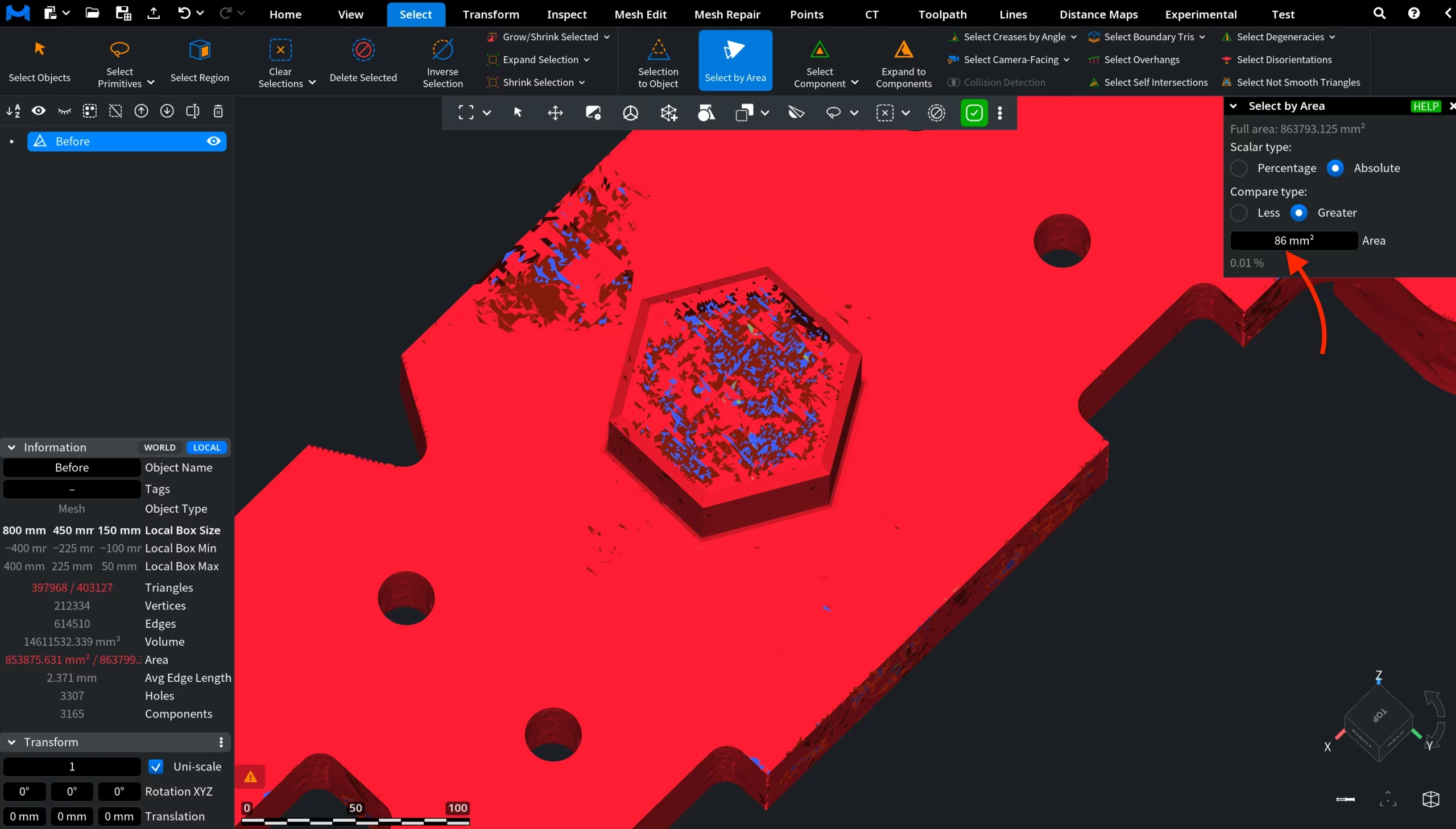
As a result, most large triangles across the mesh surface become highlighted automatically, while smaller problematic triangles remain unselected.