Clicking Select Outer Layer, available from the dropdown next to Select Degeneracies under the Select tab, automatically selects all triangles that belong to the outer layer of a double-layer mesh.

This tool is designed for meshes that contain two surface layers:
- One layer with normals oriented outward.
- Another layer with normals oriented inward.
Select Outer Layer: Before
In this screenshot, you can see a double-layer mesh before Select Outer Layer has been applied. No outer-layer triangles have been selected yet.
Select Outer Layer: After
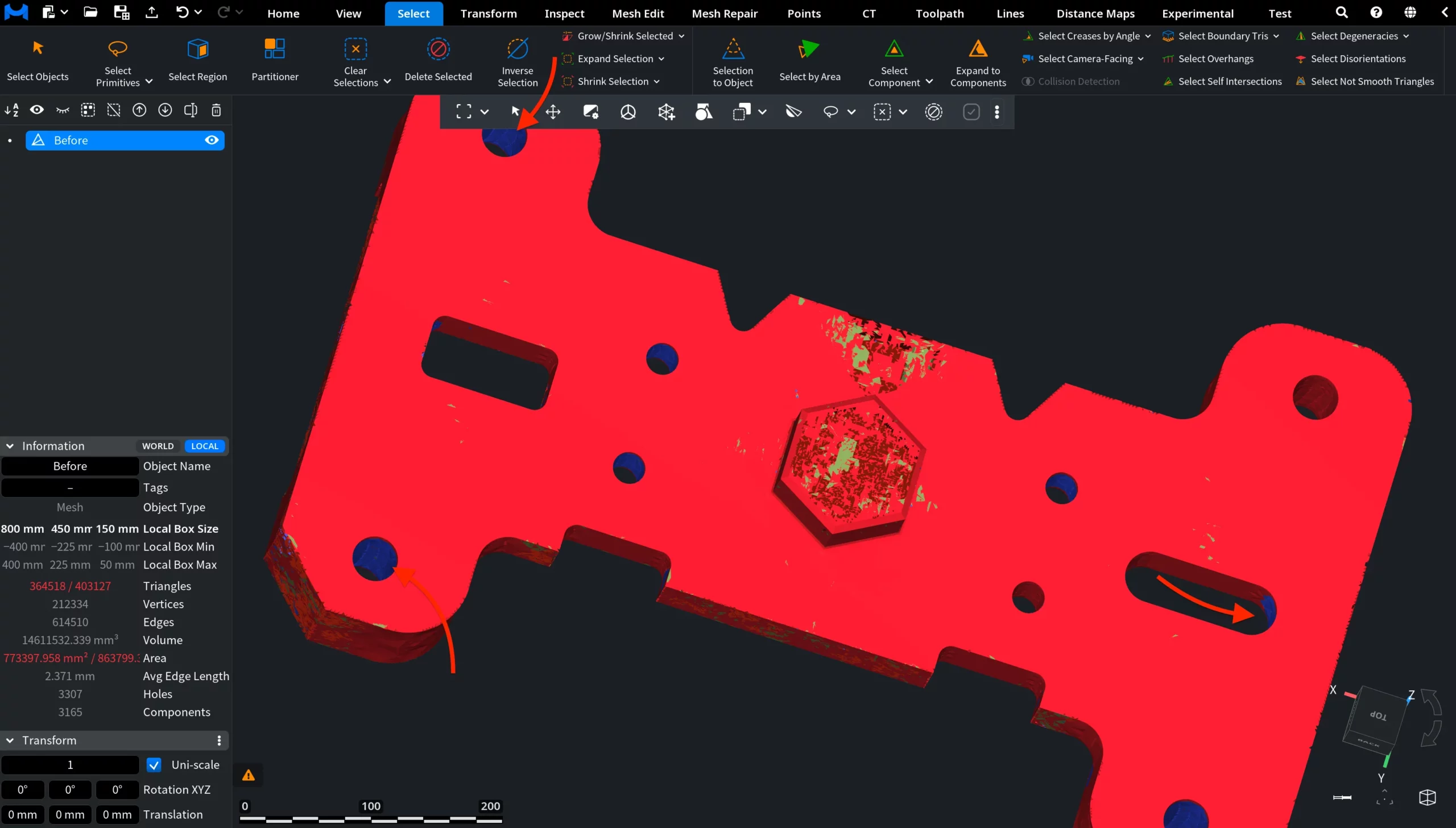
Select Outer Layer analyzes triangle orientations and identifies the layer facing outward, selecting all triangles that form the external surface of the model. In the screenshot below, the detected outer layer was automatically selected and highlighted in red, while other triangles remained unselected and visible in blue inside holes and recessed regions.
This is especially useful for:
- Separating inner and outer shells in scanned or reconstructed meshes.
- Cleaning up double-layer geometry.
- Preparing meshes for manufacturing, simulation, or surface-based operations where only the external surface is required.
How the Select Outer Layer Tool Works