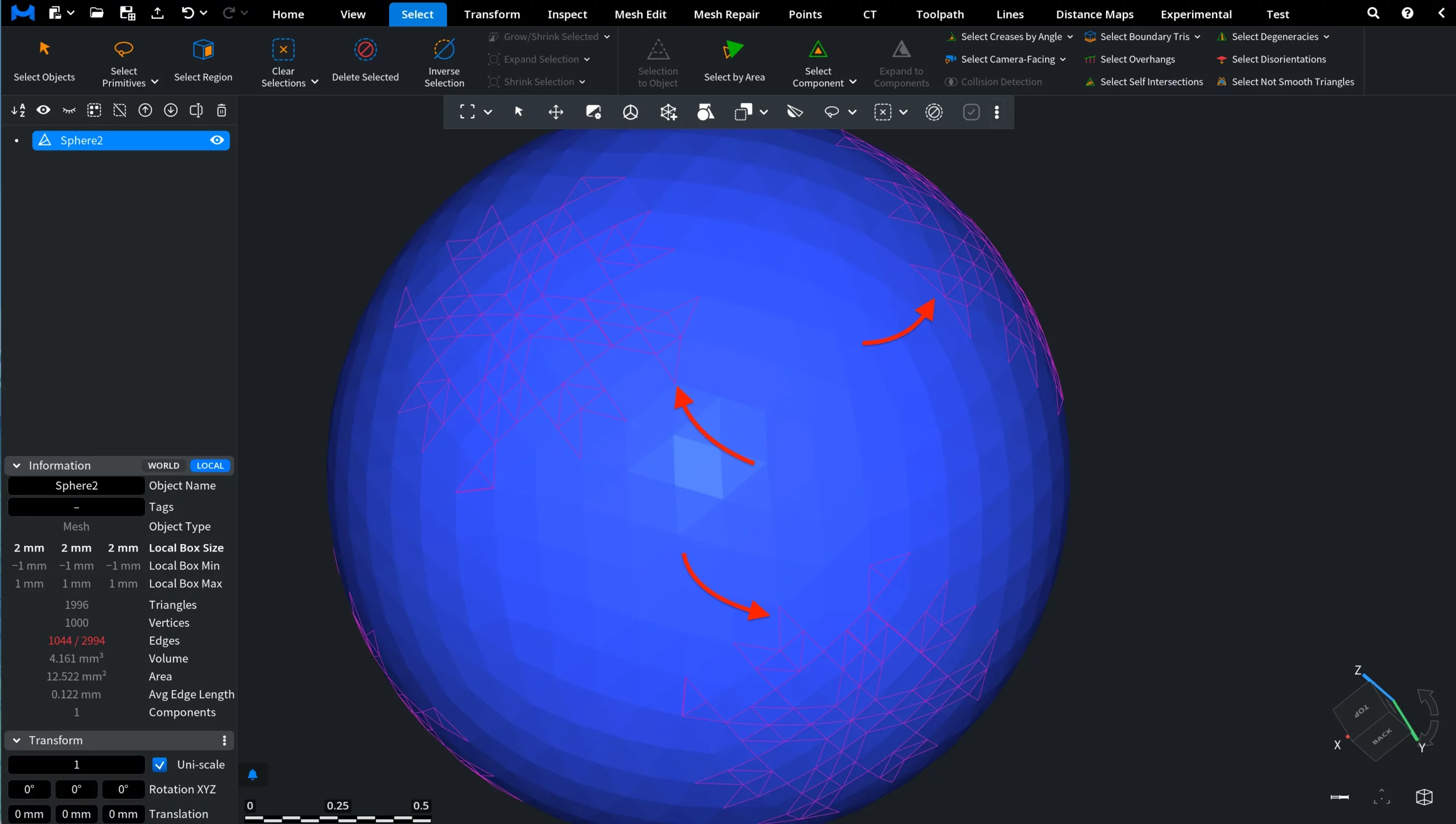
Very closely positioned vertex pairs are often a sign of degenerate or redundant geometry that can negatively affect overall mesh quality. To locate such problematic areas, under the Select tab click the arrow next to Select Primitives and choose Select Twin Edges.

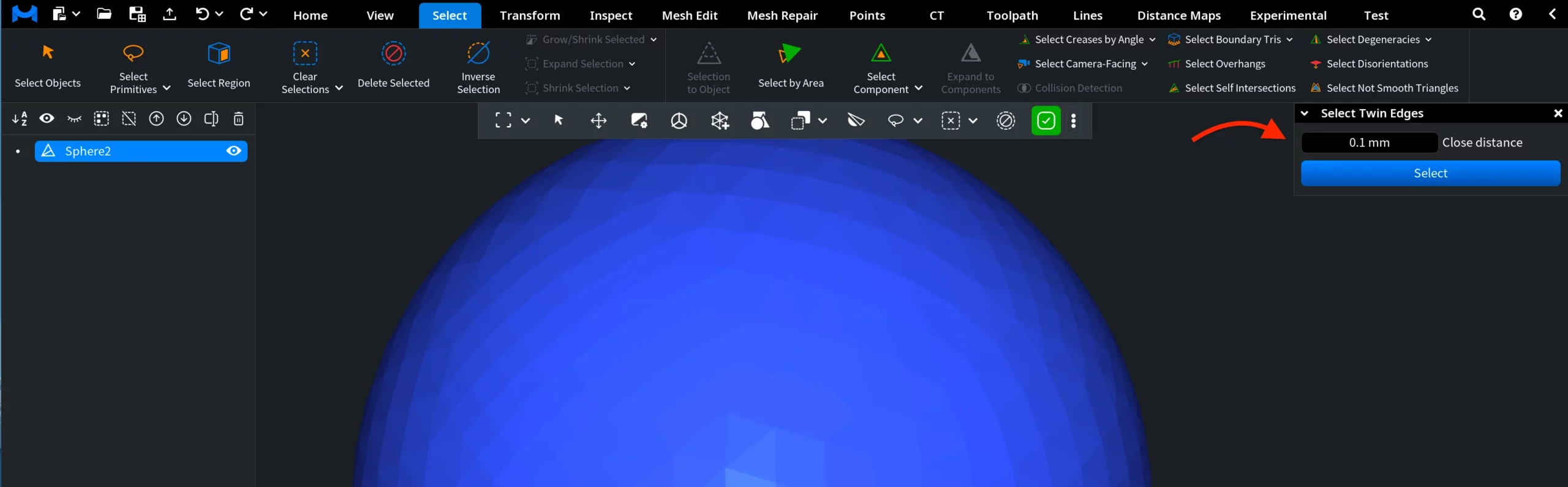
After you choose the tool, a dedicated panel opens where you can define the Close distance value, i.e., the maximum allowed distance between two vertices for them to be treated as twins.
After you click Select, MeshInspector automatically detects all vertex pairs that fall within the specified threshold and highlights the corresponding twin-edge regions in the current selection color. These highlighted areas indicate locations where the mesh contains near-duplicate or degenerate edge structures that may require cleanup.