
Edge Selector selects edges of a mesh by hand: one at a time, along a path on the surface, or all edges inside a loop you draw. Selected edges work as borders for other tools: for example, draw a closed path around an area, select one triangle inside it, and Expand to Components grows the selection up to the path.
Open Edge Selector
- Select a mesh in the Scene tree.
- Click the arrow next to Select › Select Primitives and choose Edge Selector.
- Choose the Method in the panel and select the edges in the viewport.

Methods
| Method | How to select | Options |
|---|---|---|
| Single Edge | Click an edge. The edge under the mouse is highlighted before you click | |
| Polyline | Click points on the surface, or drag the mouse. MeshInspector connects them with a path along the mesh edges. Press Enter or click Select to select the path | Curvature Preference: Geodesic follows the shortest path, Convex prefers convex areas, Concave prefers concave areas |
| Screen Loop (default) | Hold the left mouse button and draw a loop on the screen. All edges inside the loop are selected | Include backfaces, Include only visible, Include boundaries, all on by default |
The Screen Loop options:
- Include backfaces also selects edges on the side of the mesh turned away from the camera.
- Include only visible selects only edges that are not hidden behind other parts of the mesh.
- Include boundaries also selects the mesh boundary edges incident to the selected edges.
To follow a groove or a sharp edge with Polyline, choose Concave or Convex; to get the shortest path between two points, keep Geodesic.
Modifier keys
The panel lists the modifier keys. By default:
| Keys | Effect |
|---|---|
| None | Replaces the previous selection |
| Ctrl (Cmd on macOS) | Adds edges to the selection |
| Shift | Removes edges from the selection |
| Ctrl+Shift (Cmd+Shift on macOS) | Reverses the selection of the edges |
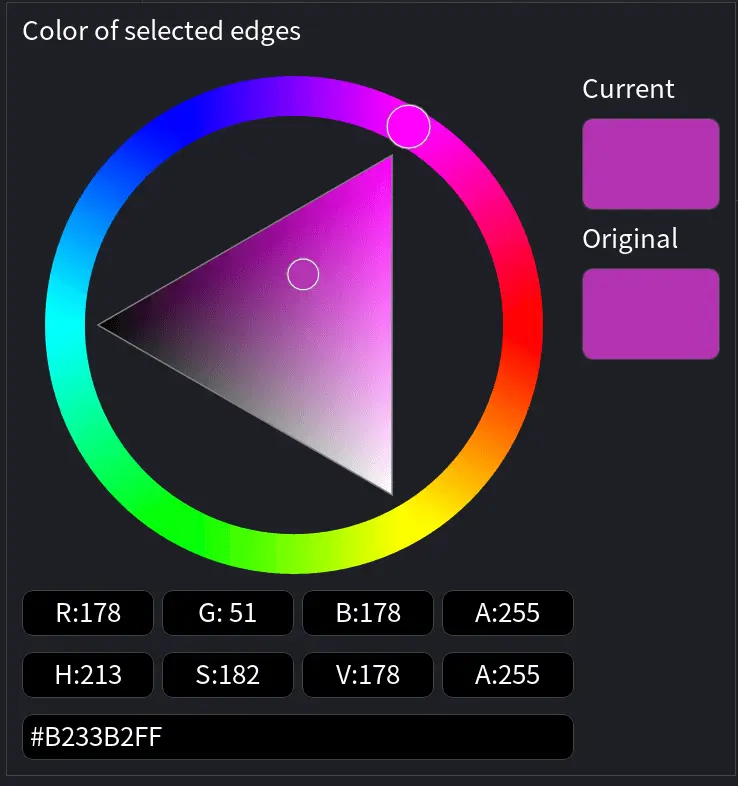
Color of selected edges at the top of the panel opens a color picker for the color of the selected edges of this mesh.
What to do with selected edges
- Expand to Components expands the triangle selection up to the selected edges.
- Select Incident Triangles selects all triangles connected to the selected edges.
- Swap Creases / Edges turns the selected edges into creases, see Select Creases by Angle.
- To select the sharp edges of a part automatically instead of by hand, use Select Creases by Angle.


