
Select by Area selects the separate pieces (connected components) of a mesh whose surface area is smaller or larger than a value you set. Use it to find the small floating pieces that a 3D scan often leaves around the main part, or to select only the large pieces. The tool compares whole pieces, not single triangles: a piece is selected completely or not at all.
Select pieces by area
- Select one mesh.
- Click Select › Select by Area. The panel shows Full area, the surface area of the whole mesh.
- Choose Scalar type and Compare type, then set Area.
- The selection in the viewport changes as you change Compare type or Area. Close the panel to keep it.
| Parameter | What it does | Default |
|---|---|---|
| Scalar type | Percentage: Area is a share of the full area. Absolute: Area is a value in mm² | Percentage |
| Compare type | Less selects the pieces with an area smaller than Area; Greater selects the pieces with a larger area | Less |
| Area | The threshold, from 0 to 100% or from 0 to the full area. The value in the other unit is shown below the field | 0% |
The tool replaces the current triangle selection of the mesh. A piece is a group of triangles connected through shared vertices. If the mesh is one piece, Less selects nothing and Greater selects the whole mesh for any value below 100%.
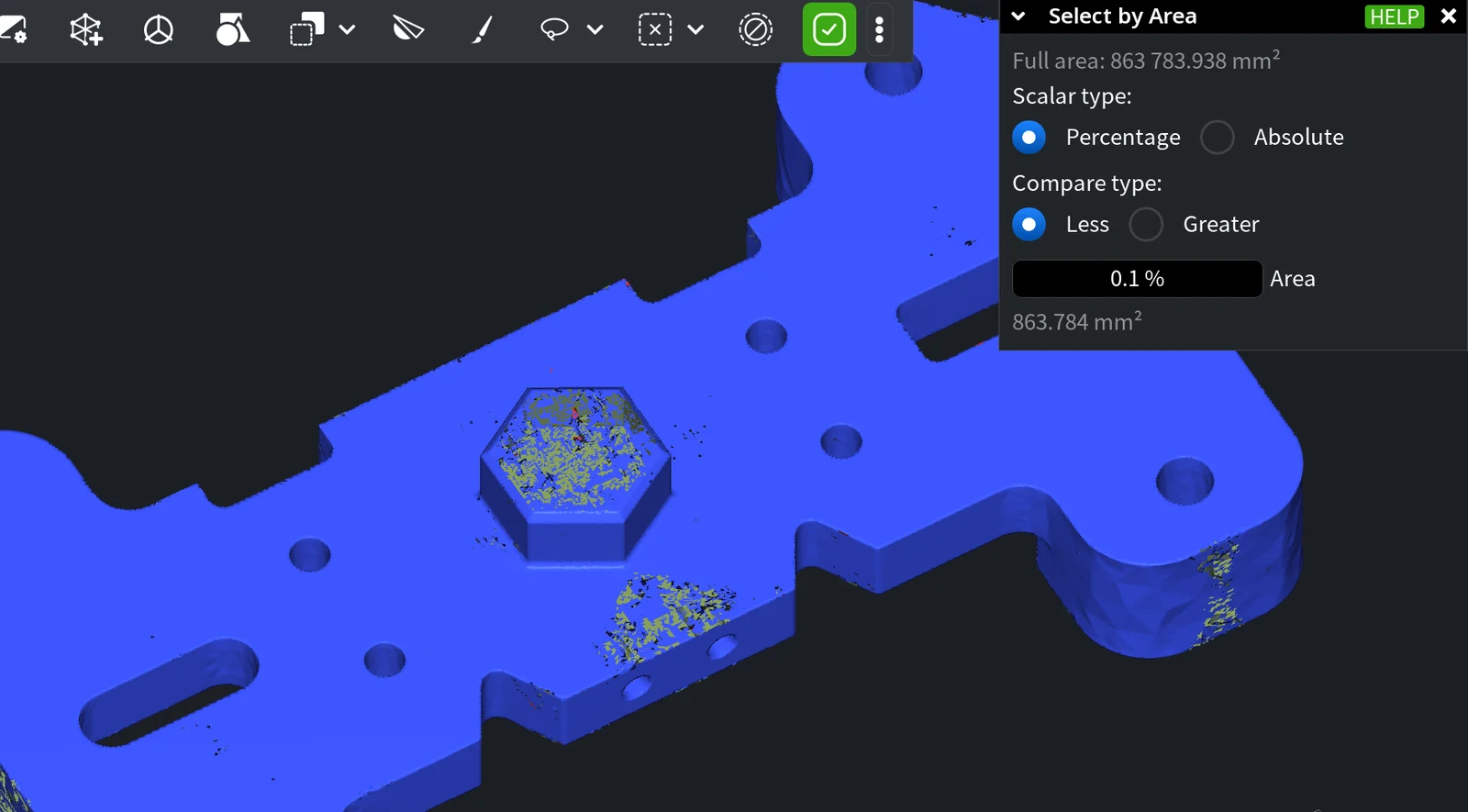
Example: find scan debris
The scanned plate above is 3,277 separate pieces. With Percentage, Less and Area 0.1%, the tool selects every piece smaller than 0.1% of the full area, 444 of the 403,116 triangles. The large main body stays unselected. Start with a small value and raise it until all the debris is selected but no part of the main body is.
To delete the selected pieces, click Delete Selected. To keep only the largest piece in one step, use Keep Largest Component in Separate Components. To select a single piece, use Select Component.


