

Select Camera-Facing adds to the selection all triangles of a mesh that are turned toward the camera, even if other triangles hide them. Unselect Camera-Facing removes such triangles from the selection. Use them to select one side of a model as you see it: the top of a part viewed from above, or the side of a scan that faced the scanner.
Select the triangles that face you
- Select one or more meshes in the Scene tree.
- Rotate the view so that the side you need faces you.
- Click Select › Select Camera-Facing.
The command works at once, without a panel. A triangle is added when its front side is turned toward the camera; whether it is visible does not matter. The triangles selected before stay selected.
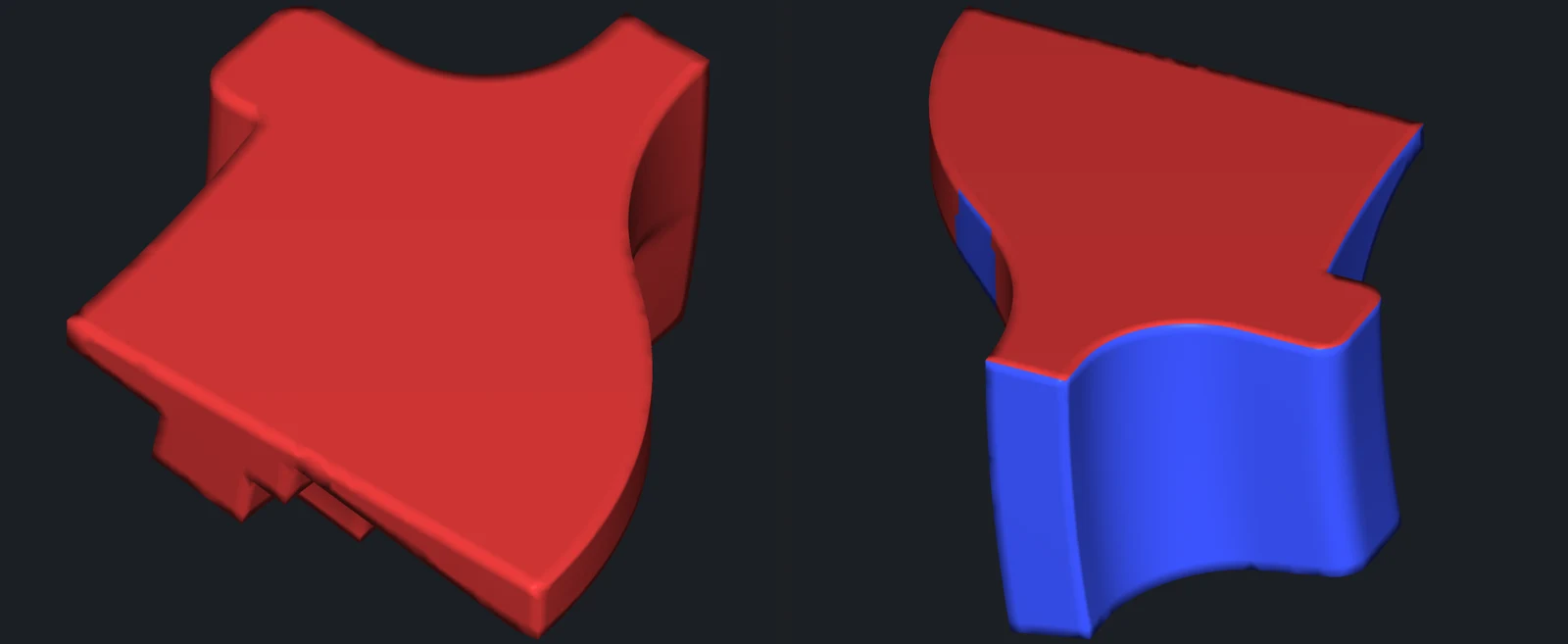
To remove the triangles that face you from the selection, click the arrow next to Select › Select Camera-Facing and choose Unselect Camera-Facing. The triangles that face away from the camera keep their selection state.
Both commands work on all selected meshes. To undo, use Undo (Ctrl+Z, or Cmd+Z on macOS).
Camera-Facing or Select Only Visible Triangles
The two give different results when one part of a model hides another:
| Tool | Selects the hidden triangles that face the camera |
|---|---|
| Select Camera-Facing | Yes, all triangles turned toward the camera are selected |
| Select Primitives with Select Only Visible Triangles on | No, only the triangles you see under the selection shape are selected |
For example, viewed from above, Select Camera-Facing selects both the top of a housing and the floor inside it, even where the walls hide the floor.
What to do next
- Click Select › Delete Selected to delete the selected side, see Delete Selected.
- Click Select › Selection to Object to copy it into a new object, see Selection to Object.
- Combine the two commands: select from one view, then rotate the view and unselect, to keep only the triangles that face the first view but not the second.


