To access the Triangles Selector tool, click the arrow next to Select Primitives under the Select tab, then choose Triangles Selector. This opens a dedicated panel for selecting triangles on mesh surfaces using different selection modes.

These modes allow you to define selection boundaries, depending on the task. Use the Mode dropdown to choose how triangles are selected.
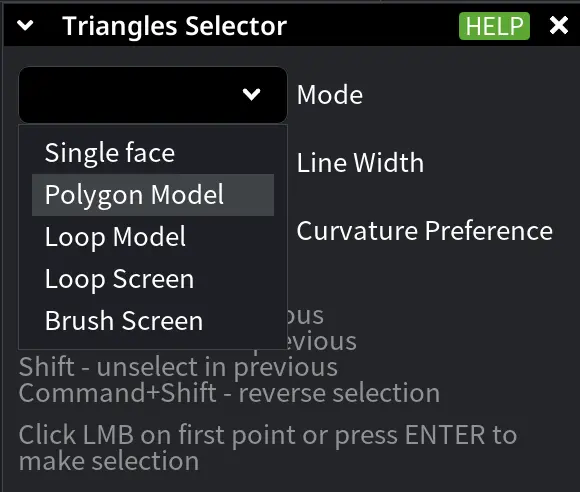
Selection Modes in Triangles Selector
Single Face
-
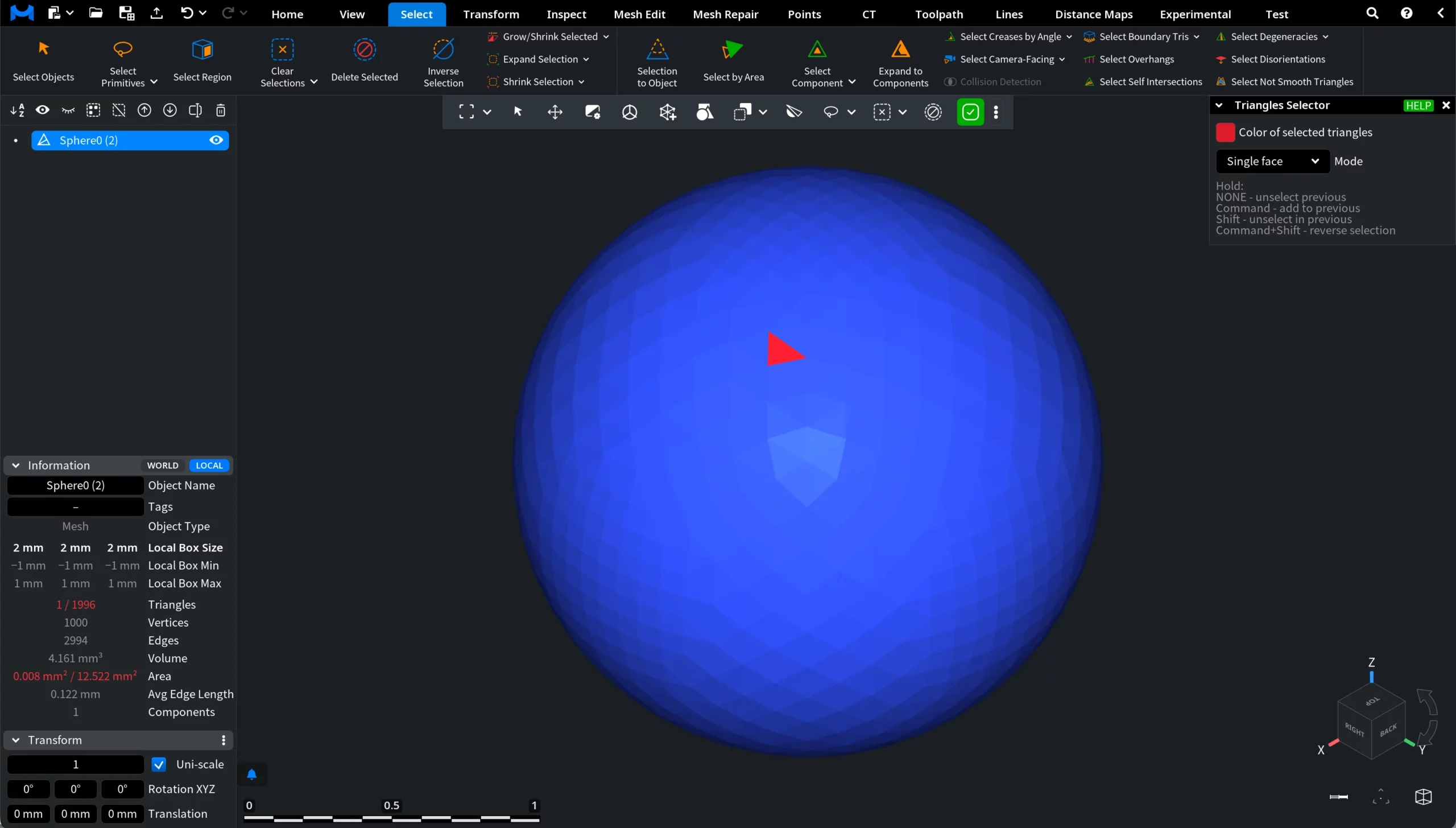
Single Face selects a single triangle under the mouse cursor. Use this mode for precise, element-by-element inspection or correction.
Polygon Model
-
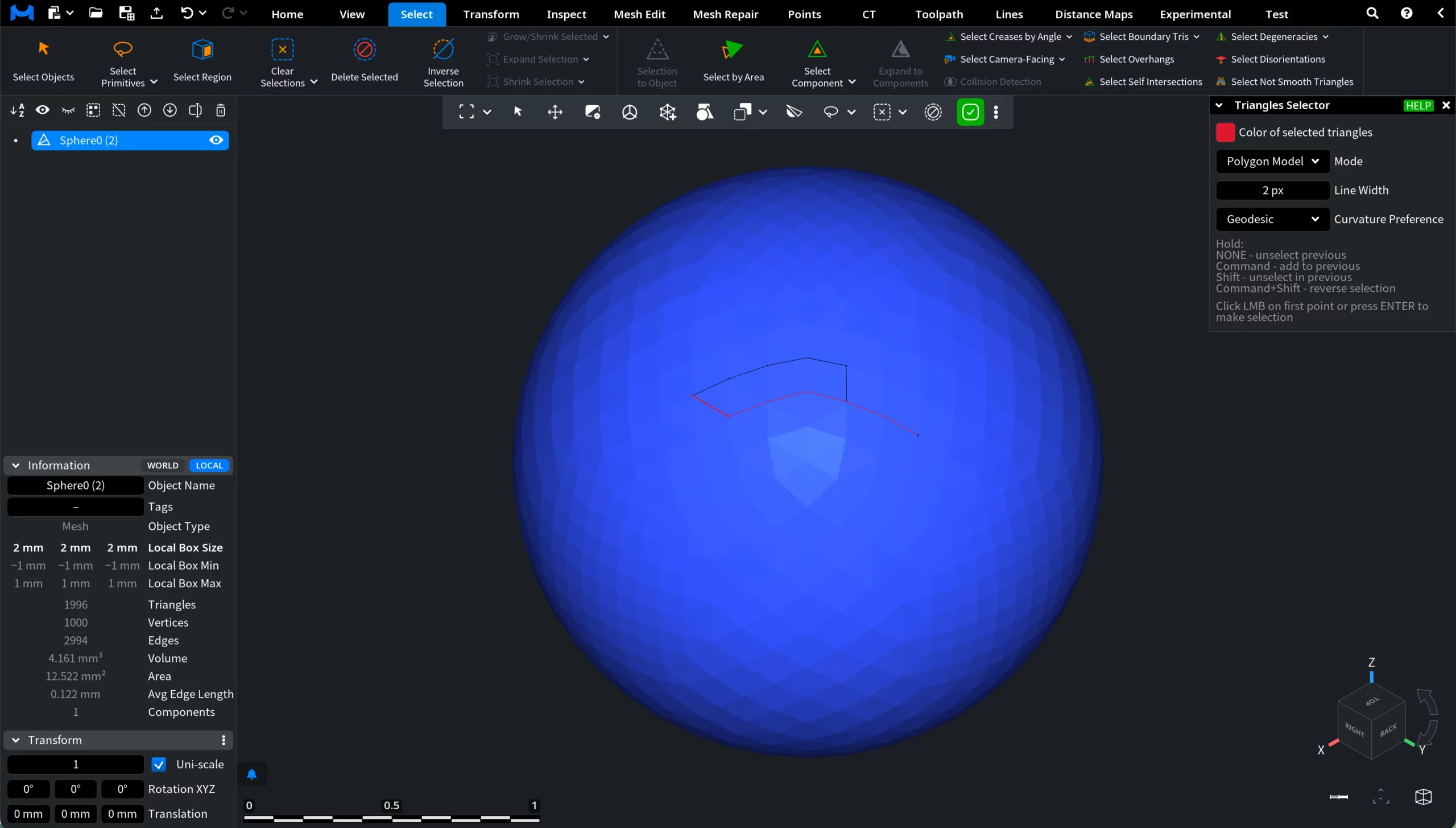
Polygon Model defines a selection boundary directly on the mesh surface by clicking a sequence of points. The selection follows the surface topology.
Additional settings:
-
-
Line Width defines the width of the selection boundary drawn on the surface.
-
Curvature Preference controls how the boundary follows the surface:
-
Geodesic follows the shortest path along the surface.
-
Convex favors outward-curving regions.
-
Concave favors inward-curving regions.
-
-
Loop Model
-
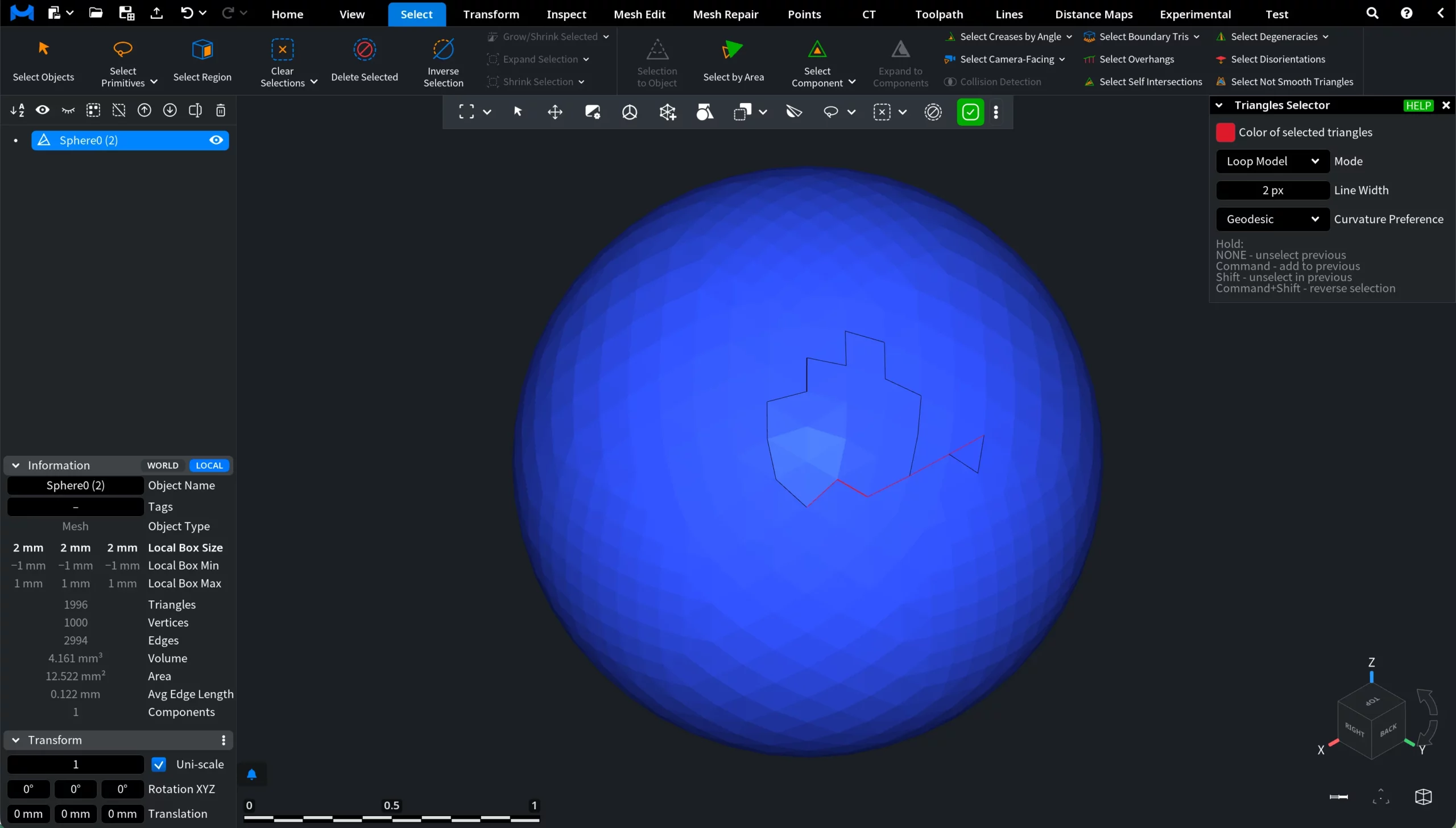
Loop Model defines a continuous selection boundary on the mesh surface by holding the mouse button and moving the cursor. The same Line Width and Curvature Preference options apply as in Polygon Model.
Loop Screen
-
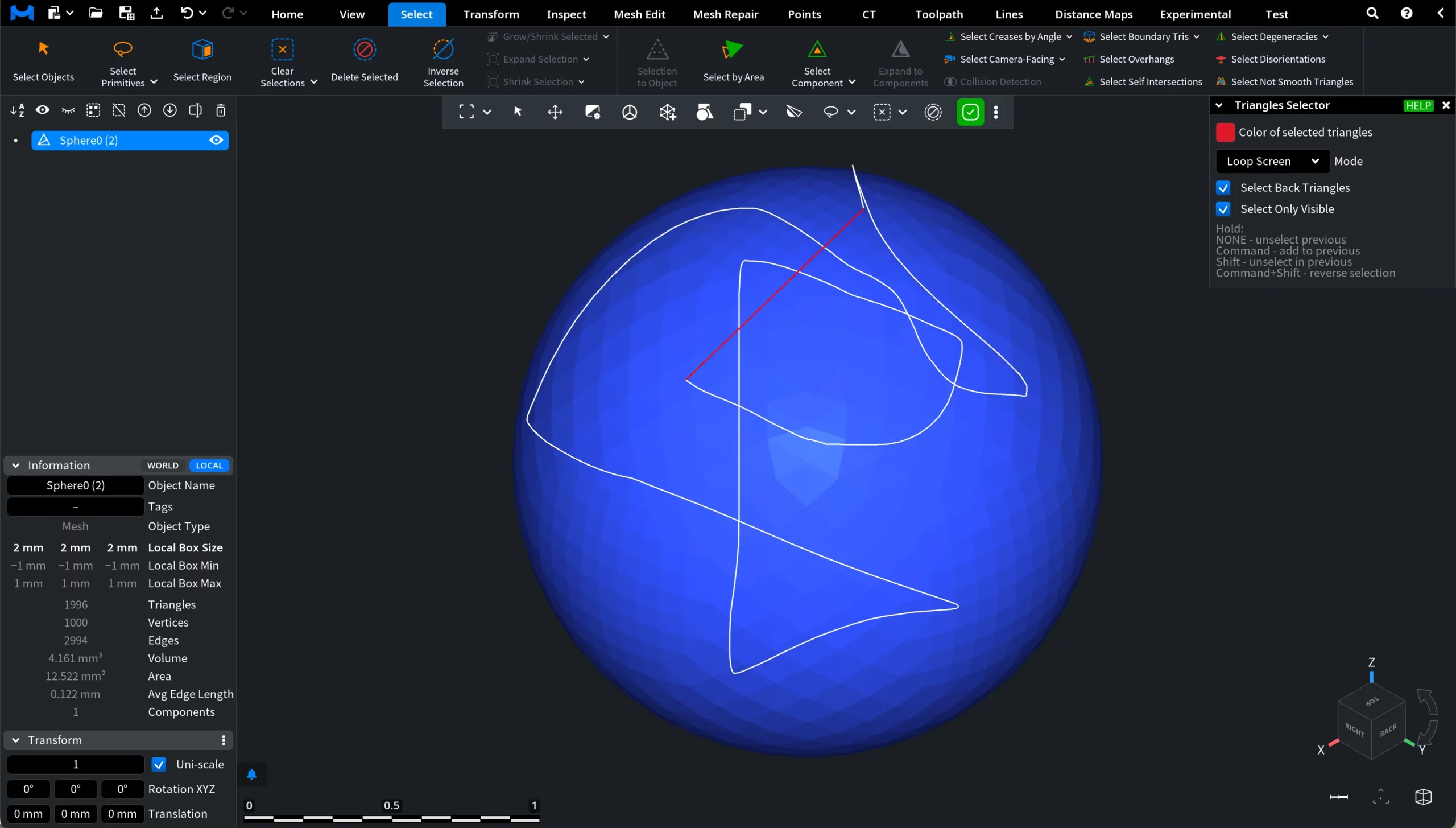
Loop Screen defines a closed selection loop in screen space by holding the mouse button and drawing the loop.
Additional options:
-
-
Select Back Triangles.
-
Select Only Visible.
-
Brush Screen
-
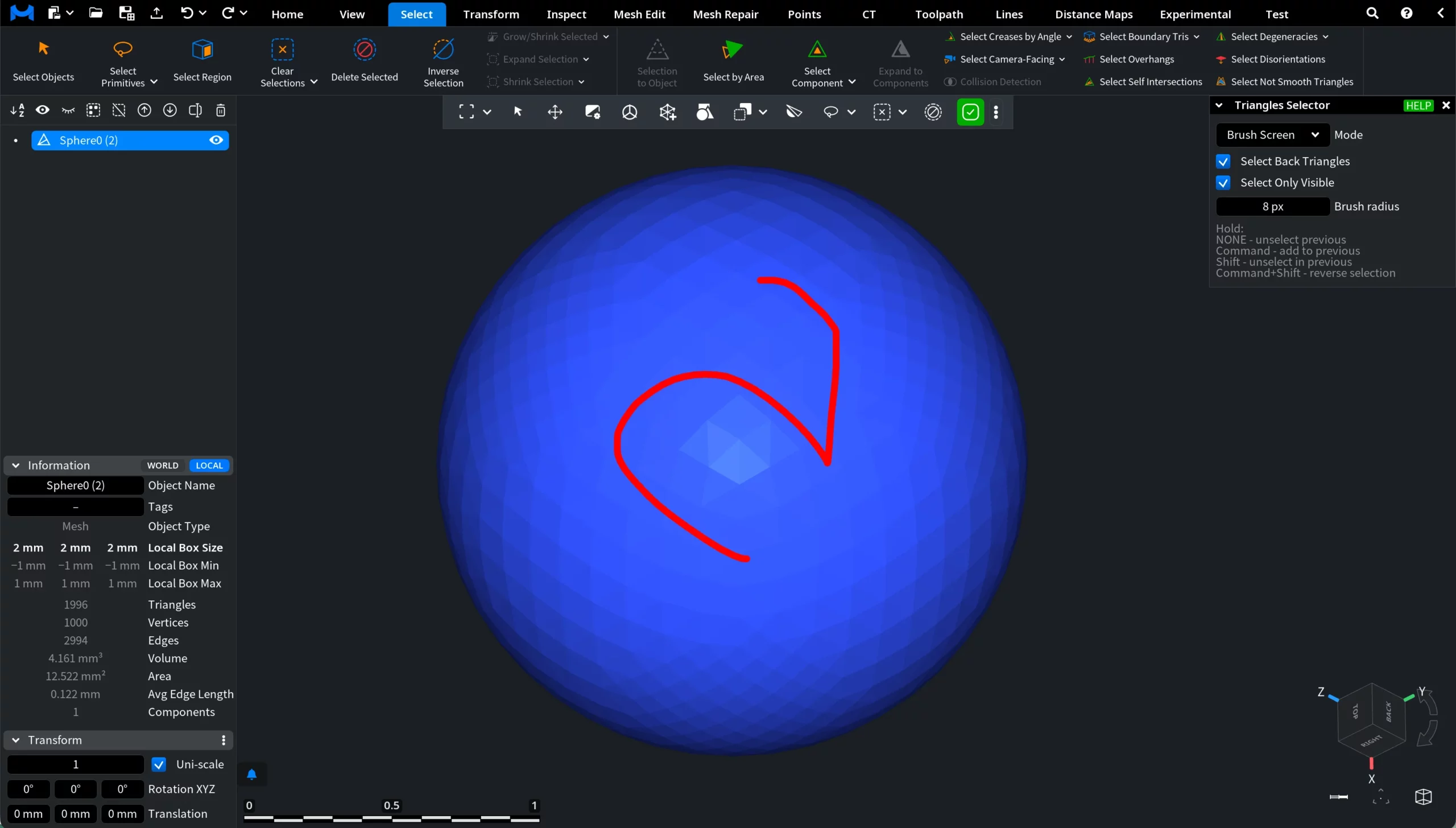
Brush Screen selects multiple triangles by dragging a brush over the screen.
Additional options:
-
-
Brush Radius controls the size of the selection brush.
-
Select Back Triangles.
-
Select Only Visible.
-
Modifier Keys (Where Applicable)
Modifier keys change how the new selection interacts with the existing one. Hold:
-
None replaces the previous selection.
-
CTRL (or Command) adds triangles to the current selection.
-
SHIFT removes triangles from the current selection.
-
SHIFT + CTRL (or Command) reverses the selection.
Click the left mouse button (LMB) on the first point or Press Enter to finalize the selection.