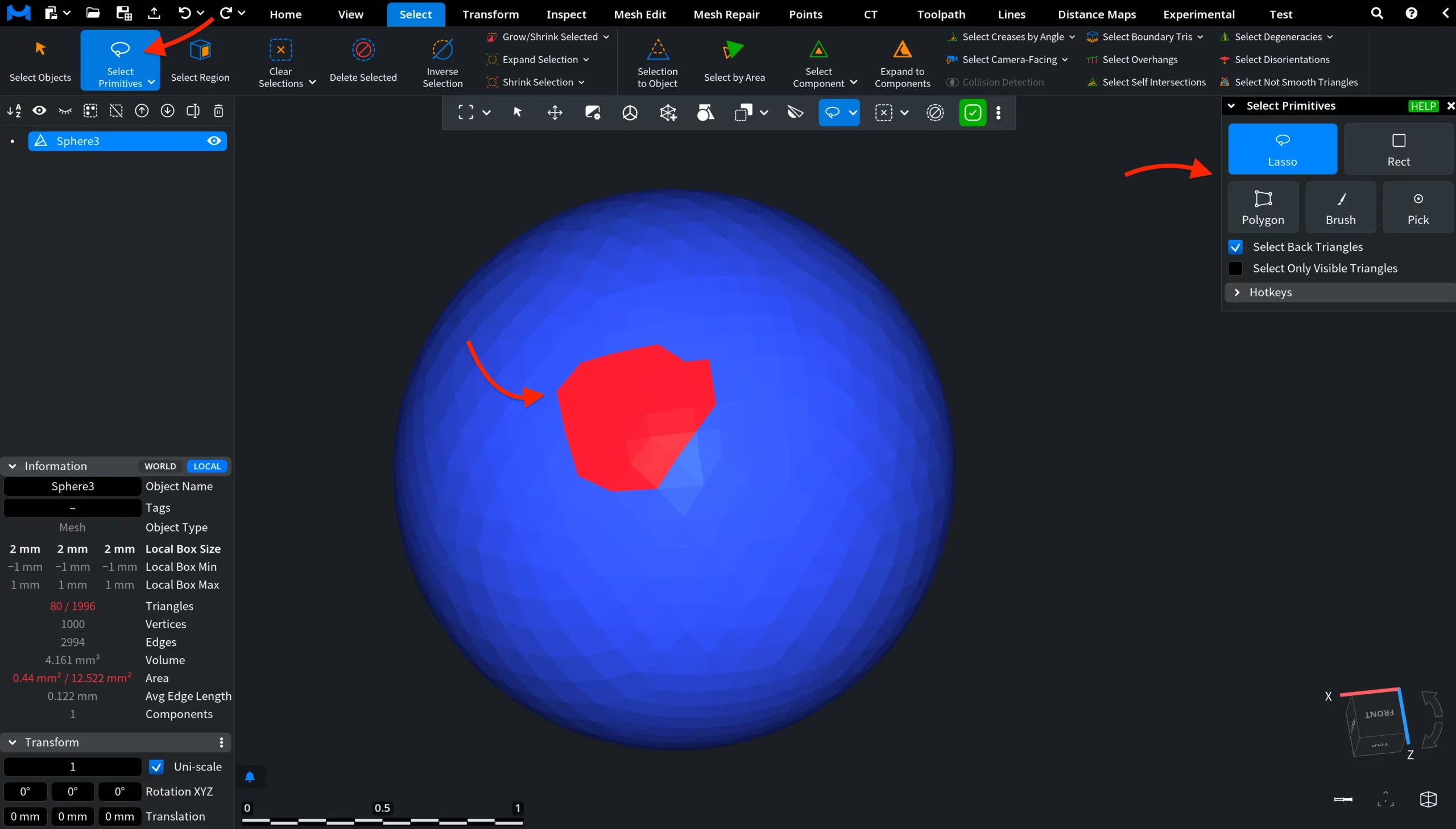
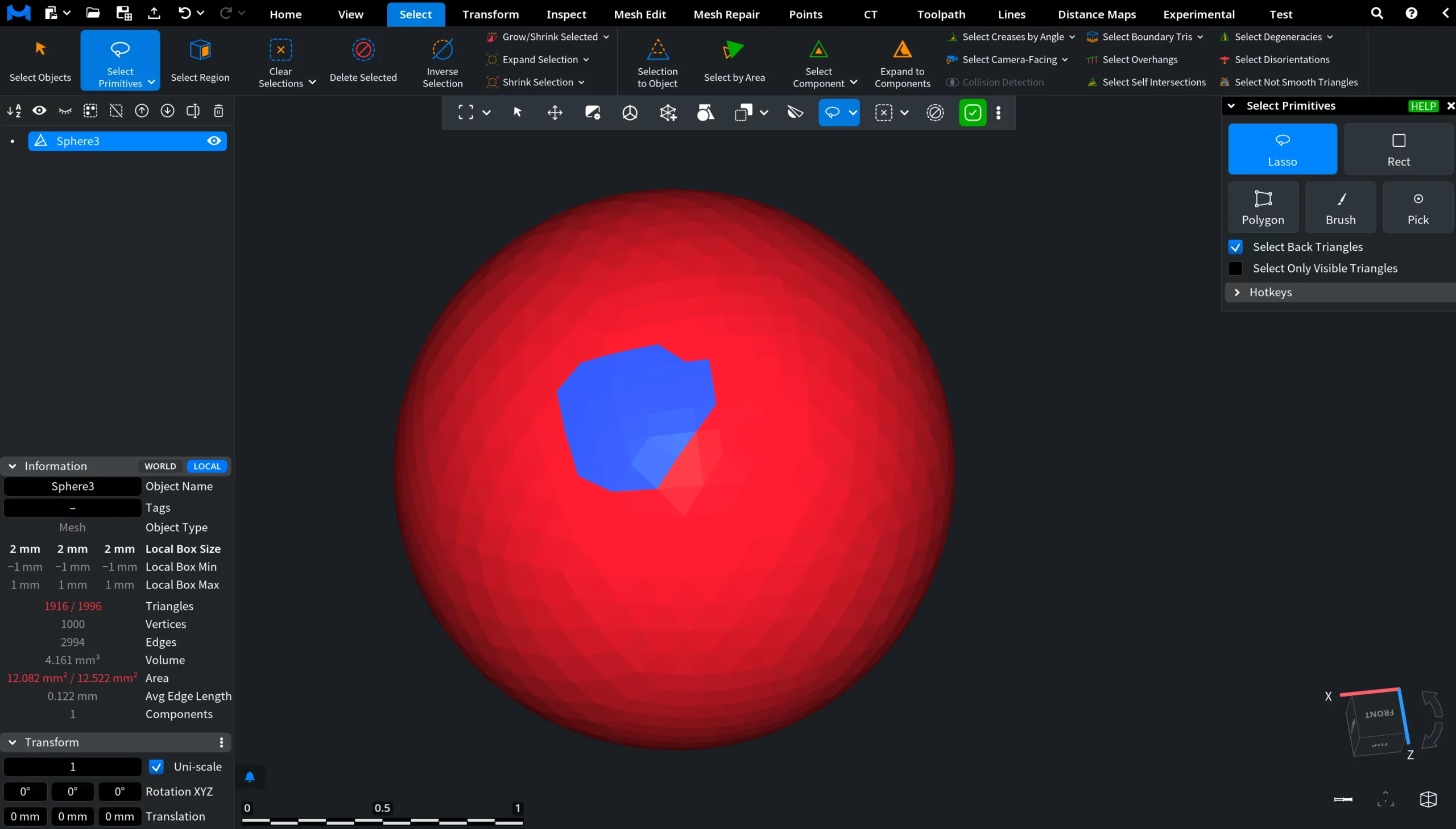
Inverse Selection swaps the current primitive selection in meshes or point clouds: all selected triangles or points become unselected, while all previously unselected ones become selected. To access this tool, go to the Select tab and click Inverse Selection.
In the example below, before applying Inverse Selection, a portion of mesh triangles is already selected inside through the active Select Primitives tool. The selected triangles are highlighted in red, while the rest of the mesh remains unselected.
After you click Inverse Selection, MeshInspector swaps the selection state across the entire object: the previously selected primitives become unselected, while all previously unselected primitives become selected. As a result, the selection instantly shifts to the complementary area outside the original selected region.
The active Selection workflow remains enabled, so you can continue refining, deleting, or modifying the new selection right away.
How the Inverse Selection Tool Works in MeshInspector