The Selection to Object tool, located under the Select tab, creates a new object from the currently selected primitives of the active mesh or point cloud.

This tool extracts the selection into a separate object of the same type as the source object:
- For meshes, the new object is created from the selected triangles.
- For point clouds, the new object is created from the selected points.
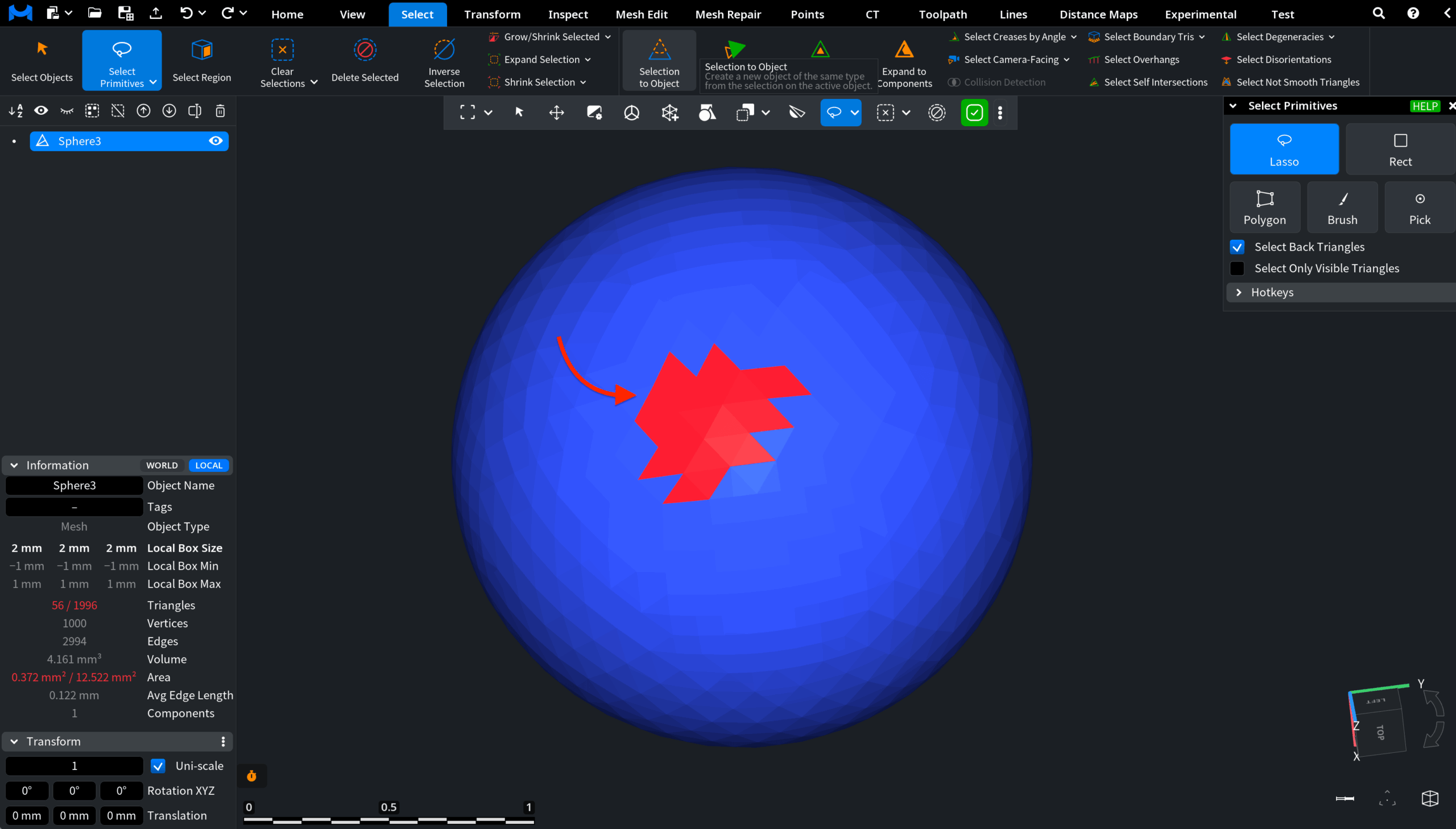
In the screenshot below, the source mesh already contains a selected group of triangles. Note that the Select Back Triangles setting is enabled.
After you click Selection to Object, MeshInspector creates a new independent object from the selected primitives and adds it to the Scene Tree. Because Select Back Triangles was enabled during selection, triangles from both sides of the source mesh are included in this extracted partial object.
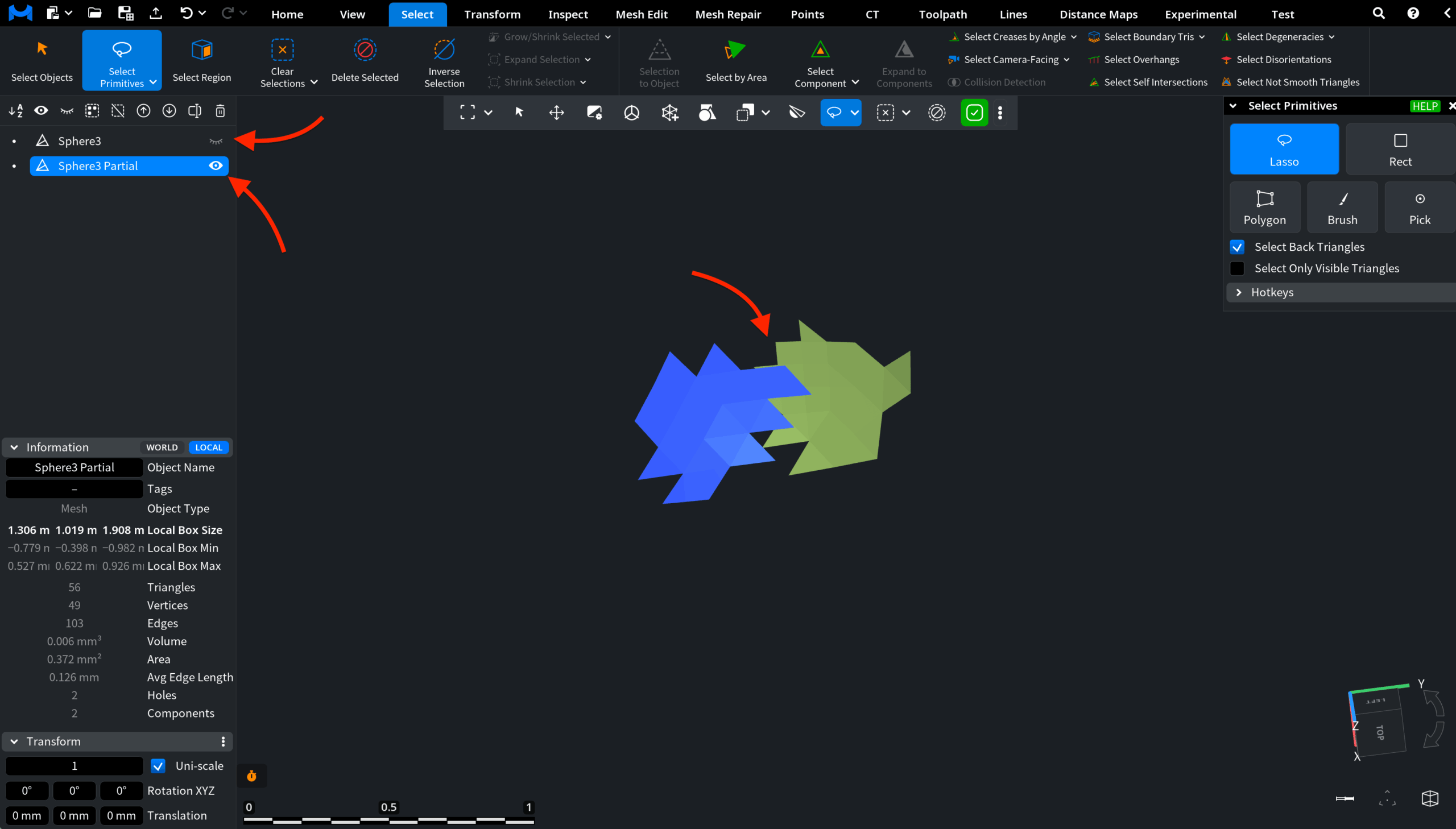
The original source object remains unchanged but becomes hidden, while the newly created object is displayed in the viewport and automatically selected for further inspection, editing, repair, or export.
The Select Primitives tool also remains active, so you can continue working immediately.