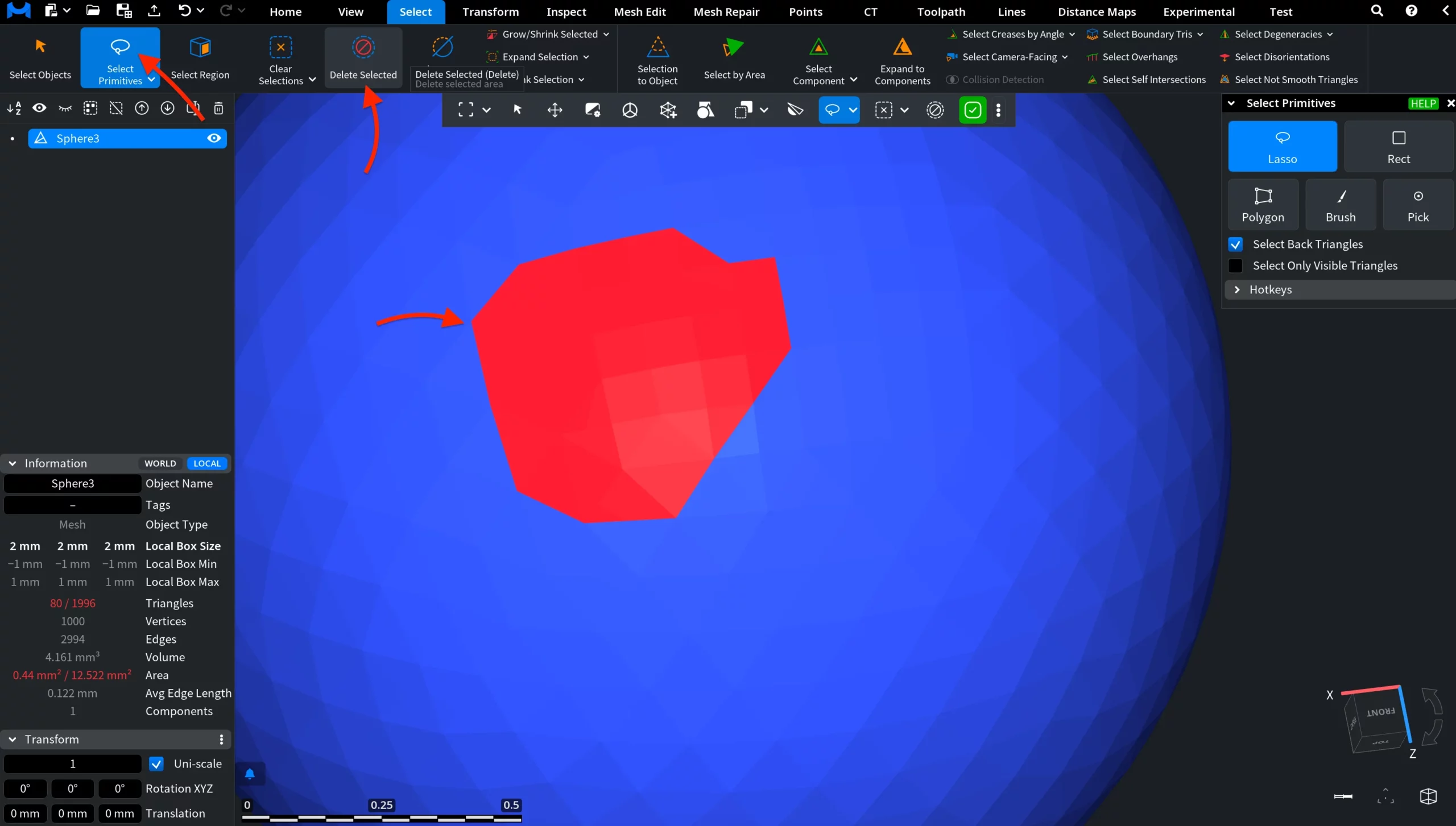
Delete Selected permanently removes the currently selected area from the object. To access this tool, go to the Select tab and click Delete Selected.

For example, in the screenshot below the Select Primitives functionality is active. A group of mesh triangles has already been selected with the Lasso mode. If these selected primitives need to be permanently removed from the object, click Delete Selected.
After you click Delete Selected, the chosen triangles are permanently removed from the object, creating an open deleted area. Because Select Back Triangles was enabled during selection, MeshInspector also deleted the corresponding back-facing triangles located on the opposite side.
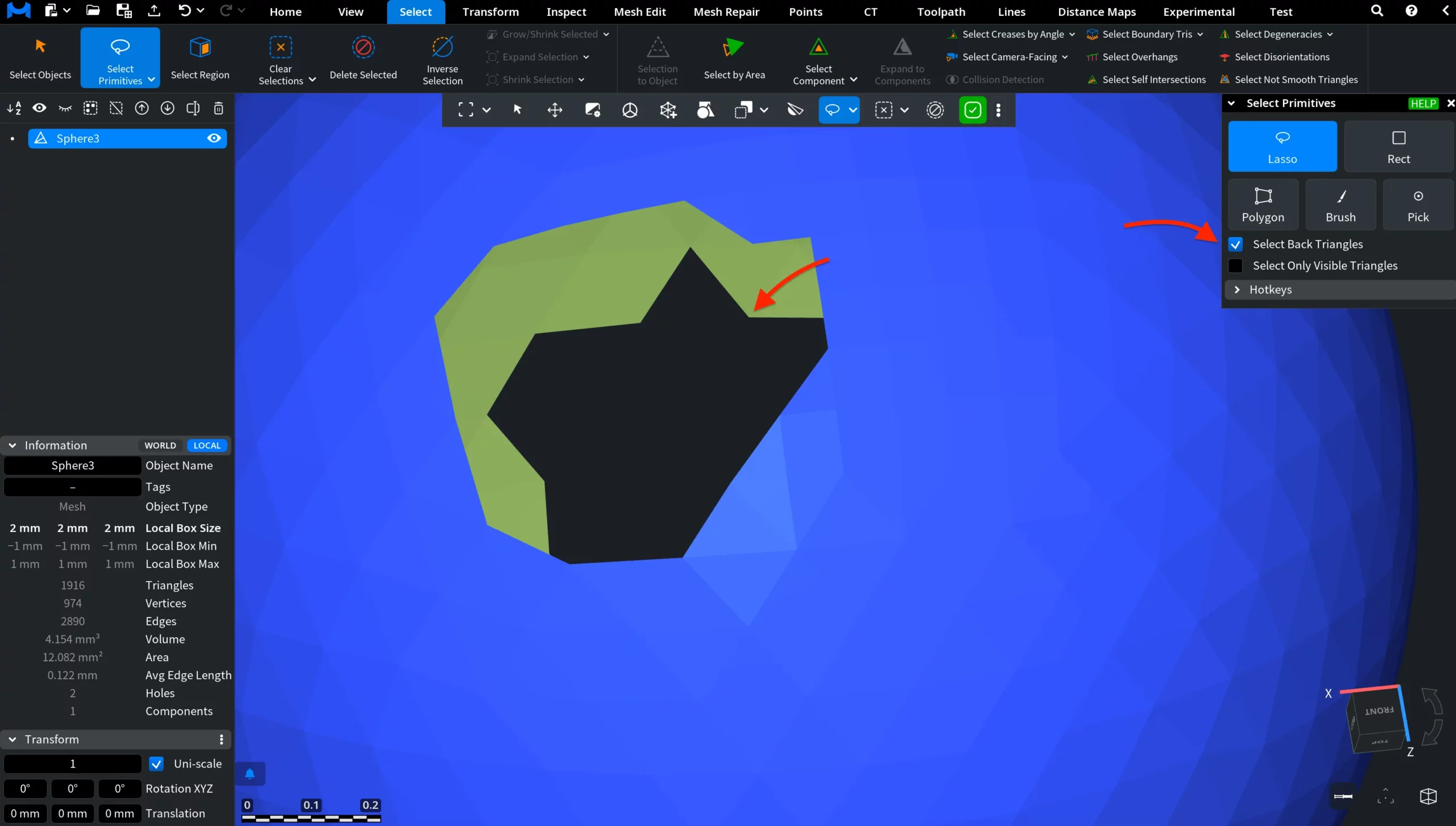
The Select Primitives tool remains active, so you can continue selecting and deleting additional areas if needed.