Clicking Select Boundary Tris, located under the Select tab, adds to the selection all triangles that lie on the boundary of the mesh (i.e., triangles adjacent to open boundary edges). This is useful for identifying holes, open borders, or incomplete areas in scanned or imported meshes. Once selected, boundary triangles can be further expanded, shrunk, or processed to help repair or smooth the mesh perimeter.

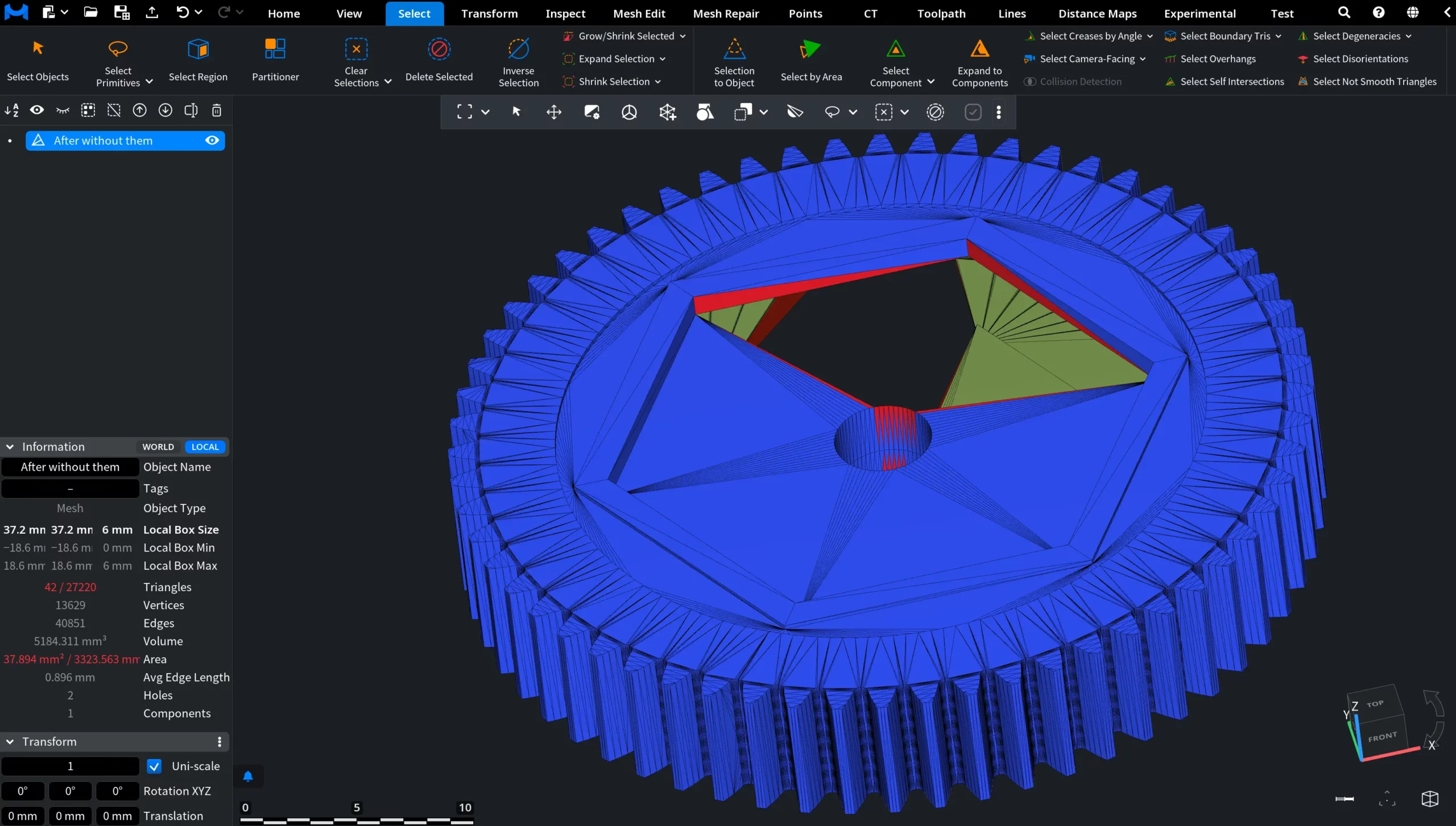
Select Boundary Tris: Before
In the screenshot below, you can see a mesh containing an open hole in its surface. To visualize its triangles, L was pressed. The boundary triangles around the hole have not yet been selected.
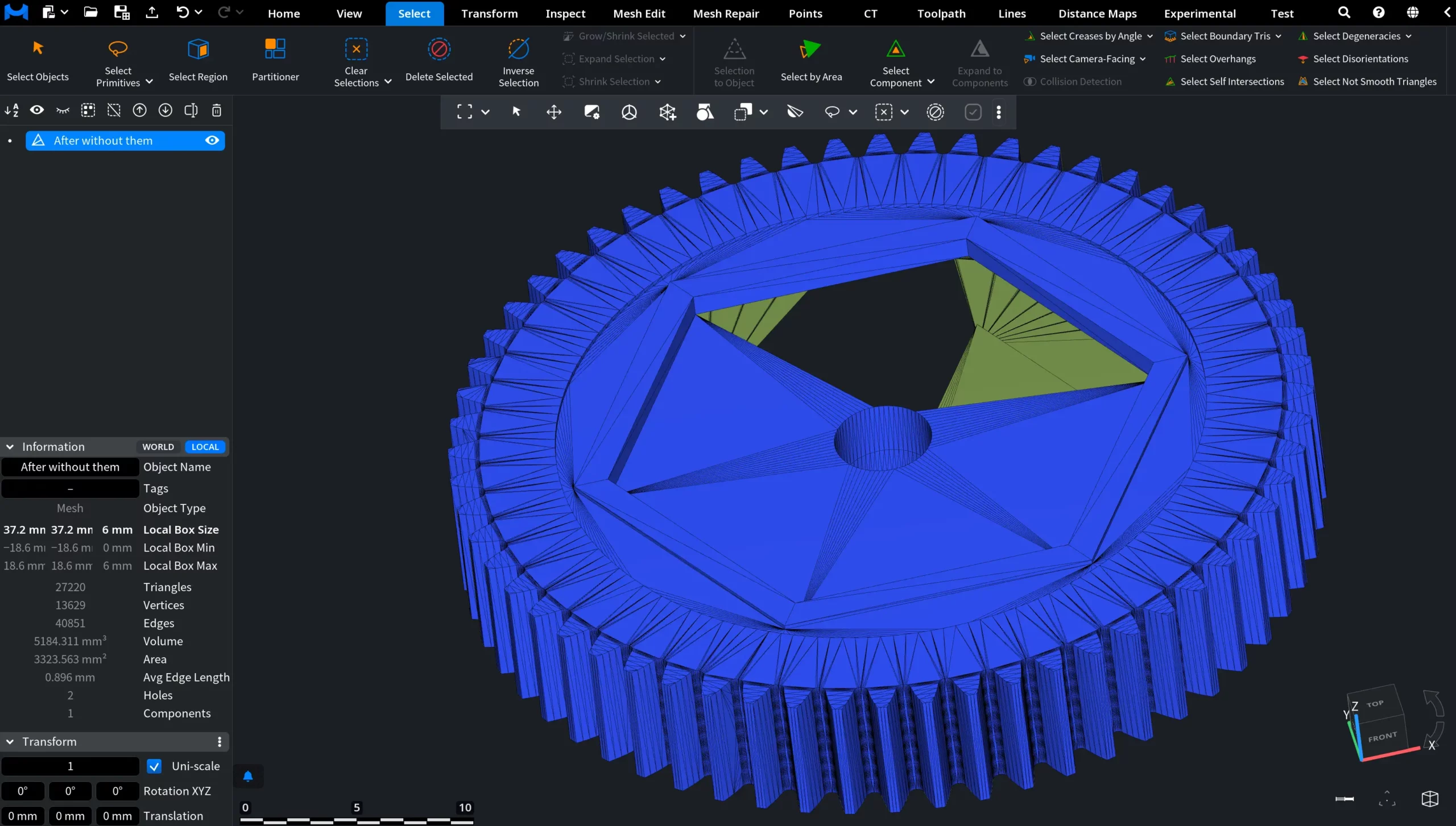
Select Boundary Tris: After
In this screenshot, Select Boundary Tris has been applied. Triangles adjacent to the open boundary edges were automatically added to the selection and highlighted in red, clearly outlining the hole in the mesh.