
Collision Detection selects the triangles where two meshes intersect each other. Use it to check how parts of an assembly fit together or whether two models placed in one scene overlap. To find intersections inside one mesh, use Select Self Intersections instead.
You find the tool in Select › Collision Detection.

Find Where Two Meshes Intersect
- In the Scene tree, select the two meshes: click the first one, then Ctrl+click (Cmd+click on macOS) the second. The tool works only when exactly two meshes are selected.
- Go to Select › Collision Detection. The panel shows the first mesh as Object A (name in red) and the second as Object B (name in blue). The tool also turns on flat shading for both meshes.
- Click Collide.
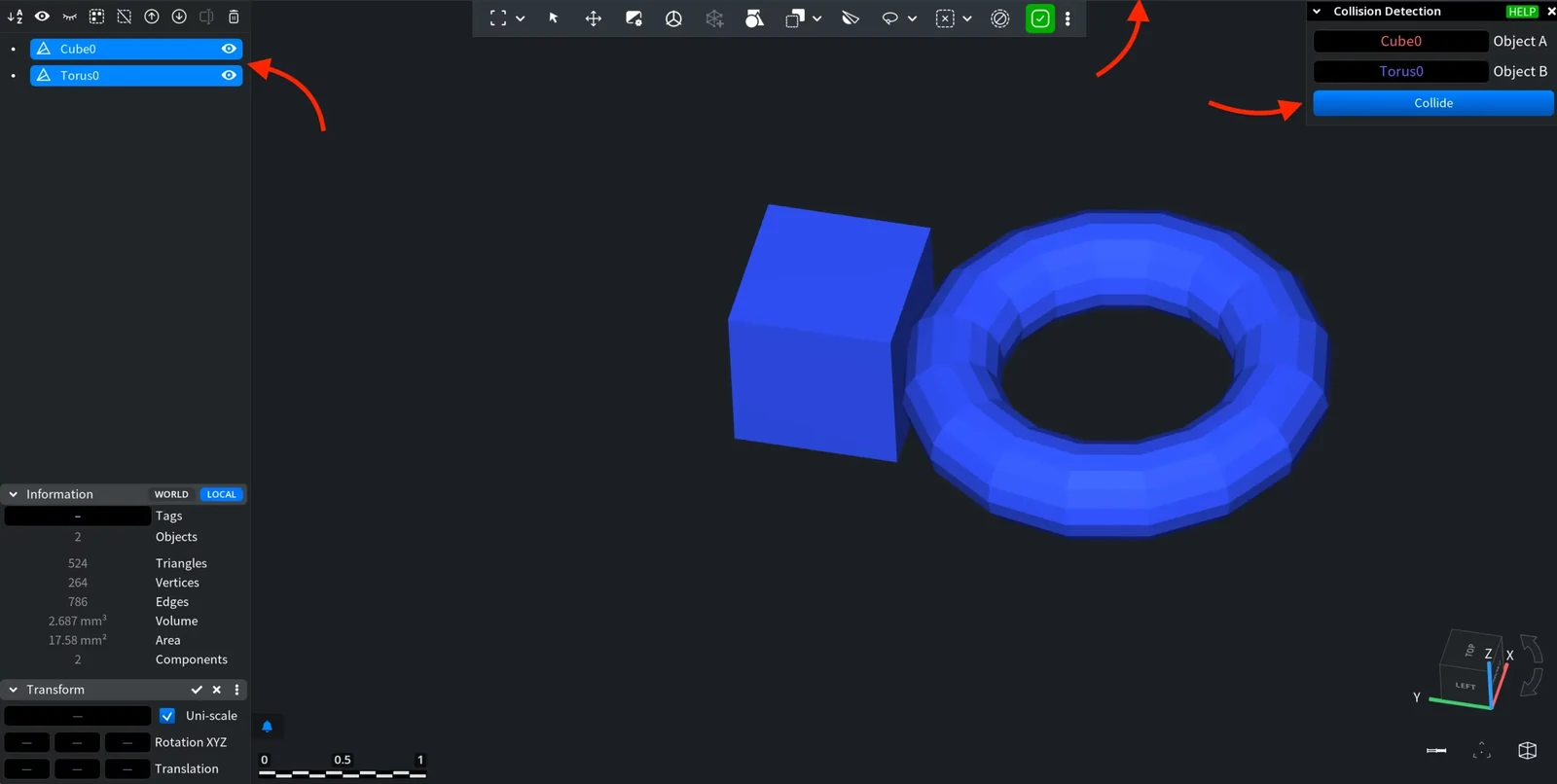
Collision Detection: After
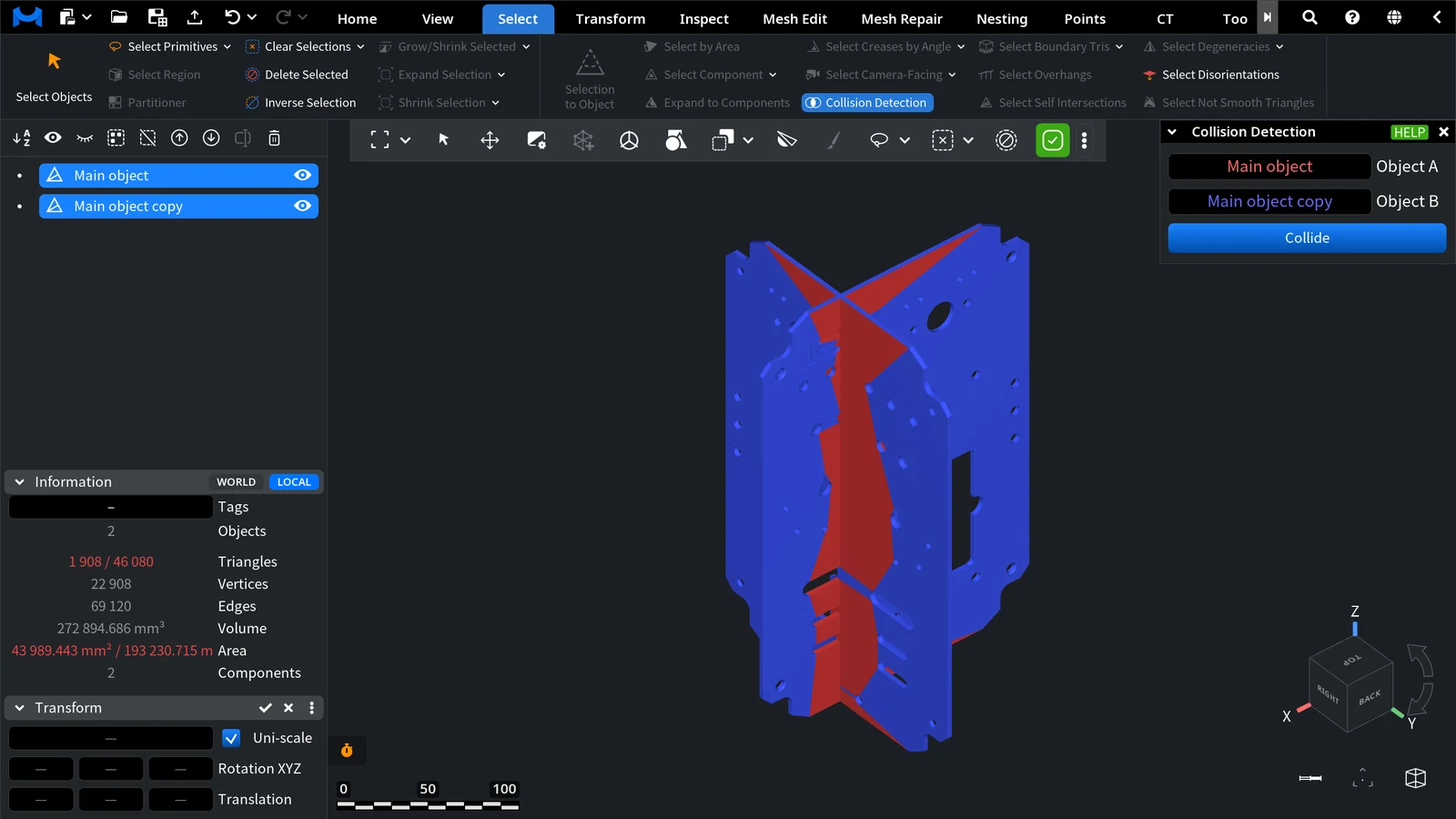
On both meshes, the triangles that cross a triangle of the other mesh become selected and turn red. The meshes are taken where you see them in the scene. In the example below, two copies of a plate were crossed at a right angle: Collide selected 1 908 of their 46 080 triangles, all along the line where the plates go through each other.
Good to know:
- Only surfaces that cross each other count. A part that lies completely inside the other one, without its surface crossing the other surface, gives no selected triangles.
- If a mesh already has selected triangles, only the colliding triangles inside that selection stay selected. Use this to check one area of a part, or clear the selections first (Ctrl+X, Cmd+X on macOS) to check the whole meshes.
- Press Ctrl+Z (Cmd+Z on macOS) once to undo the result on both meshes.
What to Do Next
- Move one of the parts with Move Object or Transform Object clear the selections (Ctrl+X, Cmd+X on macOS) and click Collide again. Repeat until no triangles are selected: without clearing, the new check looks only inside the triangles the previous one selected.
- To join or cut the parts where they overlap, use Boolean operations.


