

Select Component selects a whole connected part of a mesh when you click any of its triangles. A connected part (component) is a group of triangles joined by shared edges; a scan often has one main part and many small loose fragments. This guide also covers Select Largest Component, the drop-down item that selects the largest part at once.
Select a component by clicking
- In the Scene Tree, select one mesh.
- Click Select › Select Component. The Select Component panel opens; it lists the keys you can hold while clicking.
- Click a triangle of the part you want. The whole part is selected.
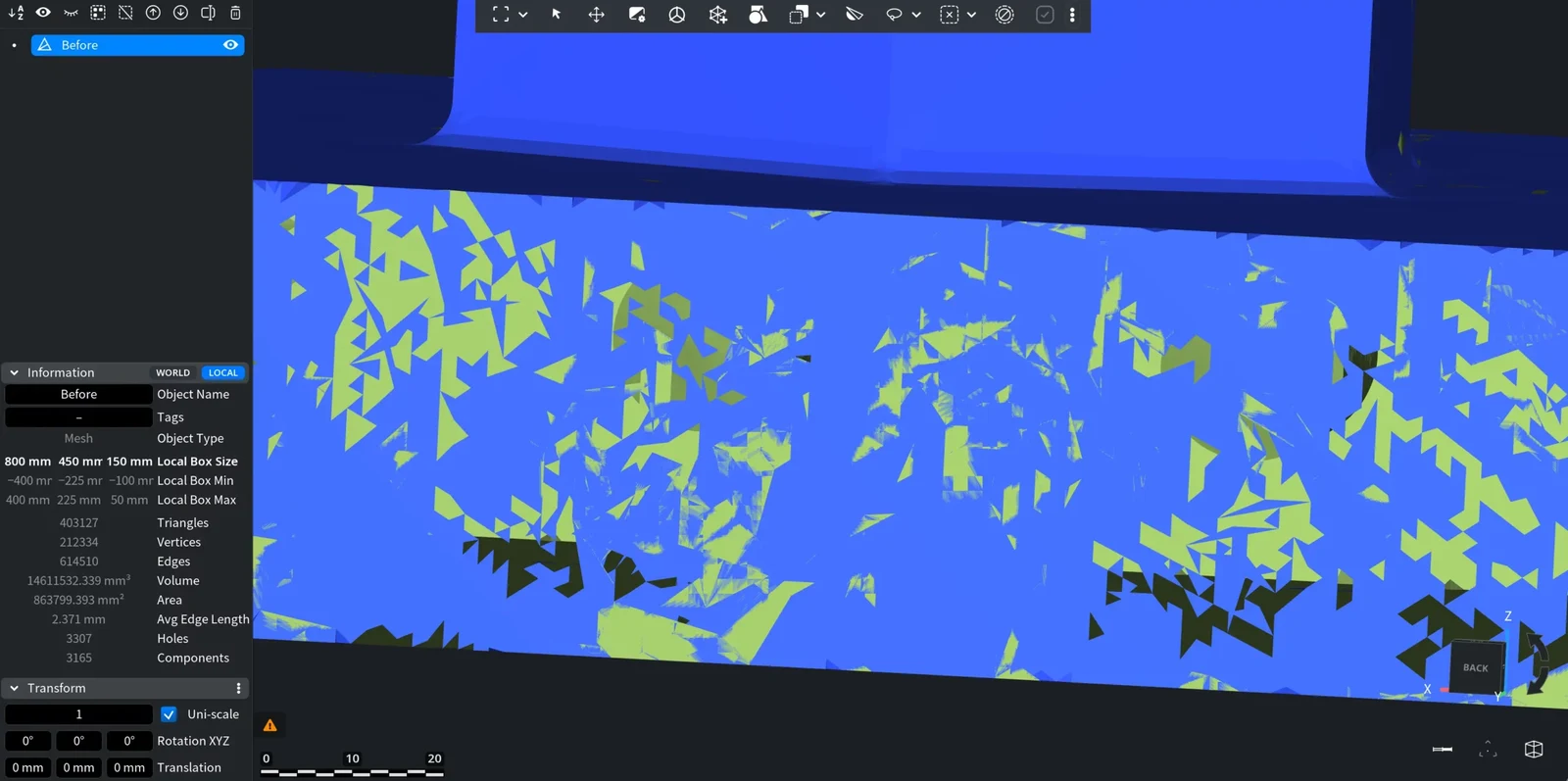
| Hold while clicking | Panel label | Result (default settings) |
|---|---|---|
| Nothing | Select New | The clicked part replaces the current selection |
| Ctrl (Cmd on macOS) | Add to Previous | The clicked part is added to the selection |
| Shift | Unselect in Previous | The clicked part is removed from the selection |
| Ctrl+Shift (Cmd+Shift on macOS) | Reverse Selection | The clicked part is selected if it was not, and unselected if it was |
In the application settings you can swap the behavior of a plain click and of Ctrl/Cmd+click so that a plain click adds to the selection.
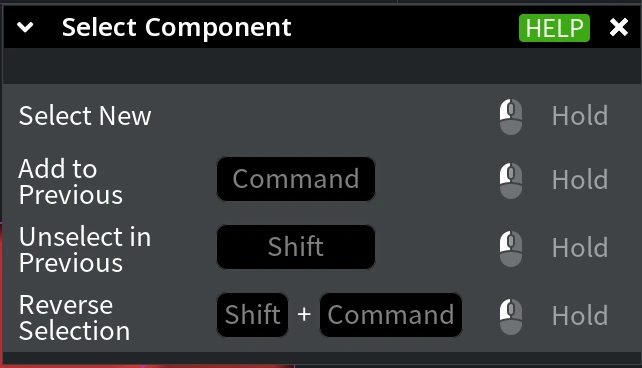
A part ends not only where the mesh has a gap. Selected edges (for example, from Select Creases by Angle or Partitioner) and the border of the current triangle selection also split the mesh into parts. So you can click inside an area enclosed by selected edges to select just that area; to grow an existing selection up to such borders, use Expand to Components. To ignore the selected edges, remove them first with Clear Selected Edges.
After selecting, you can delete the part, copy it into a new object with Selection to Object, or select everything else with Inverse Selection.
Select Largest Component
Select Largest Component selects the part of the mesh with the largest surface area, without clicking. Use it to pick the main body of a scan out of loose fragments.
- In the Scene Tree, select one mesh.
- Open the drop-down arrow next to Select › Select Component and choose Select Largest Component.
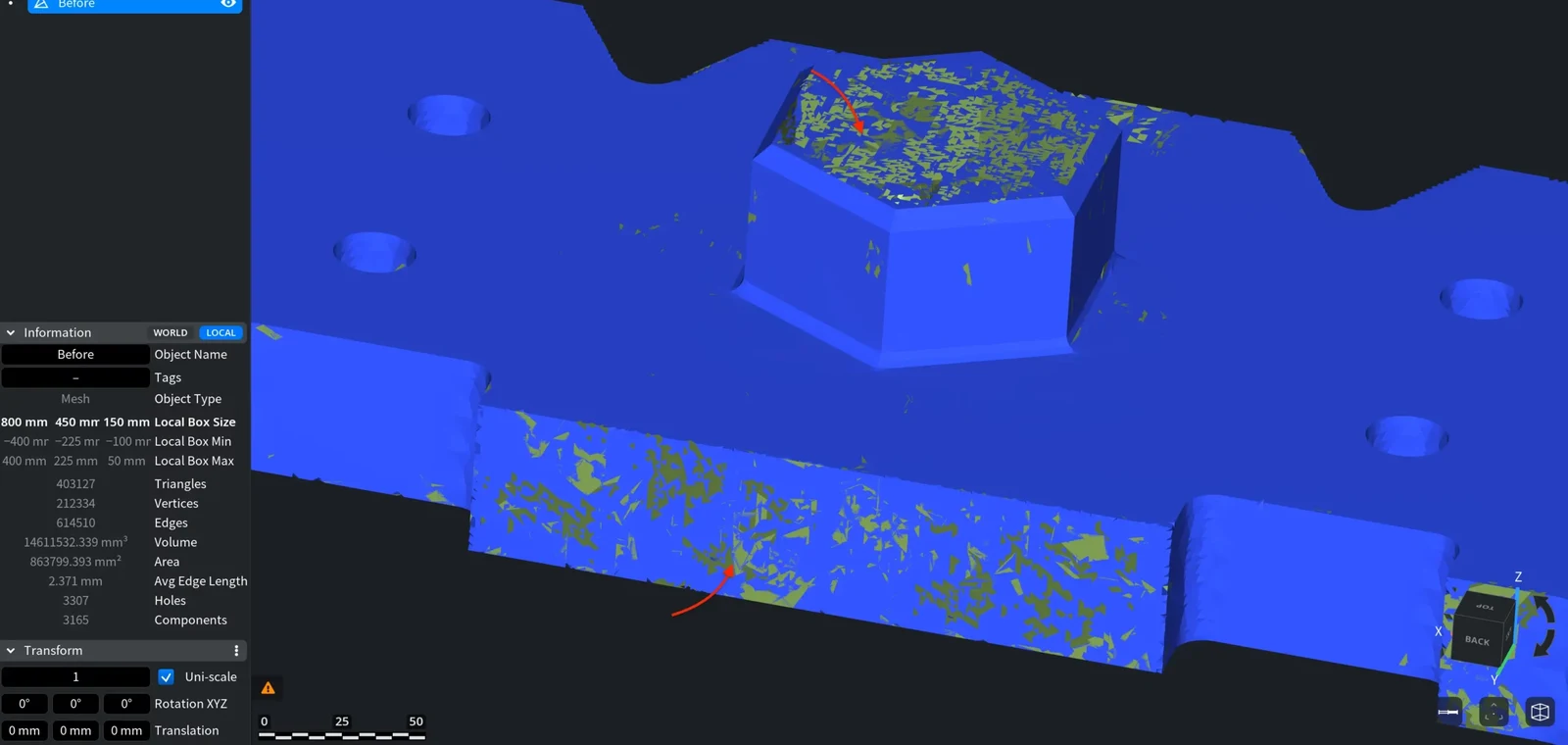
The command works at once and replaces the current triangle selection. Only real gaps in the mesh count as borders here: selected edges are ignored.
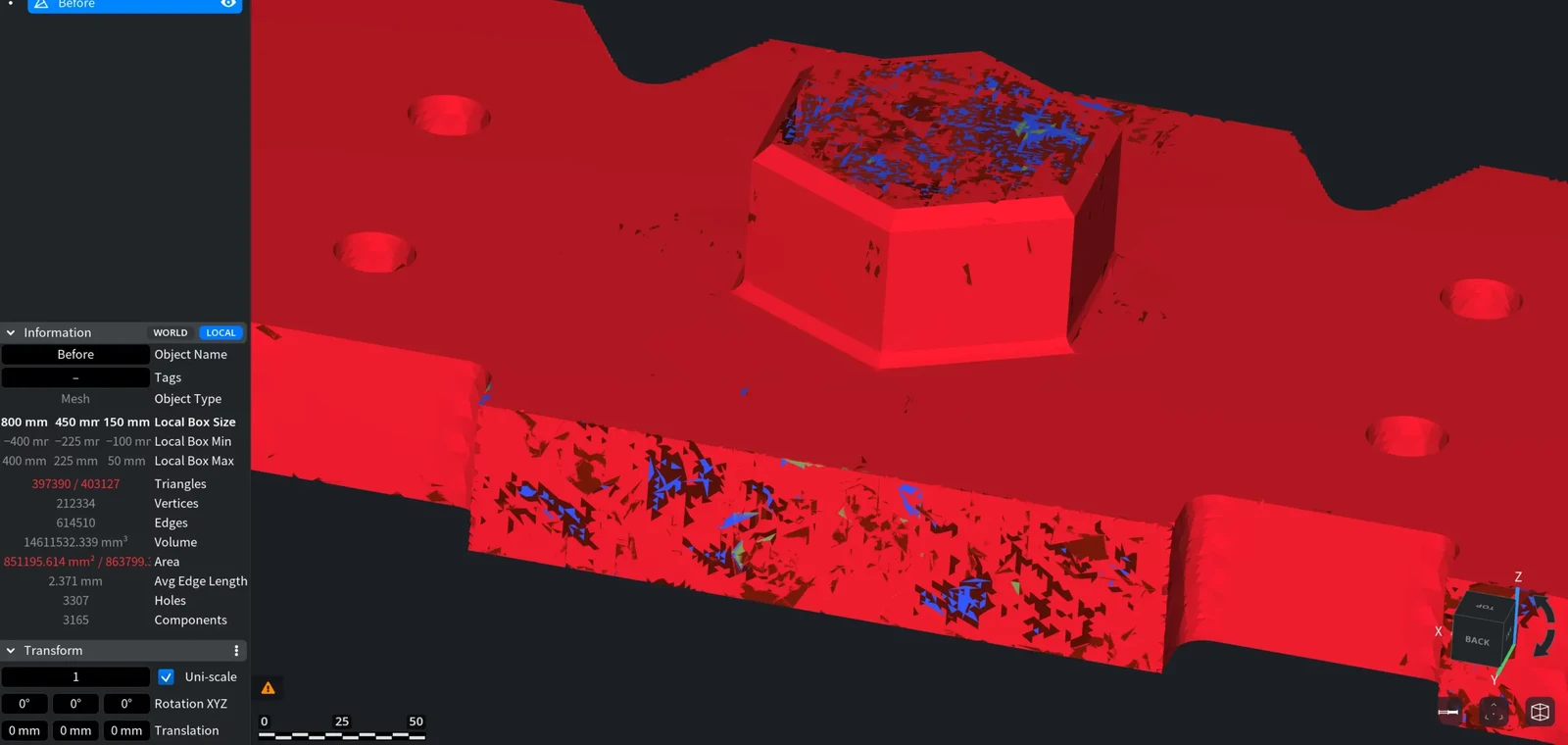
To delete all the fragments, click Inverse Selection and then Delete Selected. Keep Largest Component (drop-down of Mesh Repair › To Components) does this in one step; Select Largest Component only selects, so you can check what will stay before you delete anything.


