Almost every tool in MeshInspector works on what is selected. There are two levels of selection: whole objects in the scene, and primitives inside an object: triangles of a mesh, points of a point cloud or edges of a mesh. This guide explains both levels, the keys that add to or remove from a selection, and which tool of the Select tab to use for a task.
Objects and Primitives
| Objects | Primitives | |
|---|---|---|
| What you select | Whole meshes, point clouds and other objects | Triangles of a mesh, points of a point cloud, edges of a mesh |
| Where | The Scene tree, or Select › Select Objects in the viewport | Select › Select Primitives and the other tools of the Select tab |
| How it looks | The name is highlighted in the Scene tree and the object is drawn in its selected color (blue by default) | Selected triangles and points turn red, selected edges are drawn as purple lines (default colors) |
Tools run on the selected objects. Many of them also use the selected primitives, for example:
- Delete Selected removes the selected triangles of meshes and the selected points of point clouds; the objects stay.
- Selection to Object copies the selected triangles or points into a new object.
- Re-position and Shrink Wrap move only the selected part of a mesh.
- Expand to Components treats selected edges as borders between parts.
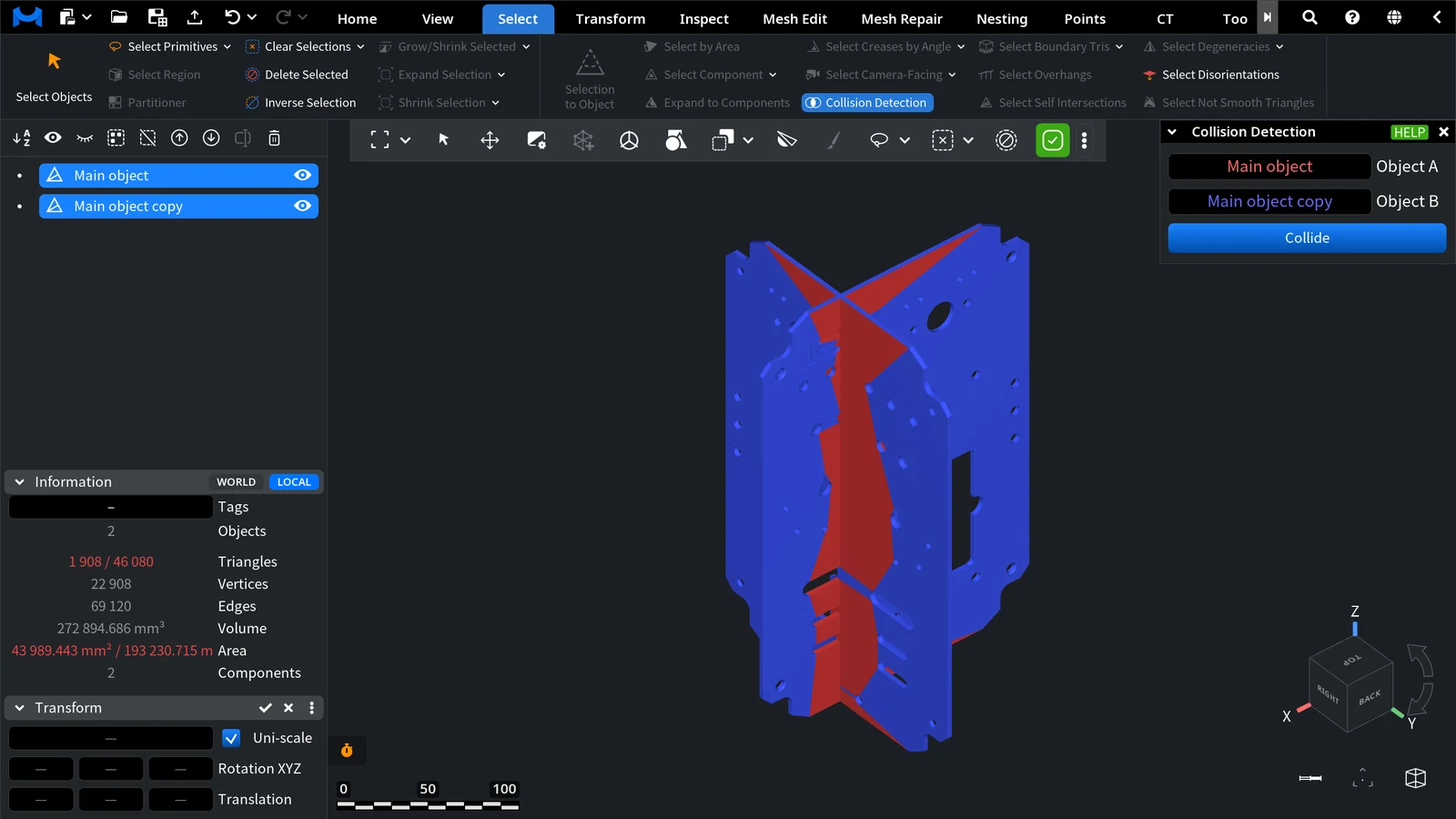
In the picture, both objects are selected (blue), and the triangles where the two plates cross are selected inside each of them (red, found with Collision Detection).
Select Objects
- In the Scene tree, click a name. Ctrl+click (Cmd+click on macOS) adds another object or removes it from the selection.
- In the viewport, go to Select › Select Objects. Click an object to select only it, drag a rectangle to select every object inside it, Ctrl+click (Cmd+click) to add or remove one object, or click empty space to clear the selection. See Select Objects.
Select Triangles, Points and Edges
Go to Select › Select Primitives to select triangles of meshes and points of point clouds with the mouse; see Select Primitives for the modes. Edges have their own tool, Edge Selector. While you select in Select Primitives, the keys change what happens:
| Hold | Result |
|---|---|
| No key | The new selection replaces the old one |
| Ctrl (Cmd on macOS) | Adds to the selection |
| Shift | Removes from the selection |
| Ctrl+Shift (Cmd+Shift) | Swaps: selected primitives under the mouse become unselected and vice versa |
Press Ctrl+A (Cmd+A) in Select Primitives to select all triangles or points of the selected objects. If you prefer that a plain stroke adds to the selection, open Settings › Application and set Default Selection Behavior to Append selection; Ctrl (Cmd) then replaces the selection.
Hotkeys
Press F1 to see all hotkeys. On macOS, Cmd replaces Ctrl and Backspace replaces Delete.
| Command | Windows / Linux | macOS |
|---|---|---|
| Select Objects | Ctrl+Q | Click the button: Cmd+Q closes MeshInspector |
| Select Primitives | Ctrl+W | Cmd+W |
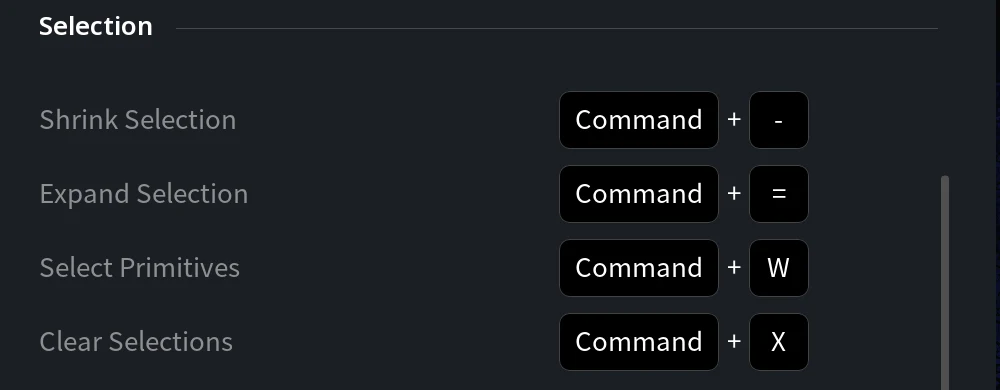
| Clear Selections | Ctrl+X | Cmd+X |
| Delete Selected | Delete | Backspace |
| Expand Selection | Ctrl+= | Cmd+= |
| Shrink Selection | Ctrl+- | Cmd+- |
| Select all objects | Ctrl+A | Cmd+A |
| Select the next / previous object | Down / Up arrow (add Shift to add it to the selection) | The same |
| Undo | Ctrl+Z | Cmd+Z |
Which Tool Do I Need?
| I want to … | Use |
|---|---|
| Paint, draw around or click triangles or points | Select Primitives, Triangles Selector |
| Select edges | Edge Selector |
| Select a region by marking a few triangles inside and outside it | Select Region |
| Split a mesh into a set number of segments | Partitioner |
| Select a whole connected part | Select Component, Expand to Components |
| Select small or large loose parts by area | Select by Area |
| Grow or shrink a selection by one layer | Expand Selection, Shrink Selection |
| Grow or shrink a selection by a distance | Grow/Shrink Selected |
| Invert, clear or delete a selection | Inverse Selection, Clear Selections, Delete Selected |
| Turn a selection into a separate object | Selection to Object |
| Select sharp edges | Select Creases by Angle |
| Find defects | Select Self Intersections, Select Degeneracies, Select Disorientations, Select Boundary Tris, Select Not Smooth Triangles |
| Check a part for 3D printing | Select Overhangs |
| Find where two meshes intersect | Collision Detection |
Recipe: Clean a Scan
- Select the mesh and press Ctrl+W (Cmd+W) to open Select Primitives.
- Select the junk, for example a piece of the table or stray bits around the model.
- Press Ctrl+= (Cmd+=) once or twice to run Expand Selection and catch the ragged rim around it.
- Press Delete (Backspace on macOS) to run Delete Selected.
- Close the holes this leaves with Mesh Repair › Fill Holes (see Fill Holes). Fill Holes leaves the new triangles selected: press Ctrl+X (Cmd+X) to clear them.
Recipe: Split Off a Part
- Select the part with Select Region. If the part is already bounded by selected edges, for example after Partitioner, select one triangle of it and run Select › Expand to Components.
- Go to Select › Selection to Object. A new object with the selected triangles appears in the Scene tree, named after the original with Partial at the end (for example, fandisk Partial); the original mesh is hidden but not changed.
- To remove the part from the original, show and select the original mesh (its triangles are still selected) and press Delete (Backspace on macOS).


