Clicking Select Degeneracies, located under the Select tab, detects and selects degenerate triangles in a mesh, i.e., triangles with very high aspect ratios that may cause issues in rendering, simulation, or manufacturing.

Select Degeneracies: Settings
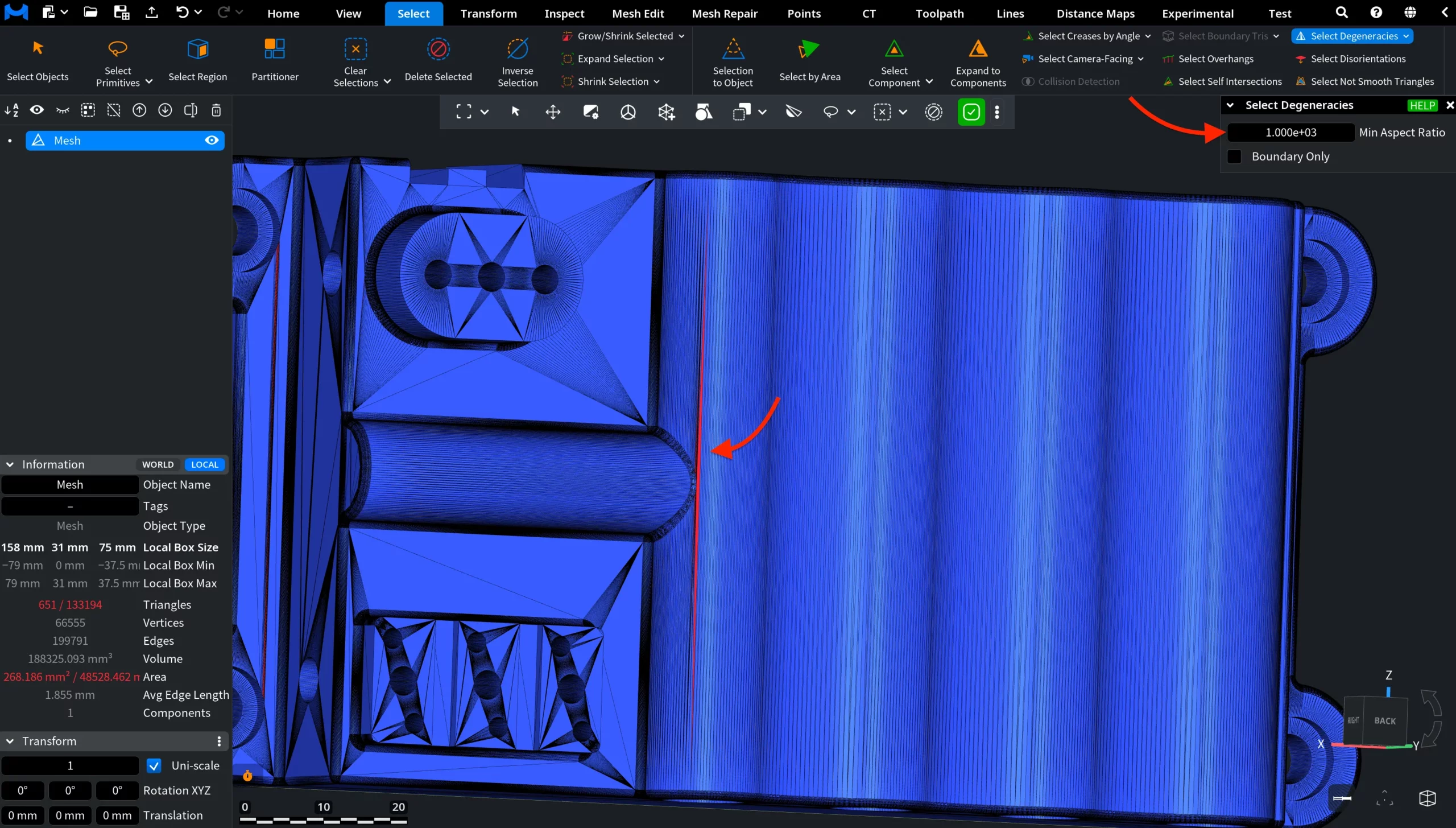
When Select Degeneracies is activated, the detection runs automatically and a settings panel appears with the following options:
- Min Aspect Ratio defines the minimum aspect ratio a triangle must have to be considered degenerate. Higher values make the selection stricter and select only more severely distorted triangles, while lower values expand the selection to include a broader range of potential degeneracies. As this value changes, the selection updates automatically.
- Boundary Only, when enabled, limits the selection to degenerate triangles located on the boundary of the mesh.
In this screenshot, the tool is shown with its default settings, and the detected degenerate triangles are highlighted in red.
Use Select Degeneracies to quickly identify problematic geometry such as long, thin, or collapsed triangles, helping improve mesh quality before further processing, analysis, or export.