Clicking Select Primitives, under the Select tab, enables primitive-level selection. 
Use this tool when you need fine-grained selection for detailed inspection, cleanup, segmentation, or precise editing. Once you click Select Primitives, a dedicated panel will open.
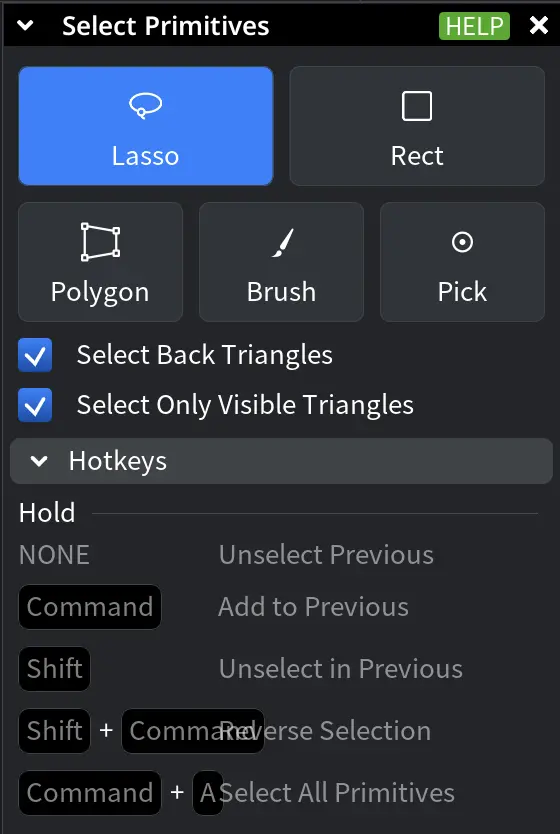
Selection Modes in Select Primitives
In the Select Primitives window, choose a selection mode to define how primitives are picked:
- Lasso selects primitives inside a freeform curve you draw.
- Rect selects primitives inside a rectangular area you drag.
- Polygon selects primitives inside a custom polygon you define by clicking its vertices.
- Brush selects primitives along a brush stroke you draw over the target area.
- Pick selects individual primitives by clicking them directly.
Lasso: Example Before Committing
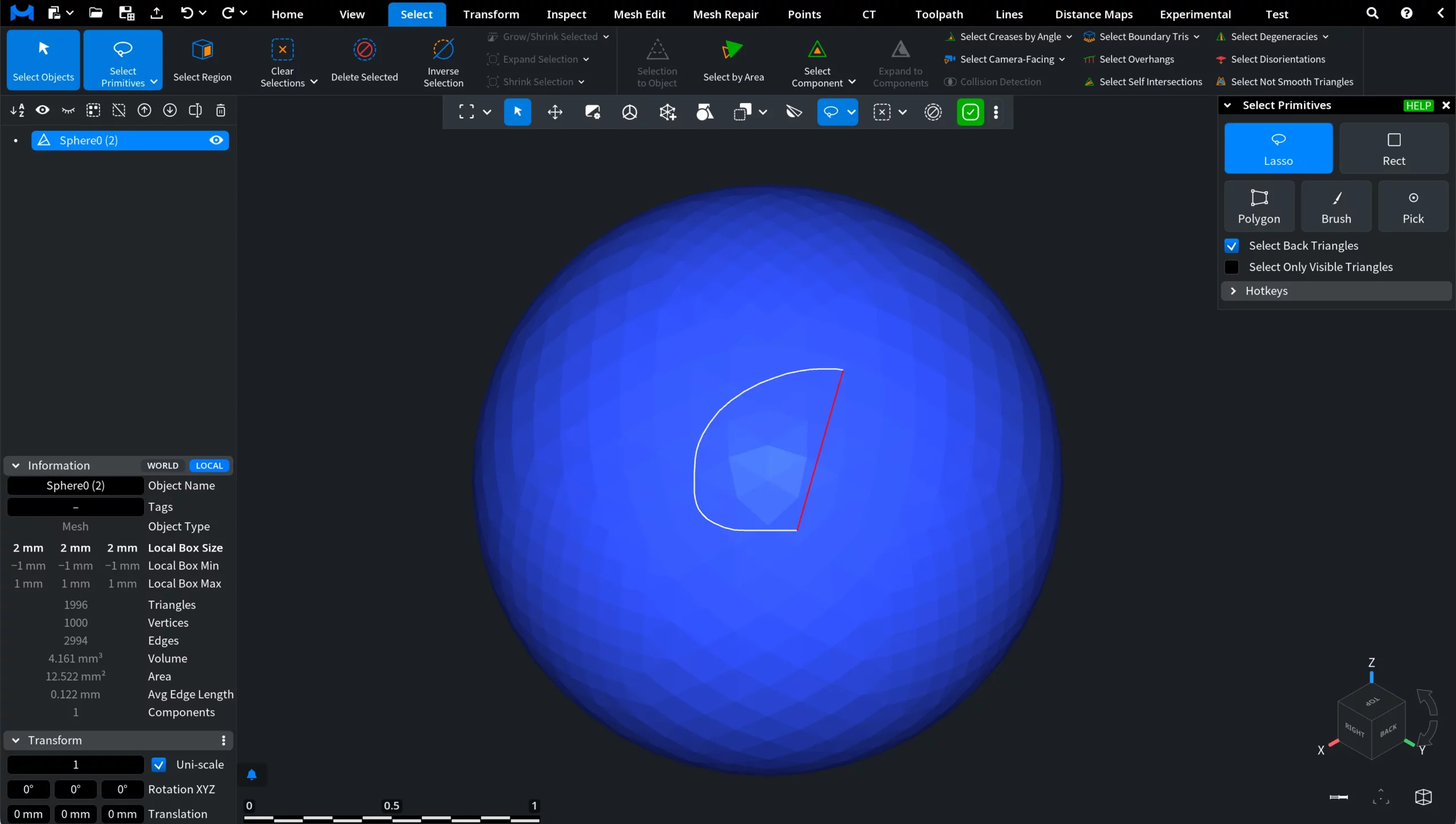
Lasso: Example After Committing
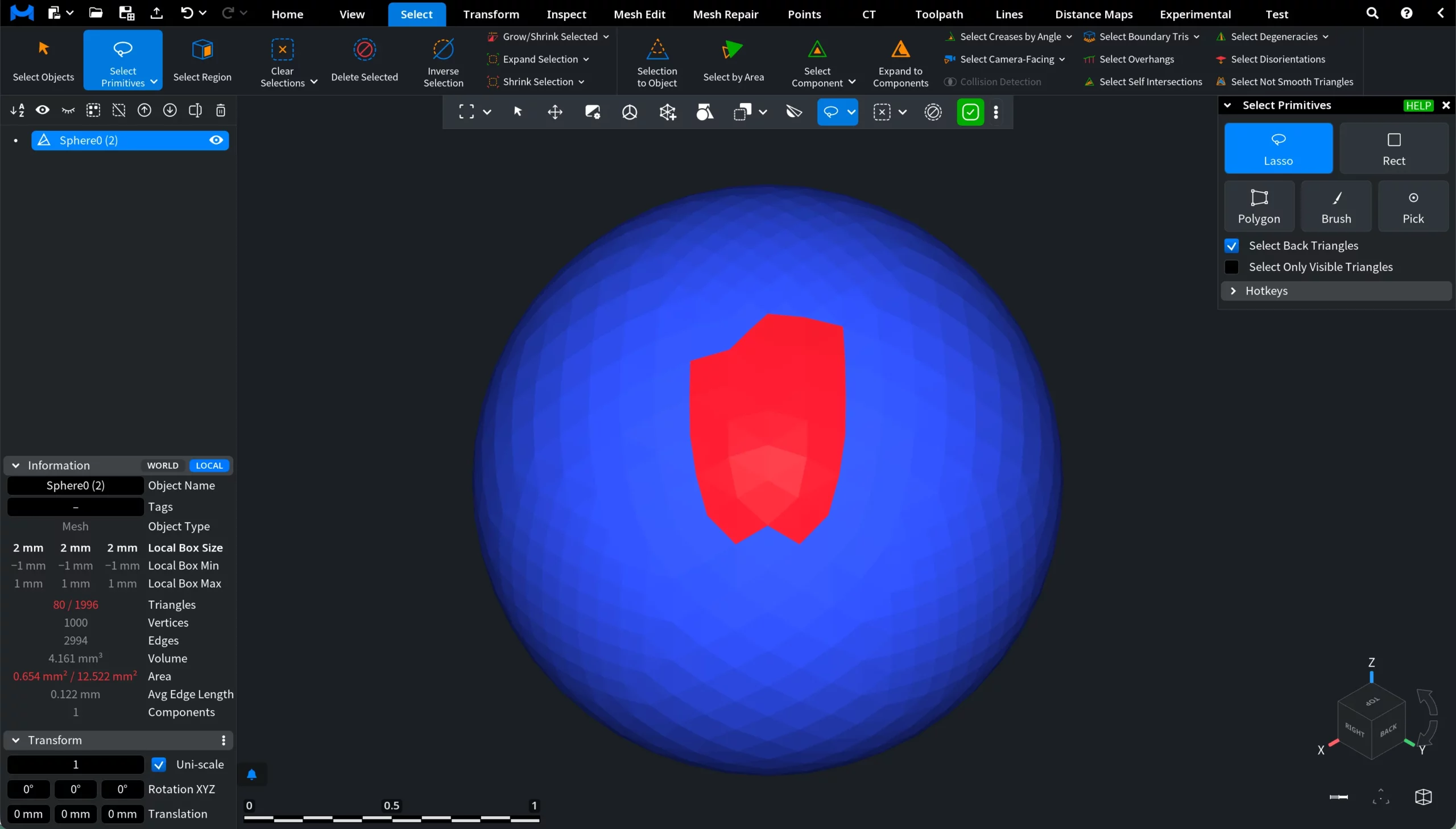
Selection Settings in Select Primitives
Additional options refine primitive selection behavior:
- Select Back Triangles includes triangles oriented away from the camera.
- Select Only Visible Triangles limits selection to visible triangles, while also not including triangles occluded by other geometry.
Modifier Keys
Modifier keys change how the current selection is updated:
- None replaces the selection (unselects the previous elements).
- CTRL (or Command) adds primitives to the current selection.
- SHIFT removes primitives from the current selection.
- SHIFT + CTRL (or Command) reverses the selection.
- CTRL (or Command) + A selects all primitives in the currently selected objects.