Clear Selected Edges removes the current edge selection from a mesh without deleting the mesh geometry itself. To access it, go to the Select tab, click the arrow next to Clear Selections, and choose Clear Selected Edges.
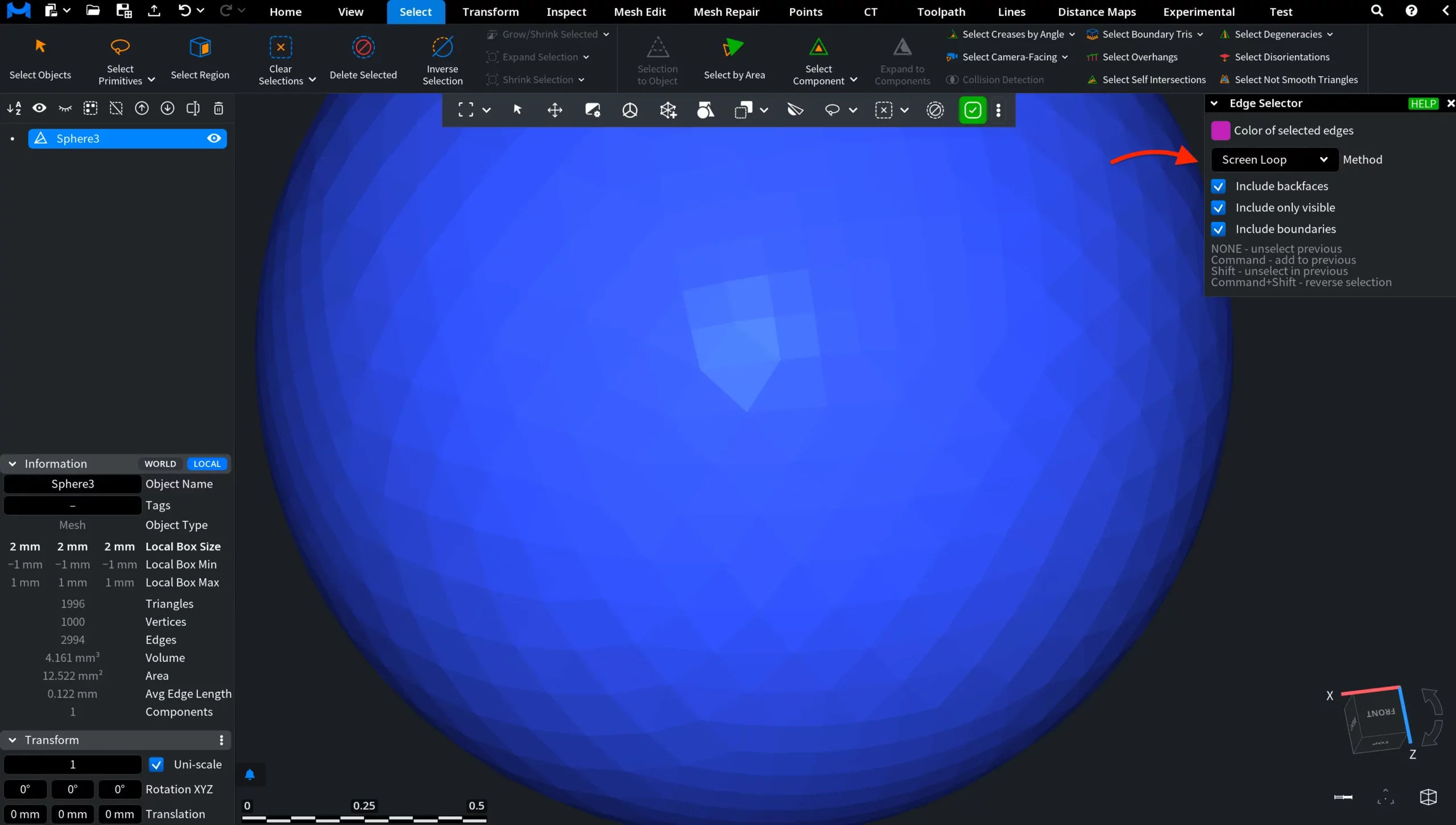
 For example, in the screenshot below the Edge Selector tool is active, and a group of mesh edges has already been selected. If this edge selection is no longer needed, you can remove it without leaving the current workflow by using Clear Selected Edges.
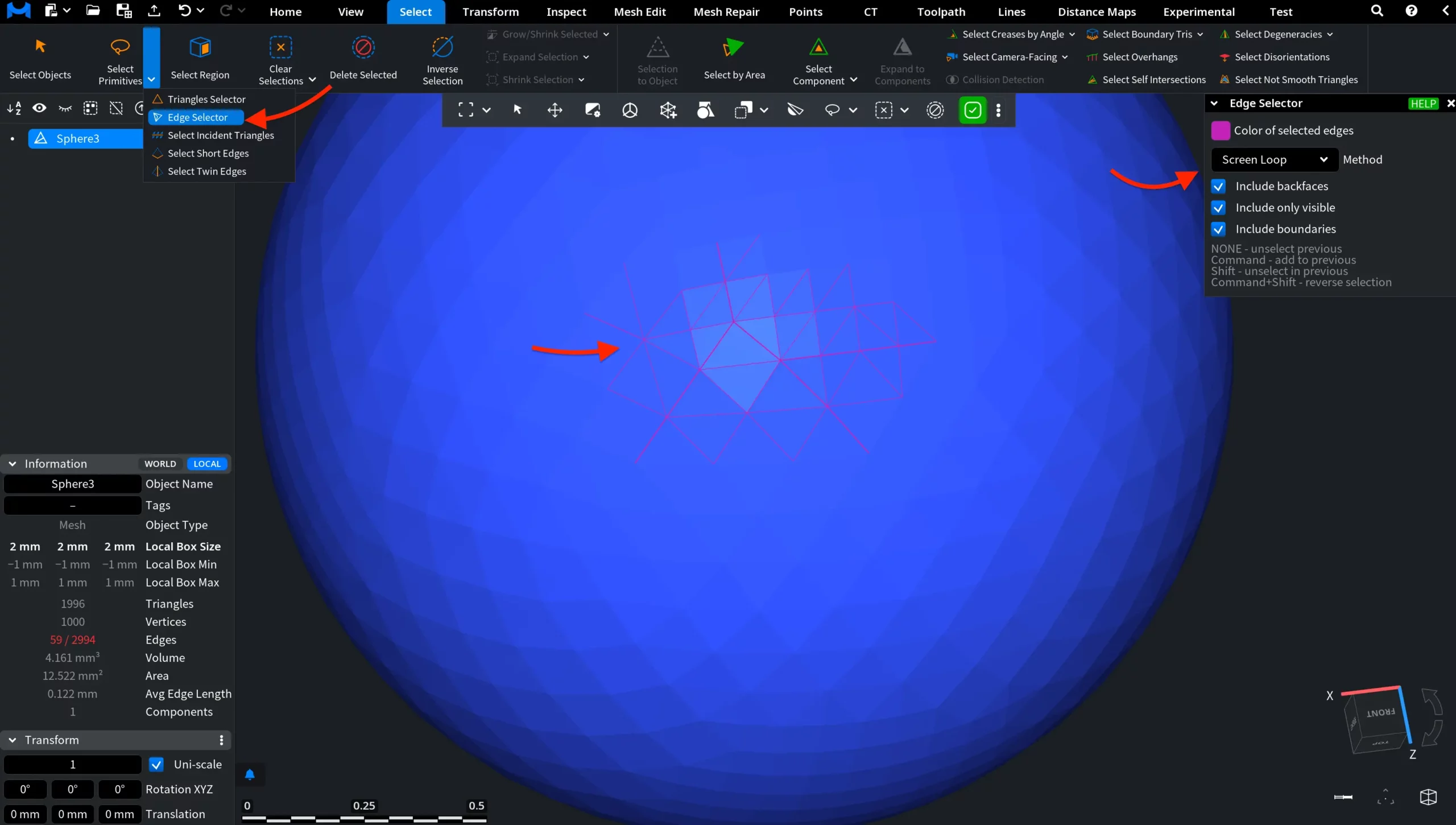
After you click Clear Selected Edges, the current edge selection is removed, while the Edge Selector workflow remains active. This allows you to immediately begin selecting a new group of mesh edges without leaving the current selection mode.