Select Largest Component allows you to automatically select the largest connected component of a mesh. A connected component is a group of triangles that are topologically linked to each other, without gaps or disconnected regions. To access this tool, open the Select tab in the top toolbar. Then click the small arrow next to Select Component to open the dropdown menu and choose Select Largest Component.

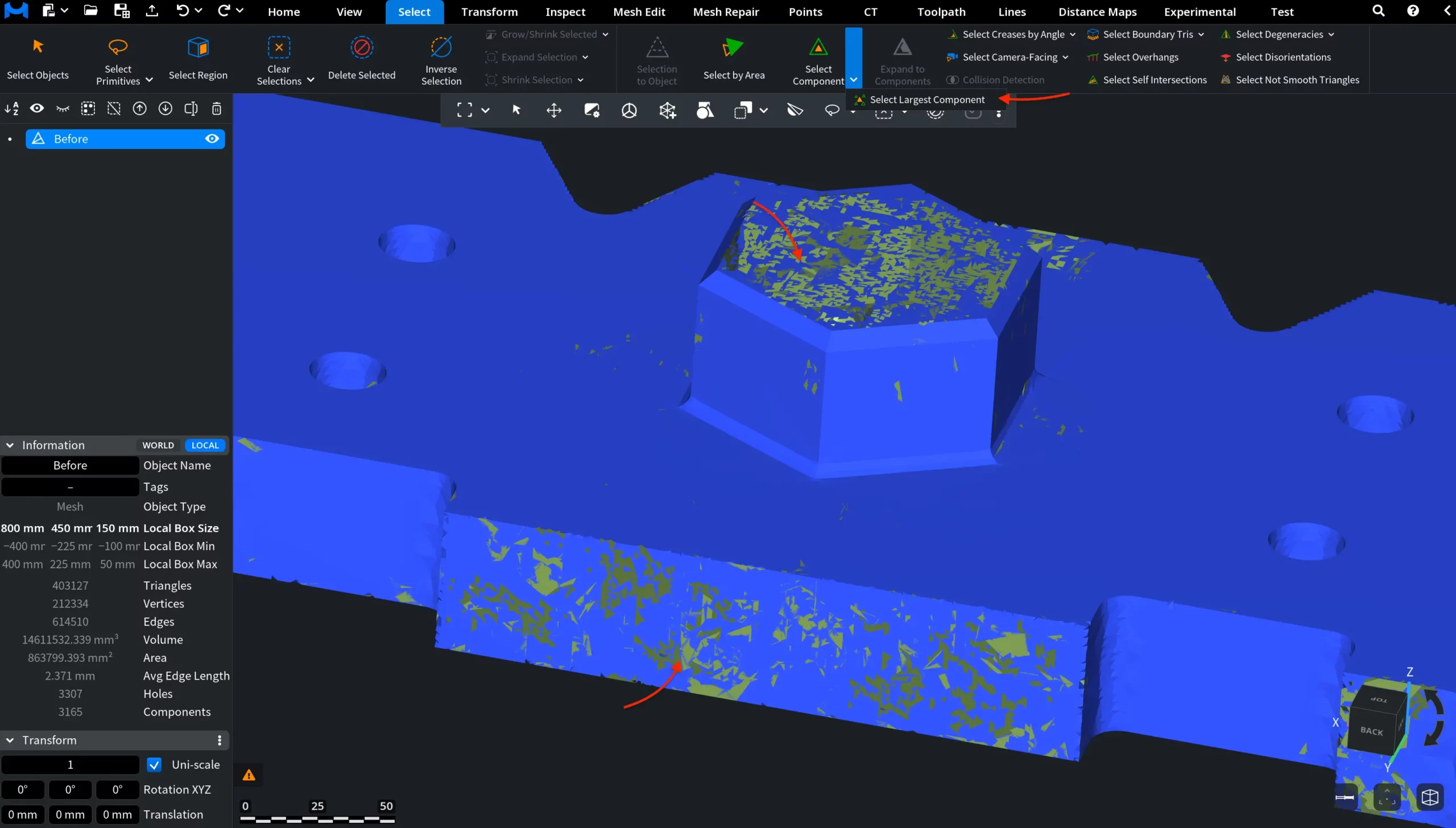
Select Largest Component: Before
In the screenshot below, the mesh contains many disconnected fragments and small isolated components distributed across the surface. The main connected mesh body has not yet been selected.
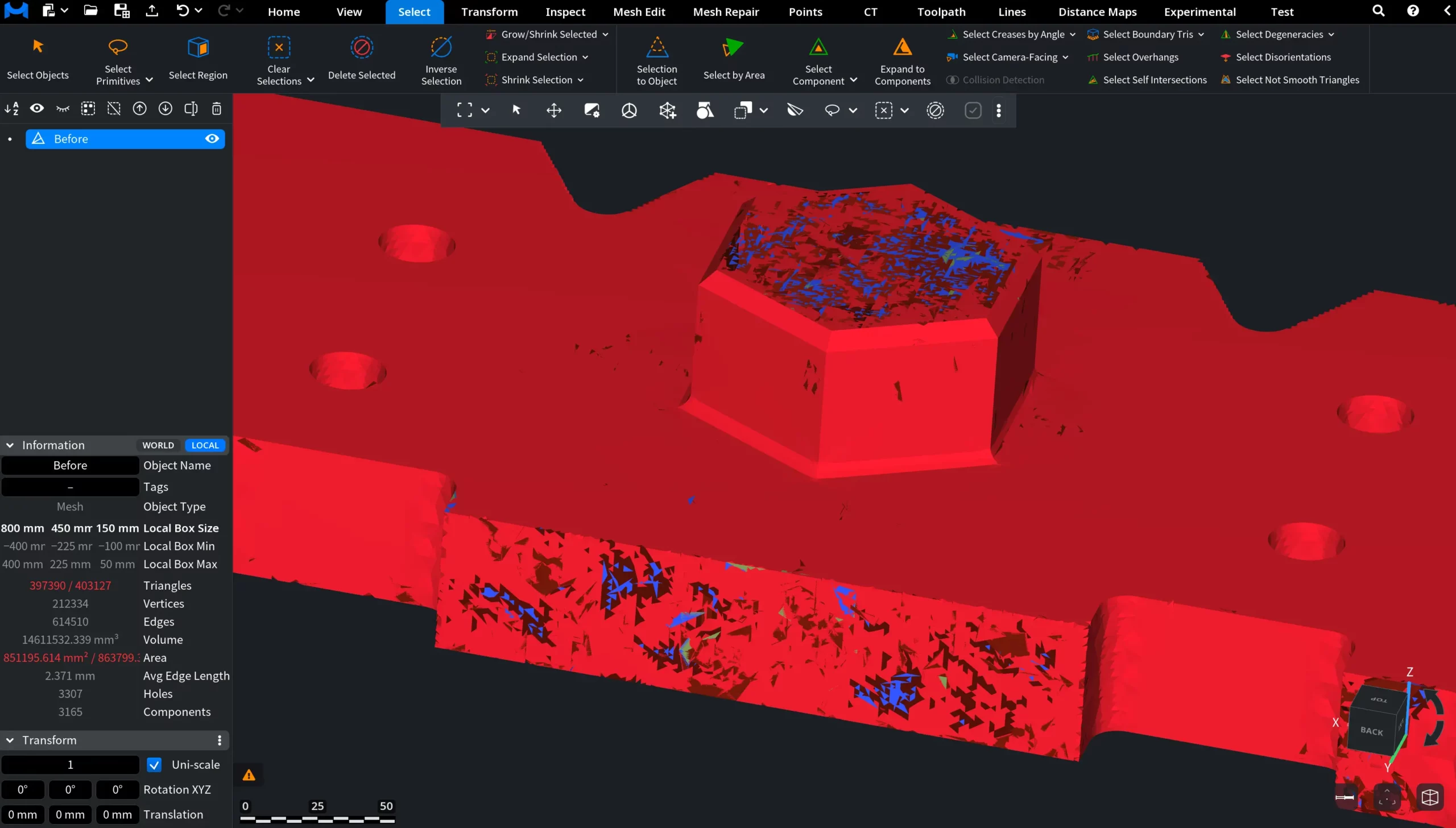
Select Largest Component: After
In this screenshot, Select Largest Component has been applied. The largest connected mesh component is automatically selected and highlighted in red, while smaller disconnected fragments remain unselected.
This tool is useful when a mesh contains multiple disconnected fragments and you need to quickly isolate the main part of the geometry.