Select Camera-Facing and Unselect Camera-Facing, located under the Select tab, help refine mesh selections based on the current camera view direction. Select Camera-Facing adds to the current selection all triangles oriented toward the active camera, even if other triangles partially occlude them. Unselect Camera-Facing, available from the dropdown next to Select Camera-Facing, removes such triangles from the current selection.

These tools are useful for quickly selecting or excluding visible surface regions while working with complex meshes, dense geometry, or partially occluded areas.
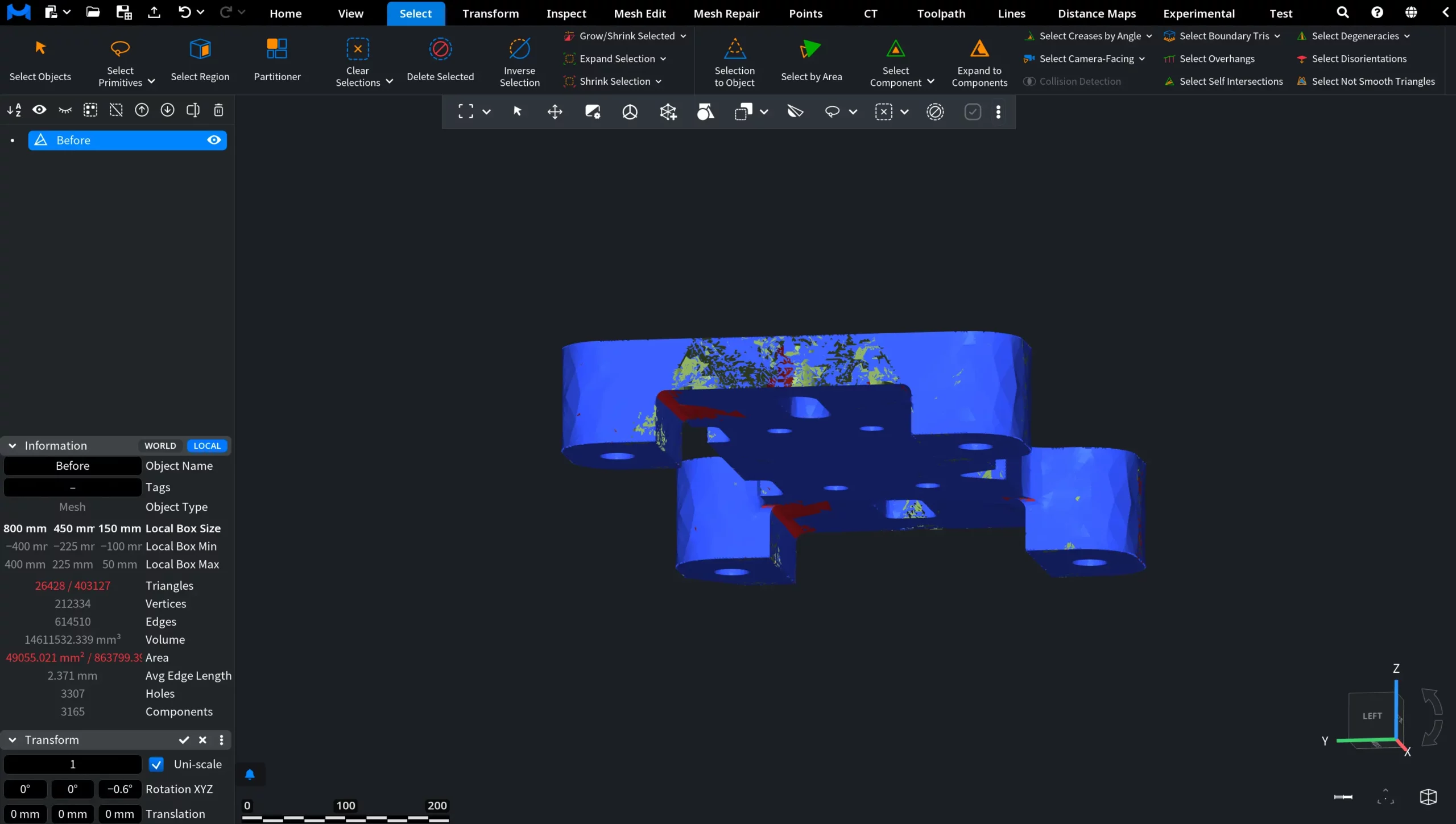
Select Camera-Facing: Before
In the viewport, you can see a mesh oriented toward the current camera view. No camera-facing triangles have been added to the selection yet.
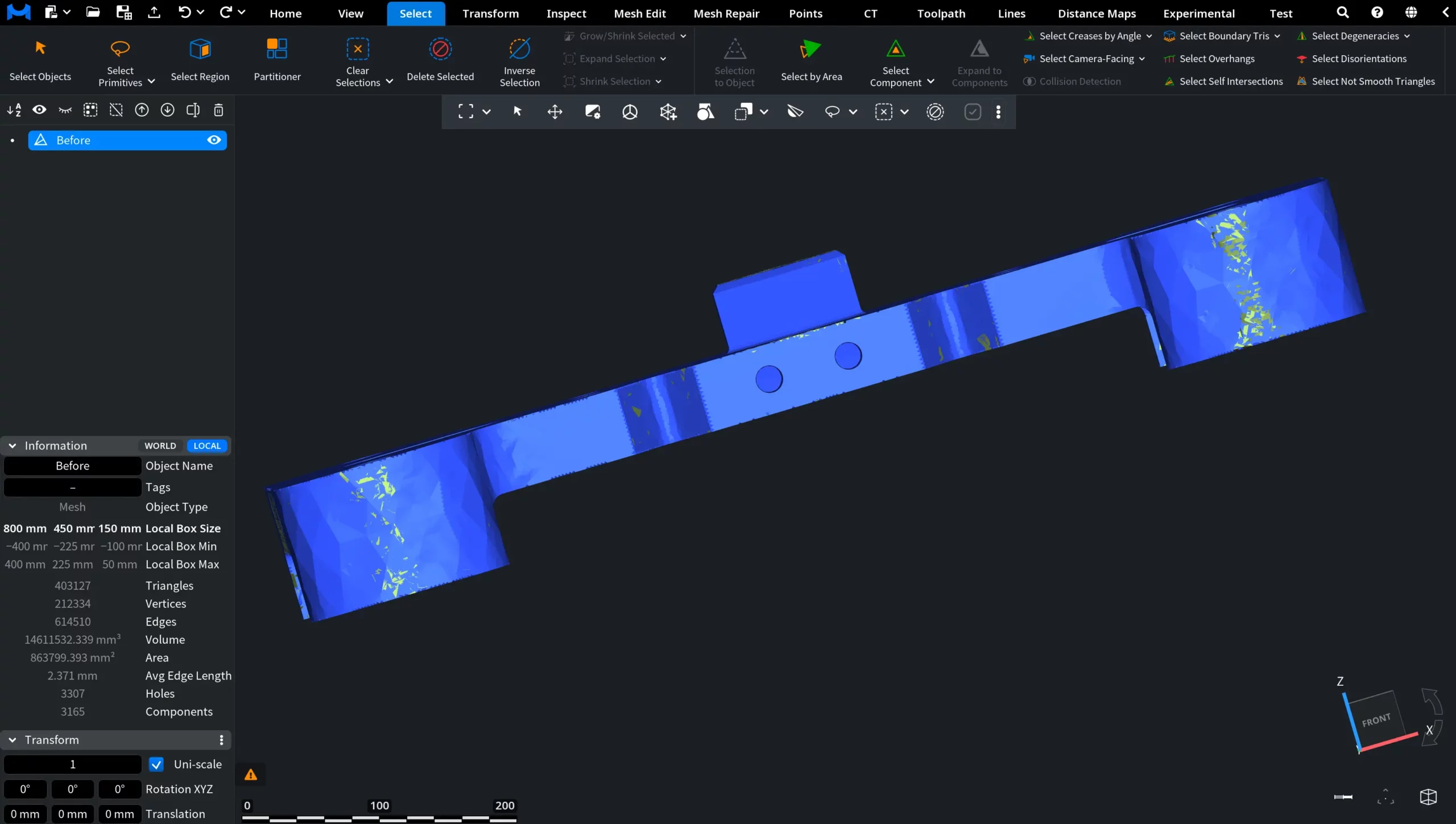
Select Camera-Facing: After
In this screenshot, Select Camera-Facing has been applied. Triangles oriented toward the active camera view were automatically added to the selection and highlighted in red. For demonstration purposes, the mesh was rotated afterward so you can clearly see the regions that were not selected because they were facing away from the camera.
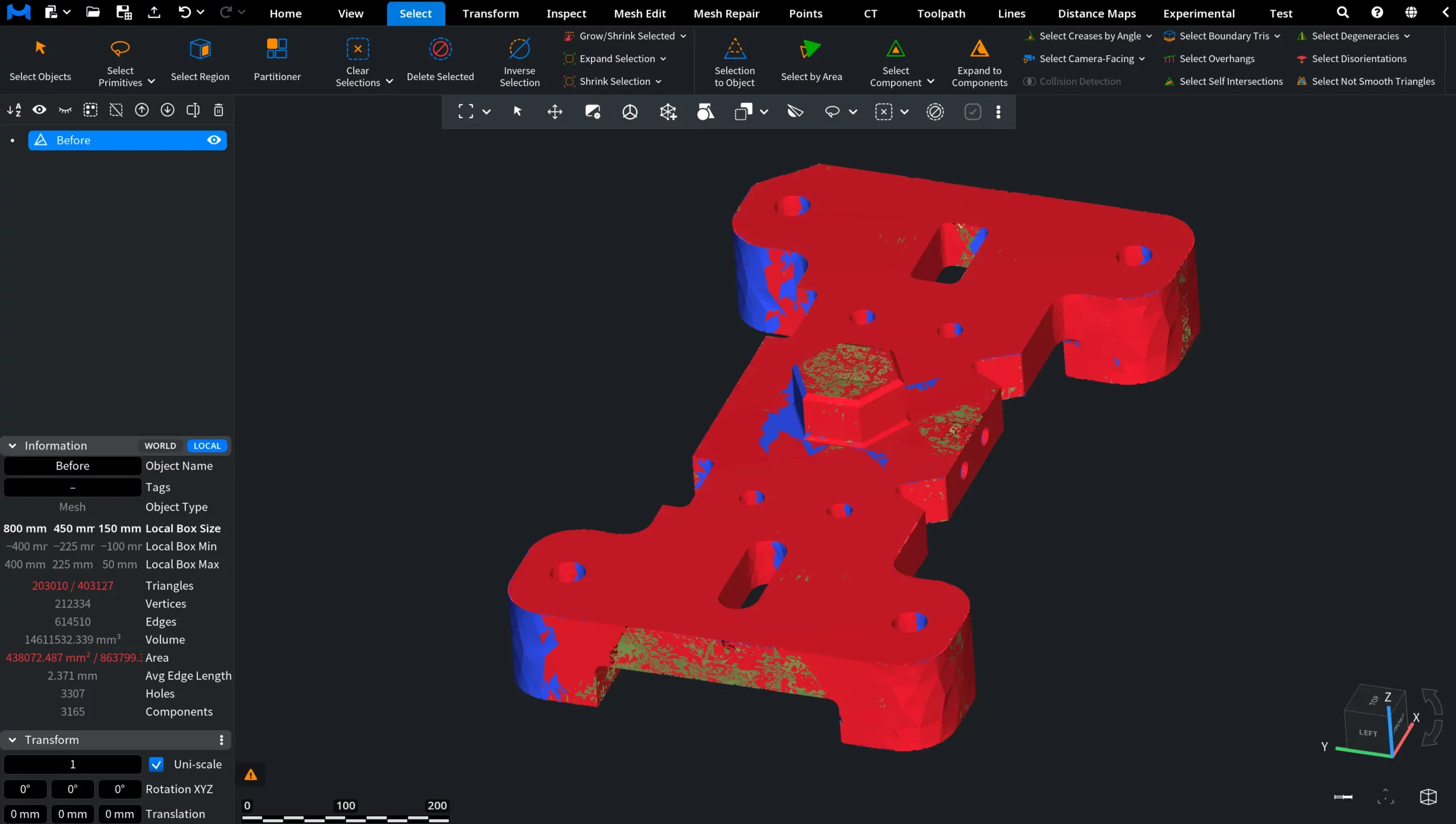
Unselect Camera-Facing: After
In this screenshot, Unselect Camera-Facing has been applied while the mesh was still in the same position shown in the previous screenshot. Triangles oriented toward the active camera view were removed from the selection. After the operation, the mesh was repositioned so you can clearly see which triangles were unselected and which regions remained selected because they were facing away from the camera.