Clicking Select Self Intersections, located under the Select tab, identifies and selects triangles that intersect with other triangles within the same mesh. This tool helps detect and resolve problematic mesh geometry that can cause issues in rendering, simulation, or manufacturing.

Select Self Intersections: Settings
When Select Self Intersections is activated, a dedicated settings panel opens.
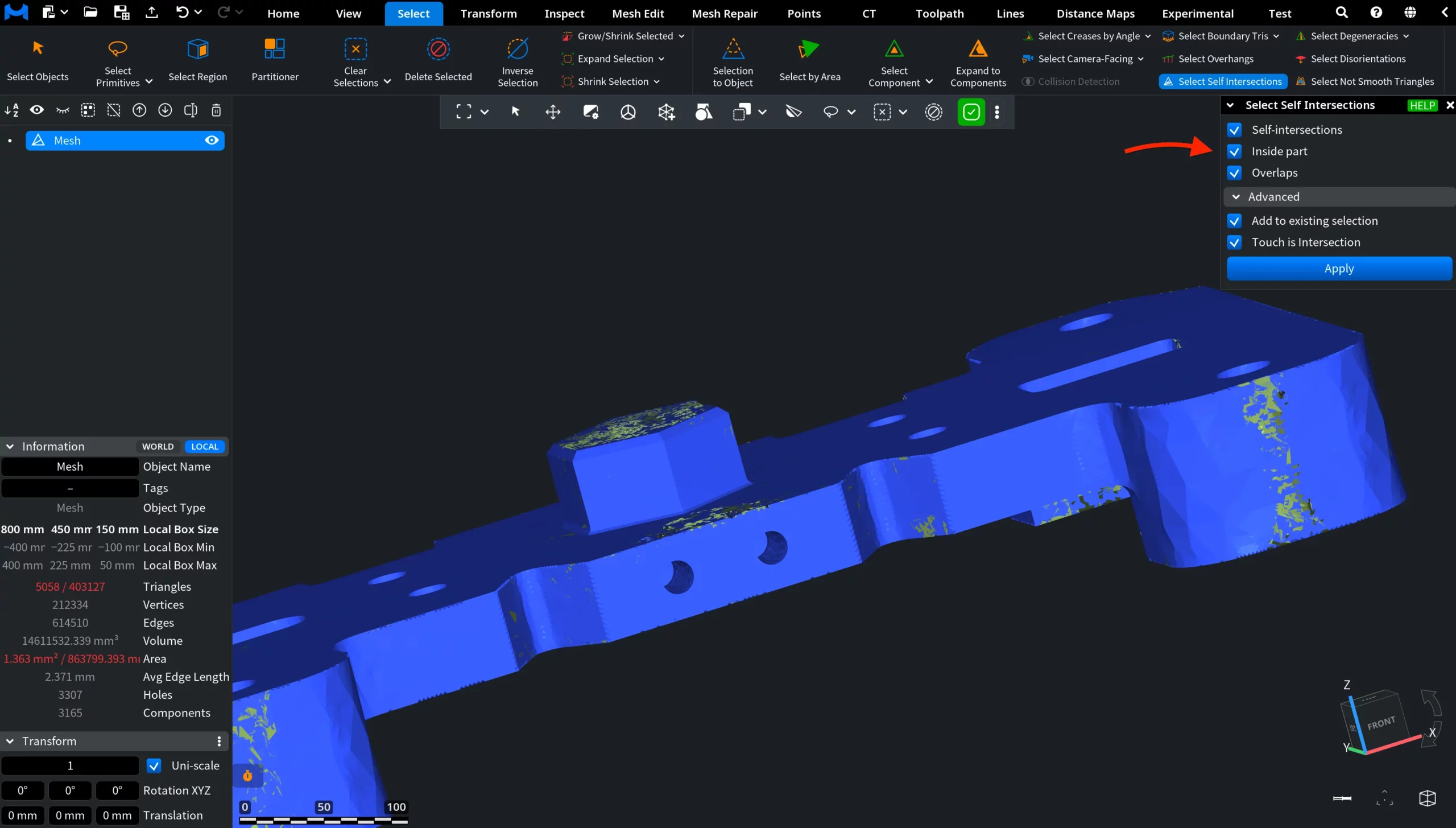
The tool provides several filtering options:
- Self-Intersections selects triangles that geometrically intersect with other triangles in the mesh.
- Inside Part selects triangles located inside the surface rather than on its boundary.
- Overlaps selects triangles that have oppositely oriented triangles nearby, which may indicate overlapping surfaces or inverted geometry.
Select Self Intersections: Advanced Settings
Under Advanced settings:
- Add to Existing Selection, when enabled, adds newly detected triangles to the current selection instead of replacing it.
- Touch is Intersection, when enabled, treats triangles that only touch one another as intersections in addition to fully intersecting triangles.
After adjusting the parameters, click Apply to run the detection and update the selection based on the chosen criteria.
Select Self Intersections: Example
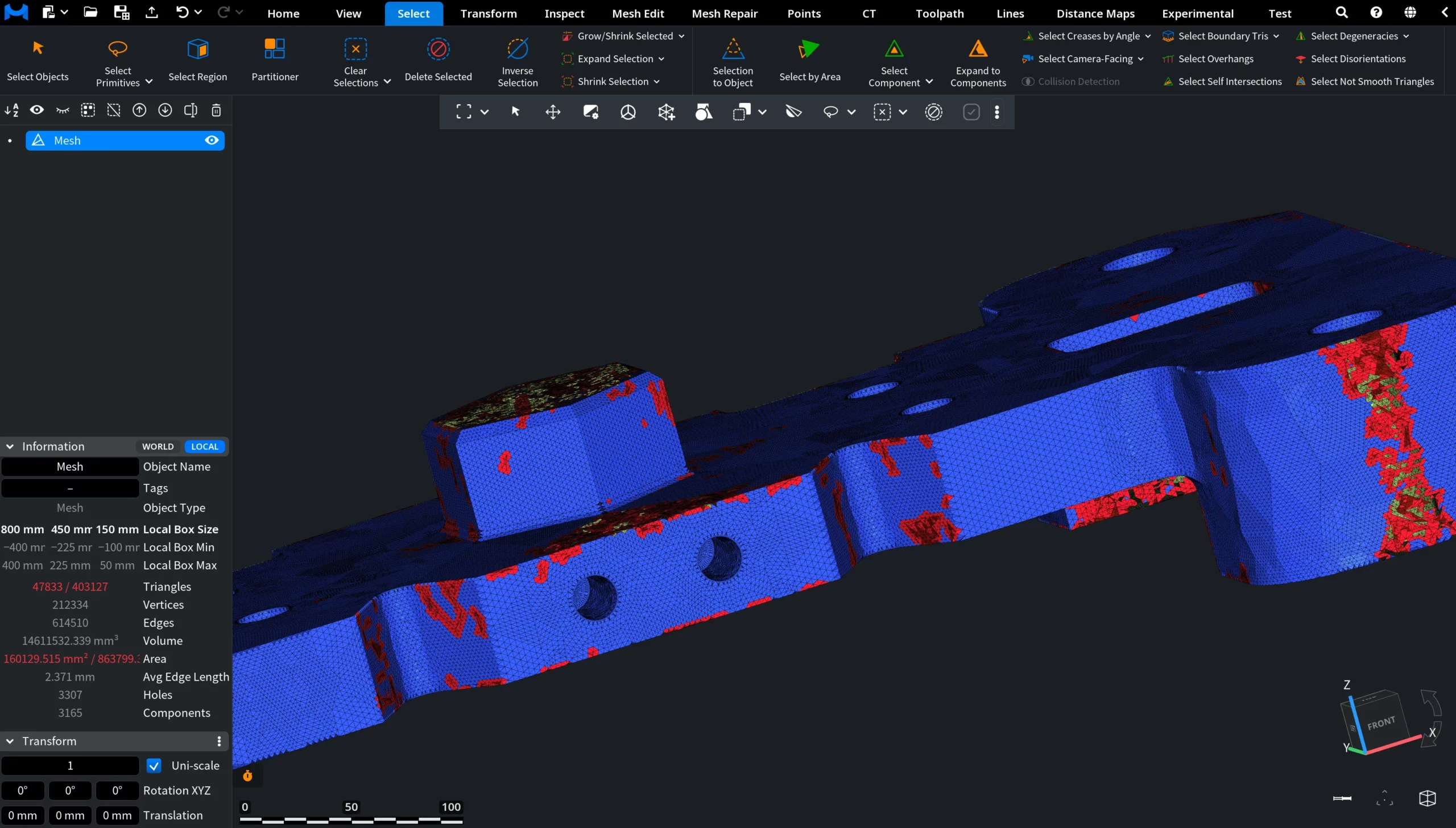
In the screenshot below, all Select Self Intersections filters were enabled and applied to a mesh containing multiple geometry issues. To visualize the mesh triangles more clearly, L was pressed. The detected problematic regions were automatically selected and highlighted in red.