Clicking Select Disorientations, located under the Select tab, identifies and selects triangles whose orientation is inconsistent with the expected inside–outside structure of the mesh. The tool works by casting rays and analyzing the number of ray intersections to detect incorrectly oriented faces. This is especially useful for finding flipped normals, inside-out regions, and orientation errors in scanned or repaired meshes.

Select Disorientations: Settings
Once Select Disorientations is clicked, a dedicated panel with settings opens.
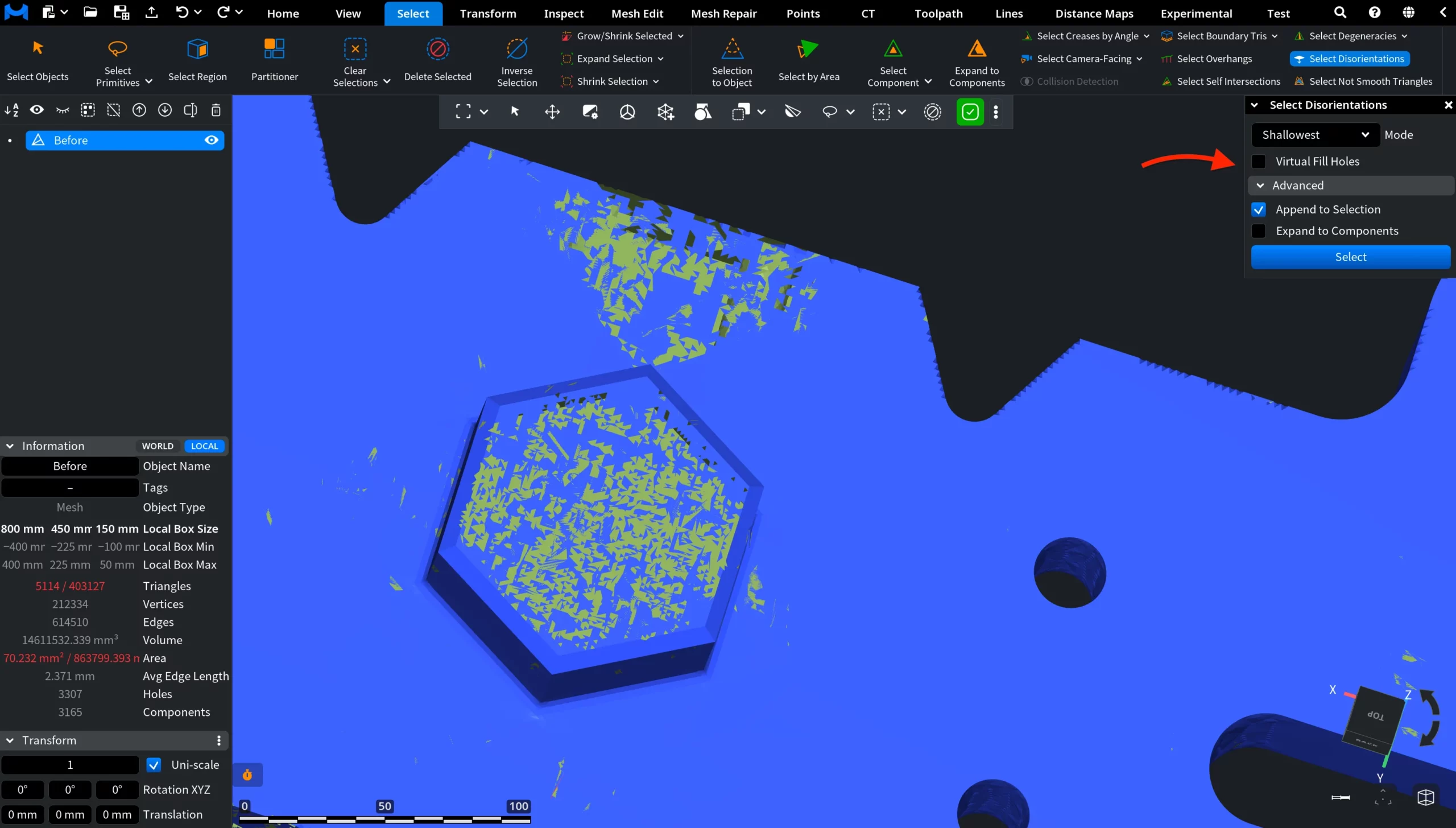
There are three available Modes to choose from. They define how triangle orientation is evaluated:
- Positive verifies that the positive (normal) triangle direction has an even number of ray intersections.
- Shallowest verifies that one of the triangle directions (positive or negative) has the correct number of intersections (even or odd). The direction with the lowest number of intersections is used.
- Both Sides verifies that both positive (normal) and negative (−normal) triangle directions have correct numbers of intersections.
Virtual Fill Holes, when enabled, virtually fills holes in the mesh during the analysis. This ensures correct ray-intersection counting for rays that would otherwise escape through holes, improving detection accuracy on non-watertight meshes.
Advanced Settings in Select Disorientations
Advanced options include:
- Append to Selection. When enabled, the detected disoriented triangles are added to the existing selection. When disabled, the current selection is replaced.
- Expand to Components. Expands the selection from disoriented triangles to entire connected components if the disoriented area exceeds an internal threshold.
Pressing Select executes the disorientation analysis using the current settings and updates the selection accordingly.
Select Disorientations: Result
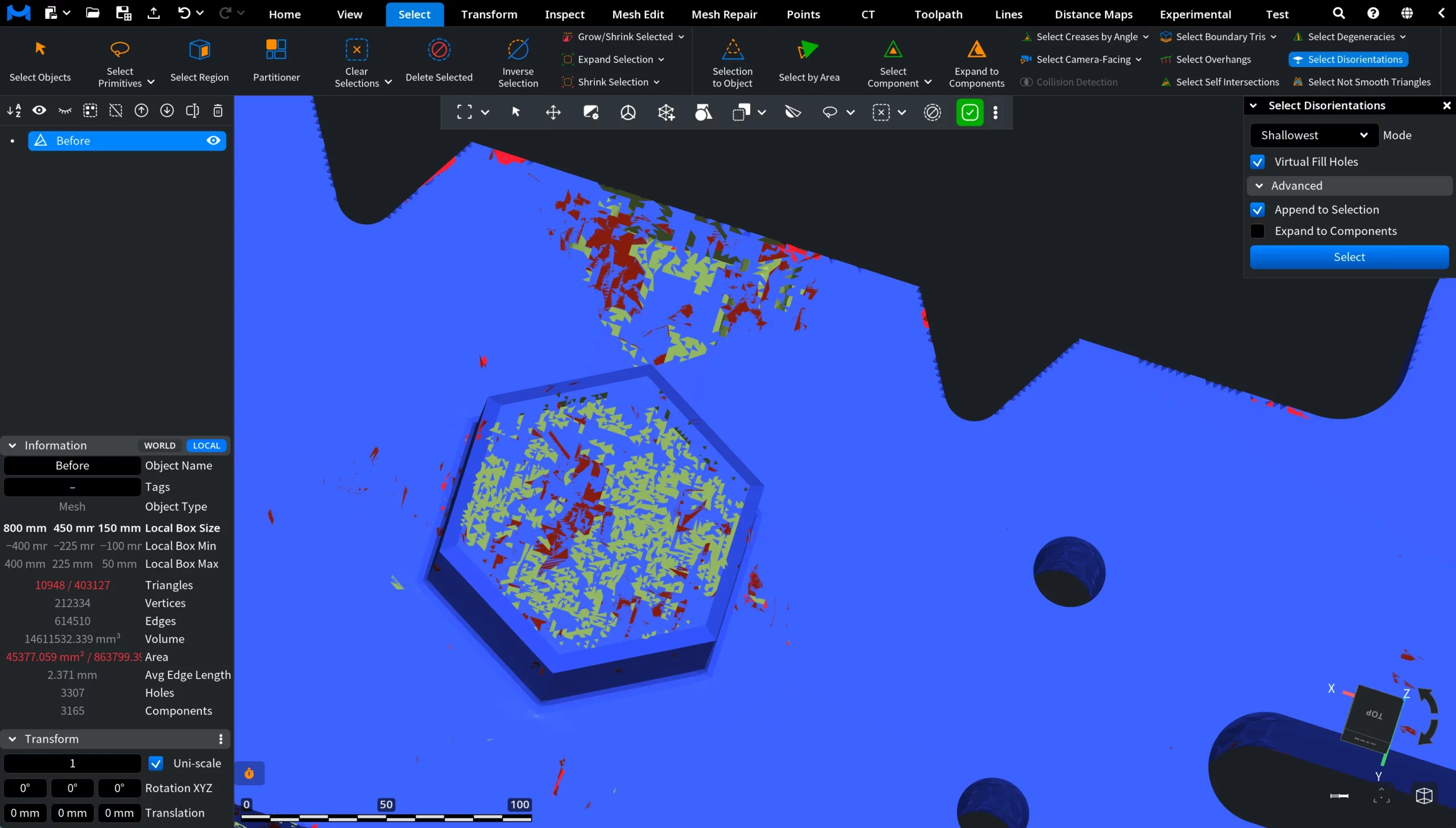
After clicking Select, MeshInspector detects triangles with inconsistent orientation based on the selected mode and settings. In the screenshot below, the detected disoriented triangles have been added to the selection and highlighted, making the problematic areas easier to inspect and correct.