Clicking Select Not Smooth Triangles, located under the Select tab, identifies and selects triangles in the active mesh where the surface is locally irregular or noisy.

This tool is useful for detecting noisy areas, sharp local artifacts, or regions that may require smoothing or cleanup.
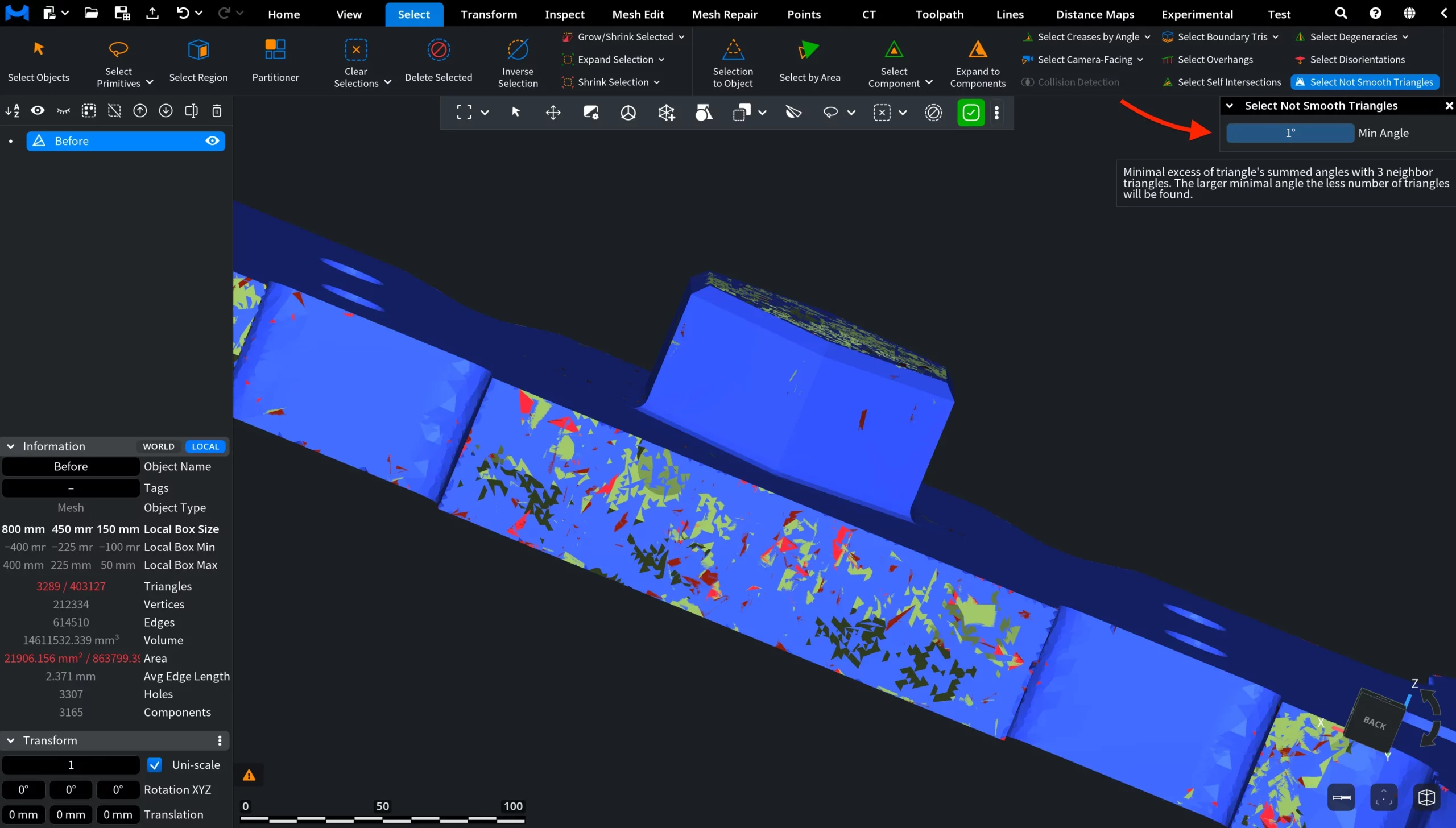
Select Not Smooth Triangles: Panel and Results
When activated, a settings panel appears with the following option:
- Min Angle defines the minimum excess of a triangle’s summed angles relative to its three neighboring triangles. A higher Min Angle value makes the selection stricter, resulting in fewer detected triangles, while lower values include more subtle surface irregularities.
In this screenshot, triangles identified as locally irregular or insufficiently smooth were automatically selected and highlighted in red and green.
This tool is especially helpful when inspecting scanned meshes or processed geometry, as it allows you to quickly isolate uneven surface regions that may affect visual quality, downstream processing, or manufacturing readiness.
How the Select Not Smooth Triangles Tool Works