Under the Toolpath tab, you can find the Swept Volume button. This tool allows you to create a volume based on a selected Polyline or G-code object and a tool mesh. In simple terms, Swept Volume shows the space occupied by the tool as it moves along the selected path.

Once you select exactly one Polyline or exactly one G-code object and click Swept Volume, a dedicated panel with settings will open.
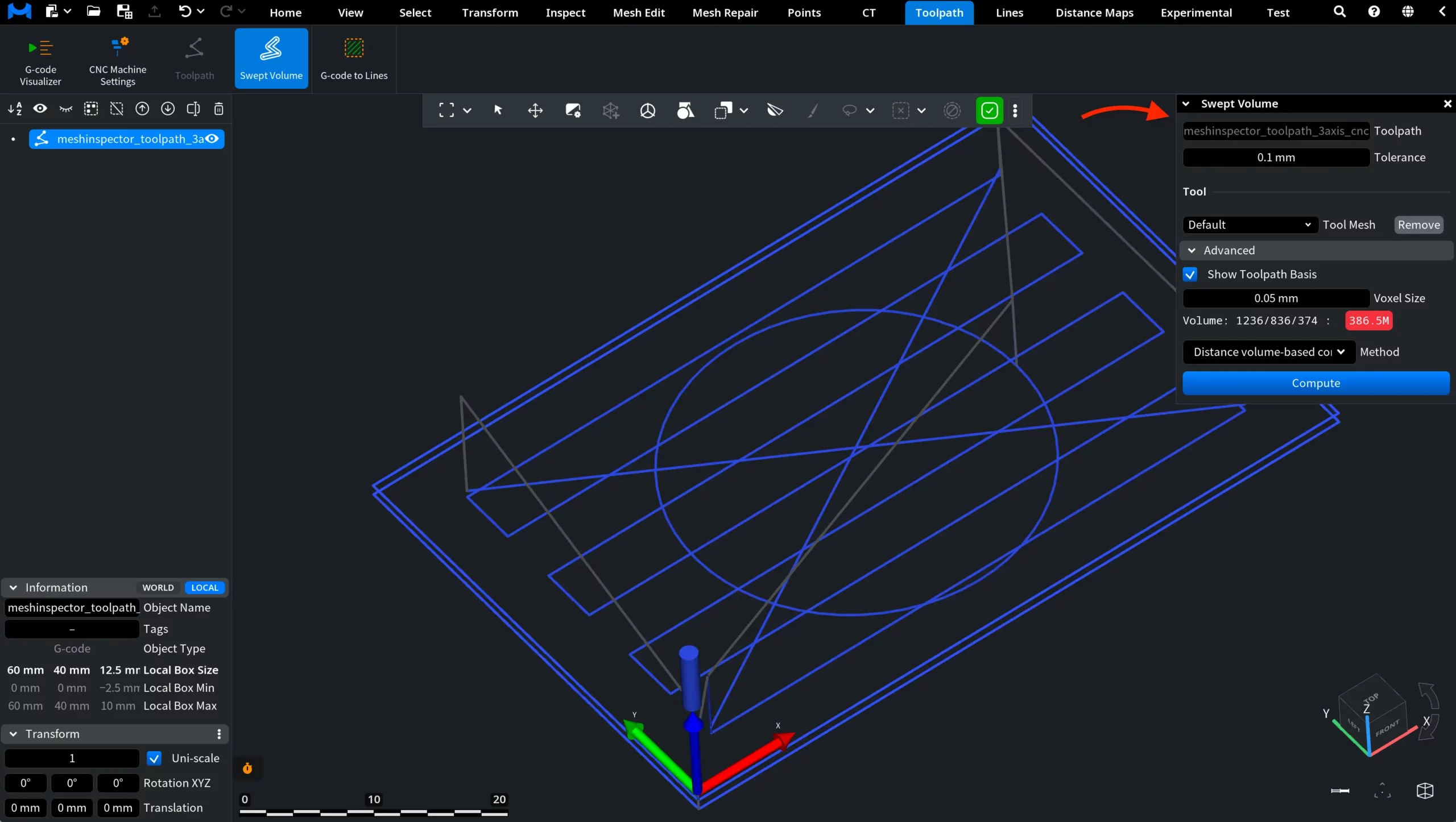
At the top of the panel, you can see the selected path object. Below it, you can configure Tolerance, which defines the tolerance used for the swept volume computation.
Tool
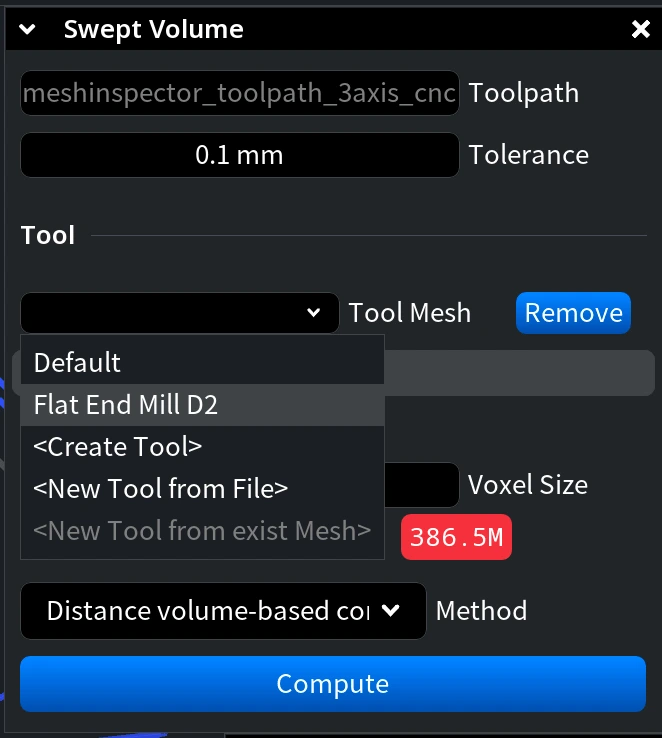
The Tool section allows you to choose the tool mesh used for swept volume generation. Open the Tool Mesh dropdown to select the required tool. You can:
- Use the Default tool.
- Select one of the already created tools, if available.
- Select Create Tool to create a simple tool directly in MeshInspector.
- Select New Tool from File to load a tool model from a file.
- Select New Tool from exist Mesh if a suitable mesh object is available in the scene.
Use Remove to remove the selected tool mesh from the Swept Volume setup.
When you select Create Tool, MeshInspector opens the Create Tool window. Here, you can specify:
- Name is the tool name.
- Type defines the tool type. You can choose one of the available options: Flat End Mill, Ball End Mill, Bull Nose End Mill, or Chamfer End Mill.
- Length is the tool length.
- Diameter is the tool diameter.
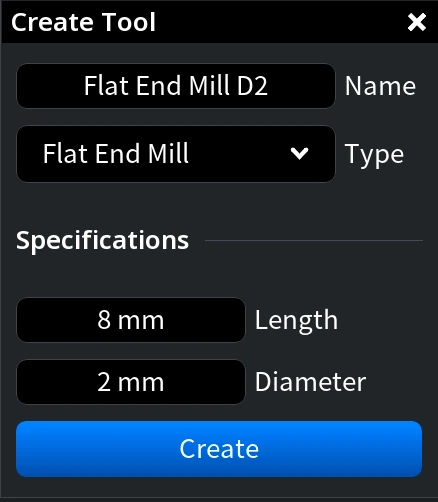
After setting the required values, click Create. The created tool can then be selected in the Tool Mesh dropdown.
Advanced
The Advanced section contains additional settings for swept volume computation.
- Show Toolpath Basis shows or hides the toolpath basis in the viewport.
- Voxel Size defines the size of a cubical voxel used in the process. According to the tooltip, the smaller the voxel size, the better the quality.
- Volume shows volume-related information for the current swept volume setup.
- Method allows you to select the computation method. Available options include Mesh-based computation and Distance volume-based computation.
After configuring the required settings, click Compute. MeshInspector generates a swept volume object that represents the space covered by the selected tool as it moves along the selected path.
After the computation is complete, a new Swept volume object appears in the Scene list. In the viewport, the generated swept volume shows the space occupied by the selected tool as it moves along the selected path.
In the example below, the operation was applied with default settings.
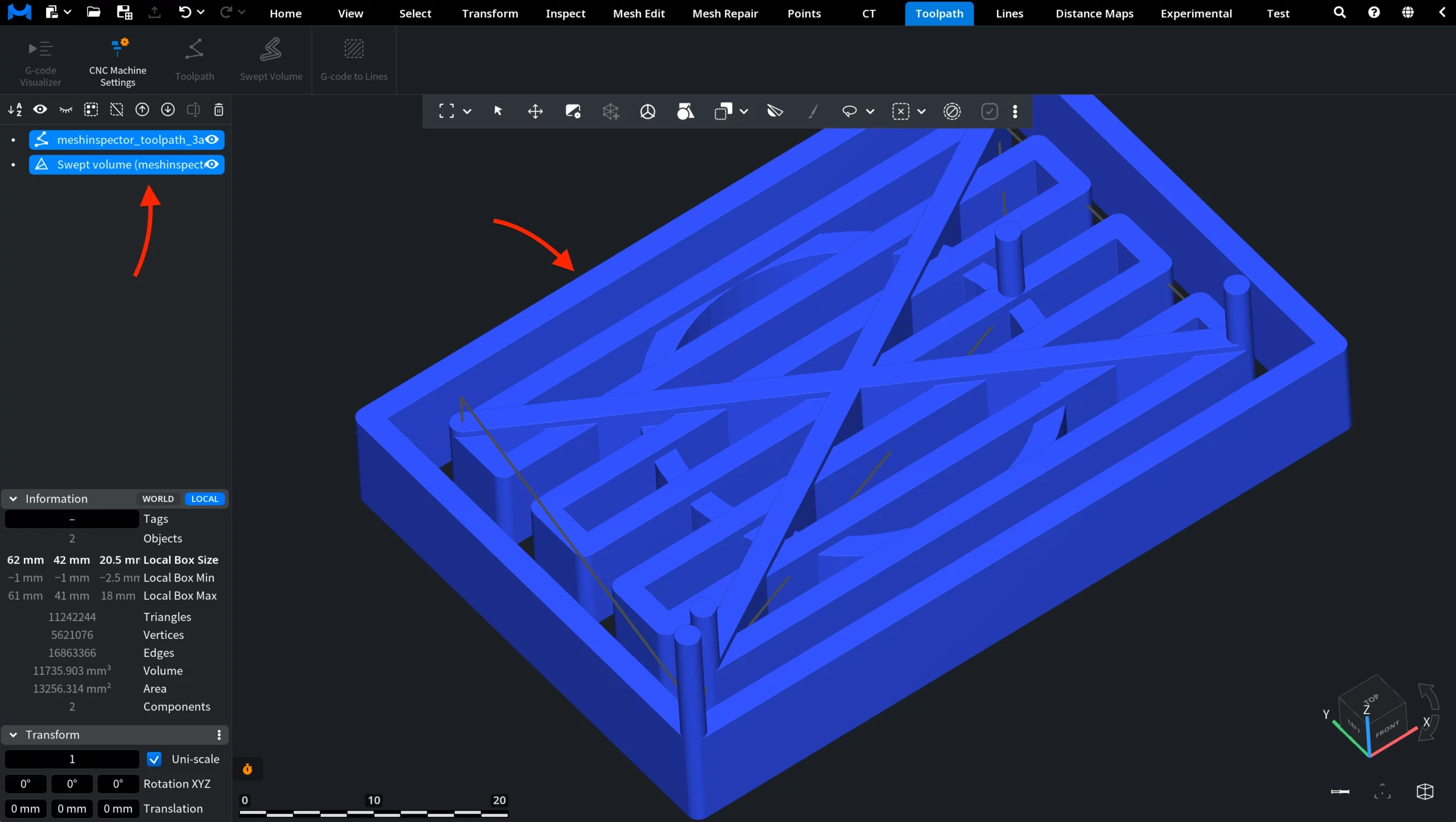
The resulting object follows the toolpath trajectory and represents the volume covered by the tool movement.