Under the Toolpath tab, you can find the CNC Machine Settings button. It allows you to configure the CNC machine simulator parameters used for toolpath visualization and milling simulation.

Once you click CNC Machine Settings, a dedicated panel with machine simulator settings appears.
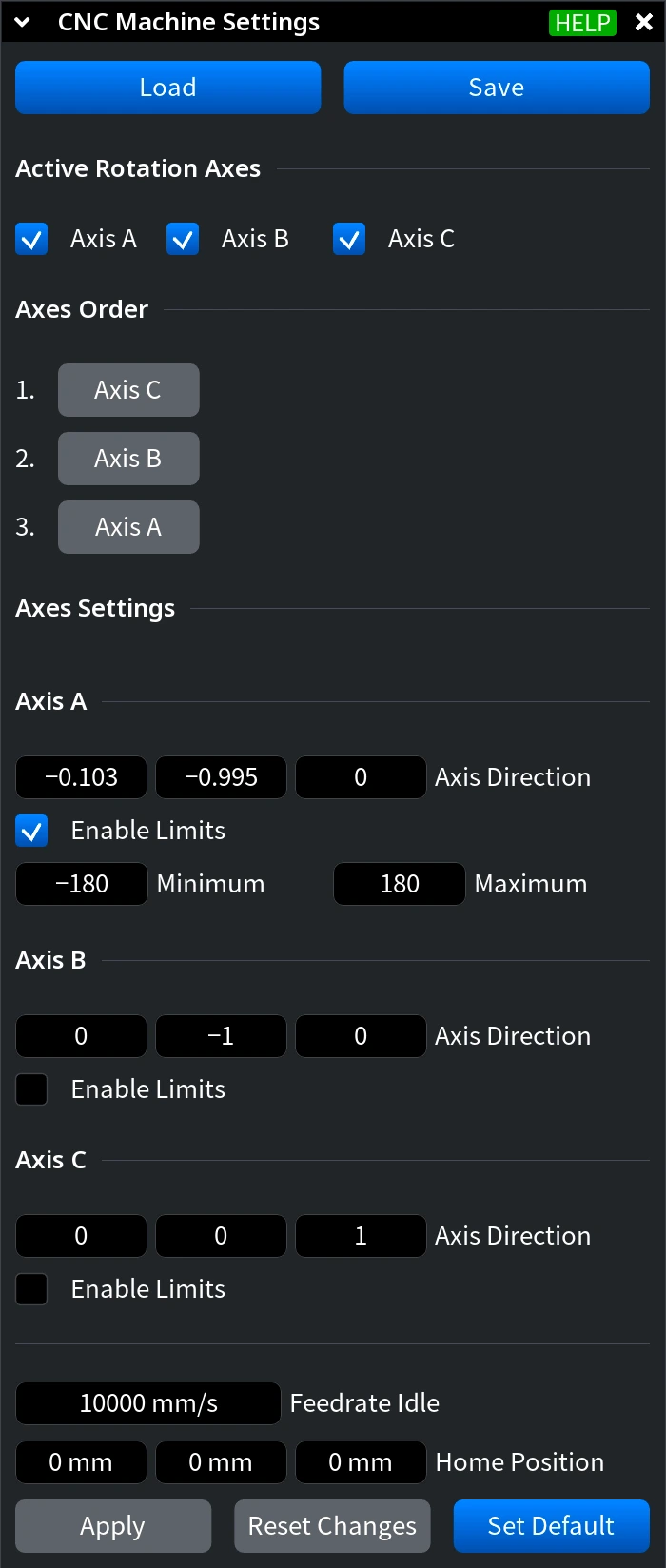
At the top of the panel, you can use:
- Load loads settings from a file and applies them.
- Save saves the current settings to a CNC Machine Settings file.
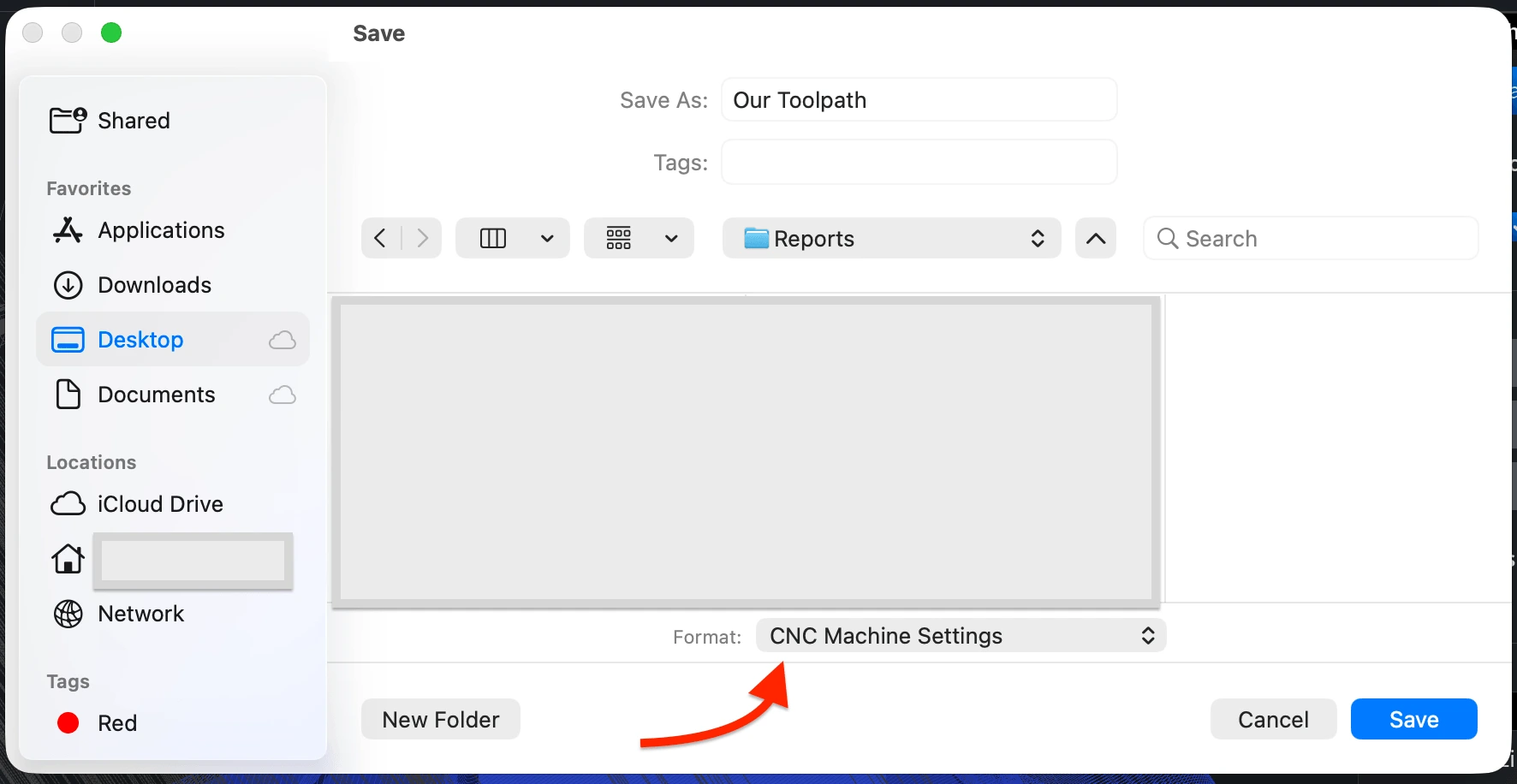
Active Rotation Axes
The Active Rotation Axes section defines which rotation axes are enabled in the CNC machine simulator. You can enable or disable:
- Axis A
- Axis B
- Axis C
When an axis is disabled, it is removed from the Axes Order section and its individual settings are not displayed in Axes Settings.
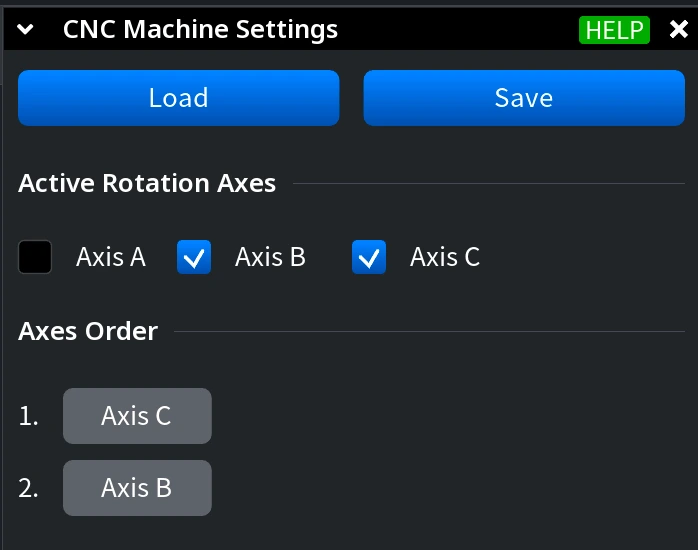
Axes Order
The Axes Order section defines the order in which the enabled rotation axes are applied. Only active axes are shown in this section. If you disable one of the axes, the order is updated accordingly.
Axes Settings
The Axes Settings section contains individual parameters for each active rotation axis.
For each axis, you can configure:
-
Axis Direction is defined by three linked values that describe the direction vector of the rotation axis along X, Y, and Z. When you edit one of these values, MeshInspector may automatically update the other values as well. This happens because the three fields work together as one direction vector and must remain valid.
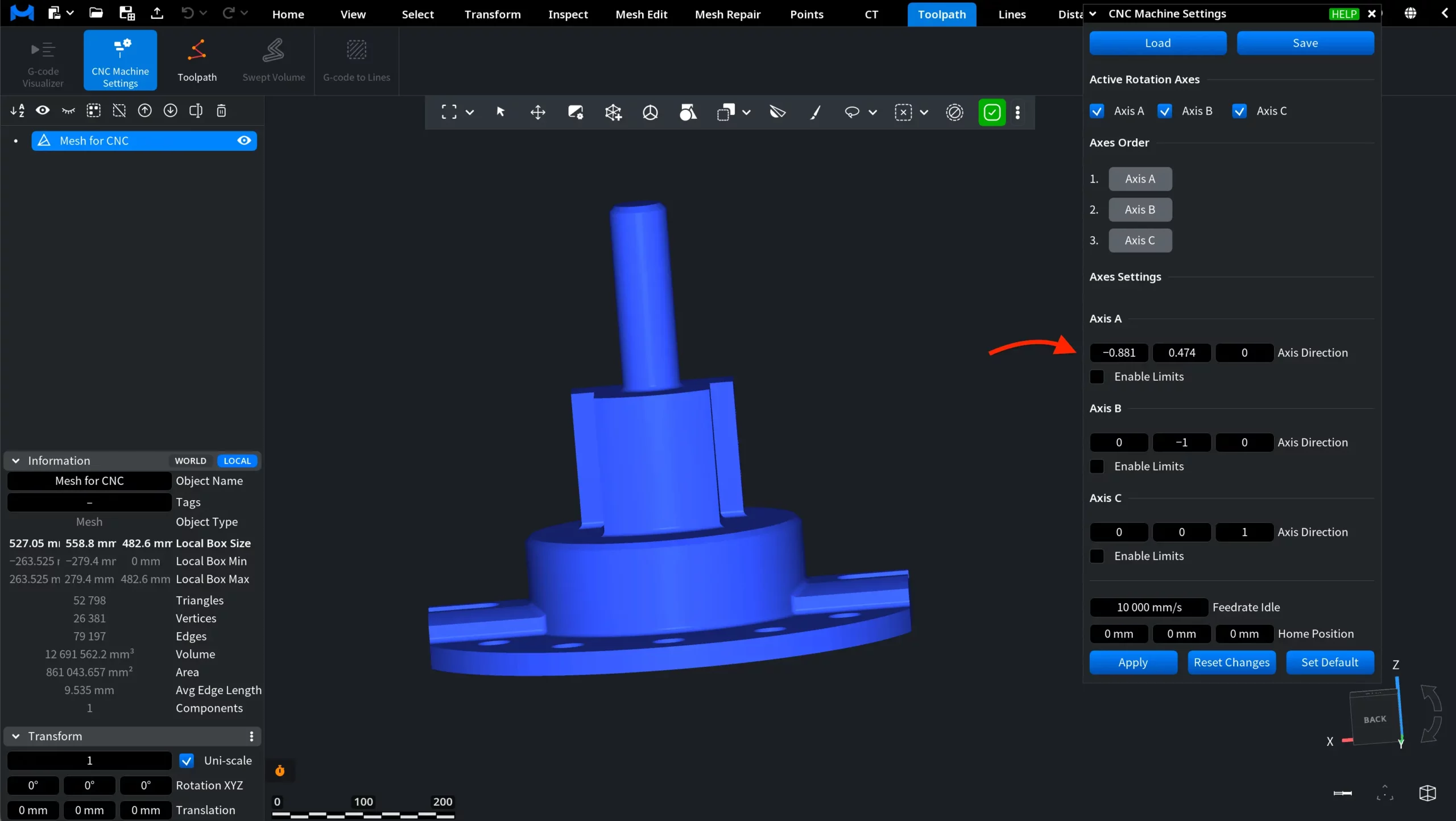
- Enable Limits enables rotation limits for the selected axis.
- Minimum defines the minimum allowed rotation value when limits are enabled.
- Maximum defines the maximum allowed rotation value when limits are enabled.
If Enable Limits is disabled, the Minimum and Maximum fields are hidden for that axis.
Feedrate Idle and Home Position
At the bottom of the panel, you can configure additional simulator parameters:
- Feedrate Idle defines the feedrate used for idle movements.
- Home Position defines the machine’s home position along the X, Y, and Z axes.
Applying or Resetting Settings
After changing the settings, use the buttons at the bottom of the panel:
- Apply applies the current settings.
- Reset Changes discards the current unsaved changes.
- Set Default restores the default CNC machine simulator settings.