Toolpath › Swept Volume builds a mesh of the space that a tool occupies as it moves along a path. Use it to see what a toolpath will cut: put the swept volume over the part to spot places where the tool cuts into the part or leaves material. The path can be a G-code object, for example a result of Toolpath, or a polyline. The tool keeps its vertical orientation along the whole path: Swept Volume reads only the positions of the path, so for programs whose rotary axes tilt the tool the result does not follow the tilt.
Build a swept volume
- Select exactly one G-code object or one polyline (lines object) in the Scene tree.
- Click Toolpath › Swept Volume. The panel opens with the name of the path in the Toolpath field. While the panel is open, the source object is hidden and the path is shown with the tool at its start.
- Choose the tool in the Tool section and set Tolerance.
- Click Compute.
For a G-code object only the cutting moves are used; idle (rapid) moves are left out.
Tool
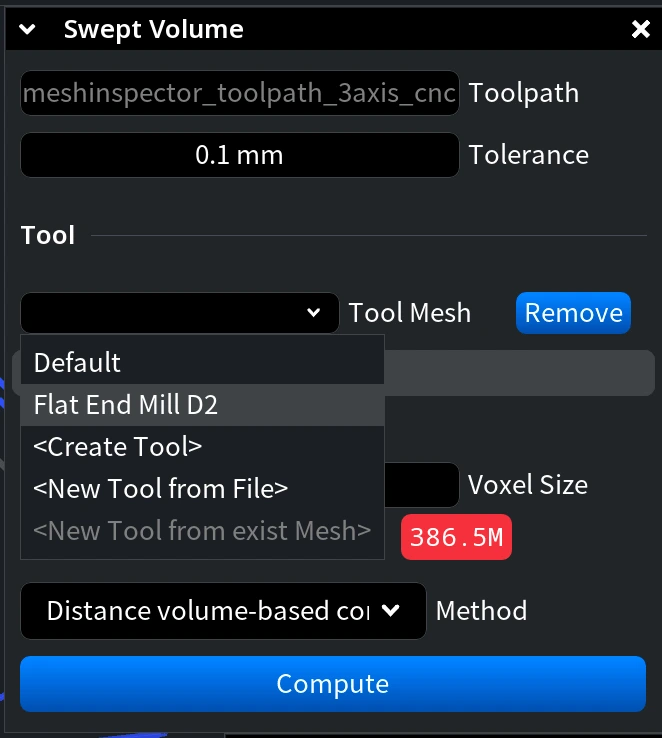
Open the Tool Mesh list to choose the tool:
- the Default tool, or a tool you created before;
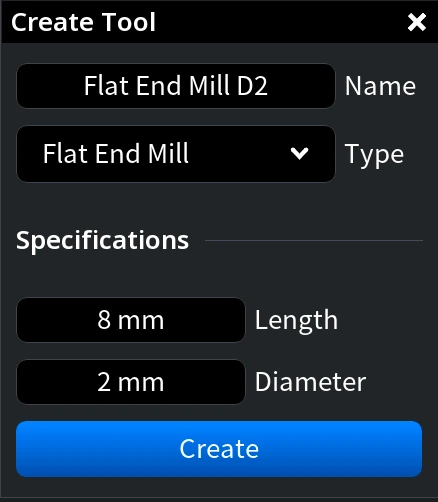
- Create Tool to make a simple end mill by type, length and diameter (the shapes are described in CNC and toolpath basics);
- New Tool from File to load a tool model;
- New Tool from exist Mesh to use a mesh of the scene as the tool.
Remove removes the selected tool from the list.
Parameters
| Parameter | What it does |
|---|---|
| Tolerance | Accuracy of the result. When you change it, Voxel Size becomes half of the new value |
| Show Toolpath Basis (Advanced) | Shows the X, Y and Z axes of the path in the viewport |
| Voxel Size (Advanced) | Size of the voxels used in the computation: smaller is more exact and slower. When you change it, Tolerance becomes twice the new value |
| Method (Advanced) | Distance volume-based computation (default) or Mesh-based computation, see below |
Which method to choose
Both methods build the result in a voxel grid, so Voxel Size sets the detail of both:
- Distance volume-based computation checks every voxel of the box around the path and finds how far it is from the tool at the nearest points of the path. Its time grows with the size of this box divided by Voxel Size. For a tool made with Create Tool it uses the exact shape of the tool type; for a tool from a mesh it uses the outline of the tool turned around its axis.
- Mesh-based computation builds a separate body for every continuous cutting pass and joins all of them. Its time grows with the number of passes, so it is very slow for paths with many passes.
In a test on the fandisk test part (4.8 × 5.2 × 2.7 mm) with a Constant Z path (Tool Diameter 0.5, Step Over 0.1), the Default tool, Tolerance 0.1 and Voxel Size 0.05, Distance volume-based computation took 72 seconds and gave a mesh of 190 436 triangles. Mesh-based computation of the same path had done only 5% after almost 3 minutes. Keep the default method; try Mesh-based computation only for a short path with few passes.
Tool size and feeds
Swept Volume uses only the positions of the path and the shape of the tool. Set the tool to the real cutter: the same type and diameter as the tool the path was made for. A path made by Toolpath is built for a ball-end tool of its Tool Diameter (the name Tool Path_D0.5_ST0.1 means diameter 0.5, step over 0.1), so create a Ball End Mill tool of the same diameter. The feeds in the program do not change the swept volume; G-code Visualizer uses them to calculate the time of the moves.
Result
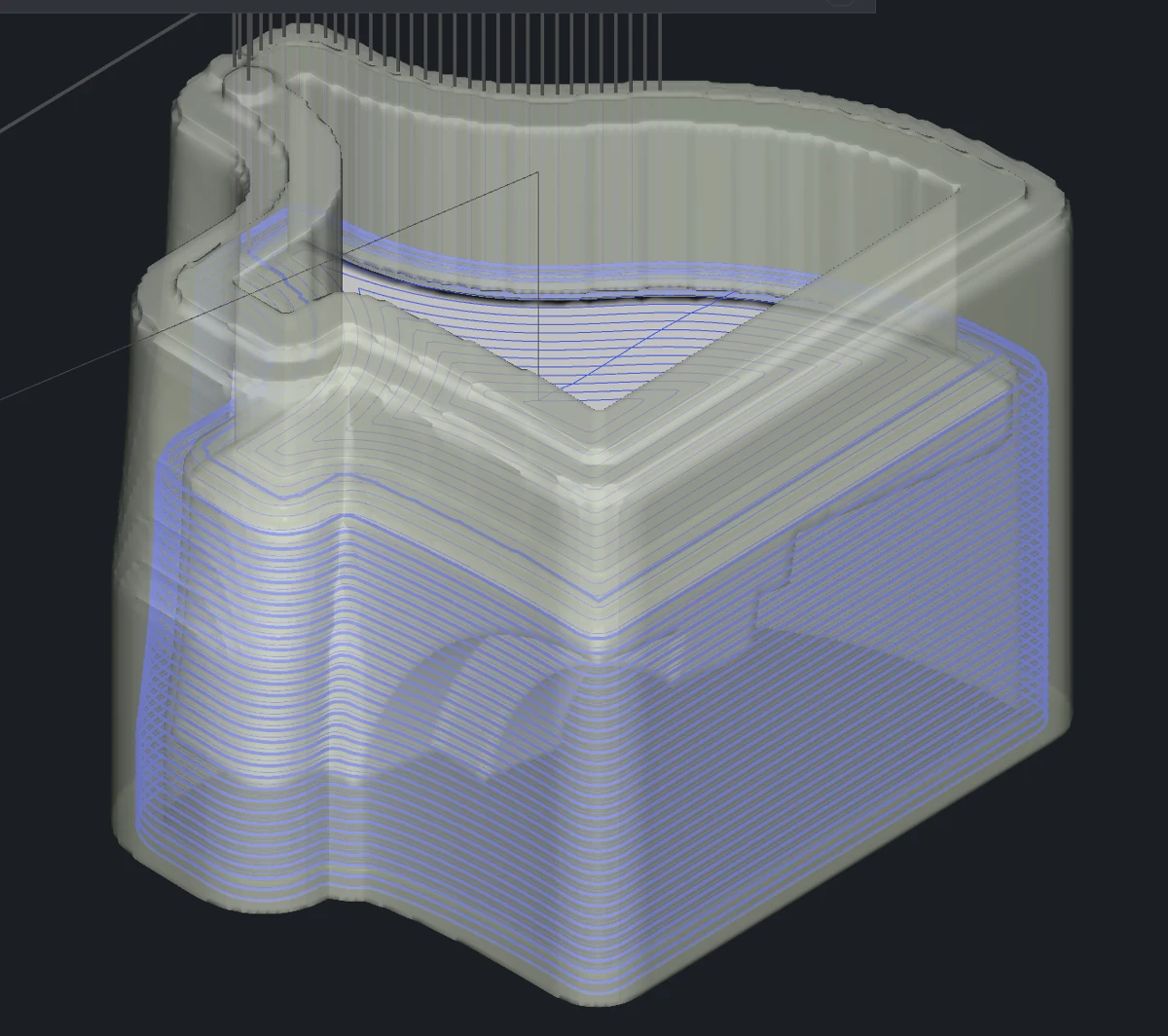
The result is a new mesh named Swept volume (…) with the name of the path in brackets, for example Swept volume (Tool Path_D0.5_ST0.1). It follows the path and shows all the space the tool passes through. The source path does not change.
To see what the path cuts, show the part together with the result and make the swept volume semi-transparent. Here the swept volume of a Constant Z path (ball-end tool 0.5 mm, step over 0.1 mm) wraps the fandisk test part; the panel closes after Compute.