Voxel data is a three-dimensional grid of small cubes, called voxels, that collectively represent an object or space. Think of it as a 3D version of pixels in a 2D image. Voxel data finds applications in various fields, including medical imaging such as CT and MRI, geological modeling, and more.
In MeshInspector, voxel data must be opened using one of the dedicated commands under the CT tab. The standard Open Files command under Home does not support voxel data, and you cannot open voxel files by dragging and dropping them into the viewport.
Depending on the file format, use one of these three options:
- Open DICOMs;
- Open RAW Voxels;
- Open Voxels From TIFF.

Open DICOMs
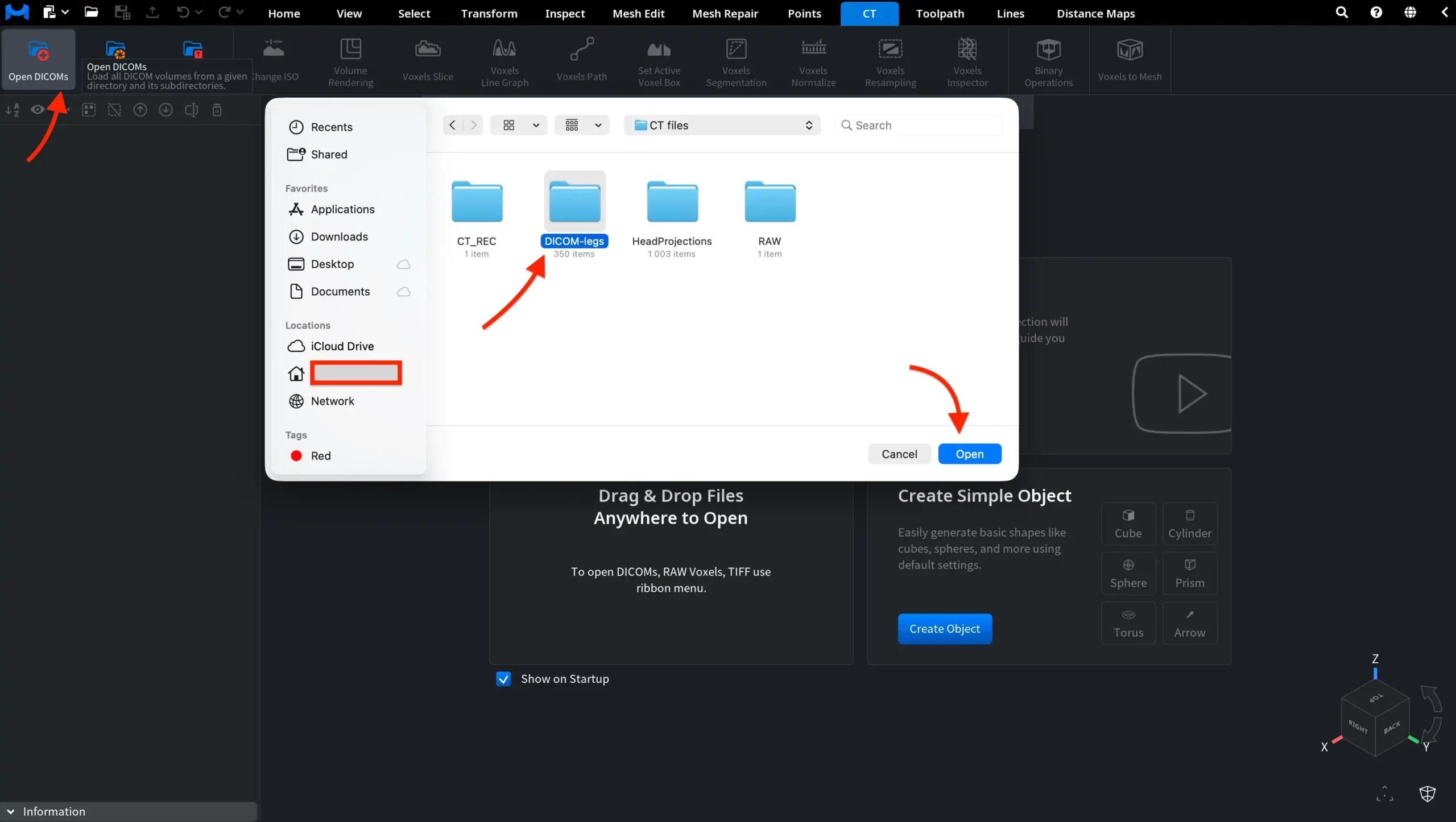
Open DICOMs loads all DICOM volumes from a selected directory and its subdirectories. Click Open DICOMs to open the file browser, then navigate to the folder containing your .dcm files. If the DICOM files are stored in one or more subfolders, you can select the parent folder instead, since MeshInspector will also search its subdirectories.
Select the folder and click Open. MeshInspector will load the DICOM data contained in that folder and its subfolders. Note that you select a folder, not individual .dcm files. A batch of DICOM files cannot be selected manually in the file browser. That is, you need to open the directory containing them.
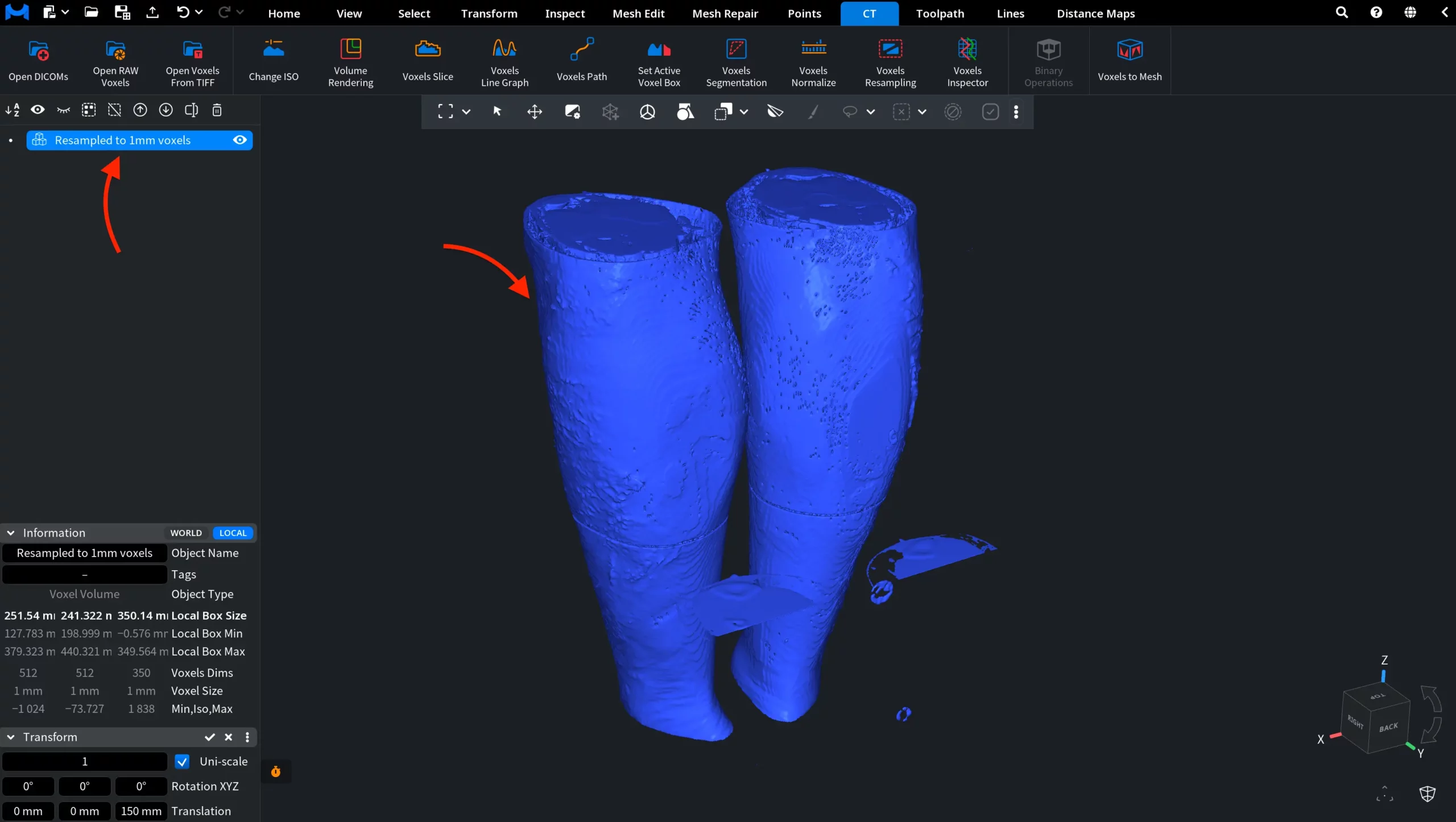
After you click Open, MeshInspector loads the detected DICOM data and displays it in the viewport.
- If you selected the folder that directly contains the DICOM files, the loaded voxel object appears directly in the Scene Tree.
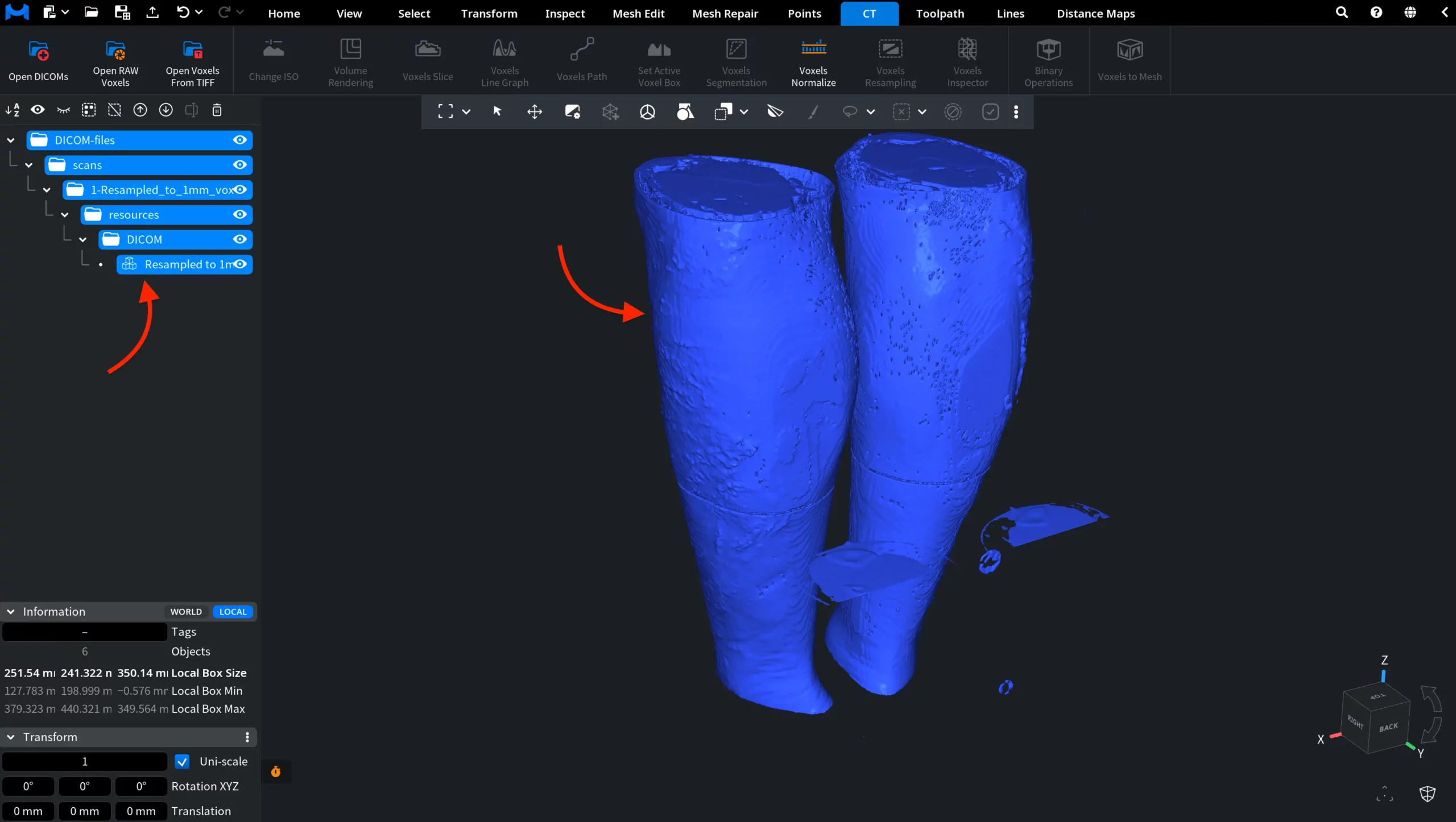
- If you selected a higher-level parent folder, MeshInspector also searches its subfolders for DICOM data. In this case, the Scene Tree preserves the corresponding folder hierarchy, with the loaded voxel object shown inside the subfolder where the DICOM data was found.
Open RAW Voxels
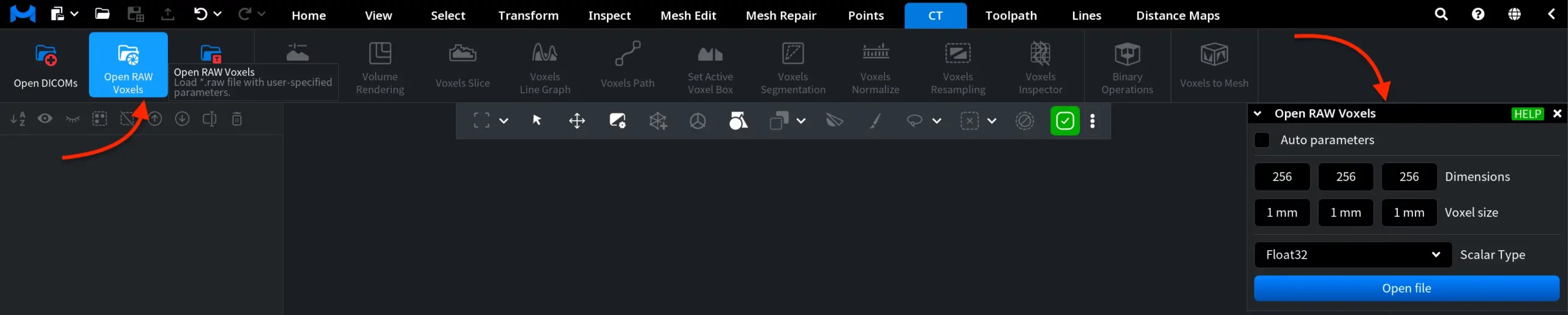
Clicking Open RAW Voxels under the CT tab allows you to load a .raw voxel file using user-specified parameters. Once you click it, a dedicated panel opens where you can set:
- Dimensions
- Voxel size
- Scalar type of the data (UInt8, Int8, UInt16, Int16, UInt32, Int32, UInt64, Int64, Float32, Float64, 4 x Float32).
You can also enable Auto parameters to have MeshInspector try to parse the RAW parameters from the file name instead of entering them manually. When the settings are ready, click Open file, browse to the required .raw file, select it, and click Open.
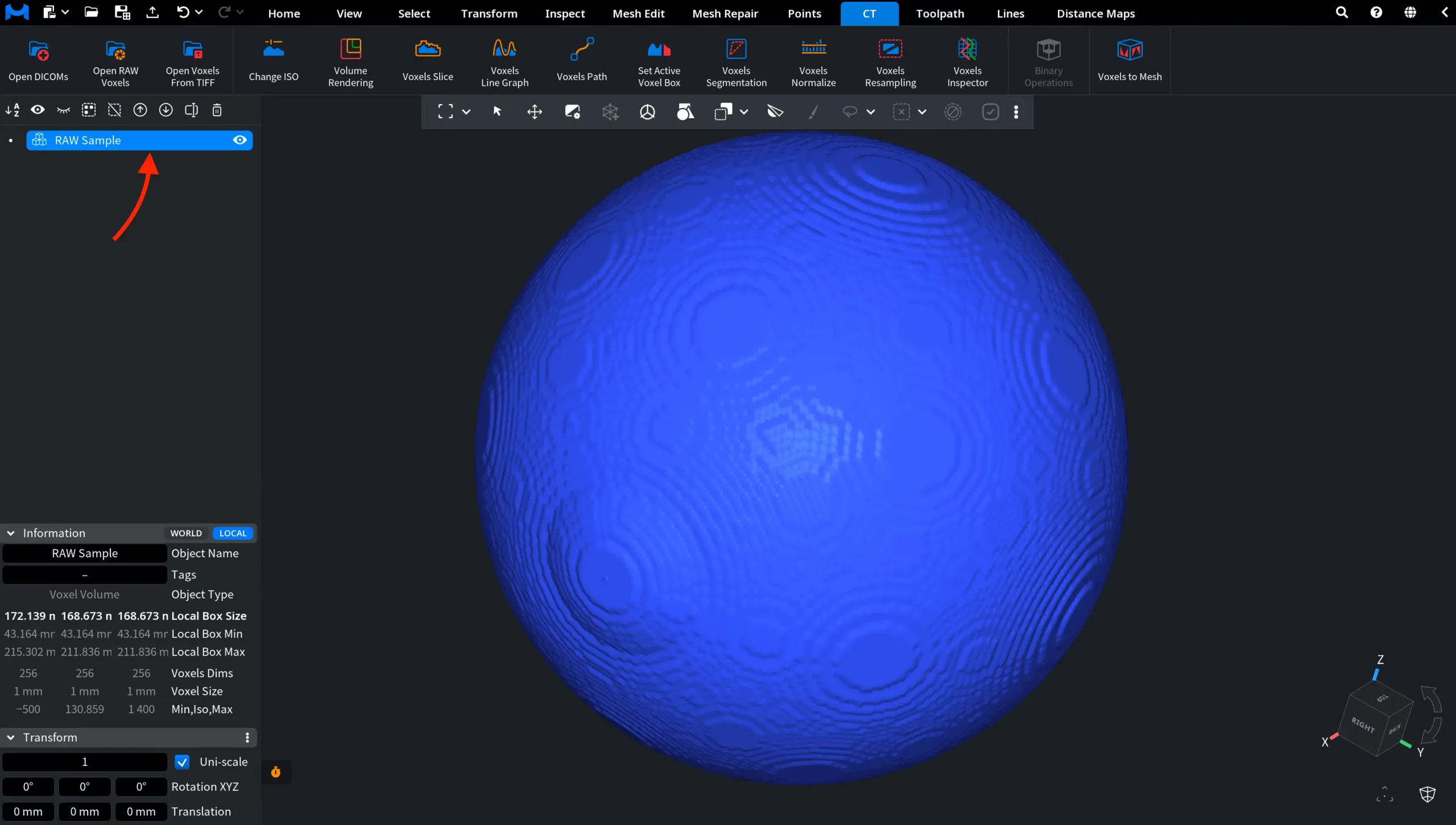
After you click Open, MeshInspector loads the RAW data as a voxel object. It appears in the Scene Tree and is displayed in the viewport using the parameters you specified.
Open Voxels From TIFF
Open Voxels From TIFF under the CT tab allows you to load voxel data from a set of TIFF images. Use this option when your 3D volume is stored as a sequence of TIFF image slices (.tif/.tiff). This option is available in the MeshInspector desktop application only.

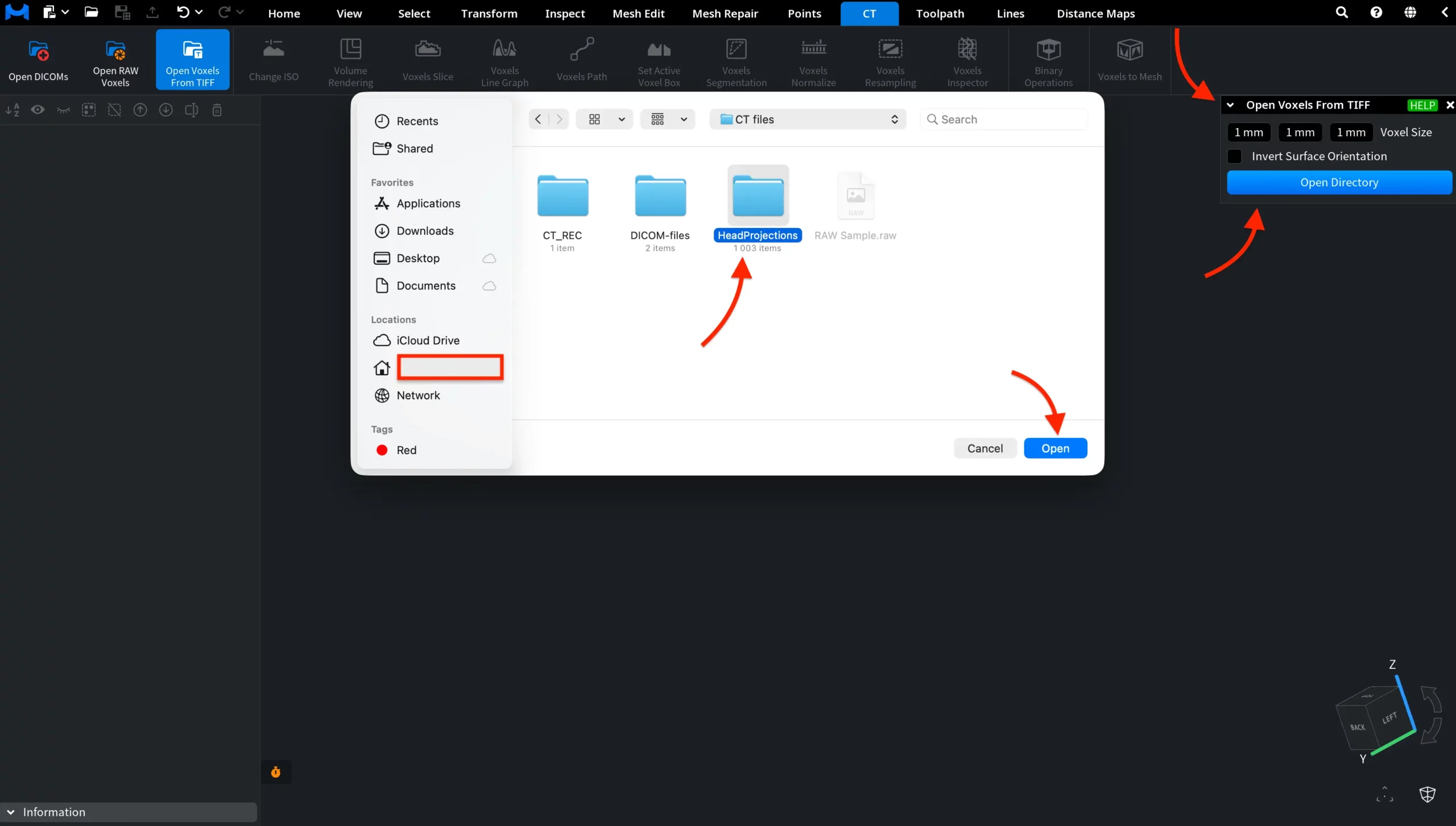
Click Open Voxels From TIFF to open a dedicated panel where you can set the Voxel Size and, if necessary, enable Invert Surface Orientation. By default, iso-surfaces are oriented from higher voxel values to lower ones. Enable this option to reverse the orientation.
Then click Open Directory, navigate to the folder containing your TIFF image set, select the folder, and click Open. MeshInspector will use the TIFF images in that directory to load the voxel volume.
After you click Open, MeshInspector combines the TIFF image stack into a single voxel volume.
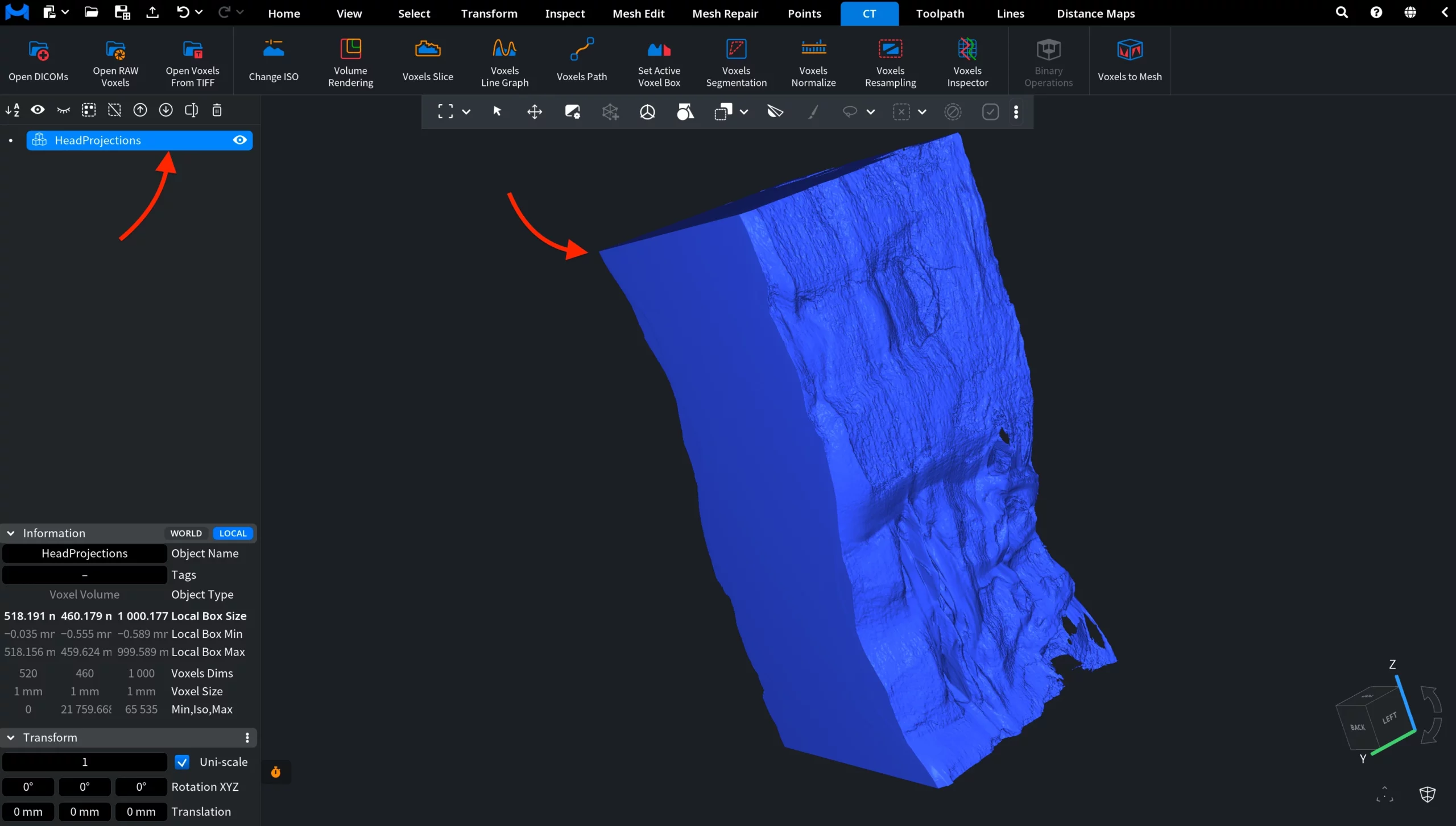
The new object appears in the Scene Tree and is displayed in the viewport according to the voxel size and surface-orientation settings you specified.
Guide to opening DICOMs, RAW Voxels, and Voxels From TIFF