The Points to Mesh tool, located under the Points tab in MeshInspector, converts an active point cloud into a mesh by using the point-cloud vertices and connecting them to form triangles. If the point cloud does not have normals, MeshInspector generates them automatically as part of the triangulation process.

Points to Mesh: Settings
Clicking Points to Mesh opens a dedicated panel with the following settings and controls.
Nearest Neighbours specifies the number of nearest neighboring points used to build the local triangulation. A value that is too low can result in suboptimal triangulation and additional holes, while a value that is too high increases optimization difficulty and decreases performance.
Advanced expands additional triangulation settings:
- Critical Angle sets the critical angle for triangles in the local triangulation; the angle between triangles in the fan should be less than this value.
- Fill Holes determines whether holes are filled after triangulation.
- Auto Detect Holes to Fill allows MeshInspector to automatically select which holes should be filled.
- Preserve Point Cloud keeps the original point cloud in the scene in addition to the resulting triangulated mesh.
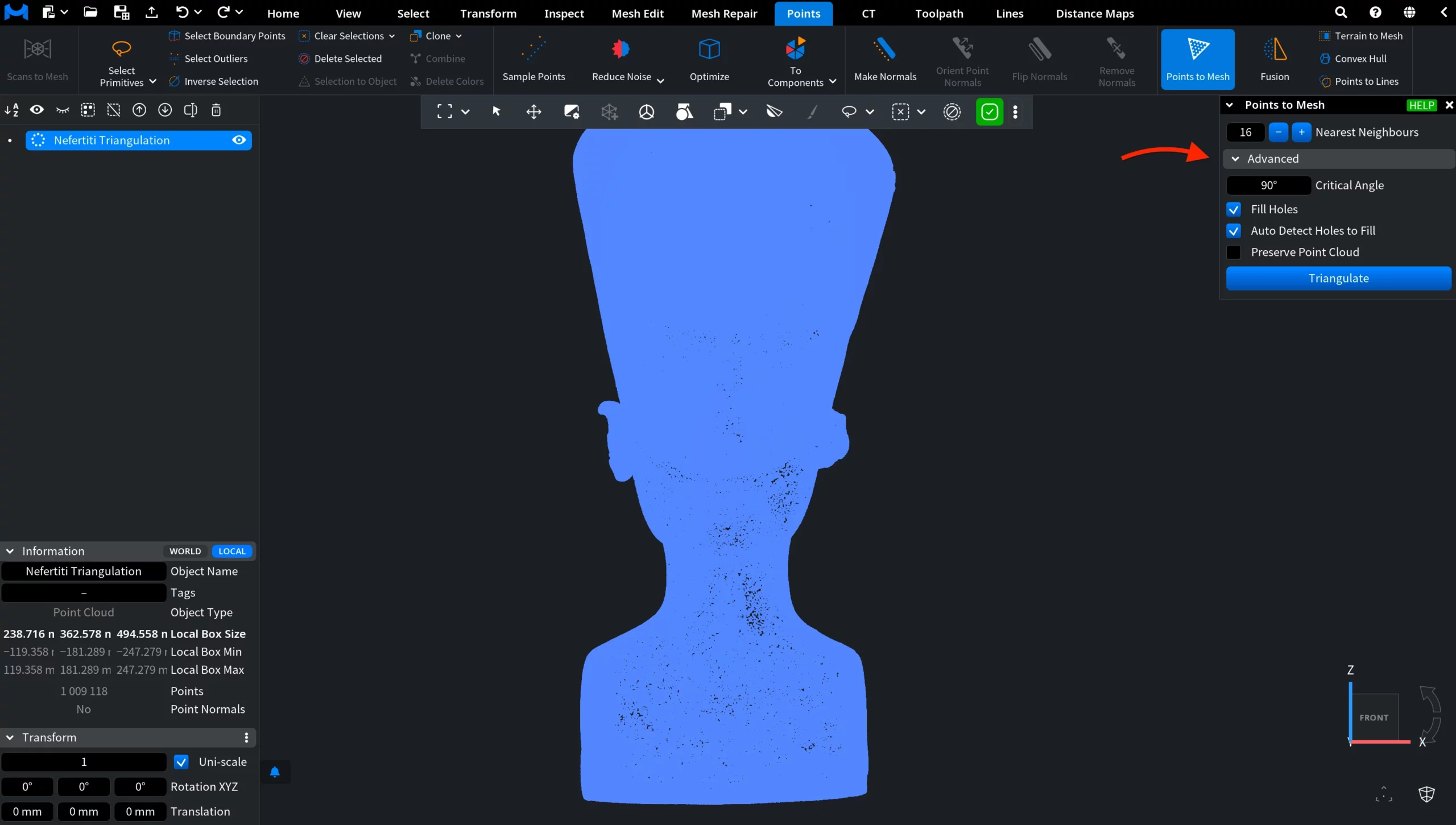
Finally, the Triangulate button creates the mesh using the selected settings.
Points to Mesh: Results
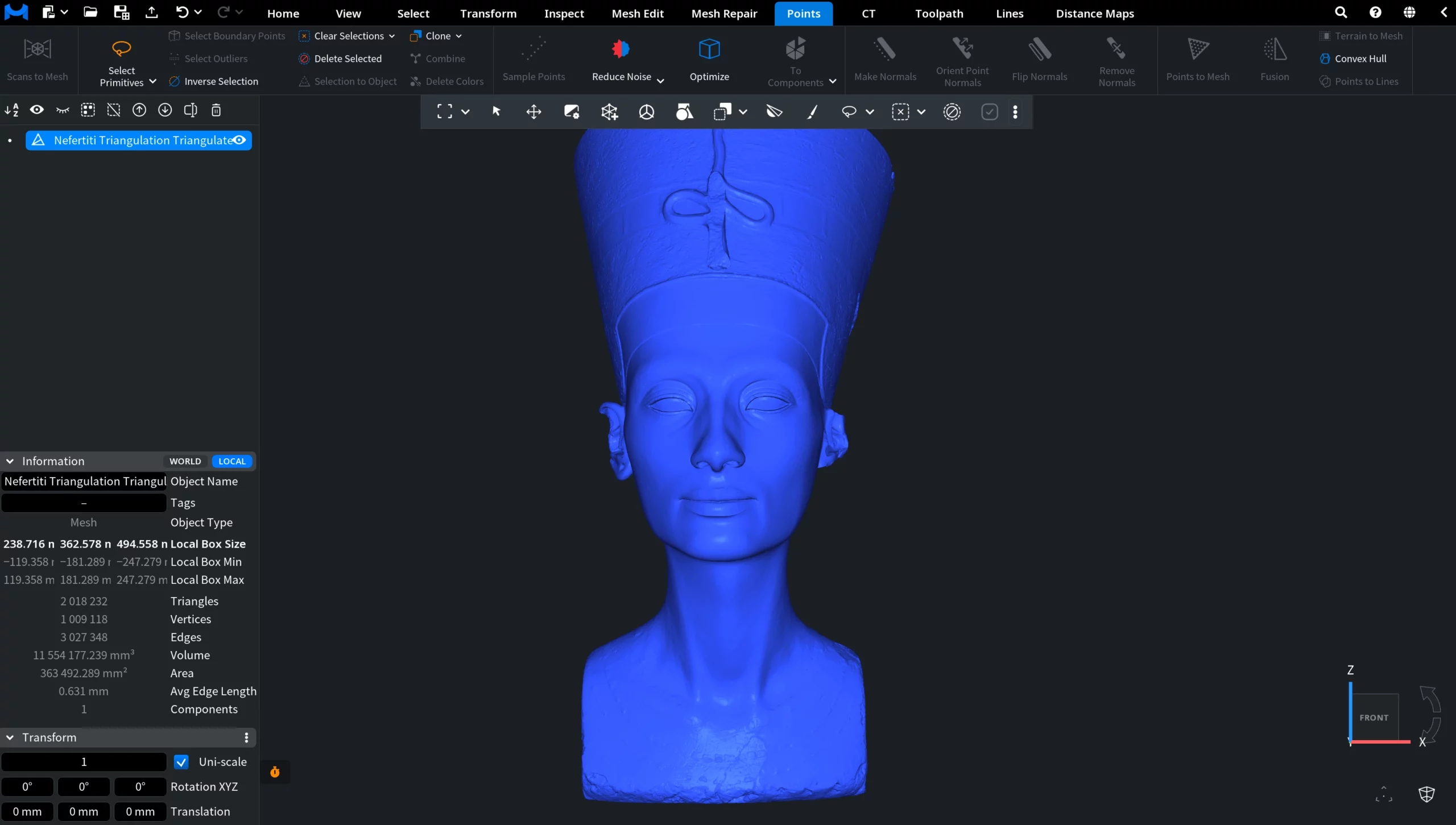
In the screenshot below, you can see the result of the Points to Mesh operation. MeshInspector created a triangulated mesh from the original point cloud, using its vertices to define the resulting geometry.
When to Use Points to Mesh
Points to Mesh is particularly useful when you want the resulting mesh to closely follow the positions of the original point-cloud vertices. This makes it suitable for workflows where preserving the geometric detail captured by the point cloud is important.
For example, when working with a detailed 3D scan of an object or artifact, Points to Mesh can be used to convert the sampled points into a triangulated surface while retaining the shape represented by the source point cloud.
How the Points to Mesh Tool Works in MeshInspector