Clicking Grow/Shrink Selected Edges, available from the dropdown next to Grow/Shrink Selected, opens a panel with controls for expanding or contracting the current edge selection.

Note that this tool becomes active and clickable only if some edges have already been selected, as shown in the screenshot below.
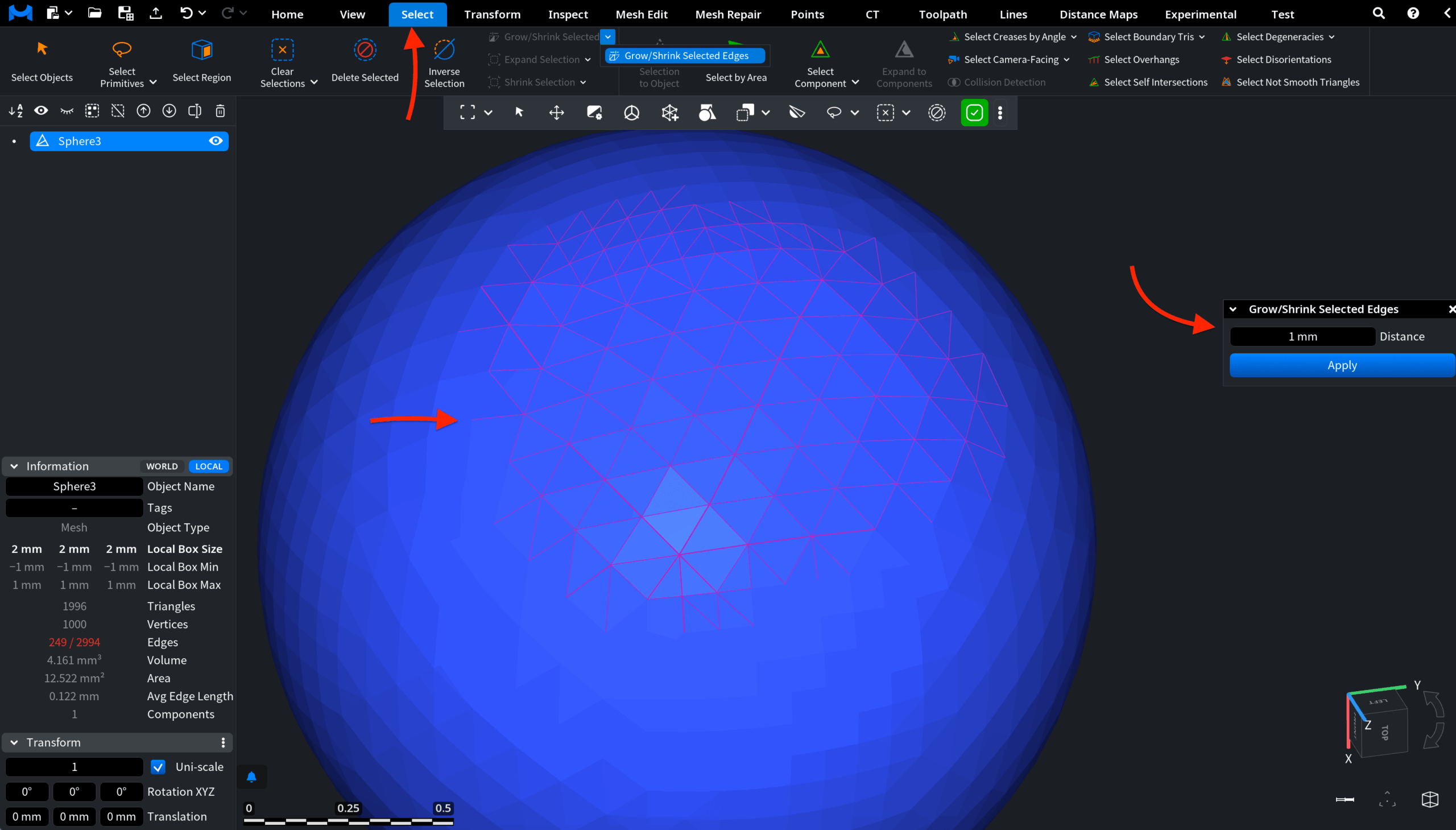
The panel includes the Distance Field setting, which defines how far the current edge selection grows or shrinks along connected edges. The value is specified in millimeters:
- Positive values expand the selection.
- Negative values shrink the selection.
Click Apply to commit the specified grow or shrink operation to the selected edges.
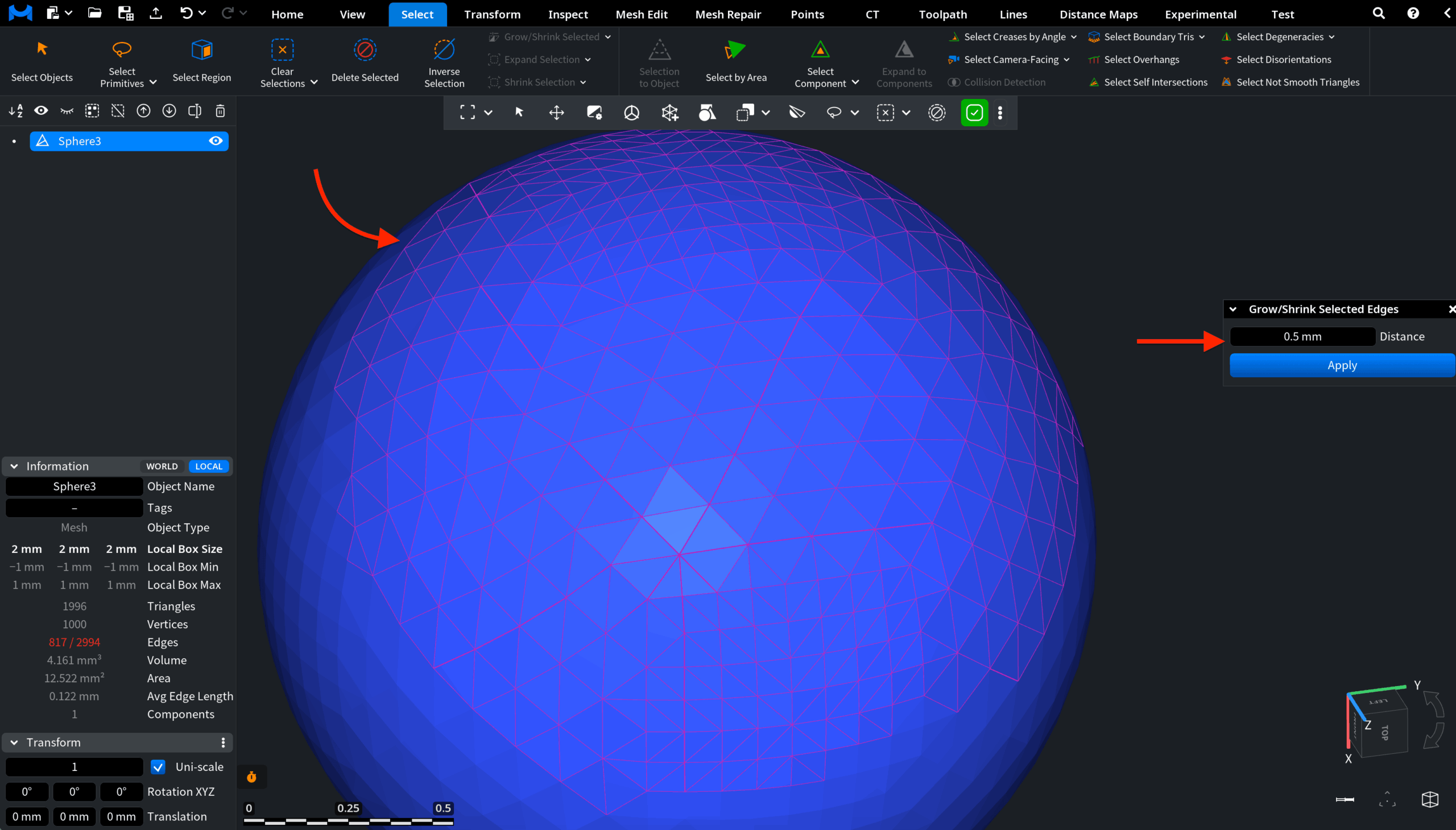
The screenshot below shows the result after applying the operation with a positive value.