Working with edge selections often requires not only expanding the selected contour but also contracting it when the selected area becomes too wide. MeshInspector provides a dedicated tool for this. Shrink Selected Edges removes one topological layer of edges from the outer boundary of the current edge selection, making the selected contour narrower.
You can find this option under the Select tab on the top toolbar. Open the dropdown next to Grow/Shrink Selected, then click Shrink Selected Edges. The tool becomes clickable only when the current object already contains selected edges.

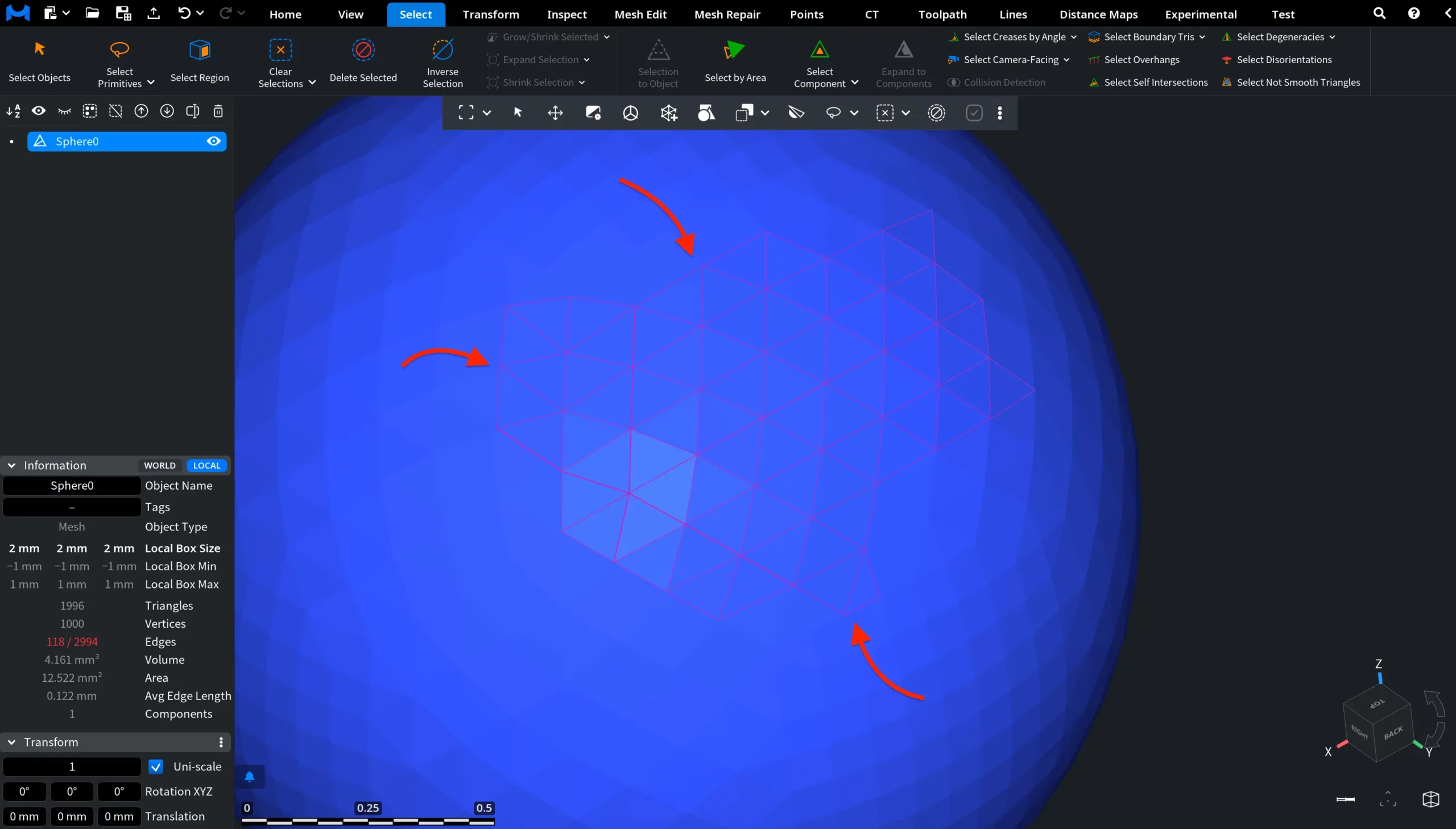
Here, you can see a mesh on which several edges were selected beforehand using the Lasso option in the Edges Selector tool. The current selection forms a relatively wide topological contour across the mesh surface.
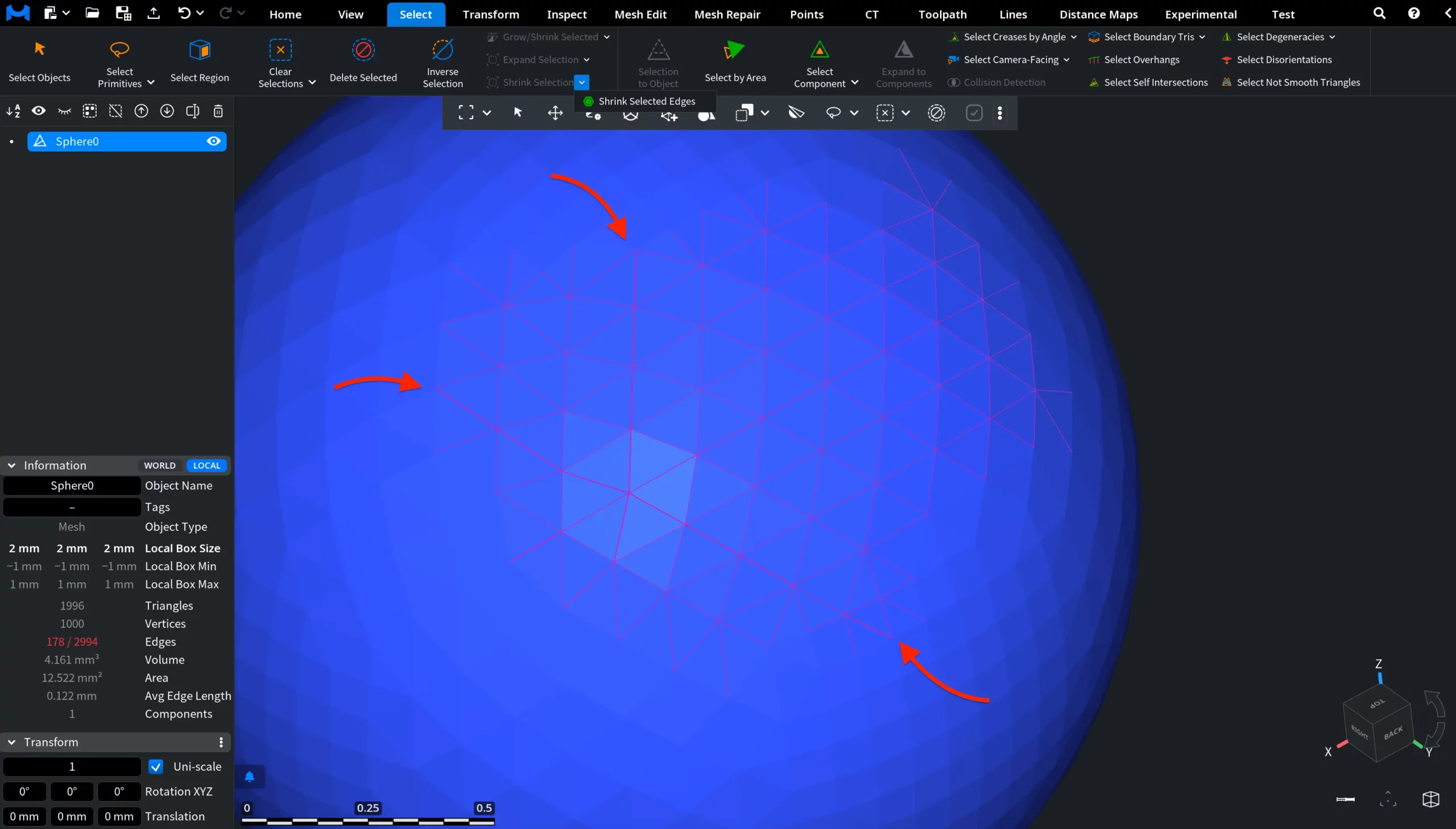
After clicking Shrink Selected Edges, MeshInspector deselects one outer boundary layer of edges from the current selection. As a result, the selected contour becomes narrower while preserving its overall shape on the mesh surface.