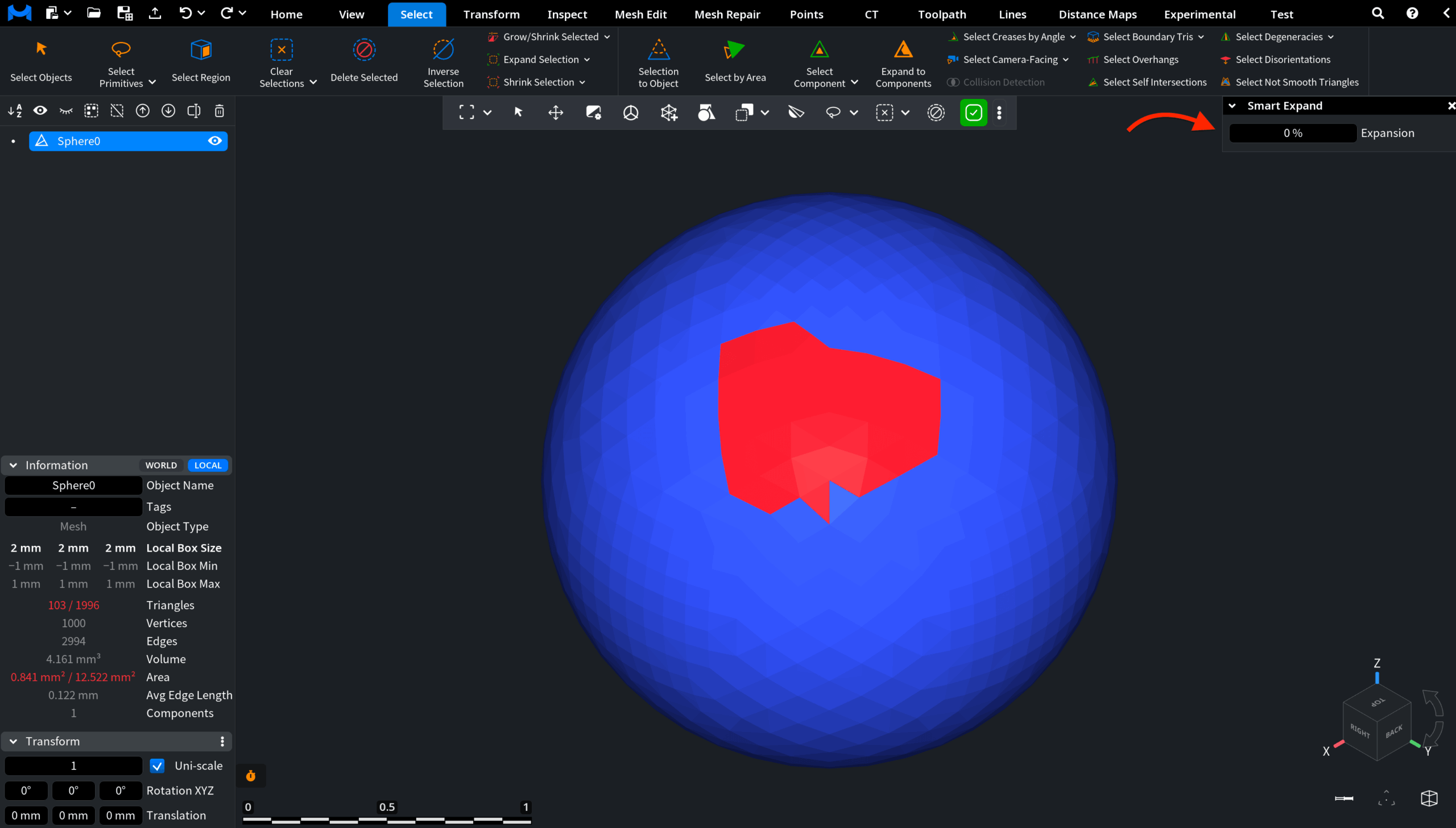
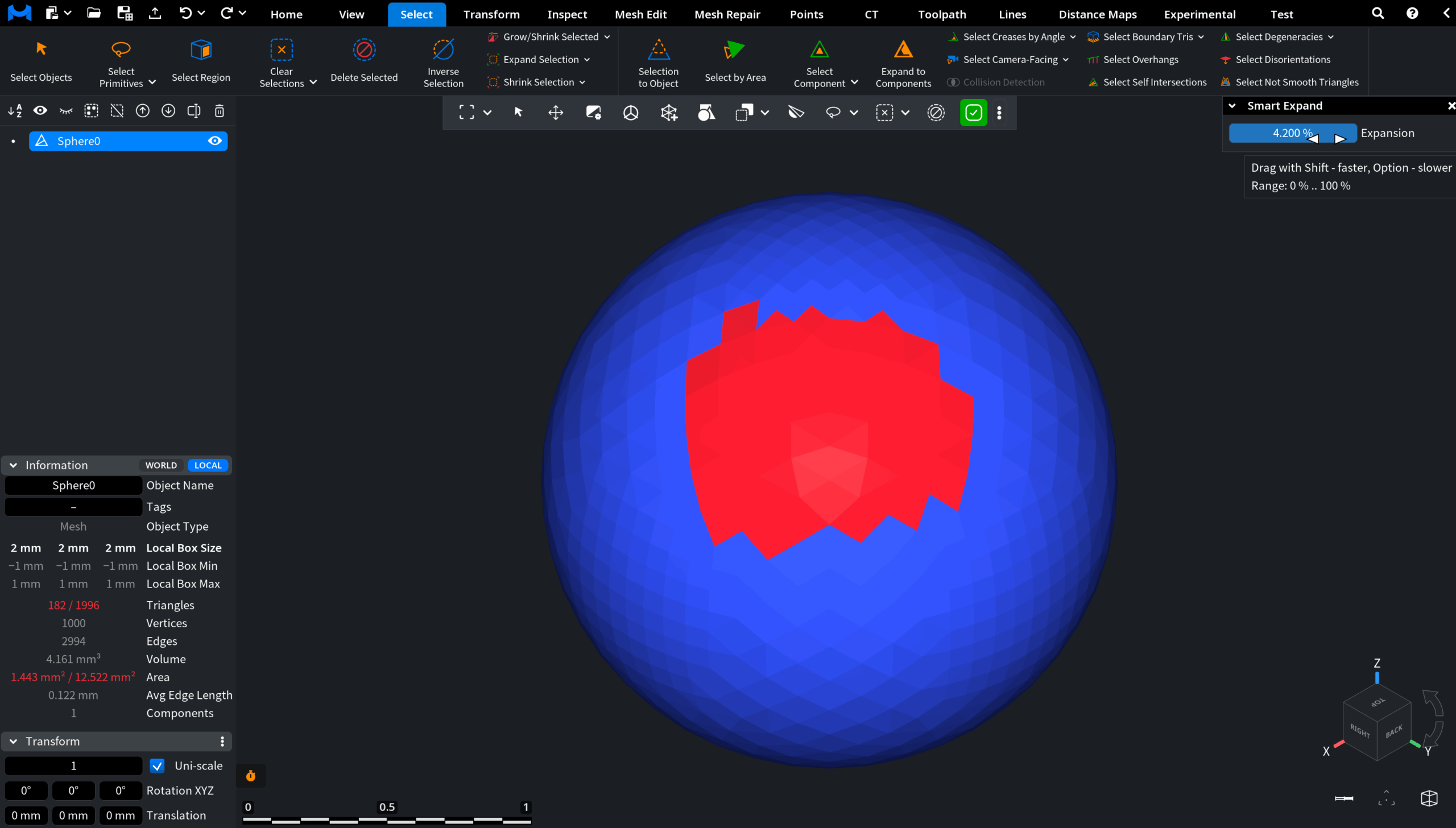
Clicking Smart Expand, available from the dropdown next to Expand Selection, allows you to easily expand the current triangle selection on planar or smooth regions of the mesh.

Selecting this option opens a dedicated Smart Expand panel with the Expansion slider. This slider defines how far the current selection grows. You can adjust the Expansion value by dragging the slider or by entering the value manually.