Clicking Swap Creases / Edges, available from the dropdown next to Select Creases by Angle, swaps the current selection of creases and edges: selected edges become creases, while selected creases become regular edges. This operation works only when there is an active selection of edges or creases in the mesh.
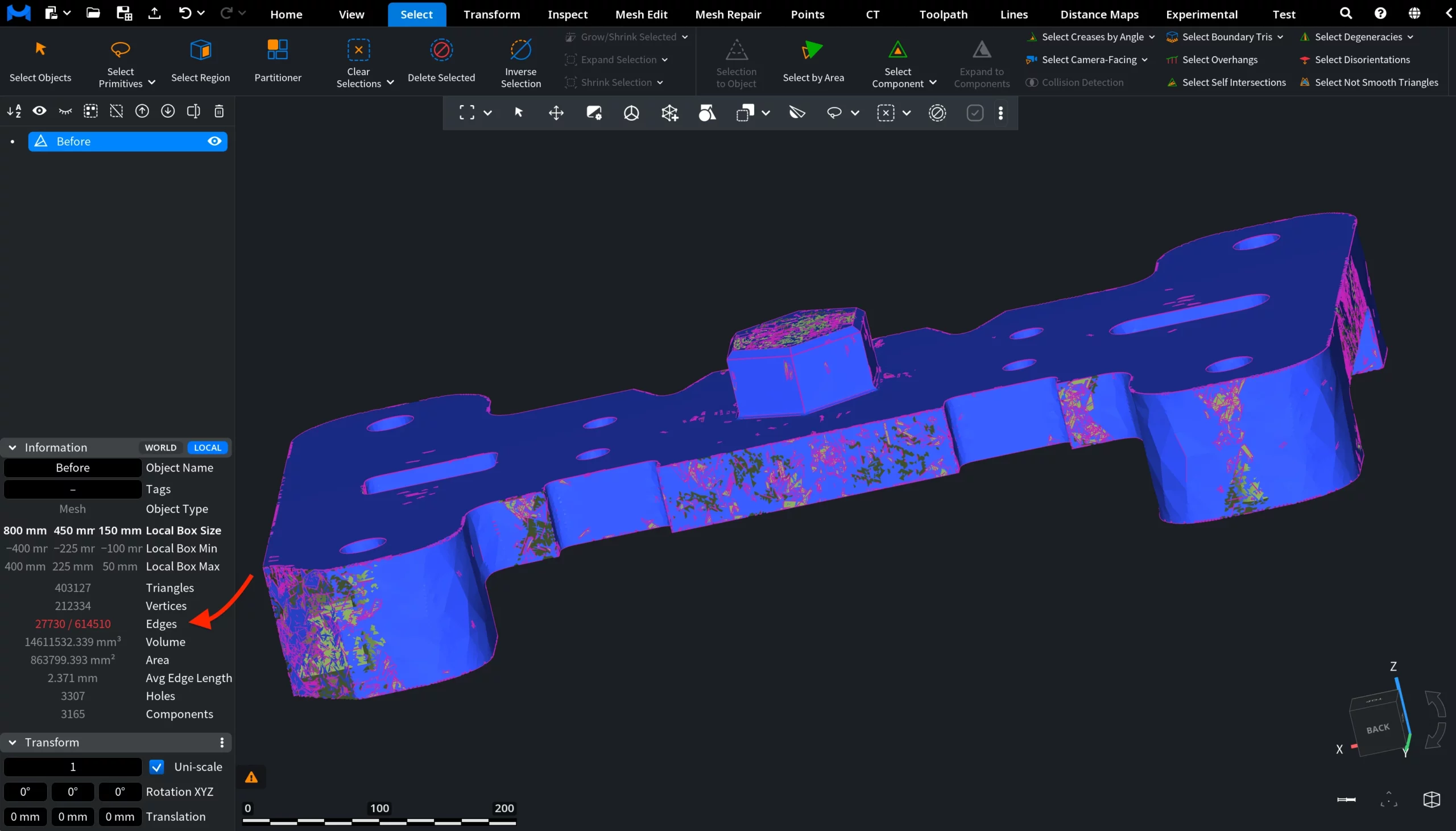
Swap Creases / Edges: Before
In the screenshot below, the mesh already contains selected creases highlighted in magenta. The current selection consists of crease edges that are ready to be converted into regular mesh edges using Swap Creases / Edges.
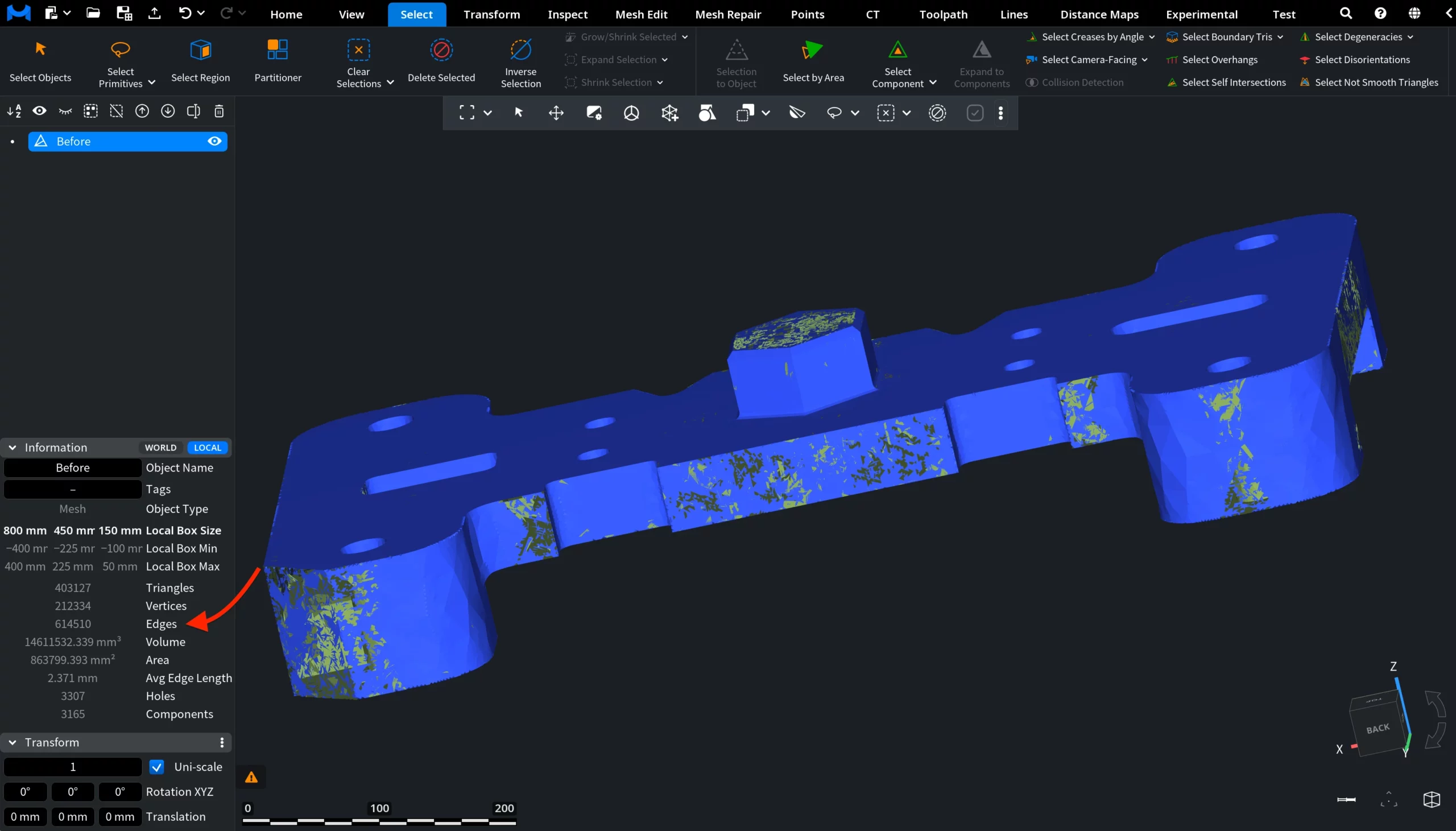
Swap Creases / Edges: After
In this screenshot, Swap Creases / Edges has been applied. The previously selected crease edges were converted into regular mesh edges, so the magenta crease highlighting is no longer present on those regions.
How the Swap Creases / Edges Tool Works