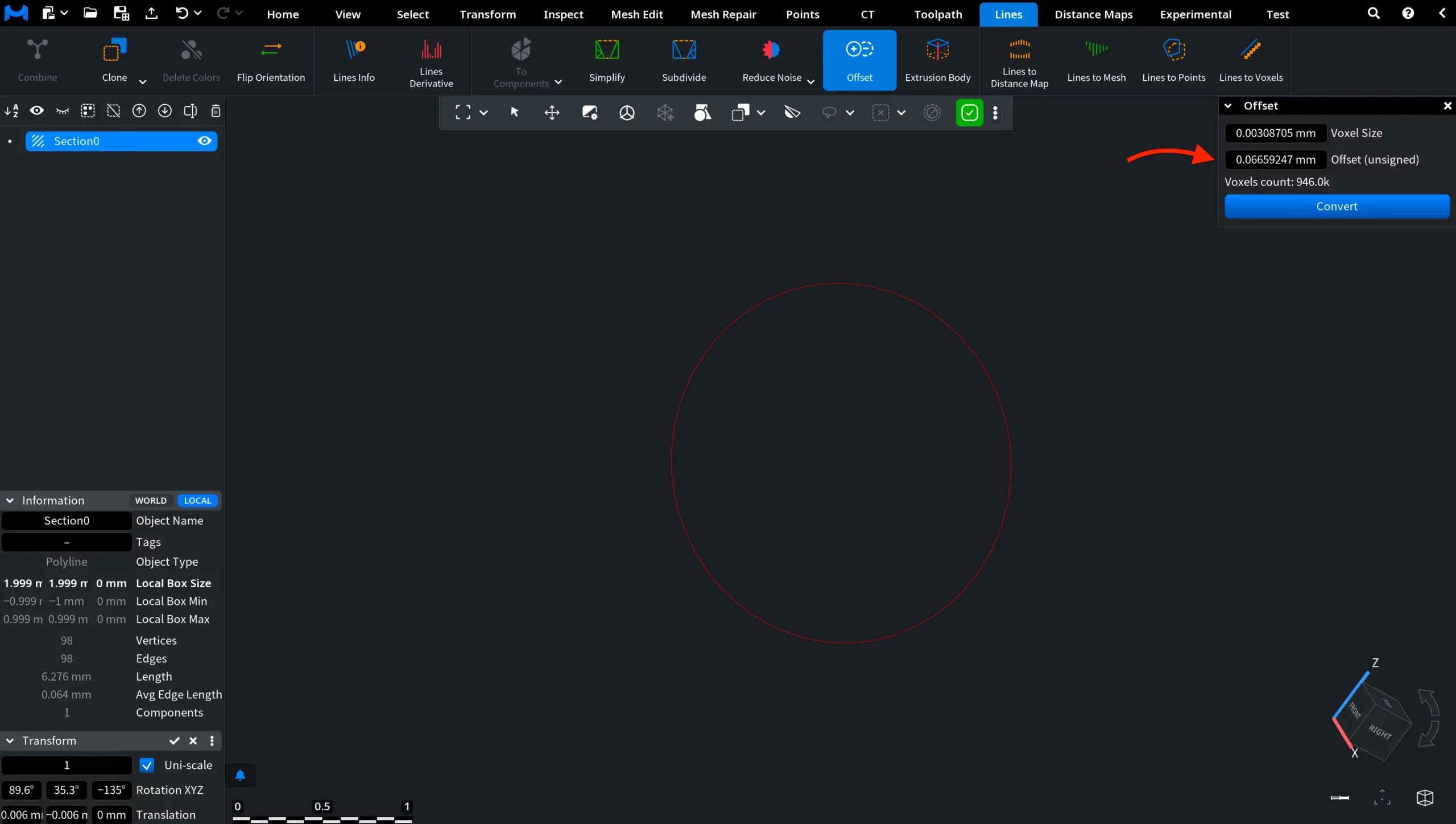
When working with polylines, it may be necessary to generate geometry based on their shape. MeshInspector provides the Offset tool for this purpose. It allows you to create a mesh from object lines by offsetting them, producing new geometry derived from the original polyline. To access this tool, open the Lines tab in the top toolbar and click Offset, as shown in the screenshot.

Once you click Offset, a dedicated Offset panel appears on the right side of the viewport. This panel contains the parameters used to generate a mesh from object lines by offsetting them. The panel includes the following settings:
- Voxel Size defines the resolution of the voxel grid used during the offset computation. Smaller voxel size values increase the resolution of the grid, allowing the tool to capture finer geometric details when generating the mesh. However, reducing the voxel size significantly increases the number of voxels used in the calculation, which may increase processing time and memory usage.
- Offset (unsigned) specifies the distance used to generate the mesh from the line object. This value determines how far the resulting geometry expands from the original polyline. Increasing the offset value expands the generated geometry further from the original polyline. Decreasing the value results in a thinner structure that stays closer to the original polyline.
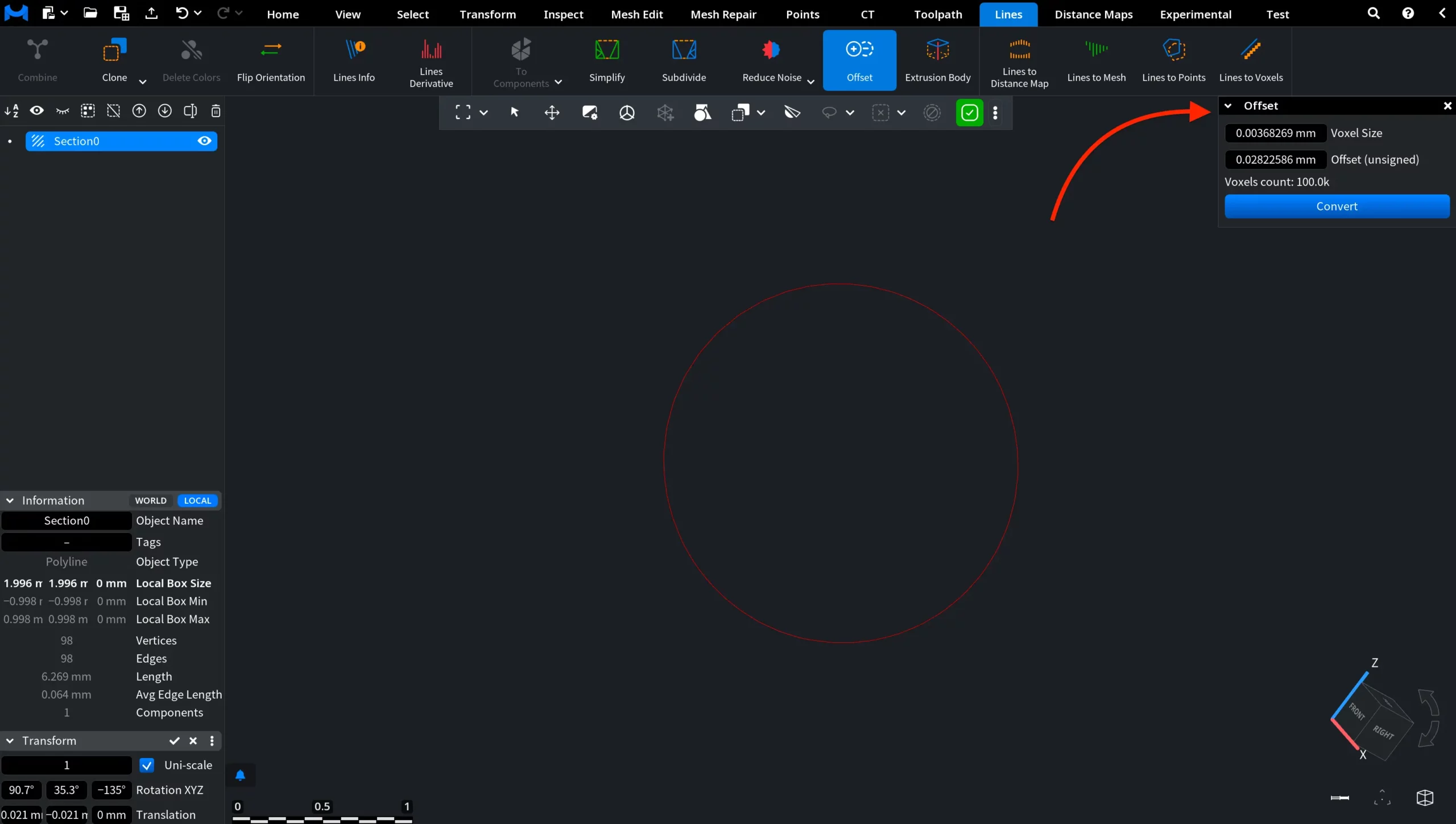
The Voxels count indicator displays the estimated number of voxels that will be used in the computation. This value helps you understand the expected complexity of the operation before conversion. After configuring these parameters, click Convert to generate the mesh from the selected line object.
Offset for Lines: Example with Default Settings
In this example, the Offset tool is applied to the selected polyline using the default parameter values. After clicking Convert, MeshInspector generates a new mesh object derived from the original line. The resulting geometry appears as a thickened structure around the polyline.
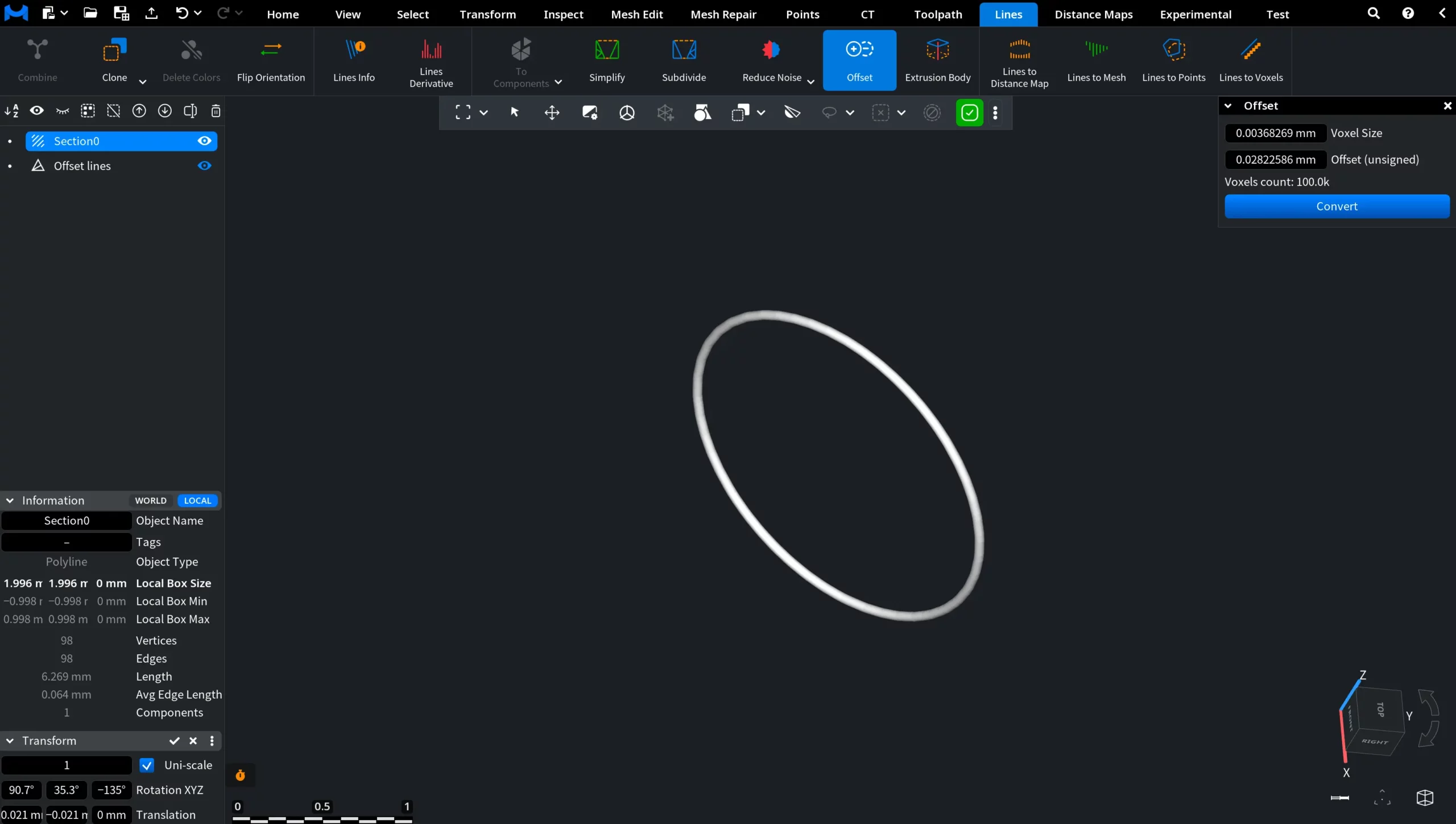
In the Scene Tree, the newly generated object is added as Offset lines, while the original polyline remains unchanged.
Smaller Voxel Size
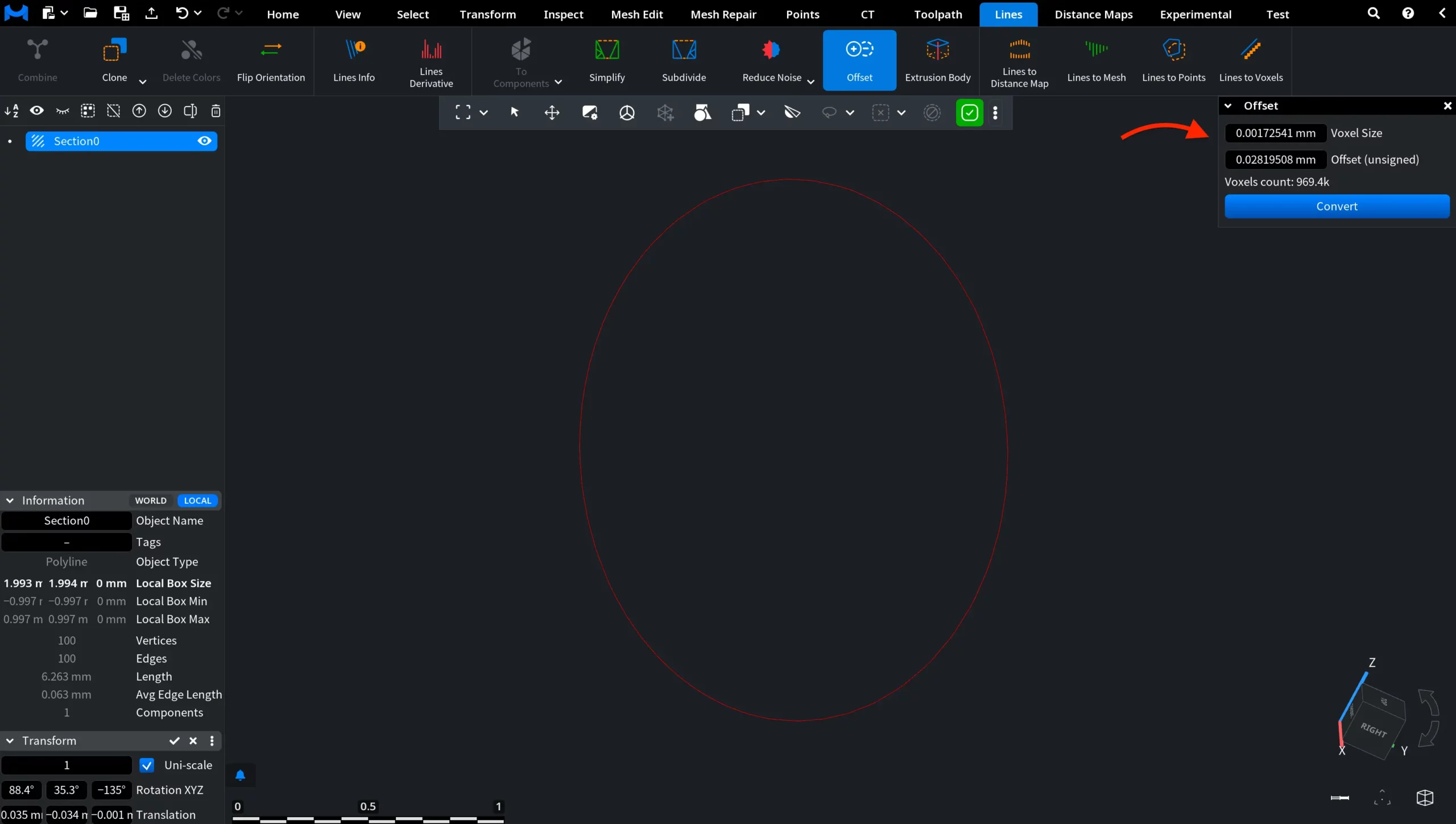
When the voxel size is reduced, the grid becomes denser, meaning that the geometry is sampled at a finer resolution. As a result, the tool can generate a more detailed mesh around the line. This improves the accuracy of the resulting geometry. However, decreasing the voxel size also increases the number of voxels used in the computation, as reflected by the Voxels count indicator in the panel. A larger voxel grid requires more resources and longer processing time during the conversion process.
Increased Offset (unsigned)
When this value is increased, the generated mesh expands further away from the source line. As the offset distance grows, the resulting geometry forms a larger structure around the polyline, increasing the thickness of the generated mesh. This effectively enlarges the offset surface created from the line object.