The Simplify tool, located under the Lines tab, reduces the number of structural elements in a polyline while keeping its overall shape as close as possible to the original. This decimation makes a polyline less complex while preserving its main geometry.
To access Simplify and decimate a polyline:
1. Select exactly one polyline in the scene tree.
2. Open the Lines tab.
3. Click Simplify.

Clicking Simplify under the Lines tab opens a dedicated panel with settings that control the polyline decimation:
- Max error sets the maximum allowed estimated distance deviation from the original line. Decimation stops when the estimated deviation would exceed this value.
- Target edges, available under Advanced, sets the minimum number of edges that should remain after decimation.
- Stabilizer is a dimensionless coefficient that controls how strongly the decimator tries to preserve the density of the original points. Higher values retain the input point density more closely. If set to 0, only the shape of the input line is preserved, which may produce artifacts on completely straight sections.
- Longest edge length sets the maximum edge length that can be created during decimation.
- Optimize vertex positions allows the position of the remaining vertex to be optimized after each edge collapse to minimize local changes to the polyline shape. If disabled, the edge is collapsed into one of its existing vertices, which keeps its original position.
- Move boundary vertices allows edges involving an endpoint of an open polyline to be collapsed. If disabled, the boundary vertices at the ends of an open polyline remain fixed.
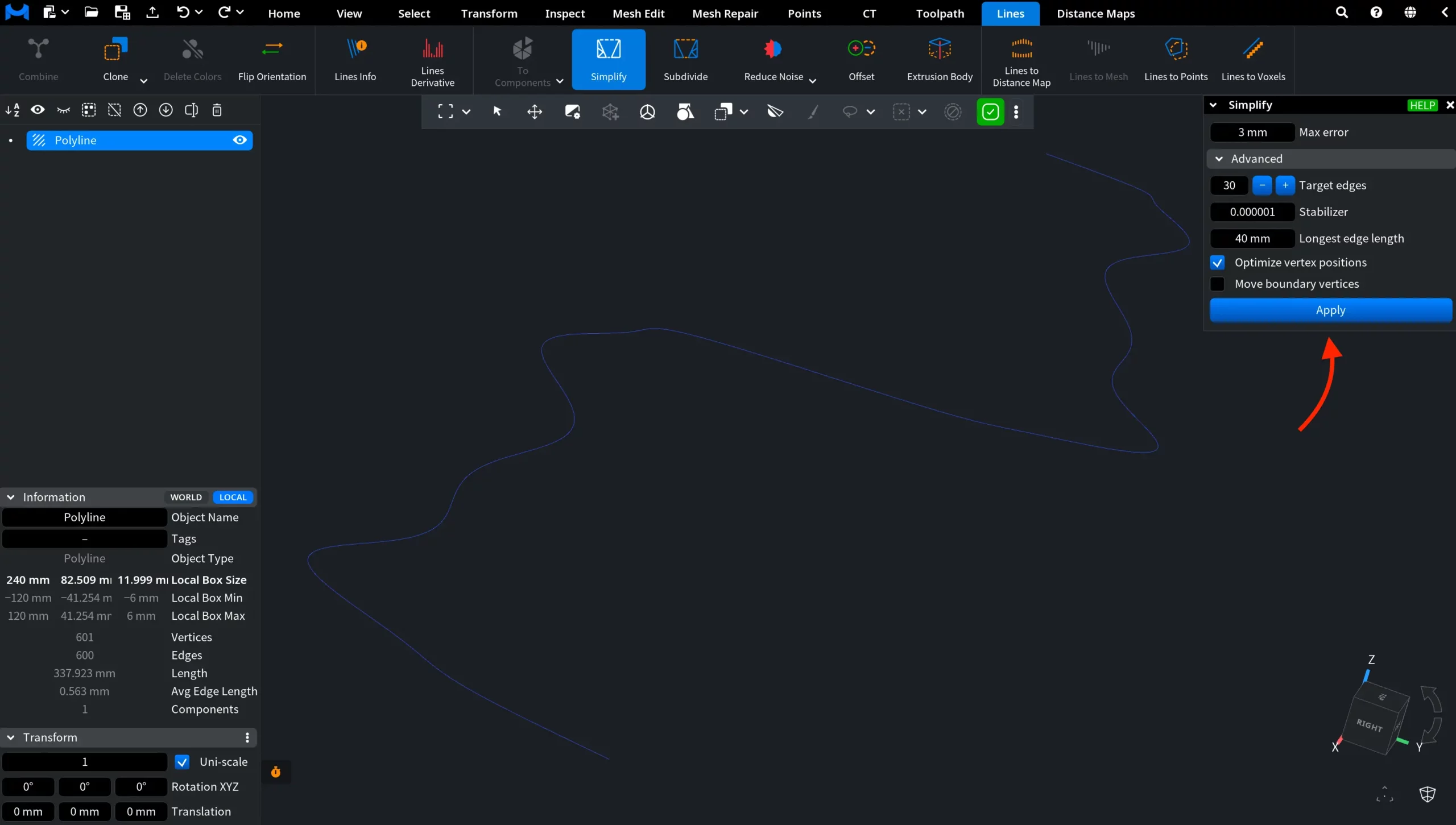
Apply performs the decimation using the selected settings. For the example, we adjusted the settings to make the effect of simplification easier to see in the viewport:
- Max error:
3 mm - Target edges:
30 - Stabilizer:
0.000001 - Longest edge length:
40 mm - Optimize vertex positions: enabled
- Move boundary vertices: disabled
These settings allow the polyline to be simplified more aggressively while still keeping its overall shape close to the original. Disabling Move boundary vertices also keeps the endpoints fixed, which makes the before-and-after comparison easier to follow.
After clicking Apply, MeshInspector simplifies the polyline by reducing the number of vertices and edges while preserving its overall path as closely as the selected settings allow. In this example, the effect is visible in the viewport: the previously smooth, densely sampled curve becomes more angular, but its general shape remains recognizable.
The change is also clearly reflected in the Information panel:
- Vertices: reduced from 601 to 31.
- Edges: reduced from 600 to 30.
- Average edge length: increased from about 0.563 mm to 11.309 mm.
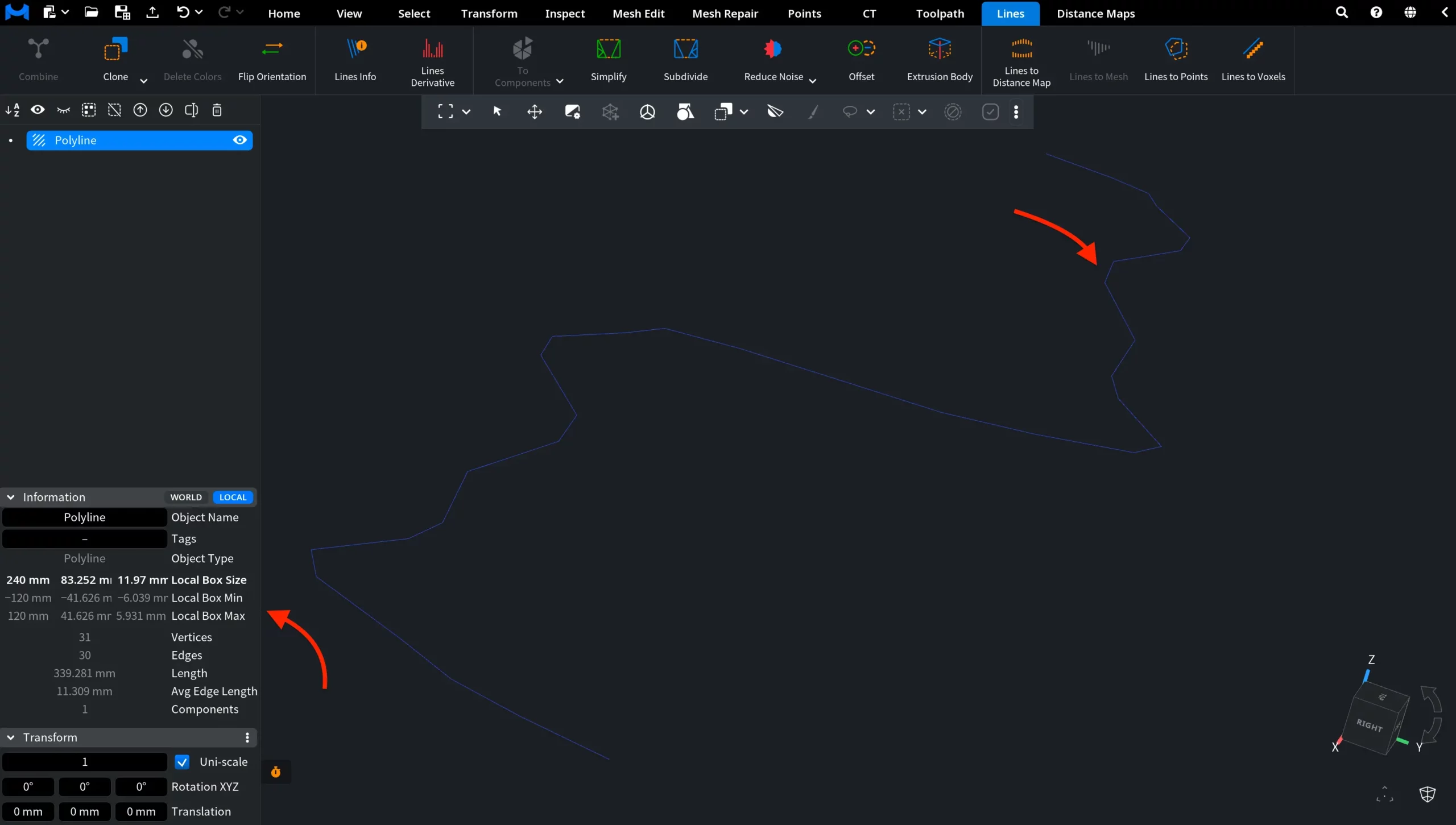
The total line length changes only slightly, from 337.923 mm to 339.281 mm, while the number of edges drops from 600 to 30.