
Lines to Points turns polyline objects into point clouds: every vertex of the line becomes a point. Use it when the next step needs points instead of a line, for example a point-cloud tool or an export to a point format.
The tool is on the Lines tab, in the group with the other conversion tools.

Convert lines to points
- Select one or more polyline objects in the Scene tree.
- Click Lines › Lines to Points.
The tool has no panel and works at once:
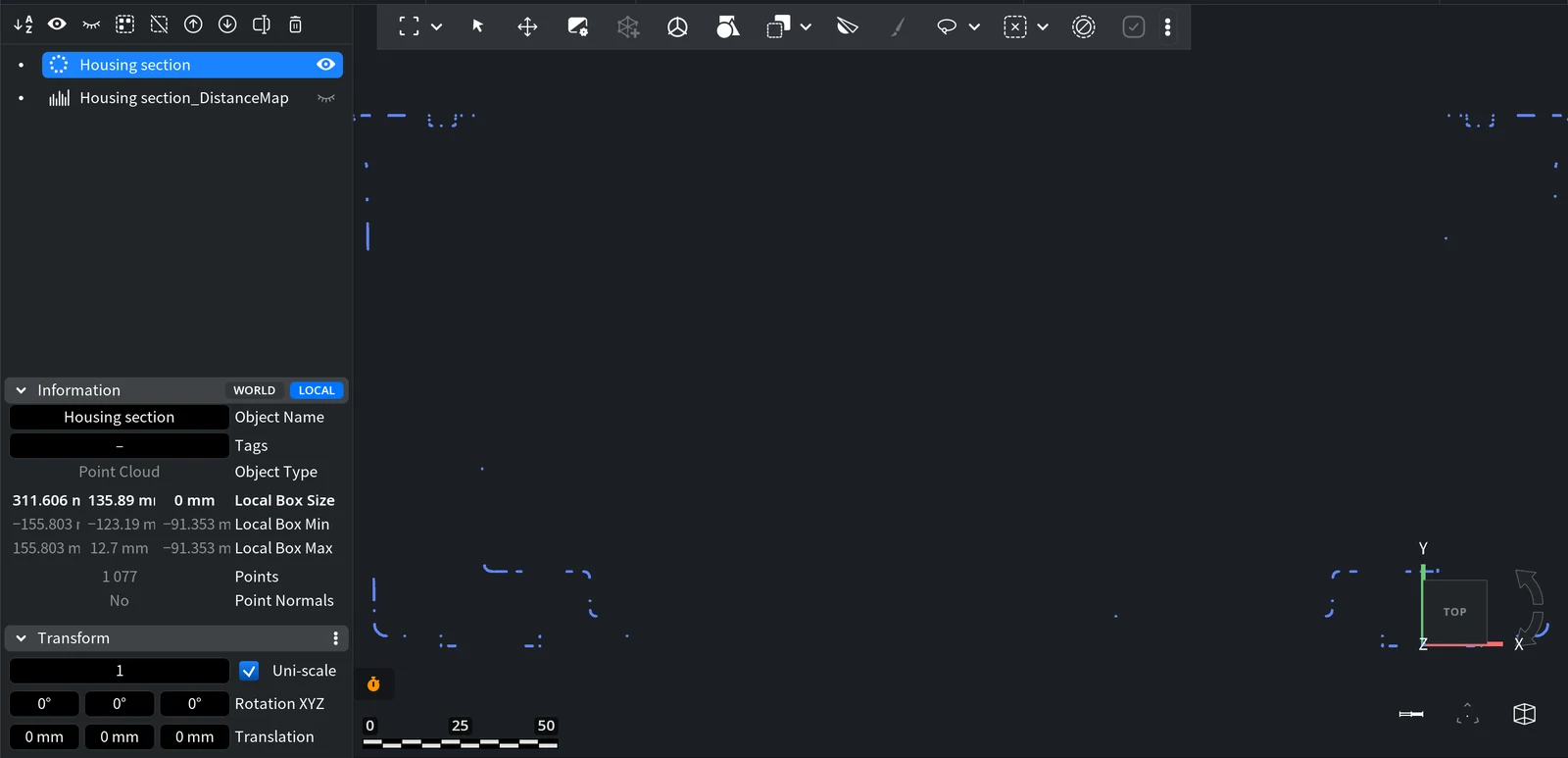
- Each selected polyline object is replaced by a point cloud with the same name, in the same place of the Scene tree. The Information panel shows its type as Point Cloud.
- The points are the vertices of the line, so the cloud is only as dense as the line. A line with long straight segments gives few points: split the segments first with Subdivide (Lines › Subdivide).
- Vertex colors of the line are kept.
- If all contours of the line are closed, the cloud gets one extra point: a copy of the first vertex. For example, a closed section contour with 1 076 vertices gives 1 077 points.
- The point cloud has no normals: the Information panel shows Point Normals: No.
To get the line back, use Undo (Ctrl+Z, or Cmd+Z on macOS). To build a line from ordered points again, use Points to Lines. What you can do with the result is described in Point clouds.


