
To Spline makes a smooth line out of ordered points; its tooltip reads "Creates a smooth line out of ordered points." Use it when a contour is jagged or noisy, for example a section of a scan, and you need a smooth path with evenly spaced points: a trajectory for Extrusion Body or a clean outline.
Input
Select exactly one object:
- A lines object. Each connected part of the line becomes its own spline; a closed contour gives a closed spline.
- A point cloud. The points are used in the order they are stored in the cloud, as one line. The panel then has a Closed Line check box (on by default) that joins the last point to the first.
The object must have at least 3 points, otherwise the button is unavailable and its tooltip says Object must have at least 3 points. Very large inputs are thinned to every n-th point (at most 100,000 control points) before the spline is built.
Make a Spline
- Select the line or point cloud in the Scene tree.
- Click Lines › To Spline. A red preview of the spline with its points appears over the object.
- Set Sampling Step and Control Stability; the preview updates at once.
- Click Create Spline Object for a lines object, or Create Point Cloud for the spline points as a point cloud.
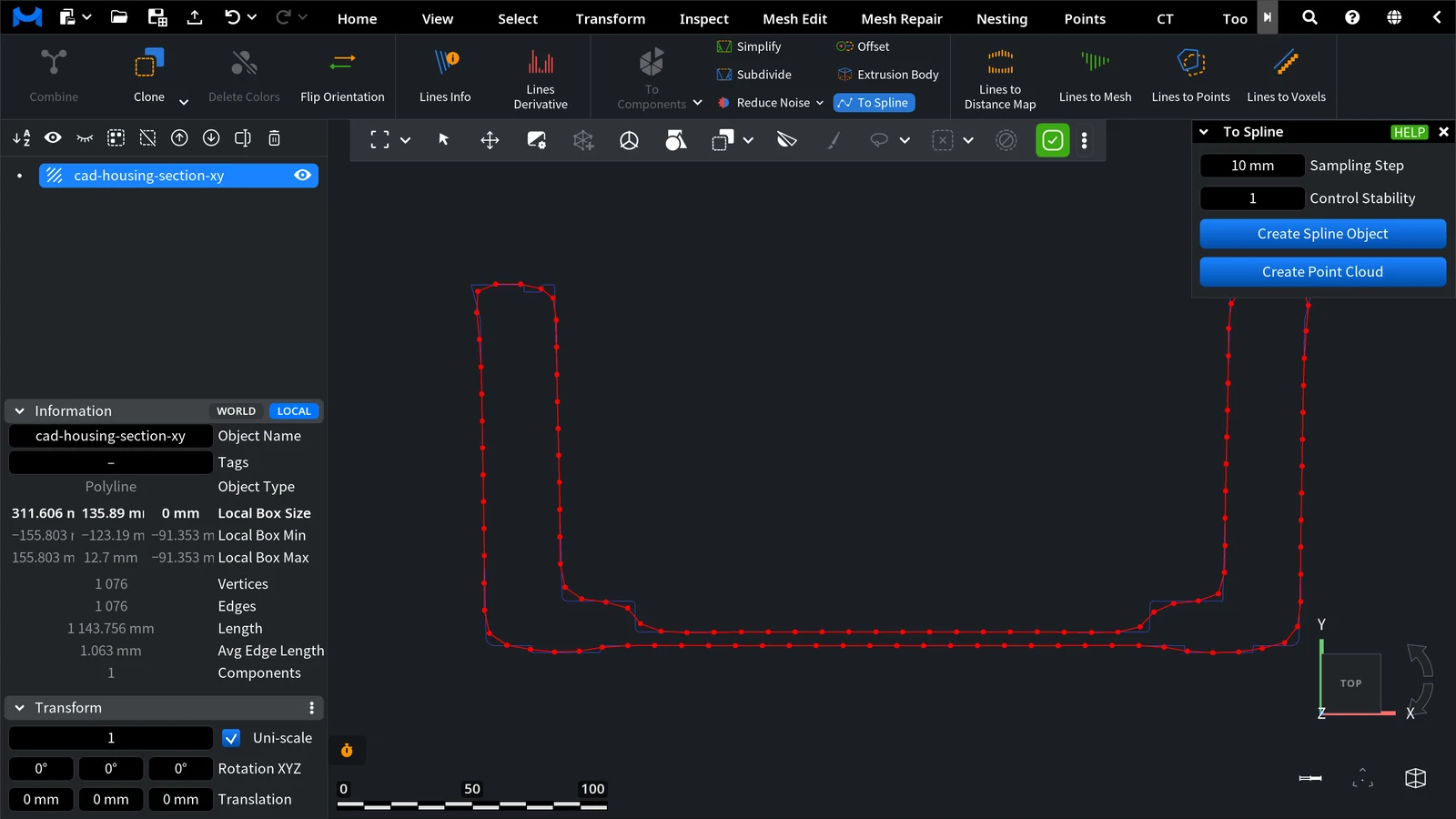
| Parameter | What it does | Default |
|---|---|---|
| Closed Line | Point clouds only: treat the points as a closed loop | On |
| Sampling Step | The distance between neighboring points of the result; points are added or removed to reach it | 2% of the total length of the input |
| Control Stability | How closely the spline follows the input points: higher values keep it closer to them, lower values make it smoother | 1 (range 0.001–1000) |
Result
The new object is added under the input object and gets its name with _Spline (a lines object) or _Resampled (a point cloud) added, for example Section0_Spline. The input object does not change, and the tool stays open, so you can try other values and create another result.
Use Case: A Smooth Trajectory from a Section
- Cut the part with Section and create the section object.
- Run To Spline on it with a Sampling Step of a few millimeters and click Create Spline Object.
- Use the spline as the trajectory in Extrusion Body (Use Custom Trajectory) or make a tube along it with Offset.
To keep a sharp-cornered contour with fewer points instead, use Simplify.


