The Distance Map to IsoLines tool, located under the Distance Maps tab, allows you to create isolines from a selected distance map. The tool generates line objects that follow contours where the distance value matches the IsoValue, helping you visualize the structure and value distribution of a distance map.

After you click Distance Map to IsoLines, MeshInspector opens a dedicated panel for creating isolines from the selected distance map.
The panel contains two settings:
- IsoValue defines the distance value used to generate the isolines. MeshInspector creates line objects along contours of the distance map that correspond to this value.
- Use Depth controls whether depth information is used when creating the isolines. When this option is enabled, the generated isolines follow the depth-based structure of the distance map.
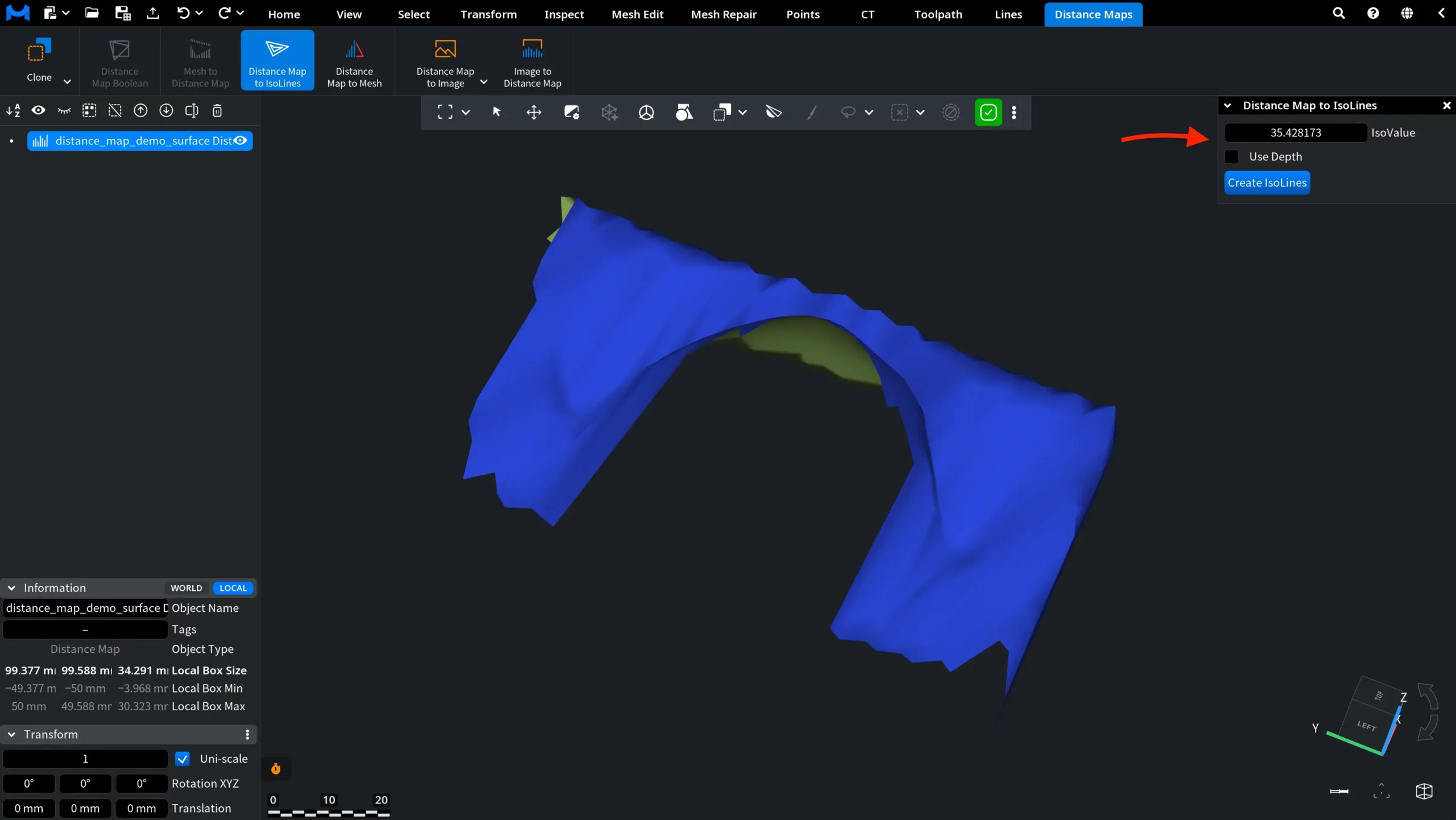
After setting the required IsoValue, click Create IsoLines. MeshInspector creates a new Polyline object and adds it to the Scene tree.
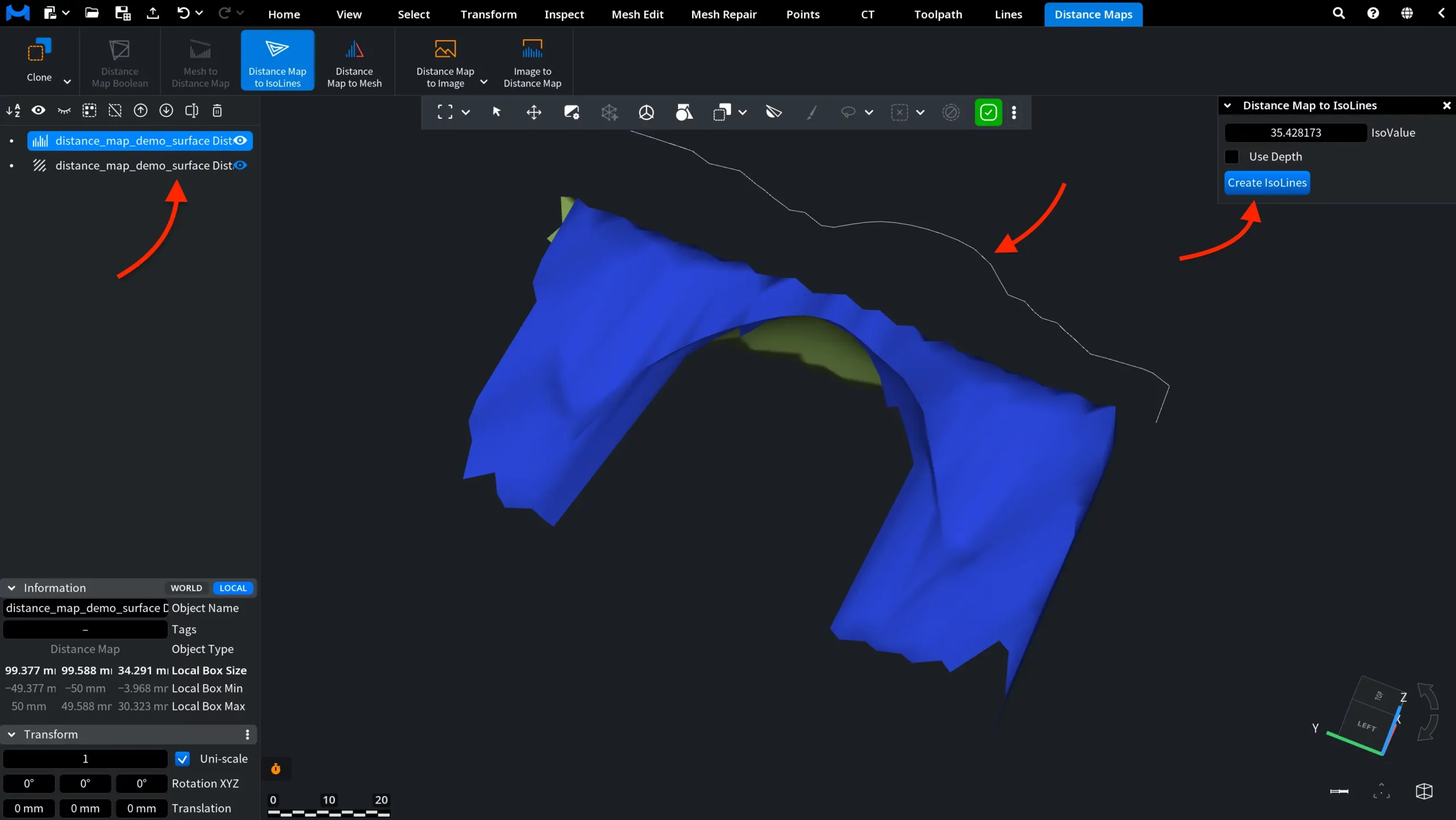
The generated isoline represents the contour where the distance map reaches the specified IsoValue. If Use Depth is disabled, the isoline is created without following the depth structure of the distance map, so it may appear as a separate flat line in the viewport.
When Use Depth is enabled, MeshInspector uses the depth information of the distance map while generating the isoline. As a result, the created polyline follows the depth-based shape of the distance map instead of appearing as a flat contour.
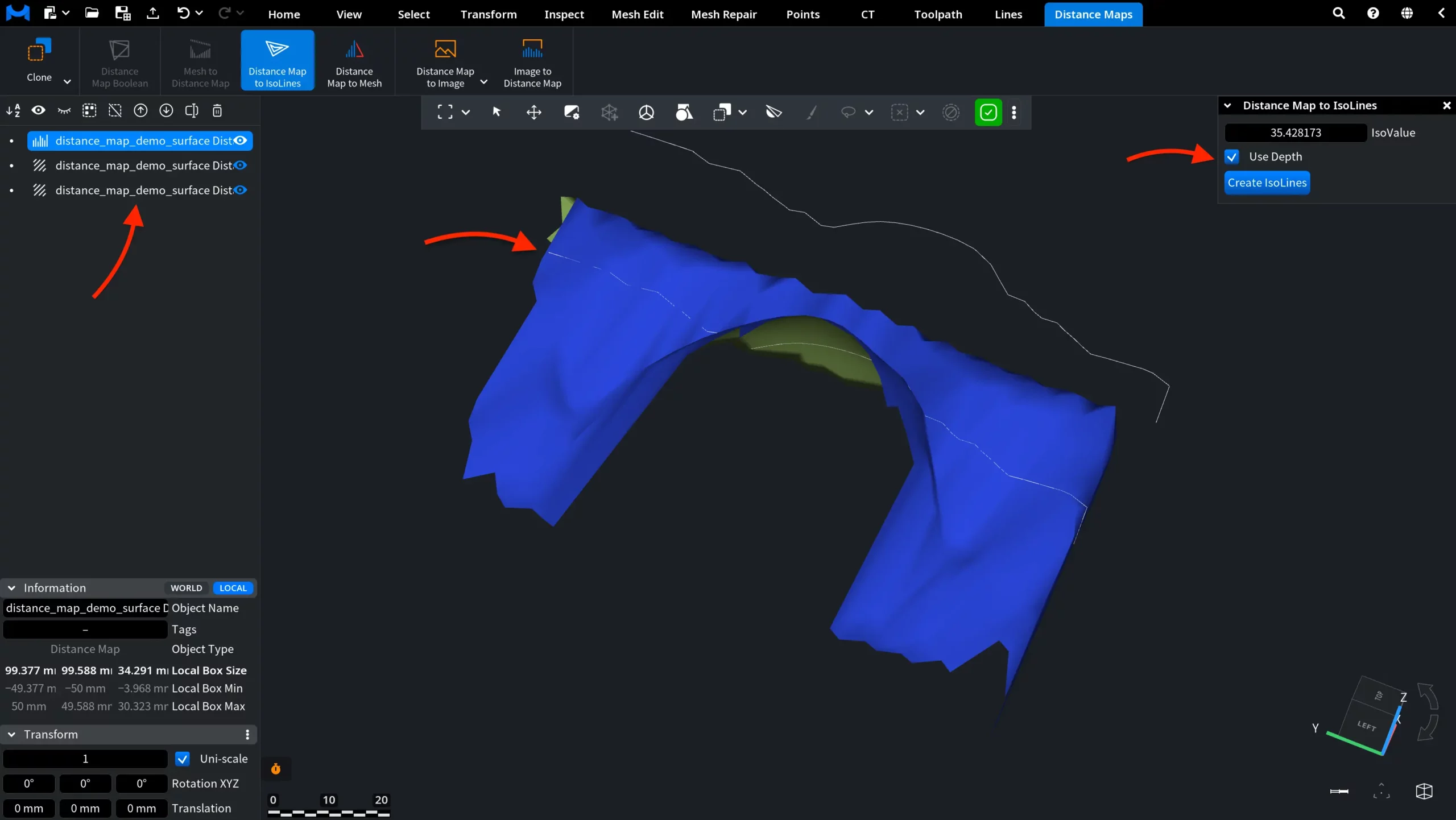
Note that each time you click Create IsoLines, MeshInspector creates a new Polyline object in the Scene tree in addition to the existing ones.
In the final example below, we lowered the IsoValue and clicked Create IsoLines again. As a result, MeshInspector generated another Polyline object and added it to the Scene tree.
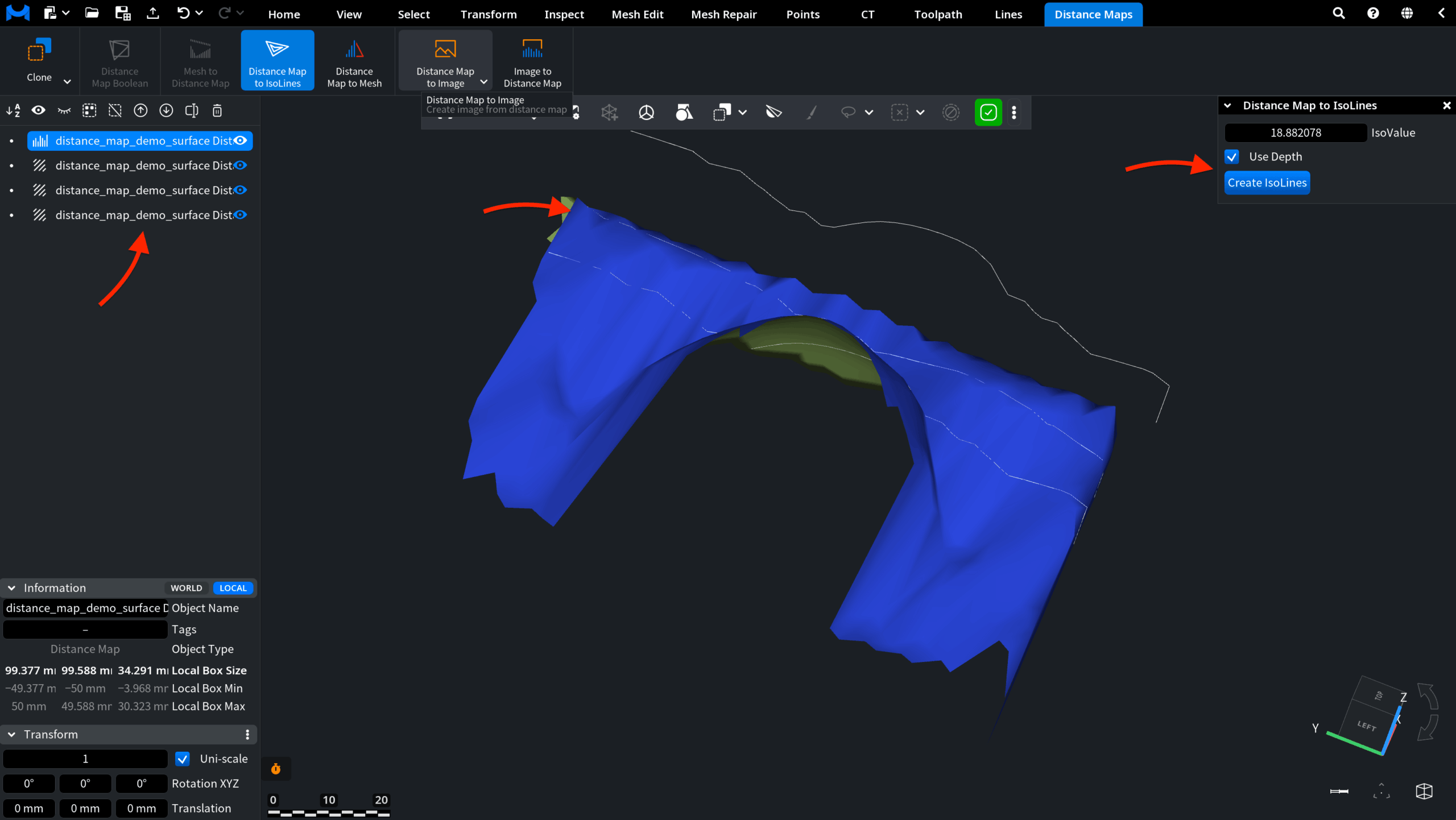
Because the IsoValue was changed, the new isoline follows a different contour of the distance map. This makes it possible to create several isolines at different value levels.