In some workflows, you may need to convert closed line contours into actual mesh geometry. For instance, this is important when a contour should become a filled planar region, a thickened body, or a base for further mesh operations. MeshInspector provides a dedicated tool for this. Lines to Mesh converts closed line contours into mesh objects. The tool is located in the Lines tab on the top toolbar.

At least one closed contour must be active in the scene for the operation to become available.
Lines to Mesh: Settings and Controls
Once you click on Lines to Mesh, a dedicated panel will open. There, you need to make an important choice: whether you use Planar Processing or not.
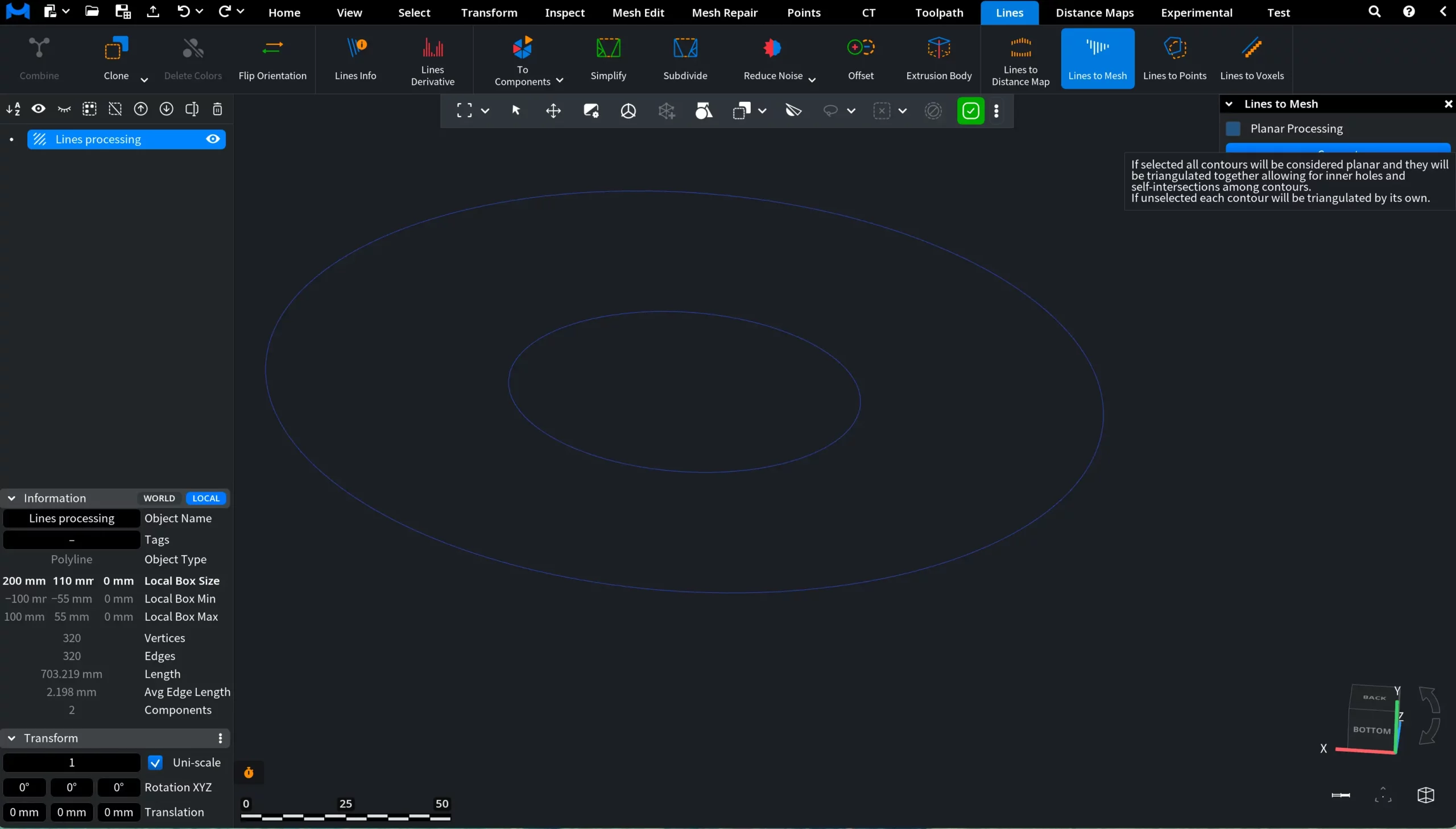
Planar Processing: Off
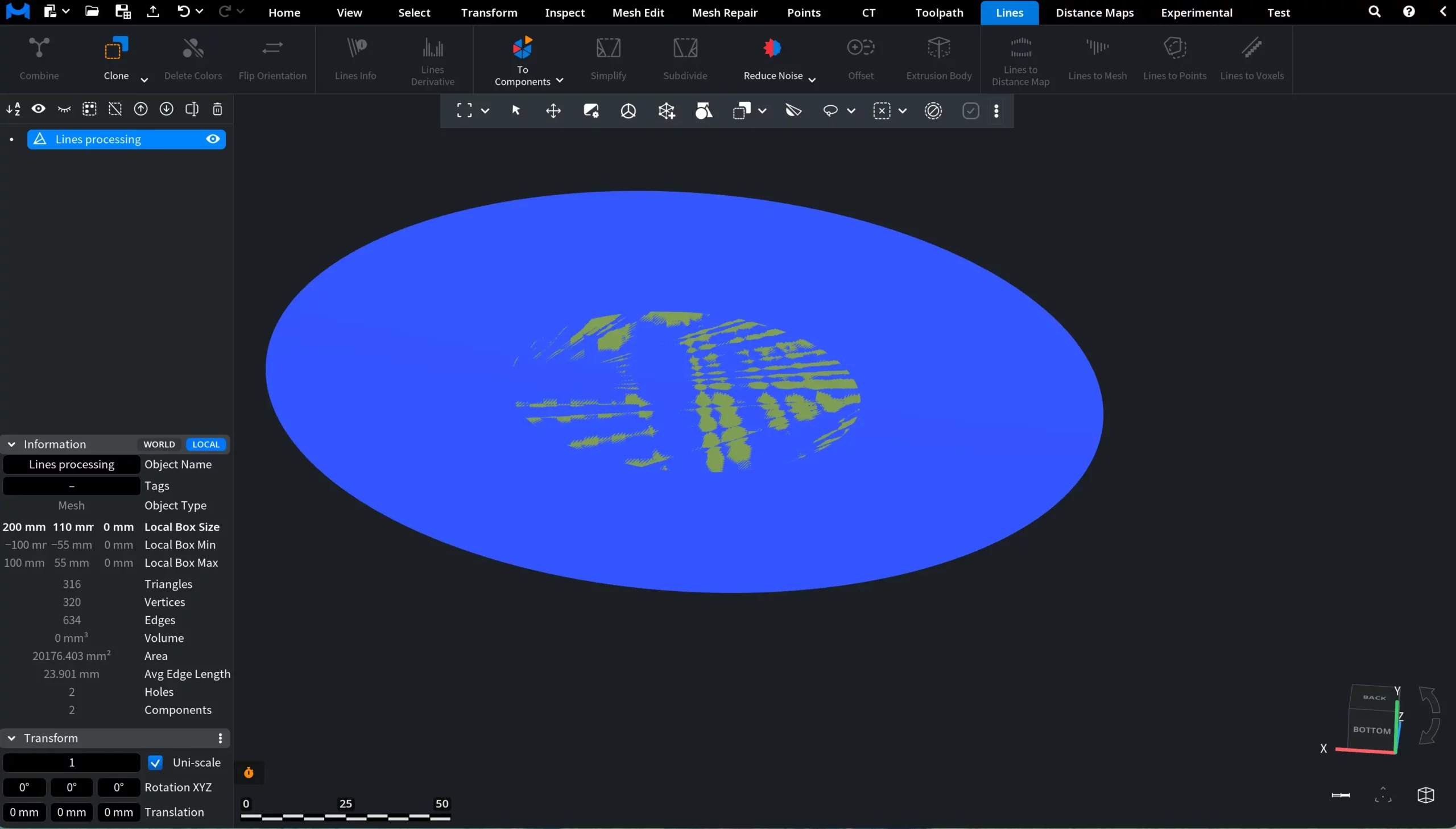
When Planar Processing is disabled, MeshInspector does not process all active contours as one shared planar system. In this example below, the active polyline object contains two closed contour components located in the same plane: a larger outer ellipse and a smaller inner ellipse. With Planar Processing turned off, these contours are not interpreted as a combined planar region with internal relationships between them. Instead, each contour remains an independent closed boundary for triangulation. As a result, the conversion does not treat the smaller contour as a hole inside the larger one.
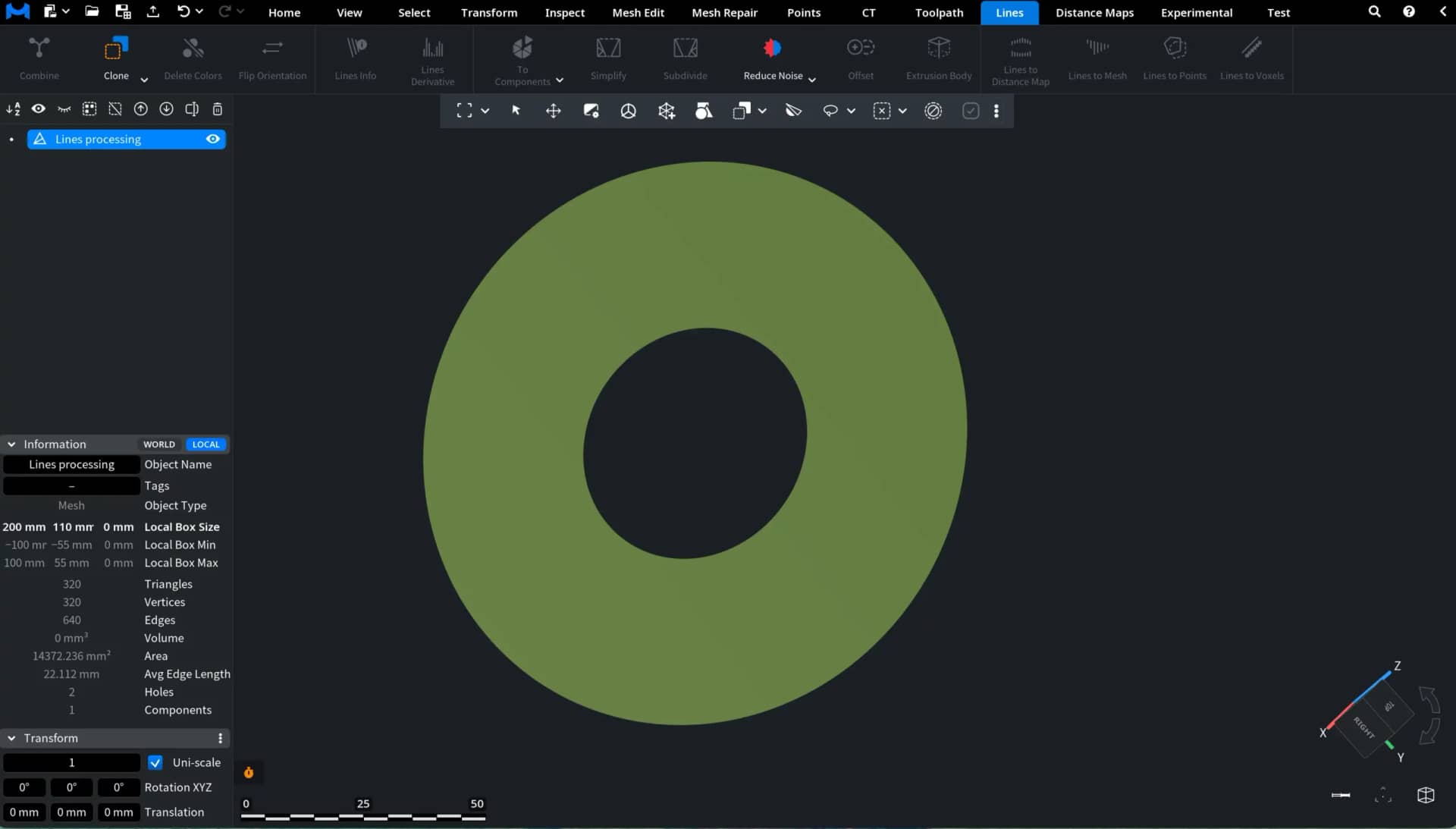
Planar Processing: On
When Planar Processing is enabled, MeshInspector processes all active closed contours lying in the same plane as one combined planar system. In this example, the outer ellipse and the inner ellipse are no longer triangulated as unrelated boundaries. Instead, the software analyzes their mutual placement and interprets the smaller contour as an internal exclusion region inside the larger one. As a result, the generated mesh becomes a single planar surface with a central hole.
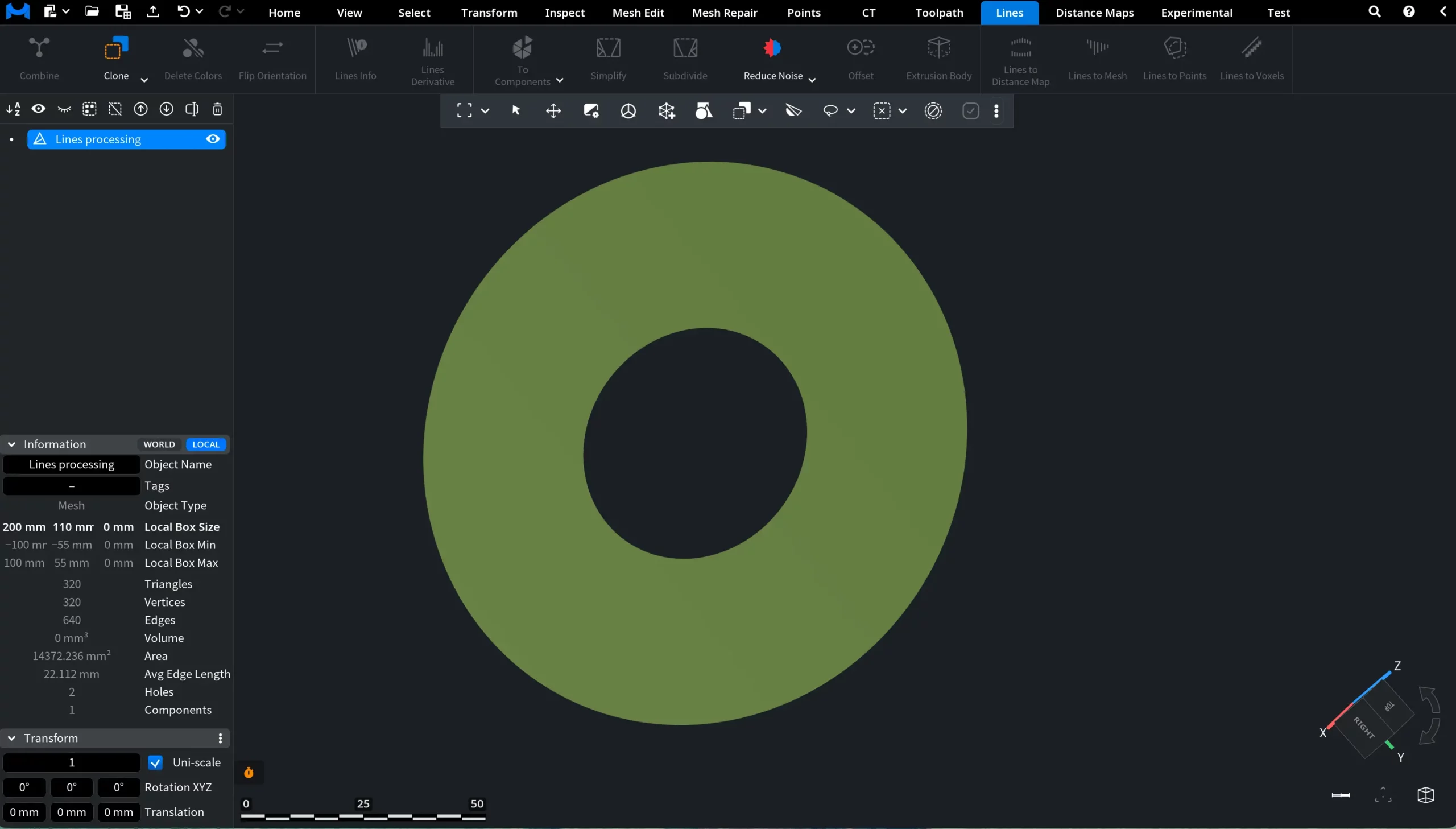
Thick Mesh
Enabling Planar Processing also unlocks an additional option: Thick Mesh. It controls whether the resulting mesh remains a flat planar surface or is converted into a closed body with physical thickness. When Thick Mesh is disabled, MeshInspector generates a planar mesh with open boundary edges, as shown above. When Thick Mesh is enabled, the software closes the mesh and gives it thickness according to the specified Offset value.
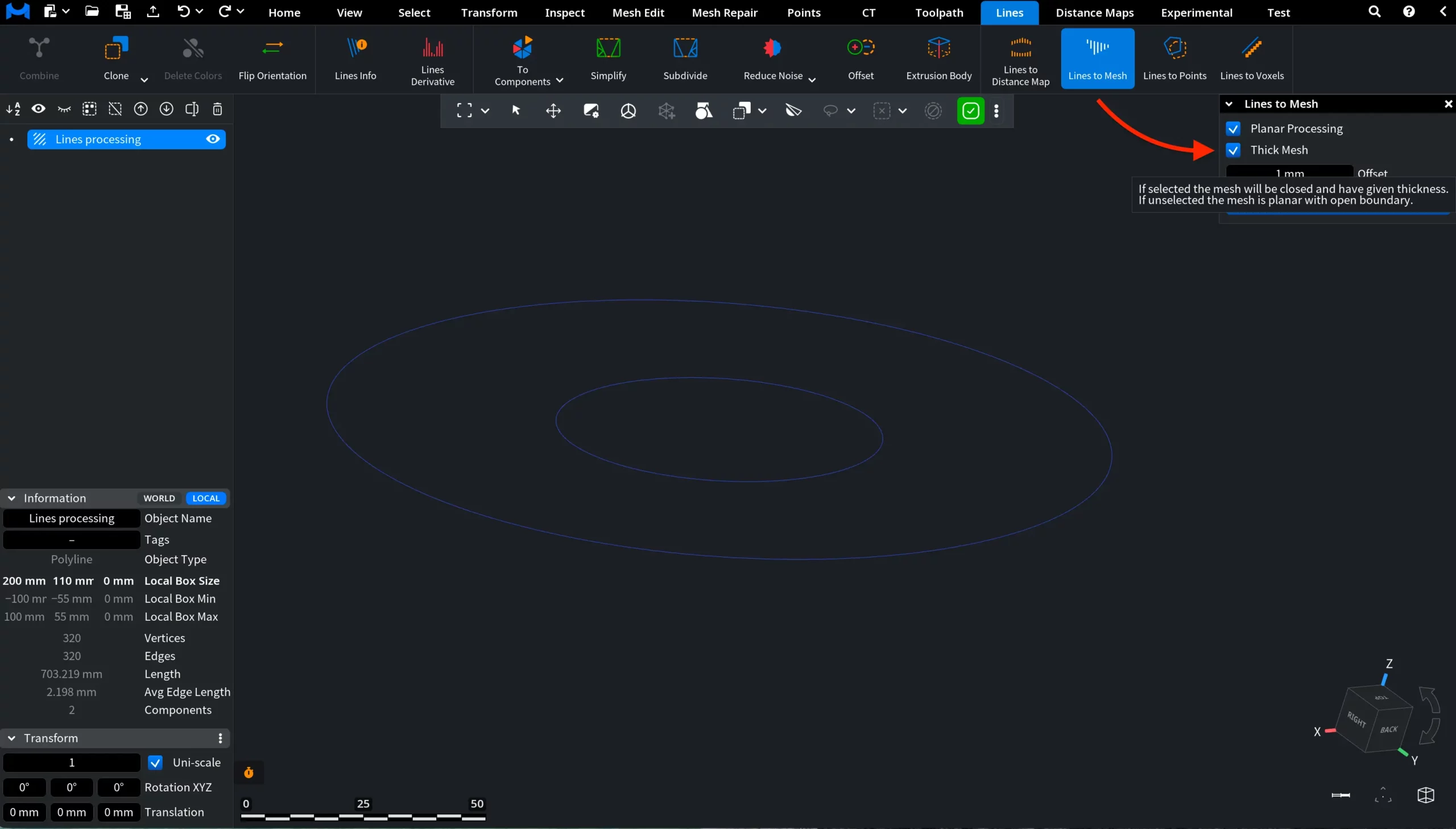
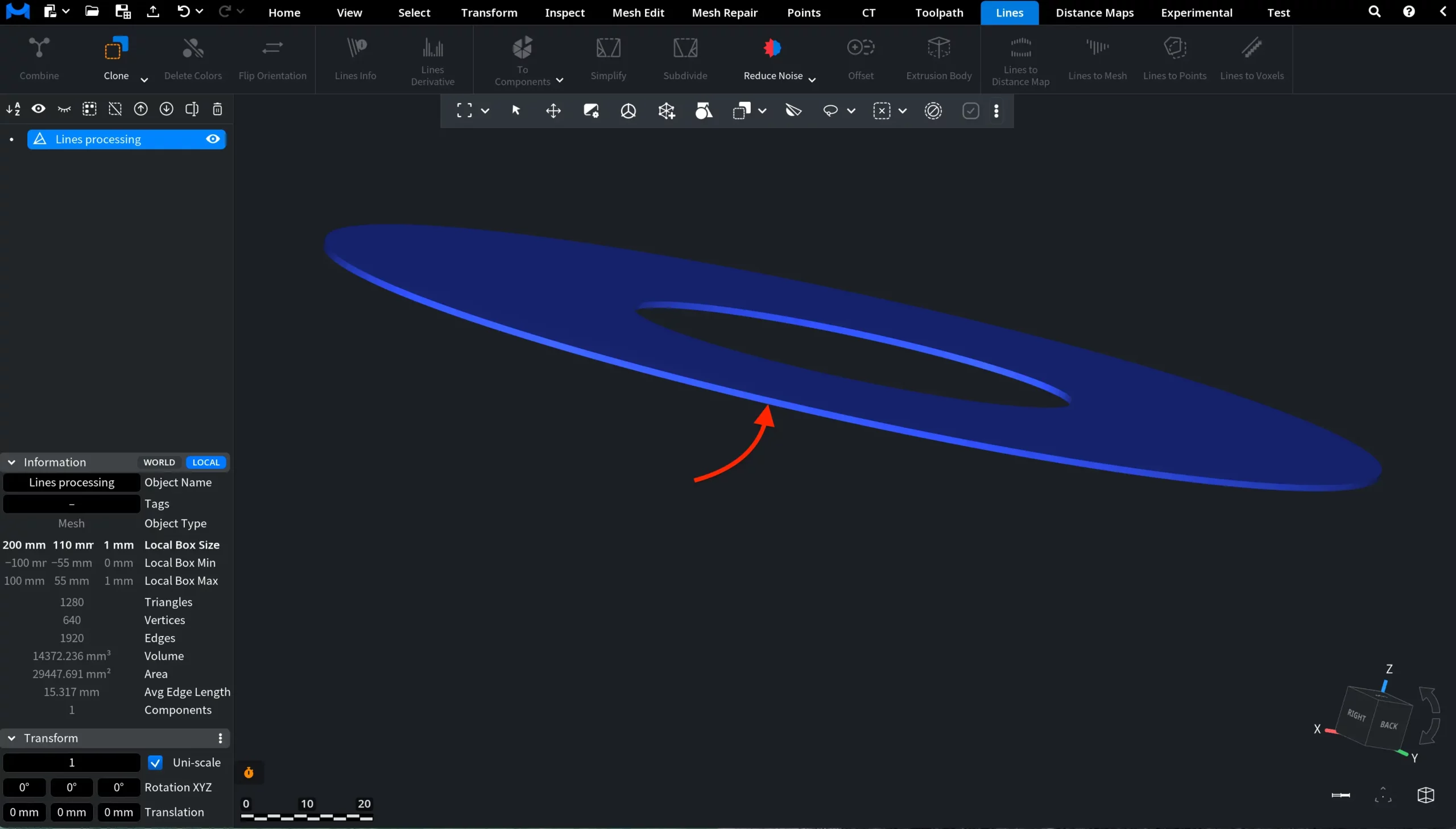
You can see the result with Thick Mesh enabled and the Offset value set to 1 mm in the screenshot below. The previously planar donut-shaped region is converted into a closed mesh body with visible side walls, giving the contour a measurable thickness in 3D space.
Guide to the Lines to Mesh Tool