Meshes often contain large triangles next to very small ones. Such uneven topology can reduce the accuracy of further operations, especially when tools rely on consistent triangle density across the surface. In addition, large triangles may distort surface details or limit the precision of mesh editing.
MeshInspector's Subdivide tool helps address this issue by splitting large triangles into smaller ones, increasing the overall resolution of the mesh while preserving its shape. This operation refines the geometry and creates a more detailed and uniform surface representation.
To initiate the Subdivide operation, click Mesh Repair, then select the tool, as highlighted below.

Clicking the tool opens the Subdivide settings panel. Before reviewing the settings, take a look at the mesh in this example. We visualized the triangles by pressing L, which displays the mesh topology. As you can see, triangle sizes vary across the surface.
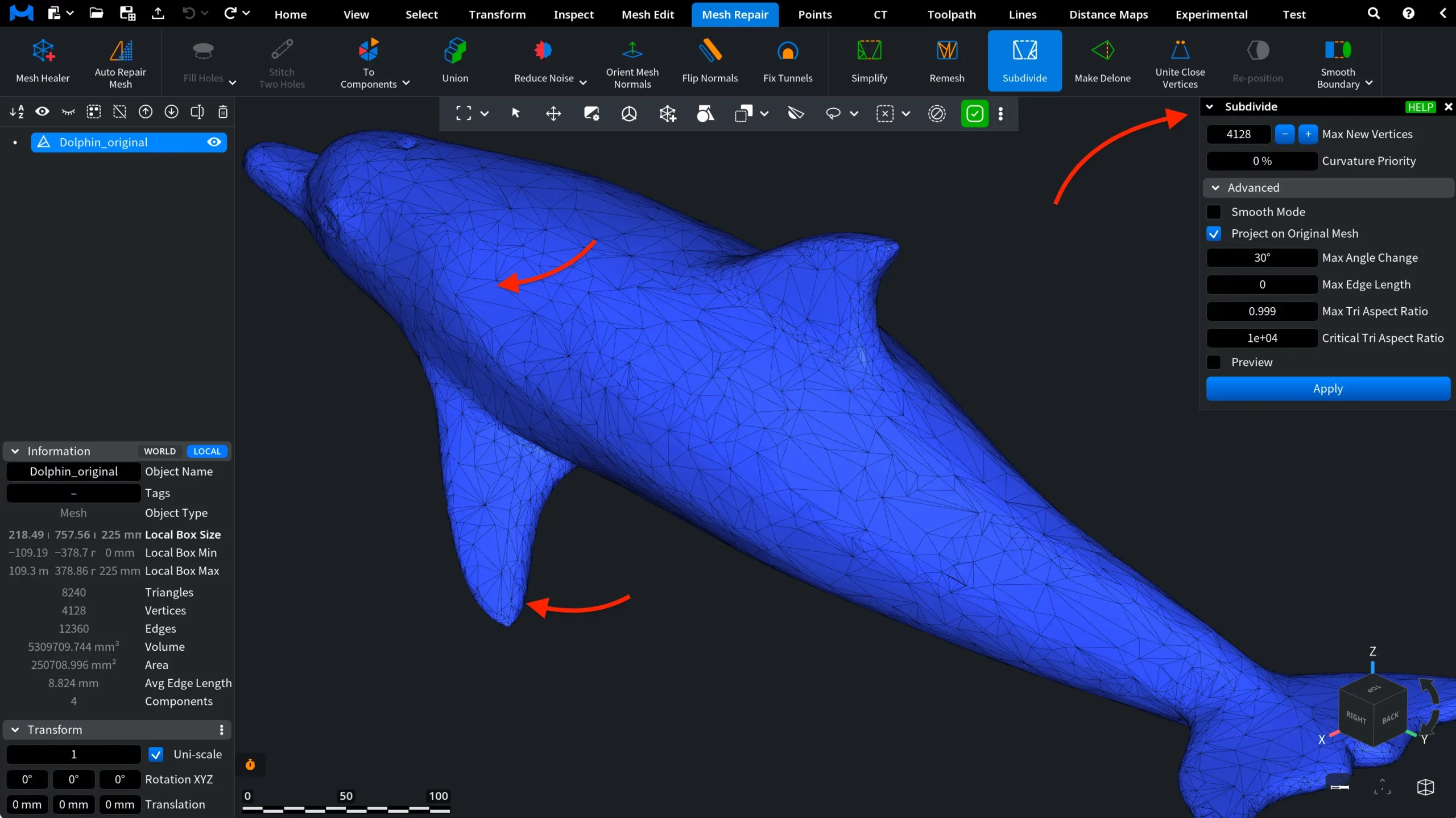
Subdivide: Settings
In this tab, you can find the following two key settings.
Max New Vertices defines the maximum number of edge splits and newly created vertices during the subdivision process. This value acts as an upper limit, preventing the algorithm from generating too many additional vertices while refining the mesh.
Curvature Priority controls how subdivision is distributed across the mesh surface:
- With 0%, subdivision is applied uniformly across the mesh.
- With 100%, subdivision becomes much finer in regions of high curvature, compared to flatter areas.
Higher values concentrate additional triangles in areas where the surface bends more, helping preserve geometric details.
Subdivide: Advanced Settings
Smooth Mode places new vertices so that they form a smooth surface together with the existing vertices. This option works best for natural or organic surfaces where triangles should transition smoothly without sharp edges between them.
Project on Original Mesh. If it is enabled, every new vertex is projected onto the original mesh before smoothing is applied. This helps preserve the original surface shape while refining the topology.
Max Angle Change limits the maximum allowed change of triangle orientation during subdivision. This parameter helps prevent excessive deformation of the mesh surface while new triangles are created.
Min Sharp Dihedral Angle (available only when Smooth Mode is enabled) disables smoothing locally at edges whose dihedral angle is at least this value (in degrees), preserving sharp features.
Max Edge Length. Subdivision stops once all edges inside or on the boundary of the processed region are no longer than this value.
Max Tri Aspect Ratio. Subdivision stops when all triangles in the processed region have an aspect ratio less than or equal to this value.
Critical Tri Aspect Ratio defines a critical threshold for triangle aspect ratio that forces subdivision when triangles become excessively stretched.
Committing Subdivide
Preview. If Preview is enabled, the mesh updates in real time while parameters are changed. For complex meshes or heavy operations, the preview may temporarily slow down or freeze the application.
Apply. Click Apply to run the subdivision with the selected parameters and refine the mesh by splitting triangles according to the defined limits and conditions.
In this example, we applied the default Subdivide settings. As a result, the mesh topology becomes more uniform: large triangles are split into smaller ones, improving the overall distribution of triangle sizes across the surface.
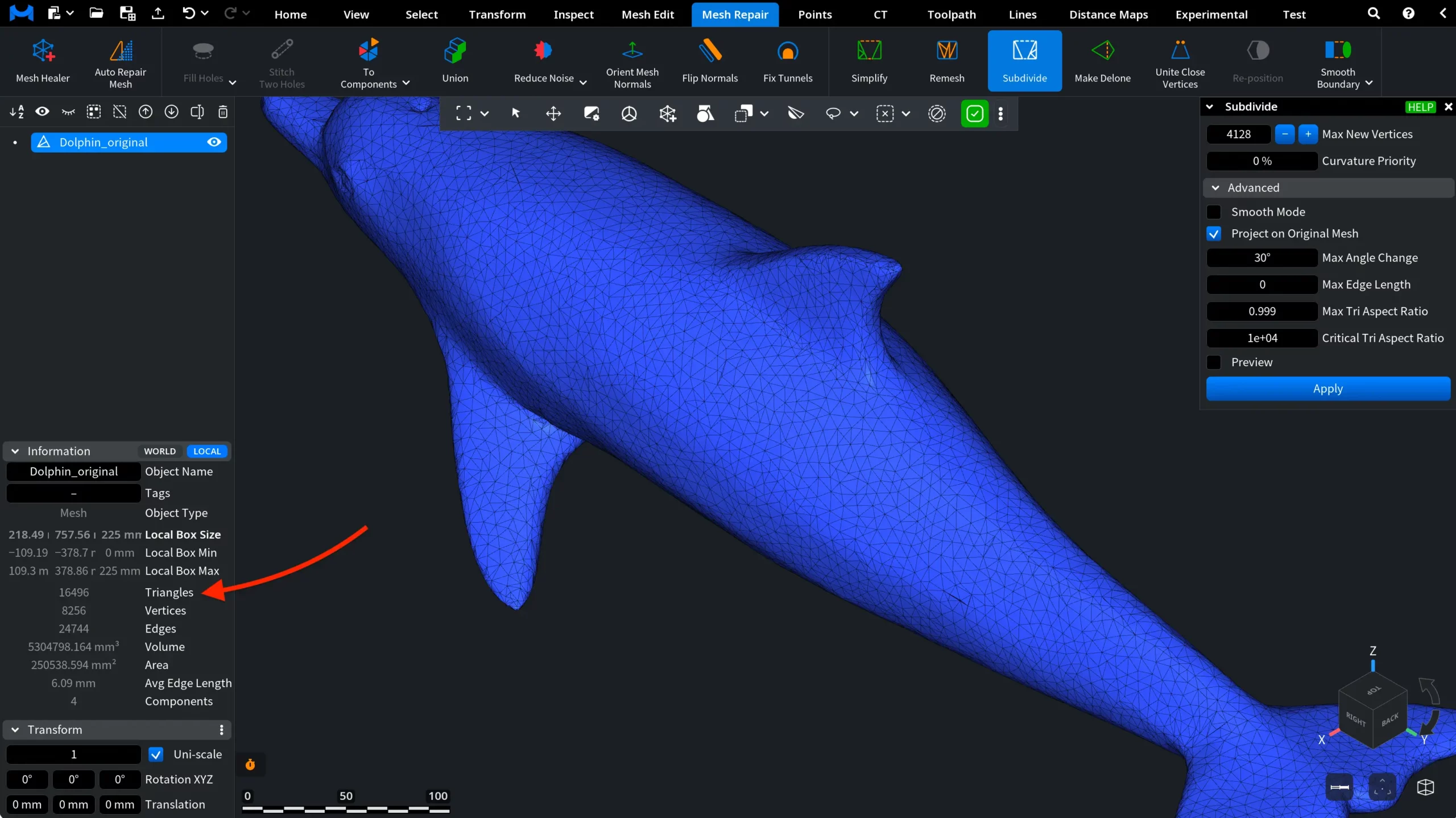
Although triangles may still vary in size depending on the local geometry, the mesh now contains more evenly distributed triangles. As expected, the total triangle count has increased, reflecting the higher mesh resolution produced by the subdivision process.
How the Subdivide Tool Works in MeshInspector