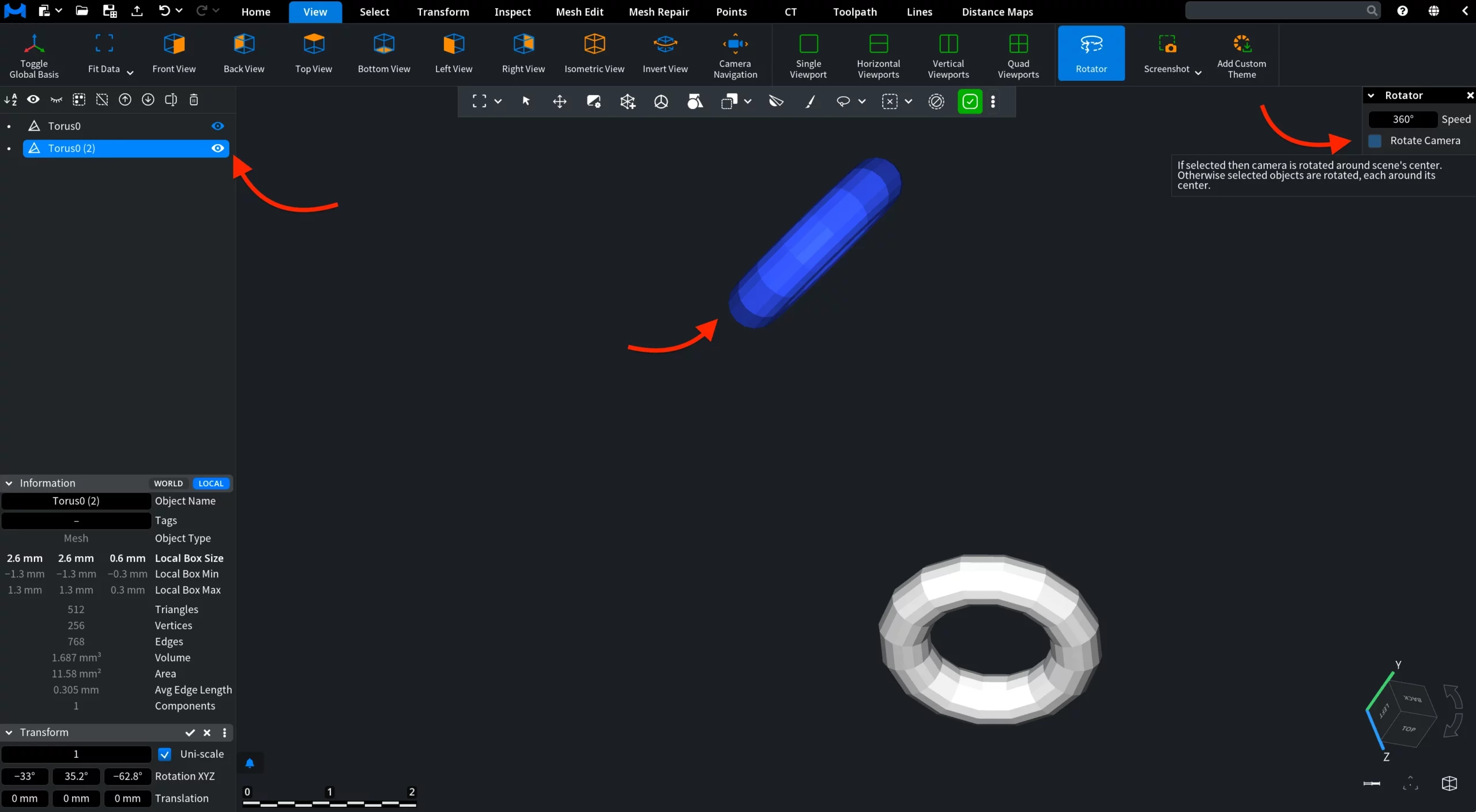
Clicking Rotator, located under the View tab, enables continuous rotation in the scene. Once you click the tool, rotation starts immediately. The tool remains active, and the rotation continues until you click Rotator again to disable it.

In the Rotator panel, use the Speed parameter to define the rotation speed in degrees per second:
- Positive values rotate in one direction.
- Negative values rotate in the opposite direction.
When Rotate Camera is enabled, the camera rotates around the scene’s center. When it is disabled, the selected objects are rotated, each around its own center.