The Force Components tool, available under the Mesh Repair tab, divides a mesh into a specified number of components. To access Force Components for a mesh:
1. Select the mesh you want to divide.
2. Open the Mesh Repair tab.
3. Click the drop-down arrow next to To Components.
4. Select Force Components from the menu.

Opening Force Components displays a dedicated panel with the following controls:
- Components specifies the number of components into which the mesh will be divided. Enter the required value directly or use the – and + buttons to decrease or increase it.
- Apply performs the operation using the specified number of components.
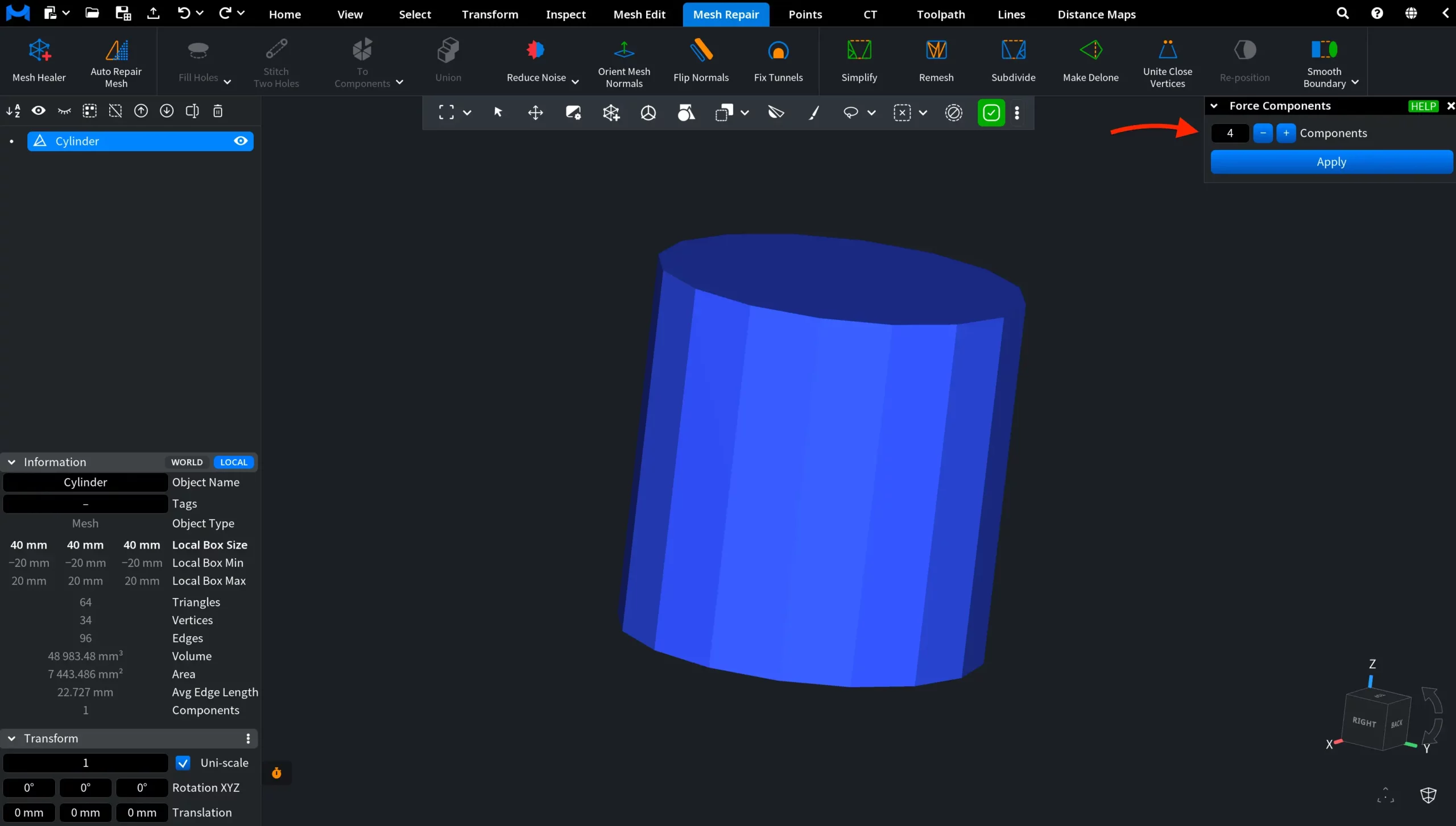
By default, Components is set to 2. In this example, we changed the value to 4 and clicked Apply.
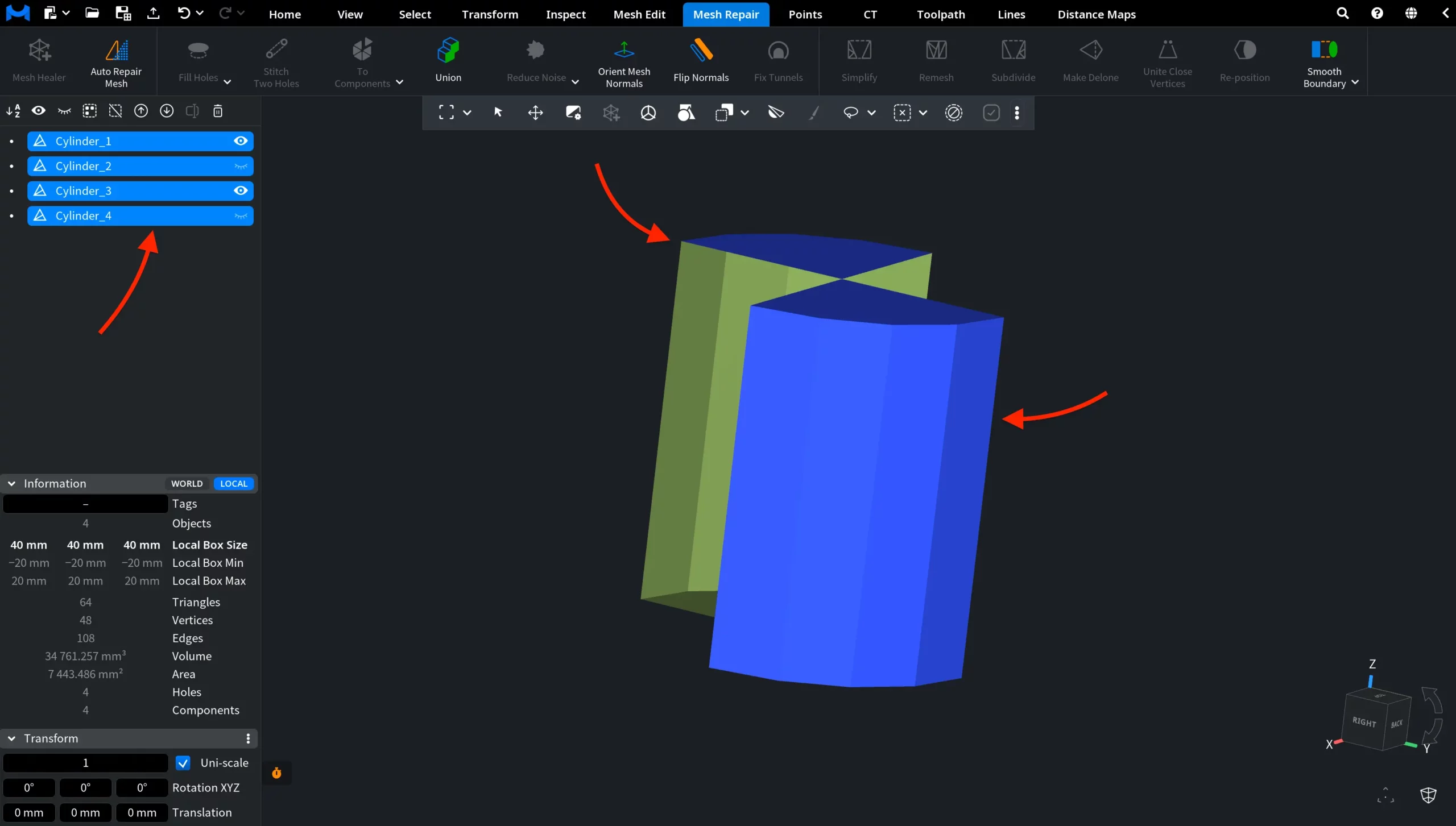
The original mesh was divided into four separate objects, which replaced the original mesh in the scene tree. To make the result easier to see in the viewport, we hid two of the resulting objects.
How the Force Components Tool Works for Meshes in MeshInspector