Convert GLTF 3D scenes to standard OBJ files for 3D modeling and rendering.


Watch our quick tutorial or read:
Compare GLTF to OBJ converters and find the best fit for your workflow.
|
MeshInspector
|
MeshInspector
|
Other Converters
|
|
|---|---|---|---|
| Speed |
Ultra-fast Local processing
|
Fast
|
Slow
|
| File Size Limits |
Unlimited
|
Unlimited
|
File size limit (50 MB)
|
| File Number Limits |
Unlimited
|
Unlimited
|
Usually single file only
|
| Folder Support |
Full folder import
|
Full folder import
|
Not supported
|
| Assembly Conversion |
Partial or full assembly
|
Partial or full assembly
|
Not supported
|
| Mesh Validation |
Integrated
|
Integrated
|
Not supported
|
| Auto Mesh Repair |
Advanced
|
Advanced
|
Not supported
|
| Mesh Repair Options |
Advanced
|
Advanced
|
Not supported
|
| Accuracy Control |
Full
|
Full
|
Not supported
|
| 3D Viewer |
Advanced
|
Advanced
|
Basic or no preview
|
| 3D Editor |
Advanced
|
Advanced
|
Not supported
|
| Security & Privacy |
100% Local
|
SSL + Auto-delete
|
Files often stored on servers
|
| Cross-Platform |
Windows, macOS, Linux
|
All devices
|
Web only, limited mobile UX
|
| Suitable for |
Professionals and engineers
|
Quick online conversions
|
Not recommended
|
Join thousands of engineers who trust MeshInspector for their 3D file conversion needs. Start converting today with no limits and professional results.
Powered by MeshInspector technology for reliable file conversion.
The MeshInspector program serves 3D data professionals as a versatile tool for converting GLTF files into OBJ format. This guide walks you through the flow of turning your GLTF model into a single, clean, and ready-to-use OBJ file. You can do this thanks to MeshInspector’s intuitive and streamlined interface with optimized UX.
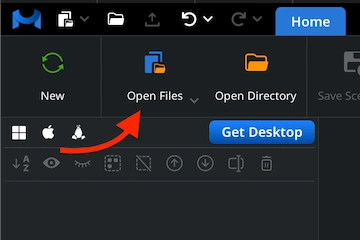
Start your GLTF-to-OBJ conversion by launching the MeshInspector program. Once the program greets you with its workspace, head to the ’Home’ tab and press ‘Open Files’. After that, select your GLTF model and let MeshInspector load it for further transformation.
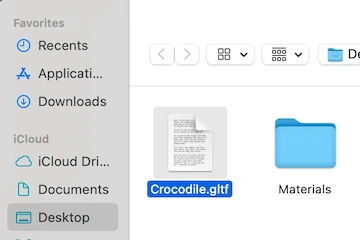
MeshInspector will open a file dialog where you can choose your GLTF model. You might notice that GLTF files look unusual. That is because they are built in JSON format, describing geometry, materials, and scene structures. Click ‘Browse’, locate your file, and confirm the selection.
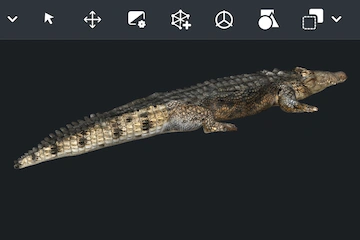
Once your GLTF model is uploaded, the MeshInspector program displays it in the main viewport. You will see the object fully textured and illuminated, just like the crocodile model shown here. On the left, the Scene Tree lists every previously imported component.
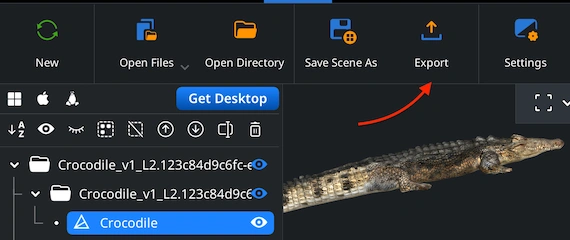
Now comes the moment of transformation to turn your GLTF model into a new format. In the Scene Tree, find the object you want to export. Right-click on it to make it ready for change. Then press ‘Export.’
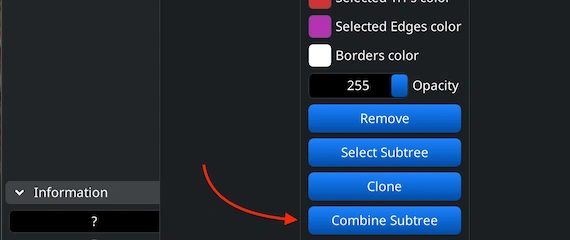
Exporting multiple parts? Select them in the Scene Tree, right-click, and hit ‘Group’. Then right-click the new group and choose ‘Combine Subtree’. We will merge everything into a single model for export.
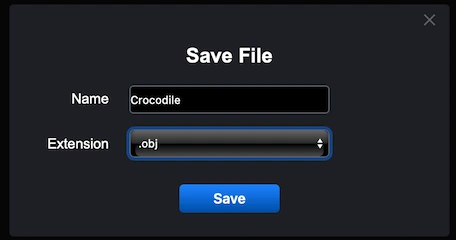
After clicking ‘Export’, the ‘Save File’ dialog will appear. Give your file a clear name, if you need to change it, and open the ‘Extension’ dropdown menu. From the list of supported formats, choose .obj as your output type. Finally, hit ‘Save’ to start converting your GLTF model into an OBJ file.
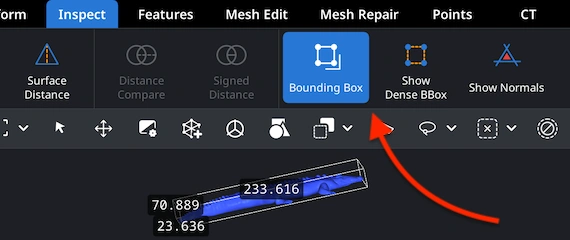
Once the export is complete, it is a good idea to double-check that your model keeps its intended proportions. Re-open the newly created .obj file, then switch to the ‘Inspect’ tab. From there, select ‘Bounding Box’ to isplay the object’s current dimensions and spatial limits.
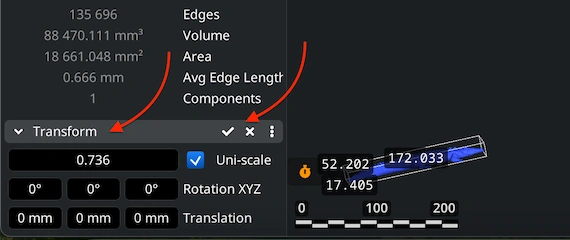
If the object appears too large or too small after inspection, go to the ‘Transform’ panel. Adjust the Scale value to resize it. Once satisfied, confirm the modification by checking the box to apply the changes. This step guarantees that your OBJ file will integrate smoothly.

100% Secure
No data leaves your device
got my assets back properly. thank you!!
i'm not a tech wizard so i love that this is just drag and drop. saved me from learning complex stuff lol. thank you so much.
Textures look great on the model. Thanks for the easy workflow.
lovely tool